Key Takeaways:
- Moving columns in Excel is surprisingly complex for business users, with manual methods being time-consuming and error-prone
- Excelmatic eliminates the technical complexity by letting you rearrange columns using simple language commands instead of memorizing steps
- Compared to traditional methods, Excelmatic handles complex requirements like moving multiple non-adjacent columns instantly without risk of data loss
- For business professionals, adopting Excelmatic means faster data organization and more time for analysis rather than technical implementation
Moving columns in Excel isn’t as simple as it seems. While it may sound easy, Excel doesn’t offer a one-click "move column" button, which can make the process trickier than expected. Manually rearranging data can be slow and risks overwriting important information.
In this guide, I’ll walk you through various methods for rearranging columns, from classic drag-and-drop and keyboard shortcuts to more advanced workarounds. We'll also explore how modern AI tools provide a faster, more intuitive way to handle this task, helping you reorganize your data quickly and avoid common pitfalls.
Method 1: Moving Columns with Drag and Drop
Drag and drop is the simplest manual way to move columns in Excel, whether you're working with a single column or multiple adjacent ones.
Moving a single column
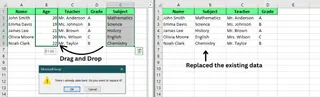
To move a single column, start by clicking the column header (the letter at the top) to select it. Next, hover near the edge of the header until a four-sided arrow appears. Click and hold the mouse button, drag the column to your desired location, and release the mouse button to drop it in place.
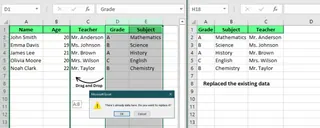
If there’s already data in the new location, a pop-up will ask if you want to replace it. Click OK to replace the data, or click Cancel if you don’t want to overwrite anything.
Moving multiple adjacent columns
To move multiple columns that are next to each other, click the header of one column, then hold down the Shift key and click the last column in the group. This will select all the columns in between.
From here, you can move them just like a single column. Hover near the edge until you see the four-sided arrow, click and drag to the new location, and release.
Note: This method only works for adjacent columns. If the columns are not next to each other, you won’t be able to move them together using this technique.
Method 2: Moving Columns with Keyboard Shortcuts
In addition to drag-and-drop, you can also use keyboard shortcuts and commands to move columns efficiently.
Insert Cut Cells method
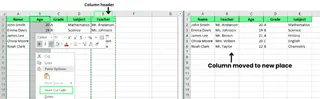
To move a column without overwriting any data, click the column header to select the column you want to move. Press Ctrl + X to cut the column. Next, click on the column's header where you’d like to place it. Instead of pasting, right-click and select Insert Cut Cells from the context menu.
This method inserts your cut column into the new location and shifts the existing columns to the right, avoiding any data overwrite. This is the safest manual cut-and-paste method.
Cut and paste (with overwrite)
For a simpler approach, you can use Ctrl + X to cut the column and Ctrl + V to paste it into a new location. Remember that this method will replace any data already in the destination column. Use this with caution.

Copy and paste
If you want to duplicate a column instead of moving it, use Ctrl + C to copy the column. After selecting the destination column, right-click and choose Insert Copied Cells to insert the copied column into the new location without affecting the original.
Method 3: Advanced Manual Techniques
Let's look at a few more advanced techniques. These methods can help you organize your data more efficiently, especially if you’re dealing with bigger changes.
Shift key drag to insert
To move a column without replacing any existing data, hold down the Shift key while dragging it. Here’s how:
- Select the column you want to move.
- Hold the Shift key and drag the column to the new spot.
- As you drag, a green line will show where the column will go. When you release it, the column will drop into place, and the others will shift over to make room, so no data will be lost.
This is a simple but effective way to keep everything organized while rearranging your columns.

Magic move with Sort by row
If you have a lot of columns to move and want them in a specific order, use a helper row to sort them. This is a powerful workaround for rearranging many columns at once, including non-adjacent ones.
- Insert a new row at the top of your data.
- In the new row, number the columns to show the order you want (e.g., 1 for the first column, 2 for the second, etc.).

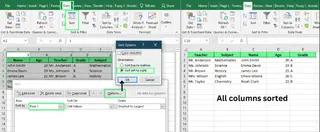
- Select all your data (including the helper row) and go to the Data tab. Click Sort.
- In the dialog box, click the Options button. Choose Sort left to right, then press OK.
- In the Sort by field, select Row 1 (your helper row) from the drop-down list and hit OK again.
- Delete the helper row when you're done.
Method 4: The AI-Powered Way with Excelmatic

While the manual methods work, they can be clunky, especially for complex rearrangements. This is where AI tools like Excelmatic offer a revolutionary approach. Excelmatic is an AI Excel Agent that understands plain language commands to perform tasks instantly.
Instead of dragging, cutting, pasting, or creating helper rows, you just tell Excelmatic what you want.
How to move columns with Excelmatic:
- Upload your Excel file to Excelmatic.
- In the chat prompt, type your request in plain language.
- Excelmatic handles the rest.
For example, you could type:
Rearrange the columns in this order: Teacher, Subject, Name, Age, Grade.
Or to move a single column:
Move the 'Age' column to be after the 'Name' column.

Excelmatic vs. Manual Methods
| Feature | Manual Methods (Drag/Drop, Cut/Paste) | Sort by Row Method | Excelmatic (AI) |
|---|---|---|---|
| Speed | Slow for multiple columns | Moderate, requires setup | Instant |
| Ease of Use | Moderate, prone to errors | Complex, multi-step process | Extremely Easy |
| Non-Adjacent Columns | Not possible directly | Possible, but cumbersome | Effortless |
| Risk of Error | High (overwriting data) | Low, if done correctly | Minimal |
| Learning Curve | Low to Moderate | Moderate | None (just type) |
Using an AI agent like Excelmatic eliminates the tedious steps and potential for human error, making data organization faster and more reliable.
Method 5: Using an Excel Add-in (Column Manager)
If you frequently rearrange columns and prefer a non-AI tool, a dedicated add-in like the Column Manager from Ablebits Ultimate Suite can help.
- Install the Ultimate Suite.
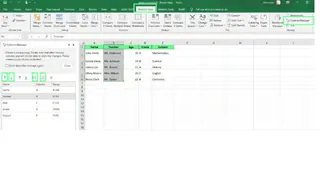
- Go to the Ablebits Data tab and click Column Manager.
- In the panel, select columns and use the Up/Down arrows or drag and drop to reorder them, even if they are non-adjacent.
This is more powerful than Excel's built-in features but less intuitive than an AI command. It's a good middle ground for users who want more control without writing formulas or using workarounds.
Limitations and Workarounds
While Excel is powerful, it has limitations that can make column management tricky.
Non-adjacent Column Moves
By default, Excel doesn’t allow you to move non-adjacent columns all at once with drag-and-drop.
- Workaround: The "Sort by row" method is the classic solution.
- Better Solution: Tools like the Column Manager add-in or Excelmatic are designed specifically to overcome this, allowing you to reorder any columns you want in a single step.
Dealing with Formula Errors
When you cut a column used in a formula, you may run into a #REF! error because the formula loses its reference.
- Workaround: Double-check your formulas before moving columns or use absolute references (like
$A$1) to lock cell references in place. - Better Solution: Smart AI tools like Excelmatic are designed to better handle formula adjustments during data restructuring, reducing the risk of breaking your calculations.
Final Thoughts
Excel may seem limited when it comes to moving columns, but once you know the right techniques, it’s more flexible than it first appears. Simple methods like drag-and-drop are great for quick fixes, while the "Sort by row" hack is a clever trick for larger jobs.
However, for true efficiency and ease, modern solutions shine. Add-ins like Column Manager provide a dedicated interface, but the future of spreadsheet management lies with AI agents like Excelmatic. Being able to simply state your goal in plain language and have it executed instantly is a game-changer.
Ready to revolutionize how you organize Excel data? Try Excelmatic today and discover how AI-powered column management can save you hours of manual work.
FAQ
Is it possible to lock columns so they can't be moved accidentally?
Yes. To do this, you first need to unlock all cells, then lock only the ones you want to protect. Finally, go to Review > Protect Sheet and ensure the "Format Columns" option is unchecked.
Is there a way to swap two columns directly?
Manually, no. Excel doesn’t offer a "swap" command. You need to use a temporary column to hold one column’s data while you switch. With an AI tool like Excelmatic, yes. You can simply ask it to "swap column A and column B."
Will moving columns affect pivot tables?
Yes. If a pivot table's source data is moved, it can throw reference errors or fail to update correctly. Always refresh your pivot table and check for errors after rearranging source columns.
Can I move columns in an Excel Table without breaking anything?
Yes, but be cautious. You can move columns in a structured Excel Table using drag-and-drop or cut and paste. However, this can disrupt structured references in formulas. Always double-check that your formulas still reference the correct columns after you've moved them.