Key takeaways:
- Manually merging or splitting cell data in Excel requires learning multiple functions like
CONCAT,TEXTJOIN,LEFT,FIND, or navigating the multi-step Text to Columns wizard, which is time-consuming and error-prone. - Excel AI tools like Excelmatic replace these complex manual steps. You can simply describe your goal in plain language, such as "Combine the First Name and Last Name columns" or "Split the address column by the comma."
- Using Excelmatic drastically cuts down data preparation time, eliminates formula errors, and provides the flexibility to handle inconsistent data patterns without needing to write and debug complex formulas.
Problem Background & Pain Points
You've just been handed a spreadsheet. It could be a customer contact list from marketing, a raw data export from a CRM, or a product inventory sheet. The data is all there, but it's not in the right format. First names are in column A, last names in column B. You need a single "Full Name" column for a mail merge campaign.
Or perhaps it's the opposite problem. A full address—"123 Main St, Anytown, CA 90210"—is crammed into a single cell. To upload it to your shipping software or perform a geographical analysis, you need to break it apart into separate "Street," "City," "State," and "Zip Code" columns.
These are classic "data janitor" tasks. They seem simple, but they are notorious time sinks. You find yourself digging through old tutorials, trying to remember the exact syntax for the TEXTJOIN function, or carefully clicking through the Text to Columns wizard, praying you don't accidentally overwrite your original data. One small inconsistency in the source data, like an extra space or a missing comma, can break your entire setup, forcing you to start over. This isn't high-value work; it's a tedious barrier to the actual analysis you need to do.
Traditional Excel Solutions: Steps and Limitations
For decades, Excel users have relied on a handful of tools and functions to tackle these text manipulation challenges. While powerful, they each come with their own learning curve and set of frustrations.
The Old Way: Merging Cell Content
When we say "merge," we're not talking about the dreaded "Merge & Center" button on the Home tab. That's a formatting tool that visually combines cells but destroys data integrity, breaks sorting, and is generally considered bad practice for structured data.
Instead, we mean combining the actual text from multiple cells into one.
Method 1: The Ampersand (&) Operator
The most basic method is to use the & symbol to concatenate strings. To combine a first name in A2 and a last name in B2, you'd write:
=A2&" "&B2
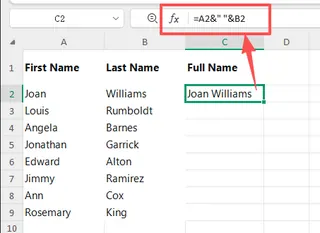
This works, but it gets clunky fast. Imagine combining five or six columns; the formula becomes a long chain of cell references and manually inserted delimiters.
Method 2: The CONCAT and TEXTJOIN Functions
Modern Excel introduced the TEXTJOIN function to address the limitations of older concatenation methods. While CONCAT can join a range of cells, it doesn't allow for custom delimiters between values.
TEXTJOIN provides a superior solution with two key parameters: a delimiter to separate the joined text, and an option to ignore empty cells.
The formula shown in the table:
=TEXTJOIN(" ",TRUE,A2:C2,CHAR(10),D2:H2)
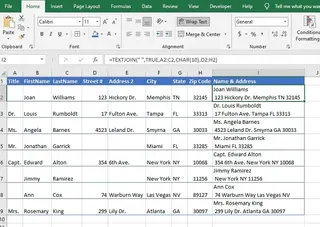
This combines the name components (Title, FirstName, LastName) with spaces, adds a line break using CHAR(10), then continues with the address components (Street #, Address 2, City, State, Zip Code) - all while ignoring any empty cells in the range.
This single formula elegantly transforms fragmented data into properly formatted "Name & Address" strings, as demonstrated in column I of the table.
The Old Way: Splitting Cell Content
Breaking a single cell's text into multiple columns is an even more common headache.
Method 1: The Text to Columns Wizard
This is the go-to non-formula method. You select your column, go to the Data tab, and click Text to Columns. A wizard walks you through the process:
- Choose Delimited or Fixed Width: You tell Excel whether your data is separated by a character (like a comma or space) or aligned in columns.
- Specify Delimiters: You check boxes for "Comma," "Space," etc.
- Set Destination and Format: You tell Excel where to put the new columns.
Limitations:
- It's a one-time, manual action. If new data is added to your source column, you have to run the entire wizard again.
- It can be destructive. If you don't change the destination, it will overwrite your original data.
- It's inflexible. It struggles with inconsistent delimiters (e.g., some addresses use a comma, others a semicolon).
Method 2: Formulas (LEFT, RIGHT, MID, FIND)
For a dynamic solution, you can use a combination of text functions. To get the first name from "John Doe" in cell A2:
=LEFT(A2, FIND(" ", A2) - 1)
To get the last name:
=RIGHT(A2, LEN(A2) - FIND(" ", A2))

This is powerful but also brittle and complex. What if a name has a middle initial? Or two spaces? The formulas become monstrously nested and nearly impossible for a colleague (or your future self) to decipher.
The Core Problem with Traditional Methods
- High Cognitive Load: You have to be a walking encyclopedia of text functions and their quirks.
- Time Consuming: Writing, testing, and debugging these formulas for thousands of rows is tedious.
- Rigid: Your solution is custom-built for one specific data pattern. A slight variation requires a complete rewrite.
- Error-Prone: A single misplaced parenthesis or an off-by-one error in a
FINDfunction can lead to incorrect data that's hard to spot.
The New Approach: Using Excel AI (with Excelmatic)
What if you could skip the formulas and wizards entirely? What if you could just tell Excel what you want, in plain language? That's the promise of an Excel AI Agent like Excelmatic.

Excelmatic acts as your personal data analyst. You upload your file and start a conversation. Instead of providing step-by-step instructions via formulas, you simply state your end goal.
Step-by-Step: Merging and Splitting with AI
The process is refreshingly simple and consistent for any data transformation task.
1. Upload Your Data File
First, navigate to Excelmatic and upload your Excel or CSV file. Your data is displayed in a familiar spreadsheet interface, ready for analysis.

2. Describe Your Goal in Plain Language
This is where the magic happens. You use the chat interface to type your request.
Examples for Merging Cells:
- "Combine the 'First Name' and 'Last Name' columns into a new column called 'Full Name'. Make sure there's a space between them."
- "Create a new column named 'Full Address' by joining Street, City, and State, separated by commas."
- "Generate an email address in a new column using the format: first initial, last name, followed by @example.com."
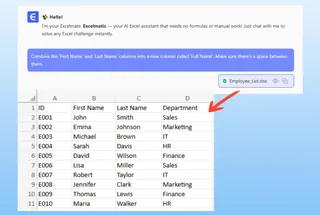
Examples for Splitting Cells:
- "Split the 'Full Name' column, which contains first and last names, into two separate columns."
- "I have a 'Product SKU' column with the format 'ABC-12345-US'. Split it by the hyphen into three new columns: 'Category', 'ID', and 'Region'."
- "Take the 'Location' column (e.g., 'Paris, France') and split it into 'City' and 'Country' columns."
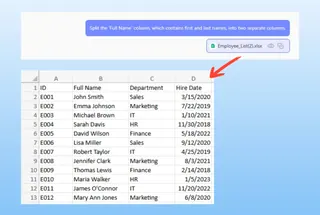
3. Review and Refine the Result
Excelmatic doesn't just execute the command; it shows you the result and often asks clarifying questions. It will add the new columns directly to your table preview.
This is where the conversational power shines. You can easily iterate:
- "Actually, can you make the full names all uppercase?"
- "For the split columns, rename them to 'Part A' and 'Part B'."
- "Looks good. Now remove the original columns we split."
This back-and-forth is infinitely faster and more intuitive than rewriting a formula.
4. Export Your Cleaned Data
Once you're satisfied, you have two options:
- Download the entire workbook as a new Excel file with the changes applied.
- Copy the Formula: For many tasks, Excelmatic can provide the exact Excel formula it used. This is a fantastic way to learn or to apply the logic back in your original spreadsheet environment.
A Sample Conversation
Here’s how a typical data cleaning session might look in Excelmatic:
User: I've uploaded a contact list. The first name is in column 'fname' and the last name is in 'lname'. Can you create a 'Full Name' column for me?
Excelmatic: Of course. I have created a 'Full Name' column by combining 'fname' and 'lname' with a space in between. The new column has been added to your sheet.
User: Perfect. Now, I have another column called 'location_string' with data like 'Los Angeles; CA; 90001'. Please split this into 'City', 'State', and 'Zip' columns. The separator is a semicolon.
Excelmatic: Done. I have split 'location_string' using the semicolon delimiter and created three new columns: 'City', 'State', and 'Zip'. Would you like me to remove the original 'location_string' column?
User: Yes, please remove it.
Excelmatic: The 'location_string' column has been removed. Your data is ready. You can now download the updated Excel file.
Traditional Methods vs. Excelmatic: A Quick Comparison
| Aspect | Traditional Excel | Excelmatic (Excel AI) |
|---|---|---|
| Effort | Write/debug formulas (TEXTJOIN, LEFT, FIND) or use multi-step wizards. |
Type one sentence in plain language. |
| Speed | Minutes to hours, depending on complexity. | Seconds. |
| Flexibility | Rigid. Formulas break with data inconsistencies. | Highly adaptable. AI understands context and handles variations. |
| Learning Curve | Steep. Requires memorizing syntax and functions. | Virtually none. If you can describe it, you can do it. |
| Error Rate | High risk of syntax or logic errors. | Low. The AI handles the complex logic, minimizing human error. |
FAQ
Q: Do I need to know any Excel formulas to use Excelmatic?
A: Absolutely not. The entire purpose of Excelmatic is to free you from writing formulas. You only need to be able to describe the outcome you want in plain language.
Q: Will Excelmatic modify my original Excel file?
A: No. Your original file remains untouched. Excelmatic works on a secure copy of your data in its environment. You can then download the transformed data as a new file.
Q: What if my data is messy, with extra spaces or inconsistent capitalization?
A: Excelmatic's AI is designed to handle common data cleaning issues. It will often automatically trim leading/trailing spaces and can easily handle requests like "make the City column proper case."
Q: Can I get the formula that Excelmatic used to perform the task?
A: Yes, for many standard transformations, you can ask Excelmatic to provide the underlying Excel formula. This is a great way to learn best practices or apply the logic elsewhere.
Q: Is it safe to upload my company's sensitive data to Excelmatic?
A: Excelmatic is built with data security as a top priority. All data is encrypted in transit and at rest. For detailed information, you should always refer to the official privacy policy and security documentation on the website.
Q: How is this different from Excel's built-in Flash Fill feature?
A: Flash Fill is a pattern-recognition tool that can be fast but is often unreliable and "black box"—you don't know why it fails when it does. Excelmatic uses a more advanced AI model that is conversational, more reliable with complex patterns, and allows you to iterate and refine the results with follow-up commands.
Get Started: Revolutionize Your Excel Data Prep with Excelmatic
Stop letting tedious data prep steal your time and energy. The hours spent wrestling with text functions are hours you could be spending on strategic analysis and generating actual insights.
By shifting from manual formula-writing to conversational AI, you can transform your workflow. Clean a contact list in 30 seconds, not 30 minutes. Prepare your sales data for analysis with a few simple sentences. Empower your entire team, regardless of their Excel skill level, to work with data effectively.
Ready to stop fighting with text functions? Try Excelmatic for free and experience the future of spreadsheet productivity. Upload a file you're working on right now and see how quickly AI can solve your merging and splitting headaches.