Key takeaways:
- Manually locking cells in Excel is a multi-step, counter-intuitive process that creates collaboration friction and is difficult to maintain, especially in complex spreadsheets.
- The traditional method protects the file but fails to solve the root problem of inefficient and error-prone collaborative workflows, often leading to version control chaos.
- An Excel AI agent like Excelmatic offers a new paradigm by centralizing the master data, allowing team members to perform self-service analysis via natural language, and generating clean reports without ever exposing the original fragile formulas.
- Using Excelmatic enhances data integrity, eliminates the need for cumbersome passwords, and transforms a static protection model into a dynamic, secure, and collaborative analytics workflow.
Problem Background & Pain Points
You've spent hours, maybe even days, crafting the perfect Excel workbook. It could be a sophisticated financial model, a comprehensive sales dashboard with dynamic charts, or a critical project budget tracker. The file is a masterpiece of VLOOKUPs, SUMIFS, and pivot tables, all interconnected to provide instant insights.
Now comes the moment of truth: you need to share it. You need your sales team to input their quarterly numbers, your department heads to fill in their budget requests, or your project managers to update task statuses.
And that's where the anxiety kicks in.
What if someone accidentally types a number over a complex formula? What if they delete a crucial row, sort a single column and scramble the data, or unintentionally break a macro? Suddenly, your pristine model is a wreck, and you're facing a frustrating afternoon of troubleshooting to find the single corrupted cell.
This common scenario turns the Excel expert into a bottleneck and a reluctant "spreadsheet guardian." You're stuck in a cycle of:
- Sending out templates and praying they come back intact.
- Manually consolidating data from multiple "v2_final_JANE's_copy.xlsx" files.
- Wasting valuable time fixing errors instead of performing high-value analysis.
The core problem isn't just about preventing edits; it's about the friction and risk inherent in a collaborative Excel workflow.
The Traditional Excel Solution: Steps & Limitations
To combat this, Excel provides a built-in feature to lock cells. On the surface, it seems like the perfect solution. However, the manual process is notoriously unintuitive and fraught with its own set of challenges.
The standard approach involves a reverse logic: all cells in Excel are "Locked" by default, but this setting does nothing until you "Protect" the entire sheet. Therefore, to protect only specific cells (like your formulas), you must first unlock everything else.
Here's a summary of the typical manual workflow:
- Unlock All Cells: Select the entire worksheet (Ctrl+A), right-click, go to Format Cells > Protection, and uncheck the "Locked" box.
- Select and Re-lock Specific Cells: Manually find and select all the cells or ranges you want to protect (e.g., cells containing formulas). A shortcut for this is using
Home > Find & Select > Go To Special... > Formulas. - Lock the Selected Cells: With the formula cells selected, go back to Format Cells > Protection and check the "Locked" box. You can also check "Hidden" if you don't want others to see your formulas in the formula bar.
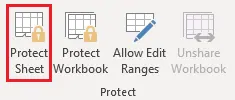
- Protect the Sheet: Navigate to the Review tab and click Protect Sheet. Here, you'll set a password and meticulously check or uncheck a long list of permissions to define what users are allowed to do (like sorting, filtering, or formatting).
While this method provides a basic level of protection, it suffers from significant limitations in a real-world business environment:
- Complexity and Rigidity: The process is multi-stepped and easy to forget. If you need to add a new row with a new formula, you have to unprotect the sheet, repeat the locking process, and re-protect it. It's a rigid system that doesn't scale well with evolving reports.
- Password Hell: For more granular control, you might use the
Allow Edit Rangesfeature, assigning different passwords to different sections of your sheet. This quickly becomes a management nightmare. What happens when a team member leaves or forgets a password? There is no recovery system. - Collaboration Friction: Instead of enabling teamwork, this creates hard barriers. Users who can't perform a simple action because of protection settings often resort to creating their own unprotected copies. This leads to the very version control chaos you were trying to avoid.
- It Protects the File, Not the Workflow: The fundamental flaw is that this method focuses on locking a static file. It doesn't address the underlying inefficient workflow of distributing files, gathering data, and manually consolidating it.
The New Solution: Using an Excel AI Agent (Excelmatic)
What if you could shift your focus from protecting a fragile file to enabling a secure workflow? Instead of building walls around your data, you could provide a controlled gateway for your team to interact with it. This is the new paradigm offered by Excel AI agents like Excelmatic.

Excelmatic fundamentally changes the collaboration model. The master spreadsheet, with all its complex formulas and sensitive data, remains securely in your control. Your team no longer needs to touch it. Instead, they interact with the data through a simple, conversational chat interface.
Step-by-Step: Solving the Same Problem with Excelmatic
Here’s how you can solve the same problem using Excelmatic, moving from a mindset of protection to one of empowerment.
1. Upload Your Data File
Instead of emailing your Excel file, you upload your master workbook (the financial model, the sales tracker, etc.) to your secure Excelmatic workspace. This file becomes the single, uncorrupted source of truth. It is never directly exposed to end-users.

2. Describe Your Goal in Natural Language
Your colleagues can now get the answers and insights they need by simply asking questions in plain language. They don't need to know where the data is, how the formulas work, or which cells are locked.
- A marketing manager can ask:
"What was our total ad spend vs. budget for Q3, broken down by channel?" - A regional sales director can ask:
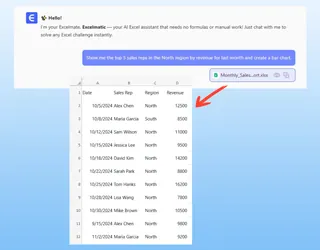
"Show me the top 5 sales reps in the North region by revenue for last month and create a bar chart." - A project lead can ask:
"Which tasks in the 'Phoenix Project' are currently overdue and who are they assigned to?"
3. Review and Iterate on the Results
Excelmatic performs the analysis on the secure master file and provides the user with the answer—a table, a pivot table, a chart, or a summary. The user can then download this result as a new, clean Excel file.
This downloaded file contains only the final data they requested. The original, complex formulas and the rest of the sensitive data remain secure and untouched in your master file. The risk of accidental corruption is completely eliminated.
Dialogue Example: A Smarter Collaboration Workflow
Imagine a finance manager (you) and a department head (Sarah) working on a budget.
You (The Finance Manager): "Sarah, instead of sending you the massive master budget file, I've set it up in Excelmatic. Just ask it any questions you have about your department's spending."
Sarah (Department Head): (In Excelmatic) "Compare my department's actual Q2 spending to the budget. Show me the top 3 categories with the largest variance."
Excelmatic: "I have analyzed the Q2 budget data for the Marketing department. The total variance is +$18,500 over budget. The top 3 categories contributing to this are:
- Digital Advertising: +$12,000
- Events & Sponsorships: +$8,500
- Software Subscriptions: -$2,000 (under budget)
Here is a summary table. Would you like me to create a chart to visualize this?"
Sarah: "Yes, generate a waterfall chart showing the variances and export it to Excel."
Excelmatic: "Done. The Excel file with the waterfall chart is ready for download."
Traditional Locking vs. Excelmatic Workflow: A Comparison
| Feature | Traditional Excel Locking | Excelmatic AI Workflow |
|---|---|---|
| Data Integrity | High risk of human error; broken formulas require manual fixes. | Master file is centralized and protected. AI handles analysis, eliminating corruption risk. |
| Collaboration | Creates friction with passwords and permissions, leading to file duplication. | Enables seamless self-service analysis via chat, empowering users without risk. |
| Flexibility | Rigid. Updating formulas or structure requires a tedious unprotect/re-protect cycle. | Dynamic. Update the master file once, and all subsequent analyses are instantly current. |
| Security | Relies on easily forgotten or shared passwords. No audit trail of who did what. | Based on secure user access control. Provides a clear history of queries and analyses. |
| Efficiency | The expert becomes a bottleneck, fixing errors and consolidating data. | Frees up the expert to focus on high-value work, while the team is empowered with data. |
FAQ
1. Does Excelmatic replace the need for Excel's cell protection entirely? For collaborative analysis, reporting, and dashboarding workflows, Excelmatic provides a far superior and more secure solution. For creating a simple, static data entry form that will be used offline, Excel's built-in protection can still be a quick, simple option. Excelmatic excels at solving the dynamic analysis and reporting problem at scale.
2. Is my data secure when I upload it to Excelmatic? Yes. Excelmatic is built with enterprise-grade security. All data is encrypted both in transit and at rest. We adhere to strict data privacy protocols to ensure your information remains confidential and secure. For detailed information, please refer to our official security policy.
3. Can my team members see my master file in Excelmatic? You have full control over data access. The key benefit of the Excelmatic workflow is that your team members don't need to see or touch the master file. They can get all the answers they need through the conversational AI interface, ensuring the source of truth remains pristine.
4. What if my data isn't perfectly clean? Can Excelmatic still analyze it?
Excelmatic is designed to handle real-world data. You can even ask the AI to help you clean it up. For instance, you can ask: "Find all rows where the 'Region' column is empty and fill it with 'Unassigned'" or "Standardize the date format in the 'Order Date' column to MM/DD/YYYY."
5. Can I use the formulas or pivot tables generated by Excelmatic in my own sheets? Absolutely. When Excelmatic generates a formula or a pivot table configuration for you, you can easily copy and paste it directly into your own Excel workbooks. It's a great way to learn and apply advanced techniques without having to build them from scratch.
Take Action: Move from Protecting Files to Empowering Teams
Stop wasting your valuable time as the spreadsheet police, fixing broken formulas and chasing down different file versions. It's time to evolve your workflow from a defensive, restrictive model to an offensive, empowering one.
By embracing an Excel AI agent, you can finally secure your critical data models while empowering your entire team with the self-service analytics they need to make better, faster decisions. You save time, reduce errors, and elevate your role from a data gatekeeper to a strategic analyst.
Ready to build a more robust and collaborative reporting process? Try Excelmatic for free today. Upload one of the spreadsheets you constantly have to protect and see how a simple conversation can transform your entire workflow.