Key takeaways:
- Manually fixing Excel errors like #N/A or #DIV/0! with nested
IFERRORandVLOOKUPfunctions is time-consuming, complex, and makes formulas difficult to maintain. - An Excel AI agent like Excelmatic allows you to perform calculations and data lookups using natural language, automatically preventing and handling errors without writing a single formula.
- By using Excelmatic, you can create clean, error-free reports in minutes, improve accuracy, and easily adapt to new data requests without wrestling with complicated functions.
Problem Background & Pain Points
Imagine you're finalizing a critical monthly sales report. You have columns for product price, units sold, and employee sales records. Your task is simple: calculate the unit cost for each product and look up the name of the sales representative for each transaction.
You write a simple division formula: =Price/UnitsSold. Suddenly, your clean spreadsheet is littered with ugly #DIV/0! errors because some products had zero units sold. You then use a VLOOKUP to find employee names, but a few incorrect employee IDs result in a sea of confusing #N/A errors.
These errors aren't just cosmetic issues. They break your downstream calculations—your SUM and AVERAGE formulas now return errors, too. Your report looks unprofessional, and explaining these cryptic messages to your boss or client is frustrating. You know there's a "fix" in Excel, but it involves wrapping every single formula in another layer of logic, turning a simple task into a tedious, error-prone chore.
The Traditional Excel Solution: Steps & Limitations
For decades, the go-to solution for this problem has been the IFERROR function. It's a powerful tool that checks if a formula results in an error and, if it does, lets you return a different, more user-friendly value.
The syntax is straightforward: =IFERROR(value, value_if_error)
- value: The formula you want to evaluate (e.g.,
B2/C2). - value_if_error: What to show if an error occurs (e.g.,
""for a blank cell,0, or a text message like "Not Found").
Let's look at how this is applied in practice.
Step 1: Handling Division Errors
In our sales report, to calculate the unit cost, we divide the total price by the number of units. If the units sold is zero, we get an error.
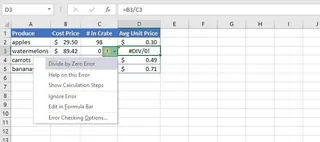
The traditional fix is to wrap the calculation in IFERROR. To make the cell appear blank instead of showing the error, you'd use:
=IFERROR(C3/B3, "")
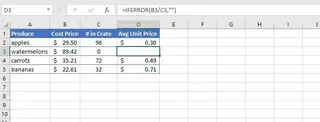
This cleans up the column, but you've already had to double the complexity of your initial formula.
Step 2: Handling Lookup Errors
Next, you need to look up employee names using their ID. A standard VLOOKUP works great... until you hit an ID that doesn't exist in your master list.
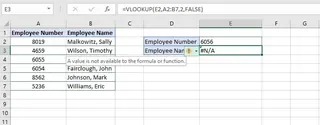
The #N/A error is cryptic. To make it user-friendly, you again turn to IFERROR:
=IFERROR(VLOOKUP(E2, A2:B7, 2, FALSE), "ID Number not found")
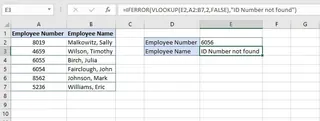
This is better, but what if you need to search for the ID in a second list if it's not found in the first? This is where the real headache begins.
The Limitations of the Traditional Method
While IFERROR is useful, it comes with significant drawbacks:
- Formula Bloat and Complexity: Your formulas quickly become long and nested. A sequential lookup requires nesting
IFERRORwith multipleVLOOKUPs, like this:=IFERROR(VLOOKUP(H2,A3:B8,2,FALSE), IFERROR(VLOOKUP(H2,D3:E7,2,FALSE),"ID Not found")). This is incredibly difficult to read, debug, and maintain. - Rigidity: The logic is hard-coded. If your boss asks you to change the error message from "ID Not Found" to "Invalid ID", you have to find and edit every instance of the formula.
- Masking Deeper Issues:
IFERRORis a blunt instrument. It catches all errors, including#REF!(caused by a deleted cell) or#NAME?(caused by a typo in a function name). By showing a generic "Not Found" message, you might be hiding a more serious structural problem in your worksheet that needs to be fixed. - It's Tedious and Time-Consuming: You have to anticipate every possible error and manually wrap each corresponding formula. This adds significant time and mental overhead to even simple data tasks.
The New Solution: Using an Excel AI Agent (Excelmatic)
Instead of manually writing and debugging complex, error-prone formulas, what if you could just tell Excel what you want in plain language? That's the power of an Excel AI Agent like Excelmatic.

Excelmatic is a tool where you upload your spreadsheet and use a chat interface to request analyses, calculations, and visualizations. The AI handles the complex logic—including error handling—behind the scenes.
Step-by-Step: Solving the Same Problem with Excelmatic
Let's tackle the same sales report, but this time with AI.
1. Upload Your Data File
First, simply drag and drop your Excel or CSV file containing the sales data and employee list into Excelmatic. The AI will read your data and show you a preview.

2. Describe Your Goal in Natural Language
Instead of writing formulas, you just type your request in the chat box.
For the unit cost calculation, you could ask:
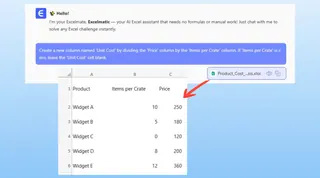
Create a new column named 'Unit Cost' by dividing the 'Price' column by the 'Items per Crate' column. If 'Items per Crate' is zero, leave the 'Unit Cost' cell blank.
For the employee lookup, you could ask:
Add a new column 'Employee Name'. Look up the 'ID Number' in my employee data sheet and return the corresponding name. If an ID number is not found, write 'ID Number not found' in the 'Employee Name' column.
For the complex sequential lookup, it's just as simple:
Look up the employee's department. First, check the 'Full-Time Staff' sheet. If they're not there, check the 'Contractors' sheet. If they're not in either, mark them as 'Not Found'.
3. Review and Iterate on the Results
Excelmatic will instantly process your request and generate a new table with the results. There are no formulas for you to check. The 'Unit Cost' column is calculated, and the blanks are already there. The 'Employee Name' column is populated, complete with your custom "ID Number not found" message.
The best part is the conversational flow. You can continue to refine the results:
- "Great. Now, filter this table to only show sales from the 'North' region."
- "Can you create a pivot table summarizing total sales by employee?"
- "Highlight all rows where the 'Unit Cost' is greater than $500."
This iterative process is impossible with static formulas. With AI, you can explore your data and get answers to follow-up questions in seconds.
4. Export Your Clean, Final Report
Once you're satisfied, you can download the resulting data as a new, clean Excel file. It's ready to be shared, with no confusing errors or complex formulas to explain.
Dialogue Example: User vs. Excelmatic
Here’s how a typical conversation might look:
User: I've uploaded my sales data. It has a 'Total Revenue' column and a 'Units Sold' column. Can you create a 'Price Per Unit' column? Some of the 'Units Sold' values are 0, and I don't want to see #DIV/0! errors.
Excelmatic: Of course. I have created the 'Price Per Unit' column by dividing 'Total Revenue' by 'Units Sold'. For rows where 'Units Sold' was 0, I've left the 'Price Per Unit' cell blank to avoid errors. Does that look correct?
User: Perfect. Now, using the 'Employee ID' in this sheet, can you add a 'Sales Rep Name' column by looking up the names from the 'Employee Roster' sheet I also uploaded?
Excelmatic: Done. I've added the 'Sales Rep Name' column. I noticed that 5 Employee IDs from your sales data were not present in the 'Employee Roster' sheet. For these, I've entered 'Invalid ID' in the 'Sales Rep Name' column. Would you like me to filter for these rows so you can review them?
Traditional vs. Excelmatic: A Quick Comparison
| Task | Traditional Method (IFERROR) | Excelmatic Method (AI) |
|---|---|---|
| Effort | Manually write, nest, and drag formulas. | Type one-sentence instructions. |
| Complexity | Formulas become long and hard to read. | No formulas to manage. The logic is handled by AI. |
| Flexibility | Rigid. Changing logic requires editing all formulas. | Highly flexible. Adjust with simple follow-up questions. |
| Speed | Minutes to hours, depending on complexity. | Seconds to minutes. |
| Error Risk | High risk of typos or logical errors in formulas. | Low risk. AI interprets intent and handles edge cases. |
FAQ
Do I need to know the IFERROR function to use Excelmatic?
Not at all. You only need to describe the outcome you want. Simply tell the AI "if there's an error, show a blank cell" or "if the ID is not found, write 'Missing'", and it will handle the rest.
Is my data safe when I upload it to Excelmatic? Yes, Excelmatic is built with data security in mind. Data is encrypted in transit and at rest, and is not used for training models. Always refer to the official privacy policy for detailed information.
Will Excelmatic modify my original Excel file? No. Your original file is never modified. Excelmatic works on a copy of your data within its secure environment, and you can download the results as a new file.
What if my data is messy? Can the AI still handle it? Absolutely. In fact, cleaning messy data is one of Excelmatic's strengths. You can ask it to perform cleaning tasks before your analysis, such as: "In the 'Hours Worked' column, replace any text values with 0" or "Trim all leading and trailing spaces from the 'Product Name' column."
Can I get the Excel formula from Excelmatic? Yes. You can ask Excelmatic to generate the formula for you. This is a great way to learn or to get a complex formula that you can then use in your own spreadsheets.
Is Excelmatic just a fancier IFERROR?
No. IFERROR is a reactive tool that catches errors after they happen. Excelmatic is a proactive, intelligent agent that understands your goal. It often prevents the error from occurring in the first place by correctly interpreting your instructions for handling edge cases like zeros or missing values.
Take Action: Upgrade Your Excel Workflow Today
Stop wasting hours wrestling with nested formulas and cleaning up ugly error messages. The time you spend debugging =IF(ISERROR(VLOOKUP(...))) is time you could be spending on generating actual insights.
By embracing an Excel AI tool like Excelmatic, you're not just finding a better way to handle errors—you're fundamentally changing your relationship with data. You move from being a "formula mechanic" to a true analyst, free to ask questions, explore possibilities, and deliver clean, accurate reports faster than ever before.
Ready to leave #N/A and #DIV/0! behind for good?
Try Excelmatic for free today and see how easily you can transform your most error-prone spreadsheet into a clean, insightful report.