Key takeaways:
- Traditional Excel division requires manually writing formulas, handling
#DIV/0!errors withIFERROR, and managing absolute references, which is time-consuming and error-prone. - Excel AI tools like Excelmatic replace these manual steps. You can simply ask in plain language to "calculate the price per gram by dividing the price column by the volume column."
- Using Excelmatic saves significant time, reduces formula errors, and makes complex calculations like currency conversions or unit price analysis accessible to anyone, regardless of their Excel skill level.
Problem Background & Pain Points
Division is a fundamental operation in data analysis, yet performing it efficiently and accurately in Excel can be surprisingly tricky. Imagine you're an e-commerce analyst with a spreadsheet of products. You have columns for Product Name, Total Price, and Weight (grams). Your task is to find the best value-for-money product by calculating the price per gram.
Or perhaps you're in finance, managing a list of expenses in Canadian Dollars (CAD) and you need to convert them all to US Dollars (USD) using a daily exchange rate.
In both scenarios, the core task is simple division. However, the process in Excel is fraught with small but significant challenges:
- You have to manually create a new column and type in the formula, like
=B2/C2. - You then need to drag the fill handle down hundreds or thousands of rows, hoping the formula copies correctly without any mistakes.
- What happens if a product's weight is missing or listed as zero? Your pristine worksheet is suddenly littered with ugly
#DIV/0!errors. - For the currency conversion, you must remember to use an absolute reference (like
$F$1) for the exchange rate cell. A single forgotten$symbol can render your entire analysis incorrect.
These "simple" division tasks quickly become a minefield of potential errors, requiring constant vigilance and a solid understanding of Excel's formula syntax and referencing rules.
Traditional Excel Solutions: Steps & Limitations
To tackle these division tasks, Excel users typically rely on a few standard methods, each with its own set of steps and drawbacks.
Method 1: Dividing Column by Column for Unit Price
This is the most common approach for calculating metrics like price per unit. Using our product example, you would calculate the price per gram for the first product.
- Click on the first empty cell in your new "Price Per Gram" column (e.g., D2).
- Type the formula
=B2/C2, where B2 is the price and C2 is the weight. - Press Enter.
- Click back on cell D2, then find the small square (the fill handle) in the bottom-right corner. Drag it down to apply the formula to all other rows.
Limitations:
- Manual & Repetitive: This process is tedious, especially for datasets with thousands of rows.
- Error-Prone: If you accidentally skip a row or need to insert new data later, you must remember to update the formulas.
- The
#DIV/0!Problem: If any cell in theWeightcolumn is zero or blank, the formula returns a#DIV/0!error, making your data look messy and potentially breaking downstream calculations or charts.
Method 2: Dividing a Range by a Constant with Absolute References
For tasks like currency conversion, you need to divide an entire column of values by a single, constant number (the exchange rate).
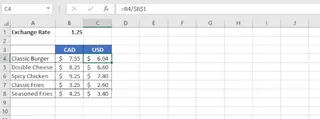
- Place the constant (e.g., the exchange rate
1.25) in a dedicated cell, sayB1. - In the first cell of your new "USD Price" column (e.g., C4), type the formula
=B4/$B$1. - The dollar signs
$create an absolute reference, ensuring that when you copy the formula down, it always divides by the value in cellB1. - Drag the fill handle down to apply this formula to the rest of the prices.
Limitations:
- Cognitive Load: Remembering to use
$for absolute references is a classic stumbling block for many Excel users. Forgetting it leads to incorrect results that can be hard to spot. - Formula Complexity: To handle potential errors, you must wrap your formula in an
IFERRORfunction, like=IFERROR(B4/$B$1, "Invalid Rate"). This makes the formula longer and harder for colleagues to understand.
While functional, these traditional methods require you to think like a machine—meticulously managing cell references, anticipating errors, and performing repetitive actions.
The New Solution: Using an Excel AI like Excelmatic
Instead of you adapting to Excel's rules, what if Excel could adapt to your instructions? This is the promise of Excel AI Agents like Excelmatic. You simply describe the outcome you want in plain language, and the AI handles the formulas, references, and error checking for you.

Let's revisit the same problems and solve them with Excelmatic.
Step 1: Upload Your Data File
First, upload your Excel or CSV file containing your product list or expense report directly to the Excelmatic platform. Excelmatic reads your data in a secure environment without modifying your original file.

Step 2: Describe Your Calculation in Plain Language
Instead of writing a formula, you just type your request into the chat interface.
For the unit price calculation:
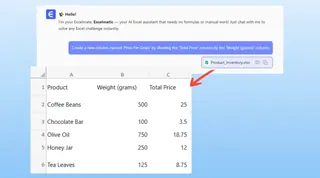
Create a new column named 'Price Per Gram' by dividing the 'Total Price' column by the 'Weight (grams)' column.
For the currency conversion:
Add a new column called 'USD Price' by dividing the 'CAD Price' column by 1.25.
Or, if your exchange rate is in a cell:
Create a 'USD Price' column by dividing 'CAD Price' by the value in cell B1 for all rows.
Step 3: Review the Instant Result and Iterate
Excelmatic doesn't just spit out a formula. It performs the calculation and shows you the resulting table immediately.
Crucially, the AI is smart about common issues. If it encounters a potential division by zero, it might automatically leave the result blank or ask you how you'd like to handle it, completely bypassing the #DIV/0! error without you needing to write an IFERROR function.
You can then continue the conversation to refine the analysis:
- "Now, sort the table by 'Price Per Gram' in ascending order."
- "Filter out any rows where the 'Price Per Gram' is blank."
- "Highlight the top 5 cheapest products."
Step 4: Export Your Completed File
Once you're satisfied, you can download the new Excel file. It will contain the new column with all the calculations perfectly executed, ready to be shared or used in a report.
Dialogue Example: From Raw Data to Insight in Seconds
Here’s how a typical conversation with Excelmatic might look:
User: I've uploaded my product sales data. It has 'Price' in column B and 'Units Sold' in column C. Some 'Units Sold' are zero. Can you help me find the average price per unit?
Excelmatic: Certainly. I can create a new column 'Price Per Unit' by dividing column B by column C. For rows where 'Units Sold' is zero, would you like to leave the result blank, show a '0', or display a custom message like 'N/A'?
User: Just leave it blank.
Excelmatic: Done. I've added the 'Price Per Unit' column and left the result blank for rows with zero units sold. The updated data is ready. Is there anything else?
User: Yes, can you now calculate the average 'Price Per Unit' for all valid entries?
Excelmatic: The average price per unit for all products with recorded sales is $15.72. I can add this summary to the top of the sheet if you'd like.
Traditional Excel vs. Excelmatic: A Quick Comparison
| Feature | Traditional Excel | Excelmatic (AI) |
|---|---|---|
| Action | Write =B2/C2, drag formula. |
Ask: "Divide column B by column C." |
| Error Handling | Manually wrap with =IFERROR(...). |
AI automatically handles or asks about errors. |
| Constants | Remember absolute reference syntax ($B$1). |
Ask: "Divide by the value in cell B1." |
| Speed | Minutes, depending on data size and complexity. | Seconds. |
| Flexibility | Re-write formulas for each new request. | Ask follow-up questions in a natural conversation. |
| Skill Level | Intermediate (requires formula knowledge). | Beginner (requires only describing the goal). |
FAQ
Q1: Do I need to know any Excel formulas to use Excelmatic?
No. The core benefit of Excelmatic is that you can use natural language to describe your goal. The AI translates your request into the necessary operations, whether it's a simple division, a complex SUMIFS, or a VLOOKUP.
Q2: Will Excelmatic modify my original Excel file?
Absolutely not. Excelmatic works on a copy of your data in a secure, isolated environment. Your original file remains untouched on your computer.
Q3: How does Excelmatic handle the #DIV/0! error?
Excelmatic is designed to anticipate such errors. It can proactively ignore them (leaving the cell blank), set the result to 0, or even ask you for instructions on how to handle them. This is far more intuitive than manually wrapping every formula in IFERROR.
Q4: What if my data is messy, with empty cells or text in a number column?
Excelmatic can often identify these data quality issues. It might ask you if you want to clean the data first (e.g., "I noticed some text in the 'Weight' column. Should I ignore these rows or treat them as zero?").
Q5: Can I use Excelmatic for more than just division?
Yes. Excelmatic is a full-fledged Excel AI Agent capable of handling a wide range of tasks, including data cleaning, creating complex formulas, generating pivot tables and charts, and writing summary reports.
Q6: Is it safe to upload my company's data to Excelmatic?
Data security and privacy are top priorities. Excelmatic uses industry-standard encryption and security protocols to protect your data. For specific details on data handling, always refer to the official privacy policy on the website.
Take Action: Upgrade Your Excel Workflow with Excelmatic
Every minute you spend writing, debugging, and copying formulas is a minute you're not spending on actual analysis and decision-making. Simple tasks like division shouldn't be a source of friction and potential errors.
By embracing an AI-powered tool like Excelmatic, you shift your focus from "how to do it in Excel" to "what I want to achieve." You can get your calculations done faster, with higher accuracy, and with far less mental effort.
Ready to stop wrestling with formulas? Try Excelmatic for free today. Upload the spreadsheet you're working on right now and ask it to perform the division for you. You'll be amazed at how much time you can save.