Key takeaways:
- Traditional methods for counting unique values in Excel, like the
UNIQUEfunction or Pivot Tables, involve remembering specific syntax or navigating multiple manual steps. - Excel AI tools like Excelmatic replace these manual processes. You can simply ask "how many unique cities are in my list?" in plain English to get the answer.
- Using Excelmatic not only provides the count instantly but also generates the list of unique values, saving time, reducing errors, and making data analysis more intuitive.
Problem Background & Pain Points
Imagine you're a marketing manager analyzing a large spreadsheet of campaign leads from the past quarter. Your boss walks over and asks a seemingly simple question: "How many unique companies did we engage with?" Or perhaps, a more nuanced one: "Which of these companies are brand new, meaning they only appear once in our entire list?"
Your heart sinks a little. This "simple" task means dropping everything to perform some Excel gymnastics.
You could try to tackle it manually: copy the 'Company Name' column to a new sheet, use the "Remove Duplicates" feature, and then count the remaining rows. But this is destructive, slow, and you'd have to repeat it for every new request.
Alternatively, you could try to write a formula. But which one? A combination of SUM and COUNTIF? Or maybe the newer UNIQUE function? Do you even have the right version of Excel for it to work? This simple question suddenly becomes a 15-minute detour filled with potential formula errors and version compatibility headaches. The core problem is that a straightforward business question shouldn't require such complex, error-prone manual work in a spreadsheet.
Traditional Excel Solutions: Steps & Limitations
For years, Excel users have relied on a few standard methods to count unique values. While powerful, each comes with its own set of challenges.
Method 1: The UNIQUE and COUNTA Formula Combination
If you're using Microsoft 365 or Excel 2021, you have access to the UNIQUE function. It's designed specifically for this problem.
The syntax is =UNIQUE(array, [by_col], [exactly_once]).
array: The range of cells you want to analyze (e.g.,A2:A100).[by_col]: An optional argument to specify if your data is in a row instead of a column.[exactly_once]: An optional argument to find values that appear only once, not just a distinct list of all values.
To get a list of distinct cities from a range B2:B18, you would use:
=UNIQUE(B2:B18)
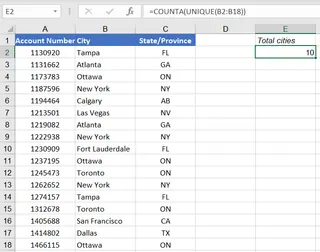
If you just want the count of these unique cities, you have to wrap it in another function, COUNTA:
=COUNTA(UNIQUE(B2:B18))
This formula would return the number 10.
Limitations of this method:
- Version Dependency: The biggest issue is that
UNIQUEis not available in Excel 2019 or earlier versions. If you send your file to a colleague with an older version, they'll see a#NAME?error. - Formula Complexity: Remembering the syntax, especially the optional arguments, can be tricky. For instance, to find values that appear exactly once, you need to use a double comma:
=UNIQUE(B2:B18,,TRUE). This is not intuitive. - Not User-Friendly: It solves the "what" but doesn't easily explain the "how" to less technical colleagues.
Method 2: The Pivot Table Approach
For those on older Excel versions, a Pivot Table is the go-to solution. It's a robust tool that can quickly summarize data.
Here are the typical steps:
- Select your data range.
- Go to the Insert tab and click PivotTable.
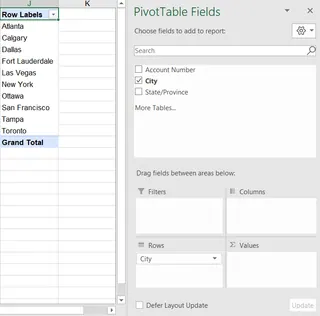
- In the PivotTable Fields pane, drag the field you want to analyze (e.g., "City") into the Rows area. This automatically generates a list of all distinct values.
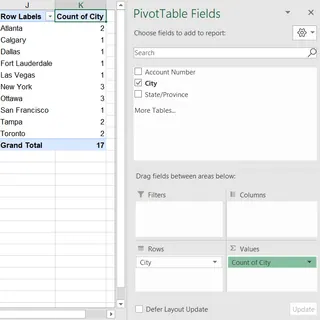
- To get the count of each item, drag the same "City" field into the ∑ Values area. It will appear as "Count of City".
Limitations of this method:
- Manual Refresh: Pivot Tables are not live. If your source data changes, you must remember to right-click and Refresh the Pivot Table to see the updated counts.
- Clunky for Simple Tasks: Creating a whole Pivot Table just to get a single number (the count of unique values) feels like using a sledgehammer to crack a nut.
- Multiple Clicks: The process involves several steps of clicking, dragging, and dropping, which is slower than a formula if you know what you're doing, and still intimidating if you don't.
Using Excel AI (with Excelmatic) for a Smarter Solution
What if you could skip the formulas and the Pivot Table setup entirely? This is where Excel AI Agents like Excelmatic change the game. Instead of telling Excel how to do something, you simply tell it what you want in plain language.

The Excelmatic Approach
Excelmatic is an AI assistant that you can chat with. You upload your spreadsheet, and the AI handles the analysis, formulas, and reporting for you. The entire process of counting unique values is reduced to a simple conversation.
Step-by-Step Guide
Here’s how you'd solve the same problem in a fraction of the time with Excelmatic.
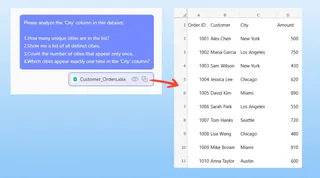
1. Upload Your Data File Simply drag and drop your Excel or CSV file into the Excelmatic interface. The AI will read your data and show you a preview. It's best to have clear column headers (like "Company Name", "City", "Product SKU").

2. Describe What You Need in Natural Language Instead of writing a formula, you just type your question into the chatbox. Based on our earlier scenario, you could ask:
- "How many unique cities are in the list?"
- "Show me a list of all distinct cities."
- "Count the number of cities that appear only once."
- "Which cities appear exactly one time in the 'City' column?"
3. View and Iterate on the Results Excelmatic will instantly provide the answer. It might give you a number, a table, or even a pre-configured Pivot Table. The magic is that you can continue the conversation to refine the results.
For example, you could follow up with:
- "Great. Now can you show me the total sales for each of those unique cities?"
- "Filter this list to only show cities in California."
- "Create a bar chart showing the top 5 cities by count."
This conversational approach makes complex data slicing and dicing effortless.
4. Export Your Results Once you're happy with the result—whether it's a clean list of unique values or a full summary report—you can download it as a new Excel file with a single click. You can also ask Excelmatic to provide the underlying formula it used, so you can learn and apply it in your own spreadsheets later.
Dialogue Example
Here’s what a typical conversation with Excelmatic might look like:
User: I've uploaded my sales transaction data for Q1. Can you tell me how many unique customers we had? The customer names are in the 'Customer Name' column.
Excelmatic: Of course. After analyzing your data, I found that there are 142 unique customers in the 'Customer Name' column. I have also generated a table with the list of these unique names. Would you like me to create a summary?
User: Yes, thank you. Now, can you tell me which of these customers only made one purchase?
Excelmatic: Certainly. I've filtered the data to identify customers who appear only once. There are 38 customers who made a single purchase in Q1. Here is the list.
User: Perfect. Please export this list of 38 customers to a new Excel sheet for me.
Excelmatic: The file is ready for download.
Traditional Excel vs. Excelmatic: A Quick Comparison
| Feature | Traditional Excel | Excelmatic (AI) |
|---|---|---|
| Time to Result | 5-15 minutes (researching, building, debugging) | < 1 minute |
| Required Skill | Knowledge of UNIQUE, COUNTA, or Pivot Tables |
Ability to ask a question in language skills |
| Flexibility | Low. New questions require new formulas or Pivot Table redesigns. | High. Adjust and refine analysis through conversation. |
| Error Risk | High. Formula typos, incorrect cell ranges, or forgetting to refresh. | Low. The AI handles the technical implementation. |
| Learning Curve | Steep for complex functions and features. | Minimal. It's as easy as sending a message. |
FAQ
1. Do I need to know any Excel formulas to use Excelmatic? No. That's the beauty of it. You can describe your goal in plain language, and Excelmatic generates the result. It's perfect for both beginners and experts who want to work faster.
2. Is my data safe when I upload it to Excelmatic? Yes. Data security and privacy are top priorities. Excelmatic processes your file in a secure environment and does not store your data long-term without your permission. Always refer to the official privacy policy for detailed information.
3. Can Excelmatic handle messy or unstructured data? Excelmatic is designed to be robust and can often interpret data that isn't perfectly clean. However, for the best results, it's always good practice to have clear, descriptive headers for your columns.
4. Can I get the actual Excel formula from Excelmatic? Yes. You can ask the AI, "What formula would I use to do this in Excel?" and it will provide the formula for you. This makes it a great tool for learning as well.
5. How does Excelmatic understand the difference between "distinct" and "unique" (appears only once)? You don't need to worry about the technical jargon. Simply describe what you need. For example:
- To get a distinct list, ask: "Show me each city that appears in the list, but without duplicates."
- To get a truly unique list, ask: "Show me only the cities that appear exactly one time." The AI understands the intent behind your words.
Take Action: Upgrade Your Excel Workflow Today
Stop wasting valuable time wrestling with formulas or clicking through endless menus. The next time you need to count unique values, analyze a list, or summarize a report, there's a smarter way.
By shifting from manual commands to conversational instructions, you can focus on the insights, not the process. You'll answer business questions faster, with greater accuracy, and with far less frustration.
Ready to see for yourself? Try Excelmatic today. Upload a spreadsheet you're currently working on and ask it the question you're trying to answer. You might be surprised at how much time you get back.