Key takeaways:
- PDFs are static, Excel is dynamic: Converting unlocks data for real analysis, automation, and error-free processing.
- Manual and basic methods come with trade-offs: While simple, copy-pasting and built-in imports often fail with complex or scanned documents.
- AI-powered web tools (like Excelmatic) represent the modern standard: They deliver accurate, structured spreadsheets from any PDF type using simple English instructions.
- Choose the method that fits your workflow: Consider volume, document type, and need for automation when selecting a tool.
- You can now convert in seconds, not minutes: The right tool eliminates manual cleanup, turning a tedious task into an efficient, one-step process.
We've all faced that moment: you open a PDF full of numbers, tables, or lists, and you need to get that data into Excel — fast. Maybe it's an invoice that needs processing, a report waiting for analysis, or a list that should be sortable and filterable.
The problem is simple: PDFs are meant for viewing and printing, not for editing or calculating. That's why getting data out of them can feel like unlocking a door without a key. You might try copying and pasting, only to end up with a jumbled mess. Or you might use a basic online converter that leaves you with misaligned columns and hours of cleanup.
If you're looking for a reliable way to turn your PDFs into usable, organized Excel spreadsheets, you're in the right place. This guide will walk you through every practical method, from the simplest to the most sophisticated, and help you choose the right tool for the job.
Why Convert PDF to Excel?
First, let's clarify why you'd go through the trouble. A PDF is a snapshot; an Excel spreadsheet is a workspace. Converting data from one to the other allows you to:
- Analyze and calculate: Apply formulas, create charts, and use pivot tables to find insights.
- Integrate and automate: Feed the data into other systems, dashboards, or regular reports.
- Save time and ensure accuracy: Eliminate slow, error-prone manual data entry.
5 Methods to Convert PDF to Excel
Here are the most common approaches, broken down by process, best use case, and limitations.
1. Copy and Paste
The Process: Highlight text in your PDF viewer, copy, and paste directly into an Excel cell.
Best For: Extracting a short, simple list of text or numbers from a very straightforward PDF.
The Limitation: This method almost never preserves table structure. Data from multiple columns will paste into a single column, and you'll spend significant time splitting and reorganizing it. It is not a viable solution for tables or repeated use.
2. Microsoft Excel's Built-In Import Tool
The Process: In Excel (2013 and newer), go to the Data tab, select Get Data > From File > From PDF, choose your file, and select a table to import.
Best For: Converting simple, digitally-created PDFs (not scanned) that contain clear, single-page tables.
The Limitation: The feature can struggle with complex layouts, multi-page tables, or scanned documents, often resulting in fragmented data that needs manual correction. It also processes only one file at a time.
3. Online PDF Converter Websites
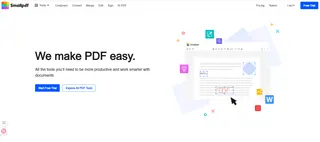
The Process: Upload your PDF file to a website like Adobe Acrobat Online or Smallpdf, select "Convert to Excel," and download the result.
Best For: A quick, one-time conversion of a non-sensitive, digital PDF when convenience is the priority.
The Limitation: Accuracy can be inconsistent, especially with scanned files. There are often file size limits, and uploading confidential documents to a third-party server poses a security consideration. Batch processing is typically limited or requires a paid plan.

4. Desktop PDF Converter Software
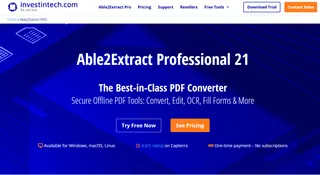
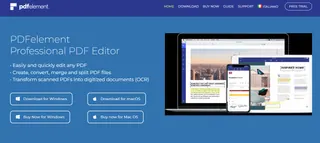
The Process: Purchase and install software like Able2Extract or PDFelement. Use its interface to open a PDF and export it to Excel format, often leveraging OCR (Optical Character Recognition) for scanned documents.
Best For: Users who regularly need to convert complex or scanned PDFs and require more control and powerful features.
The Limitation: This involves an upfront cost, installing software, and learning a new interface. Even then, post-conversion formatting tweaks are often necessary.
5. AI-Powered Web Tools (Like Excelmatic)
The Process: Go to a web-based tool like Excelmatic, drag and drop your PDF, and tell the AI what you need in plain English (e.g., "Convert this invoice to Excel with columns for Date, Item, and Total"). Receive a formatted spreadsheet in seconds.
Best For: Anyone seeking a fast, accurate, and hands-off conversion for any PDF type—scanned or digital, simple or complex. It is ideal for users who want a specific data structure without manual cleanup.
The Limitation: As an AI-dependent tool, it may require clear instructions for highly unusual document formats, but it learns and adapts quickly.
The Key Advantage: It understands context. Instead of just converting text, it identifies tables, headers, and data relationships, delivering analysis-ready spreadsheets.
How It Works in Practice:
- Upload any PDF — scanned, multi-page, or complex.
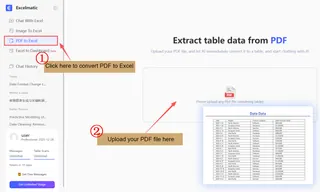
Tell the AI what you need in plain English. Examples:
→ "Extract all line items from this invoice into columns for Date, SKU, Quantity, and Price."
→ "Pull the transaction history from this bank statement and summarize by category."
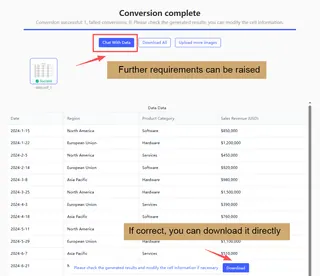
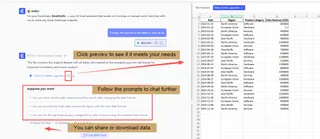
Receive a clean, structured Excel file in seconds. Need adjustments? Ask:
→ "Now add a formula to calculate tax for each row."
Method Comparison: Which One is Right for You?
The following table summarizes the key differences to help you decide.
| Method | Ease of Use | Accuracy with Scanned PDFs? | Batch / Multi-File Processing? | Best For |
|---|---|---|---|---|
| Copy & Paste | Very Easy | No | No | One-time text extraction |
| Excel Built-In Import | Easy | No | No | Simple digital PDFs |
| Online Converter Sites | Easy | Limited | Limited (Often Paid) | Casual, non-sensitive use |
| Desktop Software | Moderate | Yes (with OCR) | Yes | Frequent, complex conversions |
| AI Web Tool (Excelmatic) | Very Easy | Yes | Yes | Hands-off, accurate conversion for any PDF |
Conclusion and Recommendation
Converting PDF data to Excel doesn't have to be a frustrating compromise between speed and accuracy. While traditional methods have their place for specific, simple tasks, they often create more work on the back end.
For most professionals — whether you're in finance, administration, sales, or research — the most efficient path is to use a tool built for modern needs. AI-powered web tools like Excelmatic represent this new standard: they are accessible, intelligent, and designed to deliver ready-to-use data.
The best way to see the difference is to try it. Next time you have a PDF to convert, skip the manual cleanup and try asking an AI to do it for you. You might just find that a task that used to take 15 minutes now takes 15 seconds.
Ready to convert your PDFs the smart way?
Visit Excelmatic online, upload your first PDF, and use a simple prompt like "Convert this to a clean Excel spreadsheet." Experience a faster, more accurate workflow today.
Frequently Asked Questions (FAQ)
Q: What's the difference between a regular converter and an AI tool?
A: A regular converter simply moves text, often causing formatting errors. An AI tool understands the document's structure and intent, delivering logically organized, ready-to-use data.
Q: What are the practical use cases?
A: Common applications include processing invoices and receipts for accounting, extracting product data for sales, compiling research data for analysis, and managing forms and records in administration.
Q: What if the result isn't perfect?
A: With AI tools, you can refine the output using simple instructions. Ask it to "sort by date," "format as currency," or "split a column," and it will adjust the spreadsheet instantly.