Key takeaways:
- Manual data entry from images is a major productivity drain, consuming valuable hours each week and introducing errors.
- Multiple conversion methods exist, ranging from simple manual typing and built-in Excel features to online converters and enterprise OCR software, each with significant trade-offs in speed, accuracy, and cost.
- AI-powered extraction tools represent the modern standard, uniquely capable of understanding complex table structures, not just recognizing text, making them ideal for business use.
- Excelmatic exemplifies this AI-driven approach, offering an all-in-one platform that accurately converts images and PDFs to Excel with customization, batch processing, and multi-format export.
- The process is fast and accessible, with conversion typically taking under two minutes using a simple drag-and-drop, AI-guided workflow.
Have you ever found yourself staring at a photo of a sales report, a receipt, or a whiteboard full of notes, wishing you could magically pull all that data into an Excel spreadsheet? You're not alone. In today's fast-moving business world, critical information often starts offline — on paper, in screenshots, or captured quickly during a meeting. Yet manually typing data from images is tedious, error-prone, and frankly, a poor use of anyone's time.
Studies show that professionals spend nearly 10% of their workweek on manual data entry — that's over 4 hours every week for a full-time employee. Not only is this exhausting, but it also delays insights, introduces mistakes, and keeps valuable data locked away in "image jail," unable to be analyzed, shared, or automated.
The good news? You don't have to be the manual data entry hero. With the right tools, you can turn any picture into a clean, structured Excel file in minutes. In this guide, I'll walk you through why image-to-Excel conversion matters, where it's used, the solutions available, and why Excelmatic stands out as the all-in-one tool you need.
Why Image to Excel Conversion Is a Must-Have Skill
To be honest, converting images into Excel is not just a technical task — it's a skill that enhances business efficiency. Whether you work in finance, sales, operations, or management, you may have encountered situations where you need to transform paper-based Excel spreadsheets or locked data in images into dynamic, editable Excel files.
Manually retyping this information is slow and risky. A single typo can throw off calculations, budgets, or reports. That's why more teams are turning to smarter, automated ways to capture data visually and turn it into ready-to-use Excel files.
Overview of Solutions: Your Options, Explained
Here's a clear look at the main ways to convert images to Excel, from the simplest to the most sophisticated.
1. Manual Typing
The universal fallback. You look at the image and type the data into Excel yourself. It's free and you have total control, but it's slow, tedious, and introduces a high risk of typos. It's only practical for tiny, one-time tasks.
2. Excel's Built-in "Insert Data from Picture"
A handy feature for Microsoft 365 users. You take a picture of a table within the Excel app, and it imports the data. It works well for neat, printed tables but often fails with complex layouts, poor-quality images, or handwritten text. Best for occasional, simple conversions.
3. Free Online Converters
Websites where you upload an image and download an Excel file. They're quick and require no installation. However, accuracy is inconsistent, file sizes are often limited, and uploading sensitive business data to an unknown server poses a privacy risk. A gamble for non-critical data.
4. Enterprise OCR Software
Powerful, expensive programs like ABBYY FineReader. They offer high accuracy and can process large batches of documents. However, they come with a steep learning curve and a high price tag, making them overkill for most individuals and teams.
5. AI-Powered Tools (Like Excelmatic)
The modern solution. These tools use artificial intelligence to not only read text but also understand table structures, headers, and layouts. They handle complex images, support batch processing, allow customization (like formatting rules), and balance power with ease of use and reasonable cost. This is the go-to category for reliable, everyday business conversion needs.
| Method | Pros | Cons |
|---|---|---|
| Manual typing | Reliable, no tool needed | Extremely slow, prone to errors, not scalable |
| Excel's "Insert Data from Picture" | Built into Microsoft 365, simple for clean tables | Struggles with complex layouts, angled images, or poor quality |
| Free online converters | Quick, no installation | Accuracy varies, privacy concerns, often lacks customization |
| Enterprise OCR software | High accuracy, batch processing | Expensive, complex setup, overkill for most teams |
| AI-powered tools (like Excelmatic) | Handles complex layouts, customizable, batch support, affordable | May require a learning curve, depends on image quality |
Excelmatic: The All-in-One Solution for Image & PDF to Excel Conversion
Excelmatic isn't just another OCR tool — it's an intelligent data extraction platform built for modern business needs. Here's what makes it stand out:
Image & PDF Support: Upload JPG, PNG, PDF, or even scanned documents — Excelmatic extracts text, tables, and lists accurately.
AI-Powered Structure Detection: It doesn't just read text; it understands tables, headers, and layouts, preserving relationships in the output.
Customizable Data Extraction: Define columns, set formatting rules, clean data, and even enrich it using AI prompts.
Batch Processing & Automation: Convert multiple files at once, schedule recurring jobs, and export to Excel, Google Sheets, CSV, or other platforms.
Multi-Language Ready: Works with documents in various languages, making it ideal for global teams.

Whether you're processing invoices, extracting research data, or digitizing meeting notes, Excelmatic turns unstructured visual data into analysis-ready spreadsheets.
How to Convert an Image to Excel Using Excelmatic — Step by Step
Getting started is straightforward:
1. Sign up & Access the Tool
Create a free Excelmatic account online — no installation required for the web version.

2. Upload Your Image
Drag and drop your file into the dashboard, or select it from your computer. Excelmatic supports multi-page PDFs and common image formats.
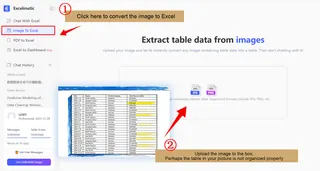
3. Preview & Edit
Review the extracted data in a preview table. Make any quick corrections if needed.
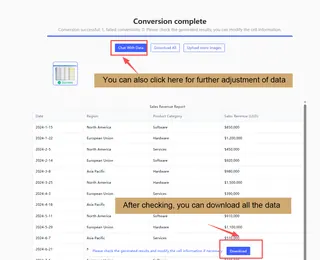
4. Export to Excel
Click export and download your file as .xlsx, .csv, or send it directly to Google Sheets or other platforms.

The whole process often takes under two minutes — a fraction of the time manual entry would require.
Final Thoughts: Stop Typing, Start Automating
Converting images to Excel doesn't have to be a chore or a technical hurdle. It's a modern skill that bridges the gap between physical information and digital analysis. By embracing tools like Excelmatic, you move beyond slow, error-prone manual entry into a workflow that is fast, reliable, and scalable.
The real value lies in what you reclaim: time. Time that was once spent on tedious typing can now be dedicated to analysis, strategy, and innovation. Excelmatic empowers you to do this by accurately handling complex layouts and diverse documents, turning scattered visual data into a structured asset ready for reports, dashboards, and collaborative work.
If you're ready to unlock this efficiency, the path is straightforward. Start with Excelmatic's free plan and experience firsthand how quickly you can transform pictures into actionable spreadsheets. It's more than a conversion — it's the first step toward automating the routine and focusing on the work that truly matters.
Frequently Asked Questions (FAQ)
Q1: Can I convert a photo of a handwritten list to Excel?
A: This remains a significant challenge. While AI tools excel with printed or typed text, most still struggle with cursive or messy handwriting. For best results, ensure any handwritten content is in clear, block letters. For reliable results, printed documents are strongly recommended.
Q2: Do I need to be tech-savvy to use these AI extraction tools?
A: Not at all. Tools designed for business users, like Excelmatic, prioritize a no-code, user-friendly experience. The typical workflow involves simple drag-and-drop upload, with AI automatically suggesting the structure. The most technical it gets is writing simple, natural language prompts (e.g., "format as currency").
Q3: What if the AI misreads a number or text? Can I fix it?
A: Absolutely. Any robust tool provides a preview and edit mode before final export. You can directly click into the preview table to correct any errors, ensuring the final Excel file is perfect. This combines AI's speed with final human verification.