Key takeaways:
- Calculating the "right" average in Excel often requires choosing between multiple functions like
AVERAGE,AVERAGEIF,MEDIAN, andMODE, which can be confusing and lead to errors, especially with complex data. - An Excel AI tool like Excelmatic eliminates the need to memorize formulas. You can request any type of average—mean, median, conditional, or even the average of the top 3 values—using simple, natural language.
- By using Excelmatic, you can get accurate statistical insights in seconds, effortlessly handle outliers and specific conditions, and shift your focus from debugging formulas to analyzing your data.
Problem Background & Pain Points
Calculating an "average" seems simple, right? But in the world of data analysis, "average" can mean many different things. Are you looking for the simple arithmetic mean, the middle value, or the most frequent number? The answer can dramatically change the story your data tells.
Imagine you're a teacher analyzing student exam scores. One student was absent and scored a zero, while another aced an extra credit project, scoring 110%. A simple AVERAGE calculation would be skewed by these two outliers, giving a misleading picture of the class's overall performance.
Or perhaps you're a sales manager who needs to find the average sales performance, but only for a specific region, or excluding deals below a certain value. You might find yourself asking:
- Which function should I use?
AVERAGE,AVERAGEA,AVERAGEIF, orMEDIAN? - How do I write a formula to exclude zeros or text values?
- What's the quickest way to find the average of just the top 5 performers?
- How do I explain this complex nested formula to a colleague?
This is where the manual Excel process becomes a bottleneck. You spend more time researching and debugging formulas than you do understanding the actual data. Every new question from your team requires a new, often complex, formula.
The Traditional Excel Solution: Steps & Limitations
Traditionally, Excel offers a family of functions to handle different types of average calculations. While powerful, they each have specific rules and require you to know which one to use and when.
The Standard Toolbox for Averages
The most common approach involves manually writing formulas using one of the following functions:
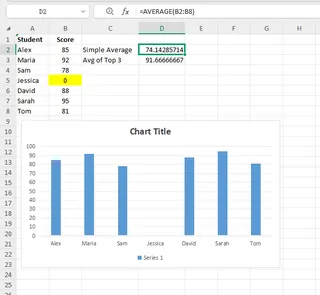
AVERAGE: This is the most common function, calculating the arithmetic mean (the sum of values divided by the count of values).- Formula:
=AVERAGE(B2:B50) - Use Case: Finding the simple average of a range of numbers.
- Problem: It ignores empty cells and text, but it includes zeros. A single zero score can significantly drag down the average, as seen in the student scores example below.
- Formula:
AVERAGEIF/AVERAGEIFS: These functions calculate the average of cells that meet a specific condition (or multiple conditions).- Formula:
=AVERAGEIF(A2:A50, "Apples", B2:B50) - Use Case: Finding the average price of only "Apples" or the average score for students who are not equal to zero (
"<>0"). - Problem: The syntax can be tricky, and managing multiple criteria with
AVERAGEIFSadds another layer of complexity.
- Formula:
MEDIAN: This function finds the middle value in a dataset.- Formula:
=MEDIAN(B2:B50) - Use Case: Excellent for finding a "typical" value when your data has outliers (extremely high or low numbers) that would skew the
AVERAGE. - Problem: It represents the middle point, not the arithmetic mean, which might not be what you need for certain financial or scientific calculations.
- Formula:
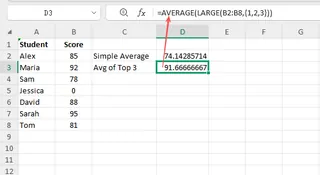
AVERAGE+LARGE/SMALL: For more advanced analysis, like finding the average of the top or bottom performers, you have to nest functions.- Formula:
=AVERAGE(LARGE(B2:B50, {1,2,3})) - Use Case: Calculating the average score of the top 3 students.
- Problem: This is an array formula. It's difficult to remember, hard for others to understand, and very easy to get wrong.
- Formula:
The Limitations of the Manual Approach
While these functions are the bedrock of Excel analysis, they come with significant drawbacks:
- High Learning Curve: You need to be a fairly confident Excel user to know which function to choose and how to apply its syntax correctly.
- Time-Consuming & Repetitive: Answering a simple business question like "What's the average, excluding the bottom 10%?" can turn into a 15-minute formula-writing exercise. If the question changes slightly, you start all over again.
- Prone to Errors: A misplaced comma, an incorrect range, or a forgotten quote mark in an
AVERAGEIFcriterion can lead to a#VALUE!error or, worse, a silently incorrect result. - Lack of Flexibility: Formulas are rigid. They are built to answer one specific question. When you need to explore your data dynamically, constantly rewriting formulas is inefficient and stifles curiosity.
The New Solution: Using Excel AI with Excelmatic
Instead of forcing you to translate your business question into a rigid formula, an Excel AI Agent like Excelmatic lets you ask the question directly. It understands your intent and handles the complex calculations behind the scenes.

The process is simple: upload your data, ask your question in plain language, and get an instant answer.
Step-by-Step: Calculating Averages with Excelmatic
Let's revisit the teacher's student score sheet. Here’s how you would solve the same problems in a fraction of the time.
1. Upload Your Data File
First, drag and drop your Excel or CSV file into Excelmatic. The AI will instantly read your data and display a preview. Make sure your columns have clear headers like "Student Name," "Subject," and "Score."

2. Ask for the Average in Natural Language
Now, instead of writing a formula, just type your request into the chatbox.
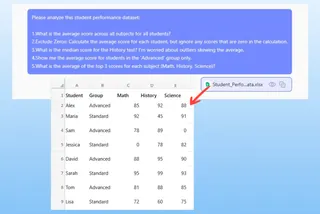
Here are a few examples of prompts you could use:
- For a simple average:
What is the average score for all students?
- To exclude zeros:
Calculate the average score for each student, but ignore any scores that are zero.
- To find the median and handle outliers:
What is the median score for the History test? I'm worried about outliers.
- For a conditional average:
Show me the average score for students in the 'Advanced' group.
- For the average of top performers:
What is the average of the top 3 scores for each subject?
3. Review and Iterate on the Results
Excelmatic will instantly generate the answer, often in a clean, new table. It doesn't just give you a number; it understands context. You can then continue the conversation to refine your analysis.
This conversational approach is where Excel AI truly shines. You can build on your previous request without starting from scratch.
4. Export Your Finished Analysis
Once you're satisfied, you can download the results as a new, clean Excel file. You can also ask Excelmatic to provide the exact formula it used, which you can then copy and paste into your original workbook if needed.
Dialogue Example: A Real-World Conversation
Here’s how a typical interaction with Excelmatic might look:
User: I've uploaded my class scores. Can you calculate the average score for each student, but ignore any scores that are zero?
Excelmatic: Done. I have calculated the average for each student, excluding any zero scores. This is equivalent to using the AVERAGEIF function in Excel. The results are in the table below. Would you also like to see the median score to account for any unusually high or low grades?
User: Yes, add a column for the median score. Also, highlight the student with the highest average.
Excelmatic: Okay, I've added a 'Median Score' column and highlighted the student with the highest average score. You can download the updated file now.
Traditional Formulas vs. Excelmatic: A Quick Comparison
| Task | Traditional Excel Method | Excelmatic Method |
|---|---|---|
| Calculate Average of Top 3 Scores | =AVERAGE(LARGE(B2:B50, {1,2,3})) |
"What is the average of the top 3 scores?" |
| Expertise Required | Knowledge of nested functions, array formulas. | Ability to describe the goal in language skills. |
| Time to Complete | 2-5 minutes (including lookup/debugging). | ~10 seconds. |
| Flexibility | Rigid. A new question requires a new formula. | Highly flexible. Ask follow-up questions. |
| Error Risk | High. Syntax errors are common. | Low. The AI handles the syntax. |
FAQ
Q: Do I need to know any Excel formulas to use Excelmatic?
A: No, not at all. The entire point of Excelmatic is to let you work with your data using natural language. You just need to be able to describe the outcome you want.
Q: Is my data safe when I upload it to Excelmatic?
A: Yes. Excelmatic is committed to user privacy and data security. Your files are processed securely and are not used for any purpose other than fulfilling your requests. For detailed information, please refer to the official privacy policy on the website.
Q: Can Excelmatic handle messy data with text and blank cells?
A: Absolutely. Excelmatic is designed to interpret context. For example, when asked for a numerical average, it will automatically ignore text values and blank cells in the calculation range, just as Excel's AVERAGE function does. You can also give it specific instructions, like "treat blank cells as zero."
Q: Can I see the formula that Excelmatic used?
A: Yes. After generating a result, you can ask Excelmatic, "What formula did you use for that calculation?" It will provide you with the exact Excel formula, which you can then learn from or reuse in your own spreadsheets.
Q: Is Excelmatic only for calculating averages?
A: No, it's a full-featured Excel AI Agent. You can use it to sort and filter data, create complex pivot tables, generate charts, clean datasets, merge files, and much more—all through conversational commands.
Take Action: Upgrade Your Excel Workflow Today
Stop wasting valuable time deciphering the difference between AVERAGE, MEDIAN, and MODE, or struggling with complex nested formulas. The time you spend on formula gymnastics is time you're not spending on strategic analysis and decision-making.
With an Excel AI tool like Excelmatic, you can get instant, accurate answers to your data questions. You can explore your data with the speed of conversation, test hypotheses on the fly, and produce reports in minutes, not hours.
Ready to leave the formula headaches behind? Try Excelmatic for free today. Upload the spreadsheet you're working on right now and ask your first question. Start with one of the prompts from this article and see how quickly you can get the insights you need.