Key takeaways:
- Manually alphabetizing in Excel, especially with multi-level criteria or names in a single column, is a time-consuming process involving multiple clicks, dialog boxes, or complex formulas.
- An Excel AI agent like Excelmatic eliminates these manual steps, allowing you to sort and alphabetize complex datasets using simple, natural language commands.
- By using Excelmatic, you can drastically reduce the time spent on data organization, minimize the risk of human error, and handle sophisticated sorting requests with conversational ease, boosting your overall productivity.
Problem background & pain points
Organizing data is a fundamental task for anyone who uses Excel. Whether you're managing a customer list, an employee directory, a product inventory, or a project task list, putting information in alphabetical order is often the first step to making sense of it all. A well-sorted list is easier to read, search, and analyze.
For a simple list, sorting seems easy enough. But in the real world, data is rarely simple. Imagine you have a contact list with a single "Full Name" column. Your boss asks you to alphabetize the list by last name. Suddenly, a seemingly simple task becomes a multi-step headache.
Or consider a book inventory with columns for Title, Author, and Classification (Fiction/Non-Fiction). You might need to sort it first by Classification, and then alphabetically by Author. This multi-level sorting requires navigating through specific dialog boxes and ensuring you set the correct order of operations. One wrong click, and your entire dataset could be scrambled, with rows no longer matching up. These manual processes are not just tedious; they are fragile and highly susceptible to human error.
The traditional Excel solution: Steps & limitations
In a traditional Excel workflow, there are several ways to alphabetize your data, each with its own level of complexity.
Method 1: The Quick Sort Icons
For a straightforward, single-column sort, Excel's A-Z and Z-A icons on the Data tab are the go-to tools.
- Click any cell within the column you want to sort (e.g., 'Last Name').
- Go to the Data tab in the ribbon.
- Click the
A-Zicon to sort in ascending alphabetical order.

This works well if your data is perfectly clean and your sorting needs are simple. However, it relies on Excel correctly guessing your data range and whether you have a header row, which isn't always the case.
Method 2: The Custom Sort Dialog for Multi-Level Sorting
When you need to sort by multiple criteria (e.g., by 'Classification', then by 'Author'), the quick sort icons won't suffice. You need the Sort dialog box.
- Click anywhere inside your data table.
- Go to the Data tab and click the main Sort icon.
- In the Sort dialog box, select your first sorting level from the "Sort by" dropdown (e.g.,
Classification). - Click "Add Level" to add a second sorting criterion.
- Select your second level in the "Then by" dropdown (e.g.,
Author). - Click OK.
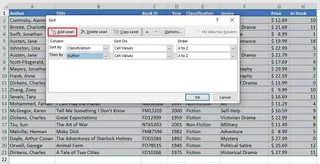
While powerful, this process is entirely manual. Each new sorting requirement means reopening this dialog and re-configuring the levels.
Method 3: Formulas for Complex Sorting (The Real Headache)
What about sorting by last name when first and last names are in a single cell? This is where traditional Excel becomes truly cumbersome. You can't just click a button. You must first create "helper columns" to extract the last name using a combination of text functions.
For a name in cell A2, you would need formulas like these:
- To extract the last name:
=RIGHT(A2,LEN(A2)-SEARCH(" ",A2)) - To extract the first name:
=LEFT(A2,SEARCH(" ",A2)-1)

The steps would be:
- Insert one or two new columns next to your name column.
- Enter the complex formulas to split the names.
- Drag the formulas down for all rows.
- Now, perform a standard sort on your new "Last Name" helper column.
- Finally, delete the helper columns to clean up your sheet.
The Limitations of the Manual Approach
- High Complexity: For anything beyond a simple A-Z sort, you need to remember specific dialog box settings or a chain of complex, unintuitive formulas (
SEARCH,LEN,RIGHT). - Extremely Error-Prone: A typo in a formula, selecting the wrong range, or forgetting to check "My data has headers" can instantly corrupt your data integrity.
- Time-Consuming: The process of adding helper columns, writing formulas, sorting, and then cleaning up is slow and repetitive, especially for large datasets.
- Inflexible: If your boss comes back and says, "Great, now can you sort it by the first name instead?" you have to start the entire process over again.
The new solution: Using an Excel AI like Excelmatic
Instead of wrestling with clicks, dialogs, and formulas, what if you could just tell Excel what you want? That's the power of an Excel AI Agent like Excelmatic. You upload your file and use plain language to describe your sorting needs, no matter how complex.

Overall Idea
Excelmatic acts as your personal data analyst. You simply upload your Excel or CSV file, and then start a conversation. You describe the outcome you want, and the AI performs the analysis, manipulation, or sorting for you, showing you the result in seconds. It completely bypasses the manual, step-by-step process.
Step-by-Step: Alphabetizing with Excelmatic
Let's revisit the same problems and see how they are solved in a few seconds with Excelmatic.
1. Upload Your Data File
First, log in to Excelmatic and upload your spreadsheet. It supports Excel (.xlsx, .xls) and .csv files. The AI will instantly read your data and show you a preview.

2. Describe Your Sorting Request in Plain Language Instead of clicking through menus, you just type your request into the chat box. Here are some examples based on our previous scenarios:
For a simple alphabetical sort:
Sort the data alphabetically by the 'Last Name' column.
For a multi-level sort:
Sort this table first by 'Classification' from A to Z, and then by 'Author' alphabetically.
For the complex "sort by last name" problem:
My contact list has a 'Full Name' column. Please sort the entire sheet alphabetically based on each person's last name.
For data arranged horizontally (in rows):
My data is laid out horizontally. Sort the columns from left to right based on the names in row 1.
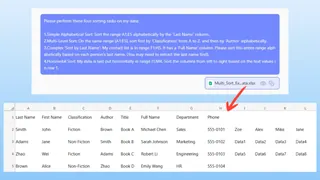
3. Review and Iterate on the Result Excelmatic will process your request and present the sorted data instantly. The beauty of this conversational approach is that you can easily refine the result. You can continue the conversation with follow-up requests:
- "Great. Now, can you only show me the rows where 'Classification' is 'Fiction'?"
- "Reverse the sort order for the authors."
- "Add a new column that combines the author's last name and first name, separated by a comma."
This iterative process of analysis is nearly impossible to do as quickly in traditional Excel.
4. Export Your Finished File Once you're satisfied, you can download the newly sorted data as a new Excel file with a single click. Your original file remains untouched.
Dialogue Example
Here’s how a typical conversation to solve the "sort by last name" problem would look in Excelmatic:
User: I have a sheet with employee names in a single 'Full Name' column. I need to alphabetize the whole list by last name.
Excelmatic: Understood. I have sorted your data alphabetically based on the last name extracted from the 'Full Name' column. All rows have been kept intact. Here is the preview of the sorted table.
User: This is perfect. Can you also create a new column called 'Last Name' that just contains the last name I sorted by?
Excelmatic: Certainly. I have added a 'Last Name' column and populated it by extracting the last name from the 'Full Name' column. The table remains sorted. You can now download the updated file.
Traditional Excel vs. Excelmatic: A Quick Comparison
| Task | Traditional Excel Method | Excelmatic (Excel AI) Method |
|---|---|---|
| Simple Sort | 2-3 clicks on the Data tab. | Type one sentence, e.g., "Sort by 'Name' A-Z". |
| Multi-Level Sort | Open Sort dialog, add levels manually, set order for each. | Type one descriptive sentence, e.g., "Sort by Department, then by Hire Date." |
| Sort by Last Name (from a single column) | Create helper columns, write complex formulas (RIGHT, LEN, SEARCH), sort, then delete columns. |
Type one simple instruction: "Sort the list by last name." |
| Flexibility | Low. Changing sort criteria requires repeating the entire manual process. | High. Simply type a new request to re-sort or filter the data instantly. |
| Risk of Error | High. Formula errors or incorrect range selections can scramble data. | Very low. The AI handles the complex logic, ensuring data integrity. |
FAQ
Q: Do I need to know any Excel formulas to use Excelmatic for sorting? A: Absolutely not. The entire purpose of Excelmatic is to replace complex formulas and manual steps with natural language instructions. You just need to be able to describe the result you want.
Q: Will Excelmatic modify my original Excel file? A: No. Excelmatic works on a copy of your data within its secure environment. Your original file on your computer is never touched. You can download the results as a new file.
Q: What if my data is messy, with blank rows or inconsistent formatting? A: Excelmatic is designed to be robust and can often handle messy data better than Excel's rigid tools. You can even ask it to help you clean the data first, for example, by saying "Remove all blank rows" or "Trim leading and trailing spaces from all cells."
Q: Is it safe to upload sensitive company data like employee or customer lists? A: Excelmatic is built with data security as a priority, employing enterprise-grade security measures. All data is encrypted in transit and at rest. For specific compliance needs, always refer to the official privacy policy and terms of service.
Q: Can Excelmatic handle very large datasets? A: Yes, Excelmatic is designed to process files much larger than what can be comfortably handled manually in Excel, making it ideal for analyzing substantial datasets without performance issues.
Take Action: Upgrade Your Excel Workflow with Excelmatic
Think about the last time you had to sort a complex list in Excel. How much time did you spend clicking through menus, double-checking your work, or searching online for the right formula? That time is a hidden cost that adds up week after week.
By embracing an Excel AI tool, you can reclaim those hours and eliminate the frustration. Instead of being an Excel operator, you become a data strategist, focusing on the "what" and letting the AI handle the "how."
Ready to stop wrestling with sort dialogs? Try Excelmatic for free today. Upload one of your own spreadsheets and try one of the prompts from this article. Experience for yourself how a simple conversation can transform your most tedious Excel tasks.