Key Takeaways
- The Cloud Shift: Modern users are moving toward Google Sheets for its real-time collaboration and accessibility.
- The Structural Gap: Standard templates found in Google Sheets are often too simple for complex financial tracking and deep data analysis.
- Excelmatic Synergy: Use Excelmatic Template Generation to build the complex architecture (logic, pivots, and dashboards) and then seamlessly host it in Google Sheets.
- Automation First: AI handles the formula writing and chart linking, allowing you to focus on strategic financial planning instead of manual spreadsheet maintenance.
Background: Balancing Mobility with Analytical Power
Modern finance demands mobility. Tools like Google Sheets are excellent for logging expenses on the go and syncing across devices in real-time.
However, convenience often comes at the cost of depth. Google’s built-in templates are "ready-to-wear" solutions designed for the average user. Their logic is often singular and rigid, making them difficult to adapt for complex needs like freelance income tracking, multi-currency conversions, or professional debt models without breaking core formulas.

The Solution: Treat it as a strategic partnership. Use a high-performance "architect" to build your custom data system, then deploy it to the cloud for the convenience of your daily workspace.
Why AI-Generated Templates Outperform Standard Sheets
Most people download a static template only to realize it doesn't fit their specific income streams or debt categories. By using Template Generation, you aren't just downloading a file; you are commanding an AI to build a bespoke financial system.
- Pivot-Driven Logic: Instead of simple lists, our AI builds robust Pivot Table summaries that allow you to slice data by Category, Month, or Payment Method.
- Professional Aesthetics: Every dashboard is generated with an executive-ready layout that rivals expensive financial planning software.
- Full Compatibility: Every system built by Excelmatic is a standard
.xlsxfile, which Google Sheets can convert into its native format with a single click—preserving all formulas and structures.
Step-by-Step: Building Your Master Budget for Google Sheets
Follow this high-speed workflow to bridge the gap between AI-driven logic and cloud-based collaboration.
Step 1: Define Your Financial Architecture
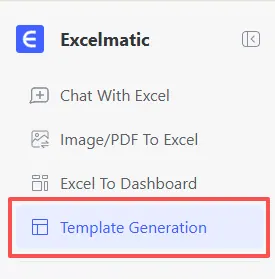
Navigate to the Template Generation tab in Excelmatic. Instead of picking a generic file, use the power of a prompt to describe exactly how your life works.
Step 2: The "Cloud-Ready" Power Prompt
To get the most out of Google Sheets' visual capabilities, use a detailed prompt that defines a multi-layered system.
Copy and paste this high-performance prompt into the Excelmatic generator:
Create a comprehensive Personal Monthly Budget Tracker for Google Sheets integration with 4 sheets:
1. Transaction_Log: Columns for Date, Description, Category (Needs/Wants/Savings), Payment Method, and Amount.
2. Budget_Settings: A table to set monthly limits for each category.
3. Monthly_Analysis: Pivot tables that calculate Actual vs. Budgeted spending and Variance.
4. Executive_Dashboard: Visualizations including a spending trend line, category distribution pie chart, and a 'Safe-to-Spend' gauge.
Include 100 rows of sample data and ensure all charts are dynamically linked.

Step 3: From AI to Google Sheets
Once the AI completes the generation, follow these steps:
- Download the
.xlsxfile from Excelmatic. - Upload it to your Google Drive.
- Open with Google Sheets. Google will automatically convert the AI-verified formulas and Pivot Tables into its cloud-native format.
Comparison: Manual Setup vs. Excelmatic + Google Sheets
| Feature | Manual Google Sheets Setup | Excelmatic AI + Google Sheets |
|---|---|---|
| Formula Accuracy | User-Dependent (Risky) | AI-Verified (Solid) |
| Pivot Table Design | Manual & Time-Consuming | Instant & Automated |
| Visual Dashboard | Basic & Static | Dynamic & Executive-Ready |
| Flexibility | Hard to restructure | Unlimited via Re-Prompting |
Maximizing Your New Financial System
Once your template is live in Google Sheets, use the Excelmatic ecosystem to keep your data pristine:
- Clean Bank CSVs: Don't let messy bank exports ruin your clean sheet. Use Automate Data Cleaning to standardize descriptions before importing.
- Deep Dive Analytics: If you spot a spending anomaly, use Data Filtering to drill down into specific dates or vendors.
- Consolidate Accounts: Have multiple bank exports? Use Merge Multiple Sheets to create one master log for the AI to analyze.
FAQ: Google Sheets & AI Templates
- Q: Will the formulas still work after I import the file into Google Sheets? A: Yes. Excelmatic uses standard Excel logic that is 100% compatible with Google Sheets' conversion engine.
- Q: Can I share this with my spouse or business partner? A: Absolutely. That is the beauty of this workflow. You use Excelmatic to build the "brain" of the sheet, and Google Sheets to share the "access."
- Q: Is this better than using a budgeting app? A: Yes, because you own the data. Unlike subscription apps that can change their UI or limit your data access, a generated spreadsheet is yours forever and can be customized infinitely.
🚀 Stop Searching. Start Generating.
Don't waste hours fighting with gridlines. Let AI build your perfect Google Sheets budget tracker today.
📊 Generate My Google Budget Sheet Free