Key Takeaways
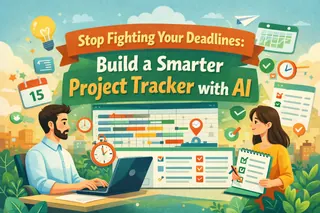
- The Coordination Gap: Using a generic list for complex projects leads to missed deadlines and resource conflicts—a top-tier productivity killer.
- The AI Advantage: Instead of manual formatting, use Excelmatic Template Generation to build a project architecture that specifically fits your team's workflow.
- Smart Visualization: Every generated tracker can include automated Gantt charts and conditional formatting to highlight overdue tasks instantly.
- Instant Scalability: Move from a simple to-do list to a multi-phase project command center in under 60 seconds.
The Problem: Why "Free" Project Templates Fail
Most project managers have a folder full of downloaded templates that they never use. Why? Because these files are either too rigid to adapt to changing timelines or the Excel formulas for the Gantt charts break the moment you add a new row.
You shouldn't have to be an Excel expert to lead a project. Excelmatic’s Template Generation allows you to focus on the "What" and "When," while the AI handles the "How."
Two Paths to Your Perfect Project Tracker
Inside the Template Generation hub, you have two high-speed options to get your team organized.
Option 1: The AI Prompt (Tailor-Made for Your Workflow)
If your project follows a specific methodology (like Agile Sprints or Construction Phases), just describe it.
- Prompt Example:
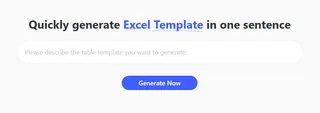
Create a project tracker for a 6-month software development cycle. Include columns for Task, Owner, Priority, Start/End Dates, and a Status bar. Add a Gantt Chart view.
- Why it works: The AI embeds the calculation logic needed to track task duration and percentage completion automatically.
Option 2: Professional Showcases (Industry Standards)
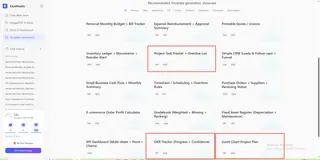
For standard workflows, our Project Management showcase features battle-tested designs used by thousands of teams worldwide.
- Top Picks: Select from specialized layouts like the "Project Task Tracker + Overdue List" for immediate visibility, the "Gantt Chart Project Plan" for timeline mapping, or the "OKR Tracker (Progress + Confidence)" to align team goals.
- The Result: You get an executive-level data visualization tool that separates your granular task list from your strategic visual timeline.
Pro-Level Execution: 3 Steps to Launch
Step 1: Define Your Scope
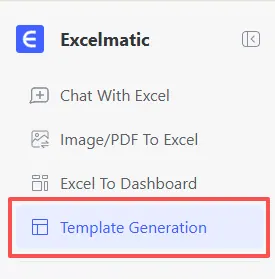
Go to the Template Generation tab. Decide if you want to pick a pre-built Gantt chart from our showcase or type a custom prompt for your specific industry.
Step 2: Input Logic & Metrics
Tell the AI which data points matter most. Use data validation to ensure your team picks from a set list of "Status" options (e.g., Not Started, In Progress, Completed).
Try these high-performance prompts:
- For Creative Teams:
Generate a content calendar for a social media team. Track Platform, Content Type, Publish Date, and Approval Status.
- For Construction/Engineering:
Build a multi-phase construction schedule with dependency tracking and a color-coded priority system.
Step 3: Generate & Iterate
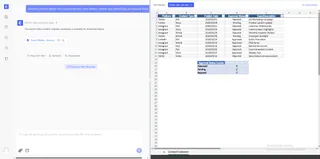
Hit "Generate Now." In seconds, your professional .xlsx file is ready. If you need to add a "Budget" column later, simply use our AI assistant to modify the existing file.
Maximizing Your Project Data Post-Generation
A great template is just the starting point. Use the Excelmatic ecosystem to keep your project on track:
- Clean Incoming Data: Importing task lists from other tools? Use Automate Data Cleaning to fix inconsistent date formats and remove duplicates instantly.
- Identify Bottlenecks: Use Data Filtering to isolate high-priority tasks that are currently "stuck" in the workflow.
- Resource Audits: Want to see who is overtasked? Use Instant Data Visualization to create a workload distribution chart from your task owners.
- Merge Team Reports: Use Merge Multiple Sheets to combine individual team member trackers into one master project overview.
FAQ: Smart Project Tracking
- Q: Can the AI create a Gantt chart that updates when dates change? A: Yes. By prompting for a "Gantt Chart," the AI sets up conditional formatting that links the visual bars directly to your date columns. Change a date, and the bar moves automatically.
- Q: Is it possible to track budgets alongside tasks? A: Absolutely. Just include "Add a budget vs. actual cost column" in your prompt. The AI will build the calculation logic to flag over-budget items in red.
- Q: Can I share these templates with my team? A: Yes. Every file is a standard Excel document. Once generated, you can upload it to OneDrive or Google Sheets for collaborative tracking.
🚀 Stop Managing Sheets. Start Managing Projects.
Don't let manual tracking slow your team down. Generate your professional project management system with AI today.
📅 Build My Project Tracker Free