Key Takeaways
- Financial Clarity: Most people fail at budgeting not because they lack discipline, but because manual expense tracking is tedious and error-prone.
- The Excelmatic Advantage: Use Excelmatic Template Generation to build a financial system that automatically compares your actual spending against your planned budget.
- Smart Categorization: Move beyond simple lists. Generate a tracker that separates "Fixed Needs" from "Wants" and "Savings," giving you a high-level view of your financial health.
- Never Miss a Due Date: Integrate a dedicated Bill Tracker that flags upcoming payments, helping you avoid late fees and maintain a healthy credit score.
Background: Why Most Budget Sheets End Up Abandoned
We've all been there: you download a "free budget template," but it doesn't have a category for your specific side hustle, or the formula for "Remaining Balance" breaks the moment you add a new row. Static templates are too rigid for real life.
Financial freedom requires a tool that adapts to your life. Excelmatic’s Template Generation allows you to describe your unique lifestyle—whether you're a freelancer with fluctuating income or a homeowner managing multiple utilities—and builds the calculation logic to match.
Two Paths to Financial Peace of Mind
Inside the Template Generation hub, you can choose the fastest way to get your finances organized.
Option 1: One-Click Finance Showcases
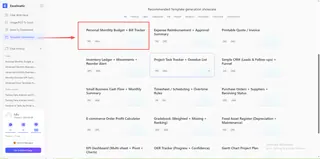
For those who want a proven, professional layout immediately, our Personal Finance showcase offers industry-standard architecture.
- Top Picks: Select from specialized layouts like the "Monthly Budget Planner (Planned vs. Actual)" for classic tracking, or the "Annual Savings Goal & Debt Snowball" for long-term wealth building.
- The Result: You receive an executive-level personal balance sheet that handles all the Excel formulas for you.
Option 2: The AI Prompt (Tailored to Your Life)
If you have specific needs—like tracking expenses in multiple currencies or splitting bills with a roommate—describe your requirements to the AI.

- How it works: The AI builds a bespoke data entry system that feeds directly into a visual summary of your net worth and cash flow.
- Why it matters: Your budget should reflect your reality, not a generic box.
Pro-Level Execution: 3 Steps to Launch Your Tracker
Follow this workflow to build a sophisticated personal finance hub using Excelmatic's AI.
Step 1: Select Your Entry Point
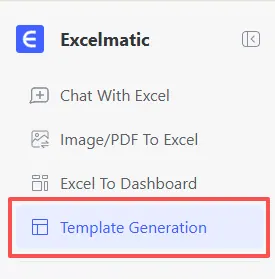
Log in to Excelmatic and navigate to the "Template Generation" tab. For a personal project, the "Custom Prompt" path is often the most rewarding.
Step 2: Define Your Financial Goals (The Power Prompt)
To get a truly automated experience, be specific about the categories and visual feedback you need.
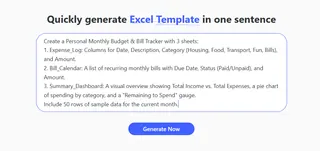
Copy and paste this high-performance prompt into the box:
Create a Personal Monthly Budget & Bill Tracker with 3 sheets:
1. Expense_Log: Columns for Date, Description, Category (Housing, Food, Transport, Fun, Bills), and Amount.
2. Bill_Calendar: A list of recurring monthly bills with Due Date, Status (Paid/Unpaid), and Amount.
3. Summary_Dashboard: A visual overview showing Total Income vs. Total Expenses, a pie chart of spending by category, and a "Remaining to Spend" gauge.
Include 50 rows of sample data for the current month.
Step 3: Generate & Deploy
Click "Generate Now." In about 3-5 minutes, the AI will create the logic for your data visualization. Your custom .xlsx file will be ready for download, helping you start your journey to better money management.
Comparison: Manual Budgeting vs. Excelmatic AI
| Feature | Pen & Paper / Basic Sheets | Excelmatic AI Generation |
|---|---|---|
| Setup Time | 1 - 2 Hours | 3 - 5 Minutes |
| Visual Insights | None (Just Numbers) | Automated Charts & Gauges |
| Error Handling | Easy to break formulas | AI-Verified Logic |
| Scalability | Hard to add categories | Instant Customization |
Keeping Your Finances Clean & Organized
Once your tracker is generated, use the Excelmatic toolkit to maintain your "Financial Zen":
- Clean Bank Exports: Most banks export messy CSV files. Use Automate Data Cleaning to standardize descriptions and fix date formats before pasting them into your Expense_Log.
- Analyze Spending Trends: Use Data Filtering to see exactly how much you spent on "Dining Out" over the last three months.
- Annual Review: At the end of the year, use Merge Multiple Sheets to combine 12 monthly trackers into one master annual financial report.
FAQ: Smart Personal Budgeting
Q: Can I add a "Savings Goal" tracker later? A: Absolutely. You can use the AI Assistant to add a new tab that calculates how much you need to save daily to reach your goal.
Q: Is it safe to put my bank details in the prompt?? A: No need! You should only describe the structural description (e.g., "I need a column for Amount and Date"). Never include actual bank account numbers or sensitive passwords in the prompt. You fill in your private data locally after downloading.
Q: How do I handle bills that change every month? A: Yes. In your Bill_Calendar sheet, simply update the "Amount" column when you get your statement. The Summary_Dashboard will automatically pull the updated number.
💰 Your Path to Financial Freedom Starts Here.
Stop wondering where your money went. Start telling it where to go. Generate your custom budget tracker today.
📅 Build My Budget Tracker Free