Key Takeaways
- The Analytical Gap: Most managers struggle to bridge the gap between messy raw data and executive-ready insights—a major drain on decision-making speed.
- The Excelmatic Advantage: Instead of manual pivot setup, use Excelmatic Template Generation to build an automated project architecture that transforms data into insights instantly.
- Intelligent Structure: Generated dashboards follow a professional 4-layer structure: Raw Data, Definitions, Pivot Summaries, and Visual Dashboards.
- Interactive Visualization: Every generated system includes Slicers and dynamic charts, allowing you to filter by Month, Region, or Product with a single click.
Background: Why Generic Dashboards Fail Your Business
Most business leaders have a collection of rigid, downloaded templates that break the moment they add a new product line or region. Why? Because these files are often static "drawings" rather than dynamic systems. When your raw data grows, the Excel formulas fail, and the charts stop updating.
You shouldn't need a degree in data science to lead a team. Excelmatic’s Template Generation handles the heavy lifting of Pivot Table creation and chart linking, allowing you to focus on the "Why" behind the numbers while the AI handles the "How."
Two Paths to Your Analytical Command Center
Inside the Template Generation hub, you have two high-speed options to move from data chaos to visual clarity.
Option 1: One-Click Professional Showcases
For standard business tracking, our KPI & Analytics showcase features battle-tested designs used by thousands of companies worldwide.
- Top Picks: Select from specialized layouts like the "KPI Dashboard (Multi-sheet + Pivot + Charts)" for full-scale business reviews, or the "OKR Tracker (Progress + Confidence)" for goal alignment.
- The Result: You get a high-end, executive-ready structure that eliminates the need for manual formatting and formula writing.

Option 2: The AI Prompt (Bespoke Analytics)
If your business follows a specific logic—like tiered sales commissions or complex international tax regions—simply describe your workflow to the AI.

- How it works: The AI embeds the calculation logic needed to link your raw records to your visual charts automatically.
- Why it matters: It provides a tailor-made structure that fits your specific data headers and reporting needs.
Pro-Level Execution: 3 Steps to Launch Your Dashboard
Follow this workflow to generate a sophisticated tracking system using Excelmatic's advanced AI capabilities.
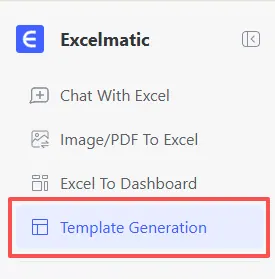
Step 1: Choose Your Entry Point
Log in to Excelmatic and navigate to the "Template Generation" tab. Decide whether you want to use a custom prompt for a bespoke project or pick a pre-built showcase.
Step 2: Define Logic & Metrics (The Power Prompt)
To get a truly professional result, use a detailed description. This tells the AI exactly how to structure the math and visuals.
Copy and paste this high-performance prompt into the box:
Create an advanced Monthly Business KPI Dashboard Excel template with 4 sheets:
1. Raw_Data: Columns — Date, Month, Team, Region, Product, Metric Type (Revenue/Cost/Leads/Conversions), Value.
2. KPI_Definitions: List KPIs with formulas (e.g., Conversion Rate = Conversions / Leads).
3. Pivot_Summary: Pivot tables grouped by Month, Region, Product, Team; include slicers.
4. Dashboard: Show these charts — Revenue trend, Revenue by region, Cost vs revenue, Leads & conversion rate trend, Top 10 products by revenue.
Include 60 sample rows over 6 months; make the dashboard auto-update from Raw_Data.

Step 3: Generate & Deploy
Click "Generate Now." In about 3-5 minutes, the AI will build the pivot tables, link the charts, and verify the formulas. Your professional .xlsx file will be ready for download.
Comparison: Old Way vs. Excelmatic AI
| Feature | Manual Setup (Old Way) | Excelmatic AI Generation |
|---|---|---|
| Total Setup Time | 2 - 4 Hours | 3 - 5 Minutes |
| Pivot Table Logic | Manual & Error-Prone | AI-Verified & Automated |
| Handling New Data | Re-defining ranges | Automatic Table Expansion |
| Customization | Hard-coded & Rigid | Unlimited via Prompting |
Maximizing Your Business Data Post-Generation
A professional dashboard is just the starting point. Use the Excelmatic ecosystem to keep your business insights sharp:
- Scrub Incoming Data: Importing reports from different systems? Use Automate Data Cleaning to fix inconsistent date formats and remove duplicate entries instantly.
- Identify Profit Bottlenecks: Use Data Filtering to isolate low-performing products or high-cost regions within your new dashboard.
- Consolidate Regional Reports: If you have different files for different countries, use Merge Multiple Sheets to feed them all into your master dashboard Raw_Data sheet.
- Deeper Analytics: Once you have your structure, use our Master Data Analysis guide to add year-over-year growth projections without writing complex code.
FAQ: Smart KPI Tracking
Q: Can I change the chart types after generation? A: Absolutely. Since Excelmatic provides a standard
.xlsxfile, you can use the built-in Excel tools to change a bar chart to a pie chart or use our Instant Data Visualization guide for more creative layouts.Q: Will the dashboard update if I add more than 60 rows? A: Yes. The AI sets up the Raw_Data as a dynamic "Table." When you add new rows, the Pivot Tables and charts will include the new data after a simple "Refresh".
Q: Is my business data safe during generation? A: Yes. During the generation phase, you are only sending the structural description (the prompt) to build the framework. Your actual data entry happens locally after you download the file.
🚀 Stop Fighting Sheets. Start Leading Growth.
Don't let manual reporting slow your business down. Generate your professional KPI command center with AI today.
📊 Build Your Master Dashboard Free