'%3e%3crect%20id='矩形_7888'%20data-name='矩形%207888'%20class='cls-1'%20width='20'%20height='20'%20rx='4'%20transform='translate(6260%20-4478)'/%3e%3cpath%20id='联合_155'%20data-name='联合%20155'%20class='cls-2'%20d='M6.074,12.147a6.207,6.207,0,0,1-.621-.031A6.087,6.087,0,0,1,.031,6.694a6.177,6.177,0,0,1,0-1.241A6.086,6.086,0,0,1,5.453.031,6.177,6.177,0,0,1,6.074,0H9.152V2.029H6.074a4.053,4.053,0,0,0-3.916,3.03H9.152V7.088H2.158a4.053,4.053,0,0,0,3.916,3.03H9.152v2.029Z'%20transform='translate(6264.693%20-4473.9)'/%3e%3c/g%3e%3c/svg%3e)
Key Takeaways
- Dynamic Visualizations: Stop drawing bars manually. Generate a Gantt chart where the timeline responds instantly to date changes.
- Complex Logic Simplified: AI handles the heavy lifting—nested formulas and conditional formatting—that usually make Gantt charts a nightmare to build.
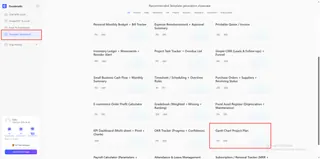
- One-Click Deployment: Access the Gantt Chart Project Plan directly from the Excelmatic Showcase for a battle-tested structure.
- Operational Overview: Turn rows of text into a high-level roadmap, making dependencies and project health visible to stakeholders at a glance.
The "Timeline Torture": Why Manual Gantt Charts Fail
If you've ever tried to build a Gantt chart in Excel from scratch, you know the pain: one date change usually leads to an hour of fixing broken formulas and misaligned color blocks.
The average project lead wastes 15% of their week just "beautifying" timelines.
With Excelmatic Template Generation, you move from being a "spreadsheet painter" to a Strategic Planner. Instead of fighting with cell borders, you describe your project phases, and the AI architects the visual engine for you.
What's Your Project Scope?
Whether you are tracking a weekend event or a multi-year infrastructure build, the AI adapts the timeline's granularity to your needs.
Scenario A: The Weekly Project Pulse (Detail-Oriented)
Ideal for short-term goals where daily progress is critical.
- The Prompt:
Create a 4-week project Gantt chart. Include columns for Task, Assigned To, Start Date, and Duration. I need the timeline to show daily increments and highlight the current day.
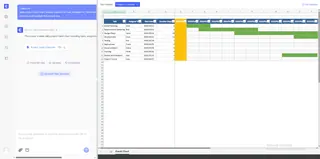
- The Power: The AI builds the conditional formatting logic to automatically shade cells based on your dates, ensuring a perfect daily view.
Scenario B: The Executive Roadmap (Strategic Vision)
Perfect for presenting long-term milestones to stakeholders.
- The Prompt:
Generate a high-level project plan for a 12-month product development cycle. Include a Gantt chart with monthly views, completion percentages, and a status indicator for 'Risk' or 'On Track'.
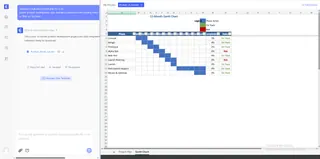
- The Power: It integrates data visualization components directly into the grid, turning boring dates into a professional executive summary.
From Template to Professional System: The Showcase Shortcut
You don't always need a custom prompt to get professional results. Our Template Showcase features a pre-architected Gantt Chart Project Plan that has been refined for maximum stability and clarity.
Instead of starting from zero, simply select the Gantt Chart preset to get:
- Automatic Bar Generation: Input your dates, and the bars appear instantly.
- Progress Tracking: A built-in "Percent Complete" logic that visually fills your Gantt bars as you work.
- Dependency Ready: A clean structure that allows you to link tasks without breaking the visual layout.
See it in Action
Check out the video below to see how the "Gantt Chart Project Plan" instantly transforms from a selection into a dynamic, visual roadmap. You can see the timeline update in real-time as project logic is applied:
Advanced Project Controls: The AI Workflow
Generating your Gantt chart is the first step. To keep your project on the rails, use these advanced Excelmatic features:
- Standardize Task Inputs: Use Automate Data Cleaning to ensure all team-submitted dates are in the correct format before they hit the Gantt sheet.
- Summarize Large Plans: Managing 500+ rows? Use Data Filtering to instantly view only "Critical Path" tasks or "Overdue Milestones."
- Bridge the Gaps: If you need to add complex logic—like calculating workdays vs. weekends—use the Complex Formula Generator to update your sheet without rebuilding it.
FAQ: Professional Project Planning
- Does the chart handle weekends?
A: Yes. In your prompt, you can specify "Exclude weekends from duration," and the AI will architect the
WORKDAYformulas for you. - Can I change the colors of the bars? A: Absolutely. Since it's a standard Excel file, you can use conditional formatting to change colors based on Task Owner or Priority.
- Is it compatible with Google Sheets?
A: Yes. Download the
.xlsxfile and upload it to Google Drive. The architectural logic remains fully functional.
🚀 Stop Drawing. Start Leading.
Turn your project chaos into a visual roadmap in 30 seconds.
Generate My Gantt Chart Free