'%3e%3crect%20id='矩形_7888'%20data-name='矩形%207888'%20class='cls-1'%20width='20'%20height='20'%20rx='4'%20transform='translate(6260%20-4478)'/%3e%3cpath%20id='联合_155'%20data-name='联合%20155'%20class='cls-2'%20d='M6.074,12.147a6.207,6.207,0,0,1-.621-.031A6.087,6.087,0,0,1,.031,6.694a6.177,6.177,0,0,1,0-1.241A6.086,6.086,0,0,1,5.453.031,6.177,6.177,0,0,1,6.074,0H9.152V2.029H6.074a4.053,4.053,0,0,0-3.916,3.03H9.152V7.088H2.158a4.053,4.053,0,0,0,3.916,3.03H9.152v2.029Z'%20transform='translate(6264.693%20-4473.9)'/%3e%3c/g%3e%3c/svg%3e)
Key Takeaways
- The Timeline Bottleneck: Static Gantt templates often break when dates shift, leading to "spreadsheet maintenance fatigue" instead of actual project leading.
- Intelligent Architecture: Excelmatic Template Generation replaces manual cell-coloring with AI logic, creating dynamic bars that respond to date changes automatically.
- Bespoke vs. Ready-to-Use: Whether you need a complex multi-phase roadmap or a quick visual preset from our library, the system scales to your complexity.
- Visual Clarity: High-performance Gantt charts mean clear dependencies, instant status updates, and an executive-ready view for better stakeholder management.
The "Timeline Torture" Headache
Anyone who has managed a complex project knows the dread of the "Manual Gantt Chart." You start with a simple plan, but one delayed task later, you’re trapped in a nightmare of dragging shapes, fixing date formulas, and re-coloring bars. Most generic Gantt templates are either too rigid to be useful or so fragile that one wrong delete breaks the entire visualization.
When you spend more time "drawing" the schedule than actually managing the work, it’s a sign your tools aren't working. Excelmatic Template Generation was built to change that—moving you from a "manual formatter" to an Architect of Strategy.
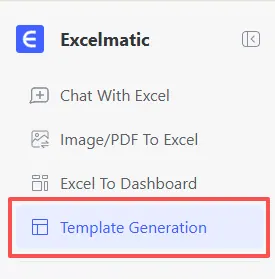
Your Project, Your Rules
The problem with traditional Gantt software is it forces your project into a fixed grid. Excelmatic flips that logic: the AI builds the visual system around the way your project moves.
1. Custom Logic for Complex Roadmaps
Every project has "quirks"—perhaps you only work on business days, or you need specific color codes for different departments. A standard download can't handle that.
With Excelmatic, you describe your workflow in plain English. The AI then constructs the "plumbing"—the complex IF and WORKDAY logic—ensuring your Gantt chart is professional and structurally sound.
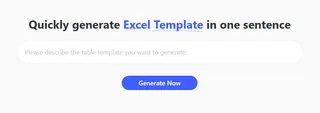
2. Instant Professional Presets
Sometimes, you don't need to reinvent the wheel. For those moments, Excelmatic offers a curated selection of Recommended Templates.
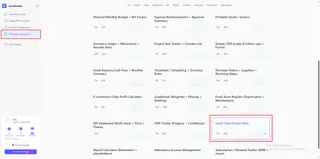
From Gantt Chart Project Plan to Project Task Trackers with Overdue Lists, these aren't your standard basic grids; they are architecturally sound systems designed by experts. You don't have to imagine how these work—you can see the Gantt system in action below:
Master the Prompt: Expert Planning Frameworks
To get the most out of our AI Architect, use these high-performance prompts to generate your next Gantt system:
For Product Development
Build a Gantt Chart Project Plan for a 6-month product launch. Include columns for Task Name, Assigned Owner, Start Date, End Date, and % Complete. Ensure the visual timeline updates automatically and excludes weekends from duration calculations.
For Agile Sprints
Create a 2-week Sprint Tracker. I need a Gantt view showing daily increments, color-coded by 'Priority' (High/Med/Low), and a summary section for total tasks completed vs. pending.
For Construction & Infrastructure
Generate a Construction Timeline. Include a sheet for 'Milestone Settings' and a Gantt chart that visualizes dependencies between phases like Foundation, Framing, and Electrical.
How to Deploy Your Timeline Instantly
Efficiency is the goal. Here is how you go from a blank screen to an executive-ready Gantt chart:
- Define: Enter a prompt describing your project rules or select the "Gantt Chart Project Plan" from the showcase.
- Generate: Let the AI architect the conditional formatting, date logic, and visual layers.
- Execute: Download your
.xlsxfile. It's ready for Excel or can be instantly uploaded to Google Sheets.
Frequently Asked Questions (FAQ)
- Q: Is the generated Gantt chart interactive? A: Yes. Unlike static images, Excelmatic generates a functional Excel table. You can use built-in filters and sorting to focus on specific owners, high-priority tasks, or upcoming deadlines instantly.
- Q: Can the Gantt bars change color based on status? A: Absolutely. You can specify this in your prompt, and the AI will build the necessary Conditional Formatting rules so bars turn green when "Done" and red when "Overdue."
- Q: How does this handle task dependencies?
A: When you describe your workflow, the AI builds linked date formulas (like
End Date + 1) into the background so your entire timeline shifts correctly when one date changes. - Q: What if I have no idea how to structure my plan? A: That is exactly why we created the Template Showcase. You can even watch the live demonstrations (like the Gantt video above) to see the output before you even click generate.
🚀 Stop Fighting Your Deadlines.
Start architecting a roadmap that works as hard as you do.
Generate My Gantt Chart Free