Key Takeaways
- End the Manual Formatting: Stop wasting hours fighting with conditional formatting and cell borders; customize your project timeline precisely to your workflow.
- Automated Logic Integration: Gantt charts generated by AI come with built-in date tracking and progress logic, eliminating the need to write complex timeline formulas manually.
- Zero-Threshold Generation: Start from scratch with a simple description or use professional built-in showcases to generate a high-end project plan instantly.
- Dynamic Adaptability: From 6-month software development cycles to simple marketing campaign trackers, Excelmatic generates the exact Gantt structure you need.
Background: The "Gantt Chart Headache" in Project Management
Every project manager knows the pain: your boss wants a visual timeline by the end of the day. You open Excel, but instead of managing the project, you spend hours fighting with conditional formatting, date formulas, and cell borders just to make a Gantt Chart look presentable. When a deadline shifts, the whole manual setup breaks. This "manual drawing" is the ultimate productivity killer in modern offices.
The Old Way: A Battle with Formatting
Before AI, creating a Gantt Chart in Excel was a multi-step nightmare:
- Setting up the Grid: Manually creating a calendar header that spans months or years.
- Complex Conditional Formatting: Writing nested
ANDandIFformulas to turn cells blue based on start and end dates. - Manual Updates: Every time a task was delayed, you had to manually re-calculate end dates and hope the formatting didn't break.
- Static View: It looked like a chart but acted like a drawing—hard to filter, harder to update.
The Intelligent New Way: From Text to Timeline
With Excelmatic's Template Generation, you no longer need to be an Excel wizard to create a high-end Gantt Chart. You can skip the setup and go straight to tracking.
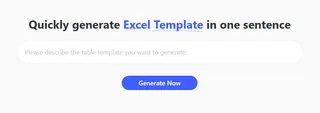
Method A: One-Sentence Customization (Custom Prompt) Simply describe your project's scope.
Example:
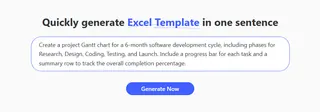
Create a project Gantt chart for a 6-month software development cycle, including phases for Research, Design, Coding, Testing, and Launch. Include a progress bar for each task.
- Method B: Instant Showcase Templates Browse the Project category in the Showcase and select "Gantt Chart Project Plan" to generate a battle-tested structure instantly.
How to Guide: 3 Steps to Your AI-Generated Gantt Chart
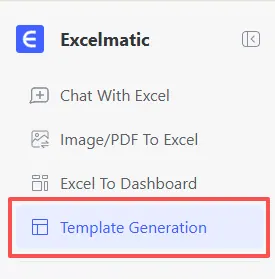
- Step 1: Access the Tool Log in to Excelmatic and navigate to the "Template Generation" tab.
- Step 2: Describe Your Schedule Enter your project details in the prompt box (e.g., "A marketing campaign timeline with columns for Owner, Status, Start, and Duration").
- Step 3: Generate & Export
Click "Generate Now." In 3 - 5 minutes, your professional Gantt Chart is ready. Export the
.xlsxfile and start managing your team.
Comparison: Old vs. New
| Feature | Manual Formatting | Excelmatic AI Generation |
|---|---|---|
| Total Setup Time | 1 - 2 Hours | 3 - 5 Minutes |
| Formula Knowledge | High (Conditional Formatting) | Zero (Natural Language) |
| Handling Delays | Manual recalculation | Quick regeneration or auto-formulas |
| Visual Appeal | Hard to maintain | Professional & Executive-ready |
Frequently Asked Questions (FAQ)
Can I add more tasks to the Gantt chart after it's generated? A: Absolutely! Since Excelmatic provides a standard
.xlsxfile, you can insert rows or use our Generate Complex Formulas guide to add even more automation to your existing chart.What other project management tools can Excelmatic create? A: Beyond Gantt Charts, our users frequently generate:
- Automate Data Cleaning: For messy resource allocation reports.
- Master Data Analysis: To track project ROI and budget variances.
- Instant Data Visualization: To turn task lists into executive pie charts.
- Merge Multiple Sheets: To combine status updates from different teams.
How accurate are the dates in the AI-generated timeline? A: Very Accurate. The AI calculates the logic based on your prompt. However, as with all Excel sheets, you can fine-tune specific holidays or milestones manually once you download the file.
🚀 One Sentence, One Chart, One Second Insight
Stop drawing bars and start managing projects. Generate your professional Gantt Chart with AI today.
📊 Generate Your First AI Chart Free