Key takeaways:
- Manually debugging complex Excel formulas is a time-consuming and frustrating process, often involving tracing precedents cell by cell and dissecting nested functions to find a single mistake.
- Excel AI tools like Excelmatic bypass manual troubleshooting. Instead of fixing the broken formula, you simply describe the result you want in plain language, and the AI generates the correct, working formula for you from scratch.
- Using an Excel AI agent not only fixes errors in seconds but also helps you learn the correct formula structure, improving accuracy and freeing up hours previously spent on frustrating debugging tasks.
Problem background & pain points
You've just inherited a critical sales report from a colleague. It's a sprawling workbook with multiple tabs, complex calculations, and years of data. Your manager asks for a simple summary, but as you refresh the data, your screen lights up with a constellation of errors: #N/A, #VALUE!, #REF!. Suddenly, your "quick task" has become a forensic investigation.
This scenario is painfully familiar to millions of Excel users. A single misplaced comma, an incorrect cell range, or a subtle data type mismatch in a long, nested formula can bring your entire analysis to a halt. The trust in your data evaporates, and your productivity plummets.
The real pain isn't just the error itself, but the tedious process of fixing it. You find yourself asking:
- Why is this
VLOOKUPnot finding a value that I can clearly see exists? - What part of this 10-line nested
IFstatement is causing the#VALUE!error? - The formula worked yesterday, but after adding new rows, why is it showing
#REF!everywhere?
Hunting for these mistakes feels like searching for a needle in a haystack. It's a non-value-added task that consumes mental energy and stalls important business decisions.
Traditional Excel Solution: The Manual Debugging Toolkit
When faced with a broken formula, seasoned Excel users typically resort to a standard, manual debugging toolkit. The process is logical but often slow and laborious.
The general approach involves becoming a detective, using Excel's built-in features to trace the source of the problem.
Error Checking & Tooltip: The first step is often to click the small error icon next to the cell. Excel offers a vague suggestion, like "A value used in the formula is of the wrong data type." While sometimes helpful, it rarely pinpoints the exact cause in a complex formula.
Trace Precedents/Dependents: On the "Formulas" tab, you can use
Trace Precedentsto draw arrows to all the cells that affect the current formula. In a dense spreadsheet, this can quickly create a "spiderweb" of arrows that is more confusing than helpful.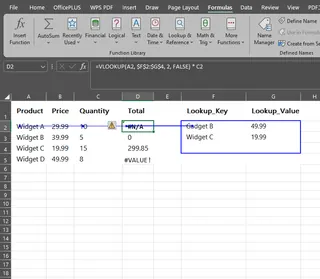
Evaluate Formula: This feature (also under the "Formulas" tab) opens a dialog box that lets you step through the formula's calculation part by part. For a simple formula like
=A2+B2, it's useful. For a monster like=IF(VLOOKUP(A2, 'Data'!$A:$F, 3, FALSE)>500, "High Value", "Low Value"), clicking "Evaluate" dozens of time to isolate the problem is a test of patience.Manual Inspection (The "F9" Trick): A more advanced technique is to highlight a portion of the formula in the formula bar and press the
F9key. This calculates just the highlighted part, showing you its result. This is powerful but risky; if you forget to pressEscapeand hitEnterinstead, you'll permanently replace that part of your formula with its calculated value.
The Limitations of the Manual Approach
While these methods eventually lead to a solution, they are fraught with inefficiencies:
- Extremely Time-Consuming: What could be a simple logic error can take 30 minutes to an hour to diagnose and fix, especially for someone less familiar with the workbook.
- Requires Deep Expertise: To effectively debug, you need to understand not just what a function does, but why it fails. You need to know the common pitfalls of
VLOOKUP, the data type requirements ofSUMIFS, and the syntax ofINDEX/MATCH. - High Cognitive Load: Mentally juggling nested functions, cell references, and evaluation steps is draining and prone to human error. You might "fix" one problem only to create another.
- Not Scalable: If you have hundreds of rows with errors, fixing them one by one is not a viable option. You need to find the root cause in the template formula, which is the hardest part.
The New Solution: Using an Excel AI Agent (Excelmatic)
Instead of manually hunting for errors, what if you could simply describe the correct outcome and have an expert build the formula for you instantly? That's the paradigm shift offered by Excel AI agents like Excelmatic.

An AI agent acts as your personal Excel consultant. You upload your file, describe your goal in plain language, and the AI handles the complex task of writing, debugging, and explaining the formulas.
Step-by-Step: Fixing Formulas with Excelmatic
Let's revisit our scenario of the broken sales report. Here's how you'd solve it with Excelmatic in minutes.
1. Upload Your Excel File
First, you securely upload your Excel or CSV file to Excelmatic. The platform doesn't modify your original file; it simply reads the data to understand its structure and content. Make sure your columns have clear headers (e.g., "Sale Date," "Region," "Sales Rep," "Sale Amount").

2. Describe Your Goal in Plain Language
This is the most crucial step. Instead of trying to fix the broken formula, you ignore it. You simply tell the AI what the cell should contain.
Here are some examples of prompts you could use:
- "In column G, I need a formula to calculate the total price. It should be the 'Unit Price' in column E multiplied by the 'Quantity' in column F."
- "My VLOOKUP in column H is broken. I want to look up the 'Region' for each 'Sales Rep ID' in column B. The lookup table is in the 'Reps' sheet, in columns A and C."
- "I need a formula that returns 'Bonus Eligible' if the 'Sale Amount' in column D is greater than $10,000, and 'Not Eligible' otherwise. I'm getting a #NAME? error."
- "Can you explain what this formula does and suggest a simpler alternative?
=IF(ISERROR(VLOOKUP(A2,Sheet2!A:B,2,0)),"Not Found",VLOOKUP(A2,Sheet2!A:B,2,0))"
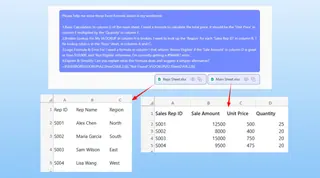
3. Get the Correct Formula and an Explanation
Excelmatic analyzes your request and your data. It then provides:
- The Correct Formula: A clean, working formula (often using modern, more efficient functions like
XLOOKUPinstead ofVLOOKUP). - An Explanation: A simple breakdown in plain language of how the formula works, so you understand the logic and can learn from it.
- A Preview: A view of your data with the new formula applied, so you can instantly verify that it's working as expected.
4. Download the Result
Once you're satisfied, you can copy the new formula and paste it into your original workbook, or download a new Excel file with the corrected column already in place.
Dialogue Example: From Error to Insight
Here's how a typical interaction might look in Excelmatic:
User: I have a sales table. My formula in column F, =VLOOKUP(A2, 'Rates'!A:B, 2, FALSE) * E2, is returning #N/A for many rows. I'm trying to calculate the commission by multiplying the sale amount by the rep's commission rate.
Excelmatic: I see the issue. The VLOOKUP is returning an #N/A error, which prevents the multiplication from working. This often happens if the ID in column A has extra spaces or doesn't exist in the 'Rates' sheet.
I can provide a more robust formula using XLOOKUP and IFERROR to handle these cases gracefully:
=IFERROR(XLOOKUP(TRIM(A2), 'Rates'!A:A, 'Rates'!B:B, 0) * E2, 0)
Here's what this formula does:
TRIM(A2)removes any leading/trailing spaces from the ID.XLOOKUPsearches for this cleaned ID and returns the corresponding rate. If not found, it defaults to 0.IFERROR(..., 0)acts as a final safety net. If any other error occurs, it returns 0 instead of an error message.
Would you like to apply this to your sheet?
Traditional Debugging vs. Excelmatic
| Aspect | Traditional Manual Debugging | Excelmatic AI Agent |
|---|---|---|
| Time to Fix | 15-60+ minutes | < 1 minute |
| Required Skill | Deep knowledge of Excel functions and error types | Ability to describe a business goal in language skills |
| Process | Manual, iterative tracing and guesswork | Direct, conversational instruction |
| Outcome | A single fixed formula | A correct, explained, and often improved formula |
| Learning | Learning through trial and error | Guided learning with clear explanations |
FAQ
Q1: Do I need to be an Excel expert to use Excelmatic? No, quite the opposite. Excelmatic is designed for users who know what they want to achieve but don't want to get bogged down in complex formula syntax. If you can describe your goal, you can use it.
Q2: Will Excelmatic modify my original Excel file? No. Your original file is used in a read-only capacity. All analysis and results are generated within the Excelmatic platform. You can then choose to download a new file with the changes.
Q3: Is it safe to upload my company's data to Excelmatic? Data privacy and security are top priorities. Excelmatic processes data under strict security protocols. For specific details on data handling and encryption, always refer to the official privacy policy on the website. The platform is designed for business use with security in mind.
Q4: Can Excelmatic fix any formula, no matter how complex? Excelmatic is exceptionally good at handling the vast majority of standard Excel functions, including lookups, logical statements, text manipulation, and aggregations. For highly specialized, custom VBA scripts or third-party add-in functions, manual review may still be necessary. However, it can often help explain the logic of even very complex standard formulas.
Q5: Can the AI explain why my original formula was wrong? Yes. This is one of the key benefits. By describing your goal and showing your broken formula, you can ask the AI, "Why is my version not working?" It will often diagnose the issue (e.g., "Your VLOOKUP range was incorrect," or "You were trying to multiply a number by text").
Start Turning Errors into Insights Today
Every minute you spend hunting down a #REF! error is a minute not spent analyzing your data and driving business value. The traditional way of debugging formulas is a relic of a past where users had to be the experts.
With an Excel AI agent like Excelmatic, you can shift your focus from "How do I fix this?" to "What question do I want to answer next?" Let the AI handle the syntax, the debugging, and the tedious work. You provide the business logic, and Excelmatic provides the results.
Stop the formula frustration. Try Excelmatic for free today by uploading that one spreadsheet that's been giving you trouble, and see how quickly you can get the correct, working formulas you need.