Key takeaways:
- A Project Tracking Dashboard provides a single, real-time source of truth for project managers, moving beyond static reports.
- The key value is the strategic shift from reactive problem-solving to proactive risk identification and management.
- Tools like Excelmatic leverage AI to unify data and build predictive dashboards without requiring complex BI skills.
- An effective dashboard is structured around core strategic KPIs (e.g., progress, resources, risks) that visually narrate the project's status.
- The practical outcome is greater organizational clarity, improved team alignment, and more confident, data-driven leadership.
- Ultimately, implementing such a dashboard is an investment in operational excellence that turns project data into decisive action.
Managing projects in modern enterprises often feels like trying to steer a ship through fog. Teams work hard, yet deadlines slip, tasks overlap, and key insights are buried in spreadsheets. Managers are constantly juggling multiple reports, only to discover inconsistencies or outdated data. The frustration isn't just wasted tim — it's the strategic decisions that suffer when leadership lacks a clear, real-time view of project health.
Traditional tools are reactive. They show you where problems already occurred rather than where they might arise. For managers aiming for high performance, this reactive approach is no longer sufficient. What's needed is clarity, foresight, and actionable insights delivered exactly when they matter.
What Is a Project Tracking Dashboard?
A Project Tracking Dashboard is more than a visual report. Professionally speaking, it is an integrated management interface that consolidates project data, tracks milestones, visualizes progress, and flags risks in real-time. It serves as a single source of truth for decision-makers, translating complex datasets into actionable intelligence.
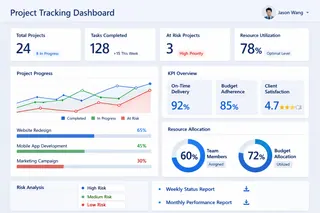
Key professional functions include:
| Function | Purpose | Value to Managers |
|---|---|---|
| Real-time Progress Visualization | Shows the current status of tasks and milestones | Immediate awareness of delays or over-performance |
| KPI Monitoring | Tracks critical project metrics | Ensures alignment with strategic objectives |
| Risk Identification | Highlights tasks at risk or dependencies in danger | Enables proactive mitigation |
| Resource Allocation Insights | Displays workload and availability of team members | Optimizes capacity and prevents bottlenecks |
| Automated Reporting | Generates summaries and alerts | Reduces manual effort, freeing time for strategic work |
A sophisticated dashboard doesn't just inform — it guides decision-making, helping managers anticipate challenges and steer projects confidently.
Introducing Excelmatic for Project Tracking Dashboards
Excelmatic transforms the concept of a dashboard into something both intelligent and aspirational. It isn't just software — it's a mindset shift in how teams and leaders approach project visibility.
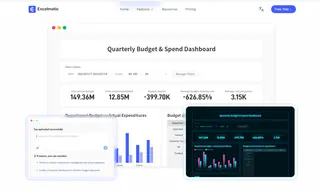
Unlike static Excel sheets, Excelmatic leverages AI to unify, analyze, and visualize project data in ways that were previously only possible with complex business intelligence platforms. The platform embodies a philosophy: empower managers to make decisions not by digging through reports, but by seeing the story the data tells.
With Excelmatic, creating a Project Tracking Dashboard becomes a process that combines rigor and creativity. Managers can design dashboards that are insightful, predictive, and elegant, providing a real-time window into every aspect of their projects. This is where operational efficiency meets strategic foresight, and where teams feel confident because their leaders are seeing clearly and acting decisively.
How to Use Excelmatic to Build a Project Tracking Dashboard
Creating a dashboard with Excelmatic is an immersive experience, not just a technical task. It begins with framing the right questions: What does the project need to achieve? Which milestones are critical? What risks could derail progress? Once these questions are clear, the dashboard design naturally follows.
Instead of presenting steps as a checklist, imagine building the dashboard as a storyboard of your project:
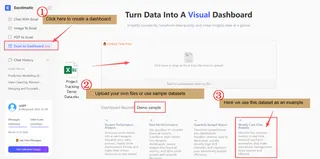
Step1: Connect data
Start by connecting all relevant project data sources into Excelmatic. The AI automatically aligns tasks, deadlines, and resource information, ensuring consistency across the dataset.
Step2: Formulate requirements
Visualizations are crafted around key performance indicators (KPIs). These KPIs should directly reflect the strategic goals of the project and the decisions managers need to make.
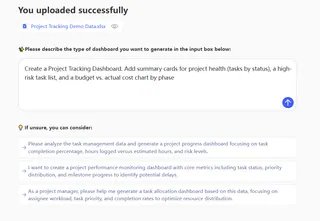
For example, a manager might track the following KPIs:
| KPI | Visualization | Insight |
|---|---|---|
| Task Completion Rate | Progress bar per task group | Shows whether teams are on schedule |
| Milestone Achievement | Timeline chart | Highlights upcoming deadlines and potential delays |
| Resource Utilization | Heatmap | Indicates workload imbalances among team members |
| Risk Index | Conditional color indicators | Flags tasks that may slip based on dependencies |
| Budget vs Actual | Line chart | Ensures spending aligns with project forecasts |
Step3: Generate visualisation dashboards
Excelmatic's AI layer doesn't just plot data; it predicts potential delays and visually emphasizes them, allowing managers to intervene before issues escalate.
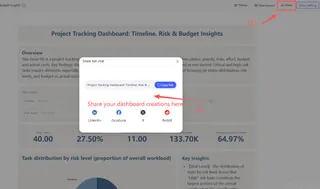
Step4: Share interactive dashboards
Interactive reports can be shared with stakeholders, automatically updating as the project evolves. This ensures everyone sees the same accurate, real-time picture.
Real-Life Applications of Project Tracking Dashboards
Consider a marketing team launching a multi-channel campaign. Previously, project managers had to chase multiple spreadsheets and meetings to understand campaign progress. With Excelmatic, the dashboard immediately highlights which tasks are delayed, which resources are overbooked, and where risk is concentrated. Decisions are made quickly, avoiding bottlenecks and last-minute surprises.
In an enterprise software rollout, cross-functional coordination is critical. Excelmatic dashboards provide a single pane of truth for engineering, QA, and product management teams. The AI identifies dependencies across departments, flags potential conflicts, and visualizes completion forecasts. Managers gain the foresight to redistribute workloads, re-prioritize tasks, and guide the project toward timely delivery.
Across industries, the common outcome is clarity: projects that were previously opaque become visible, predictable, and manageable. Teams operate with confidence because leadership has actionable insights at their fingertips.
Why You Should Start Using Excelmatic Today
The strategic advantage of Excelmatic lies in its ability to turn data into decisions. A well-designed Project Tracking Dashboard reduces manual reporting, surfaces risks before they become critical, and aligns team effort with business priorities.
Managers who adopt Excelmatic experience a shift in perspective: they move from reacting to delays to anticipating and shaping project outcomes. Projects run more smoothly, teams communicate more clearly, and leaders feel empowered to focus on high-value decision-making.
Investing time in a dashboard is not a technical exercise — it is a step toward organizational clarity and operational excellence. Excelmatic equips managers to act confidently, making every project an opportunity for measurable success.
👉 Start building your Project Tracking Dashboard with Excelmatic today.
Frequently Asked Questions (FAQ)
Q1: What is a Project Tracking Dashboard?
A: A Project Tracking Dashboard is an integrated interface that visualizes project progress, tracks KPIs, highlights risks, and supports real-time decision-making.
Q2: How does Excelmatic AI improve project tracking?
A: Excelmatic AI automates data aggregation, predicts delays, and provides real-time visual insights, transforming dashboards into proactive management tools.
Q3: Can Excelmatic dashboards handle large projects?
A: Yes, Excelmatic efficiently manages complex datasets, ensures real-time updates, and maintains dashboard performance for enterprise-level projects.
Q4: What KPIs should I track on a dashboard?
A: Track task completion, milestone achievement, resource utilization, risk indicators, and budget vs. actual metrics to ensure strategic alignment.
Q5: Is Excelmatic suitable for cross-functional teams?
A: Absolutely. It consolidates data across departments, visualizes dependencies, and fosters transparency and accountability.