Key takeaways:
- The traditional "Excel vs. Google Sheets" debate focuses on platform features (desktop power vs. cloud collaboration) but overlooks the shared bottleneck: the immense manual effort required for data analysis, formula writing, and reporting.
- An Excel AI agent like Excelmatic introduces a new layer of productivity, allowing you to use natural language to automate complex tasks like creating pivot tables, generating charts, and cleaning data, regardless of whether your data originates in Excel or a CSV from Google Sheets.
- By shifting from manual formula-building to conversational analysis, Excelmatic dramatically reduces the time spent on repetitive tasks, minimizes human error, and empowers non-technical users to derive deep insights from their data in minutes, not hours.
The Age-Old Spreadsheet Debate: Excel or Google Sheets?
For years, business professionals have been locked in a familiar debate: which spreadsheet software reigns supreme? On one side, you have Microsoft Excel, the powerful, feature-rich desktop titan known for its robust data processing capabilities and advanced functions. On the other, Google Sheets, the nimble, cloud-native upstart celebrated for its seamless real-time collaboration and accessibility.
The arguments are well-worn:
- Excel loyalists praise its ability to handle massive datasets without breaking a sweat, its comprehensive library of formulas, and its powerful add-ins like Power Query and Power Pivot. For serious data crunching, it's the undisputed heavyweight champion.
- Google Sheets advocates champion its simplicity, free access, and unparalleled co-authoring features. For teams that need to work together on a budget or marketing plan in real-time, Sheets is often the go-to choice.
But this debate, while valid, is starting to miss the bigger picture. By focusing on the platform, we ignore the fundamental process—a process that, in both tools, remains overwhelmingly manual, time-consuming, and prone to error.
The real problem isn't whether your file is a .xlsx or lives on Google Drive. The real problem is the hours you spend wrestling with VLOOKUP syntax, the frustration of a broken pivot table, or the "formula anxiety" that prevents you from asking deeper questions of your data. The core challenge is the steep learning curve that separates a casual user from someone who can truly unlock the power of their data.
The Traditional Workflow: Strengths and Unseen Costs
Whether you're an Excel power user or a Google Sheets guru, a typical data analysis workflow follows a predictable, and often painful, path.
Imagine you're a sales manager tasked with creating a quarterly performance report. Your raw data is a large table with columns for Date, Sales Rep, Region, Product Category, and Sales Amount.
In a traditional spreadsheet tool, your process might look like this:
- Data Cleaning: You first need to check for inconsistencies, remove duplicate entries, and format dates correctly. This can be a tedious, cell-by-cell process.
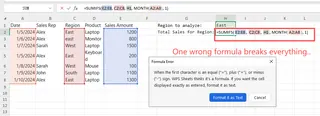
- Formula-based Calculation: To summarize data, you start building formulas. You might use
SUMIFSto calculate total sales per region orCOUNTIFSto count deals per rep. A single misplaced comma or incorrect range can break everything.
- Pivot Table Creation: For more dynamic analysis, you create a pivot table. You drag and drop fields into the Rows, Columns, and Values areas, experimenting until you get the view you want. If new data is added, you have to remember to refresh the pivot table.
- Visualization: You then create charts from your pivot table data to visualize trends, but making them look polished and presentation-ready requires several more clicks and adjustments.
- Ad-hoc Requests: Just as you finish, your director asks, "This is great, but can you show me the month-over-month growth for just the top two product categories in the East region?" You sigh, because this means rebuilding your formulas or reconfiguring your entire pivot table.
While these tools are powerful, this manual workflow has significant hidden costs:
- High Learning Curve: Mastering advanced functions like
INDEX/MATCH, array formulas, or Power Query requires dedicated training and constant practice. - Time Sink: Even for experts, building a report from scratch is a repetitive cycle of cleaning, calculating, and visualizing. This is time that could be spent on strategic thinking.
- Rigidity and Fragility: Reports built with complex formulas are often brittle. They are hard for colleagues to understand and even harder to modify without breaking something.
- Error-Prone: The more manual steps involved, the higher the chance of a copy-paste error, an incorrect cell reference, or a logical flaw that silently corrupts your results.
The "Excel vs. Sheets" debate is a distraction. The real question is: how can we escape this cycle of manual inefficiency?
A New Paradigm: Solving Spreadsheet Problems with an Excel AI Agent
Instead of choosing a side, what if you could add an intelligent layer on top of your data that does the heavy lifting for you? This is the promise of Excel AI agents like Excelmatic.

Excelmatic is not another spreadsheet program. It's an AI-powered data analyst that you can talk to. You upload your data file (whether it's an Excel workbook or a CSV exported from Google Sheets), and then simply tell the AI what you want to achieve in plain language. It bypasses the need to write formulas, configure pivot tables, or design charts manually.
Here’s how you would tackle the same sales report using Excelmatic:
Step 1: Upload Your Data File
Simply drag and drop your Excel (.xlsx) or CSV file into Excelmatic. The AI instantly reads your data and understands its structure, identifying columns like "Sales Rep," "Region," and "Sales Amount."

Step 2: Ask for Analysis in Plain Language
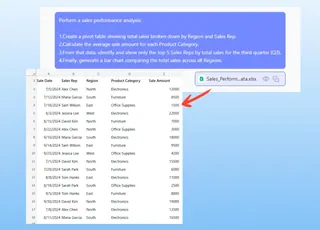
Instead of building formulas, you just type your request in the chat. You can start broad and then get more specific.
Here are a few examples of prompts you could use:
- "Create a pivot table that shows the total sales for each region and each sales rep."
- "Calculate the average sale amount per product category."
- "Show me the top 5 sales reps by total sales for Q3."
- "Generate a bar chart comparing the total sales across all regions."
Step 3: View and Iterate on the Results with Conversation
Excelmatic will instantly generate the result—be it a data table, a pivot table, a formula, or a chart. But the real magic is what happens next. You can continue the conversation to refine your analysis.
This "dialogue-driven" approach is something traditional spreadsheets can't match.
User: I have a sheet with daily sales data. Can you create a summary table showing total sales by month and by region?
Excelmatic: Done. I've created a pivot table with months as rows and regions as columns, showing the sum of sales in the values. The grand totals for each month and region are also included.
User: Great. Now, could you add a column to this table that calculates the percentage of the annual total for each month?
Excelmatic: Absolutely. I've added a new column, "Monthly % of Total," which shows each month's sales as a percentage of the grand total for the year.
User: Perfect. Now generate a line chart to visualize the monthly sales trend for the 'North' and 'West' regions only.
Excelmatic: Here is a line chart comparing the monthly sales trends for the North and West regions. You can view the chart below or download the updated Excel file.
Step 4: Export Your Finished Work
Once you're satisfied, you can download a new Excel file containing all the generated tables, charts, and analyses. You can even ask Excelmatic for the specific formula it used, allowing you to copy it back into your original spreadsheet and learn in the process.
Traditional Tools vs. Excelmatic: A Quick Comparison
| Aspect | Traditional Spreadsheets (Excel/Sheets) | Excelmatic (Excel AI Agent) |
|---|---|---|
| Skill Required | Mastery of functions, pivot tables, charts | Ability to describe business needs in plain language |
| Speed | Hours or days for complex reports | Minutes for initial analysis and iteration |
| Flexibility | Rigid; ad-hoc requests require rework | Highly flexible; new questions answered instantly |
| Error Rate | High risk of manual formula/logic errors | Low risk; AI handles complex logic consistently |
| Focus | "How do I build this in Excel?" | "What business question do I want to answer?" |
FAQ
1. Does Excelmatic replace Excel or Google Sheets? No, it complements them. You can continue to use Excel or Sheets for data entry and storage. Excelmatic acts as your on-demand data analyst, automating the most time-consuming parts of your workflow. You can easily export results back to a standard Excel file.
2. Is my data secure when I upload it to Excelmatic? Data security is a top priority. Excelmatic uses industry-standard encryption for data in transit and at rest. Files are processed for your analysis session and are not shared or used for training other AI models. For specific details, always refer to the official privacy policy.
3. What if my data isn't perfectly clean? Excelmatic can help with that too! You can ask it to perform data cleaning tasks, such as "remove duplicate rows," "find and replace all instances of 'N/A' with 0," or "split the 'Full Name' column into 'First Name' and 'Last Name'."
4. Can I use the formulas generated by Excelmatic in my own spreadsheets? Yes. You can ask Excelmatic to provide the exact formula it used to generate a result. This is a great way to handle a complex calculation and also learn how advanced formulas are constructed.
5. Is this tool only for data analysts? Not at all. Excelmatic is designed for anyone who works with data in spreadsheets—sales managers, marketing coordinators, HR professionals, operations leads, and small business owners. If you can describe what you need, you can use Excelmatic.
Stop Choosing Sides, Start Automating: Upgrade Your Workflow with Excelmatic
The debate between Excel and Google Sheets is becoming obsolete. While both are excellent tools, they represent an old way of working—one defined by manual processes, steep learning curves, and countless wasted hours.
The future of spreadsheet productivity isn't about choosing a better platform; it's about embracing a smarter process. By leveraging an Excel AI agent, you can offload the tedious, repetitive work and free yourself to focus on what truly matters: interpreting insights, making decisions, and driving your business forward.
Stop wrestling with formulas and start having a conversation with your data.
Ready to see the difference? Try Excelmatic for free today and automate your next spreadsheet task in minutes.