Key takeaways:
- The standard
VLOOKUPfunction in Excel can only find the first match, leading to significant errors when your data contains duplicate values, such as employees with the same name. - The traditional workaround involves creating complex "helper columns" to generate unique identifiers, a manual, error-prone, and time-consuming process.
- An Excel AI tool like Excelmatic eliminates this entire process. You can simply ask in plain language to match records based on a unique key (like Employee ID), and the AI handles the complex lookup logic automatically, delivering accurate results in seconds.
Problem background & pain points
Imagine you're an HR Manager. The Head of Sales urgently needs a list of all employees in their department along with their current salaries for an upcoming compensation review. You have the master employee list in one sheet and a simple list of names from the Sales team in another. This should be a quick VLOOKUP task, right?
You write your formula, drag it down, and send the file off. A few hours later, you get a confused email. The salary for "John Smith" seems way too low. You check the master list and realize there are three employees named John Smith in the company, and your VLOOKUP only pulled the salary for the first one it found—who happens to be in a different department.
This is a classic and frustrating Excel limitation. The VLOOKUP function, a cornerstone of data lookup for many users, is fundamentally designed to stop at the first match it finds. When dealing with real-world data—which often includes duplicate names, products, or transaction IDs—this limitation can lead to incorrect reports, flawed analysis, and poor business decisions. The manual process of untangling these duplicates is not just tedious; it's a minefield of potential errors.
The Traditional Excel Solution: Steps and Limitations
To get around the VLOOKUP duplicate issue, experienced Excel users typically resort to a clever but cumbersome workaround: creating a "helper column." The goal is to create a new, unique identifier for each entry that VLOOKUP can use reliably.
Let's say your master employee data looks like this:
| Employee Name | Department | Salary |
|---|---|---|
| Jane Doe | Marketing | $75,000 |
| John Smith | Finance | $80,000 |
| Peter Jones | Sales | $95,000 |
| John Smith | Sales | $110,000 |
| Susan Chen | Marketing | $72,000 |
| John Smith | Operations | $65,000 |
If you try to look up "John Smith", you'll always get $80,000. To fix this, you have to manually add a helper column.
Step-by-Step: The Helper Column Method
Create a Unique ID in the Source Data: Insert a new column (let's call it "Unique ID") to the left of your data. In the first cell of this new column (e.g., A2), you would enter a formula that combines the name with a running count of that name.
The formula would be:
=B2&COUNTIF($B$2:B2,B2)
When you drag this formula down, it creates unique IDs like
John Smith1,Peter Jones1,John Smith2, etc. The expanding range($B$2:B2)is crucial and is what makes this formula tricky for many users.Create a Matching Unique ID in the Lookup List: You must repeat the process for your lookup list. Add a helper column and use the same
=B2&COUNTIF($B$2:B2,B2)logic. However, this count resets, so for the second “John Smith” you want to find, you must manually change the result fromJohn Smith1toJohn Smith2to match the ID in your master data.Perform the VLOOKUP: Finally, perform your
VLOOKUPusing the manually aligned Unique ID. If that ID is in cellH2, the formula is:=VLOOKUP(H2, $A$2:$D$7, 4, FALSE)
This formula now correctly finds
John Smith2and returns the right salary of$110,000.
Limitations of the Traditional Method
While this method works, it's far from ideal:
- It's Destructive: You have to modify your original data structure by adding a new column. This isn't always possible, especially if the data comes from a protected source or is shared with other teams.
- It's Complex and Error-Prone: The
COUNTIFformula with an expanding range is not intuitive. A small mistake in the absolute ($) and relative references can break the entire lookup. - It's Time-Consuming: For a simple lookup, you've just performed three separate, multi-step tasks. If the data changes or you get a new request, you have to repeat the process.
- It's Not Scalable: What if you need to match on two criteria (e.g., Name and Department)? The formulas become even more convoluted, often requiring array formulas or a switch to the more complex
INDEX/MATCHcombination.
The New Solution: Using an Excel AI Agent (Excelmatic)
Instead of building a rickety bridge of helper columns and complex formulas, what if you could just tell Excel what you want to achieve? This is exactly what Excel AI agents like Excelmatic are for. They replace manual, step-by-step procedures with conversational instructions.

Let's solve the same problem using Excelmatic.
Step 1: Upload Your Data
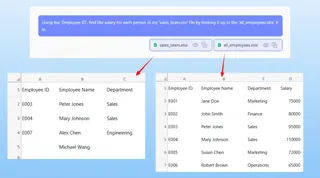
First, you upload your Excel files to Excelmatic—the master employee list and the list of sales employees you need to look up. Excelmatic doesn't modify your original files; it just reads the data into a secure analysis environment. It's best if your columns have clear headers like "Employee Name", "Department", and "Salary".

Step 2: Describe Your Goal in Plain Language
Now, instead of writing a formula, you simply type a request in the chat interface. You can start with your high-level goal.
A good prompt would be:
I have two files. One is 'master_employee_data.xlsx' and the other is 'sales_team_names.xlsx'. I need to get the salary for each person in the sales team list from the master data file.
Excelmatic will likely recognize the ambiguity of using names. A better, more precise prompt leverages a truly unique identifier, which is best practice for any data lookup.
For example, if your data has an "Employee ID" column:
Using the 'Employee ID', find the salary for each person in my 'sales_team.csv' file by looking it up in the 'all_employees.xlsx' file.
Step 3: Review and Iterate on the Results
Excelmatic will perform the lookup (often called a "join" in data terminology) and present you with a clean table showing the sales employees and their correct salaries. It completely bypasses the duplicate name problem by using the unique ID you specified.
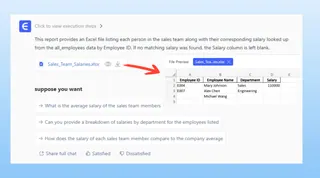
The best part is that this is a conversation. You can continue to refine the results:
- "Great. Now, can you sort the list by salary from highest to lowest?"
- "Add a new column that calculates a 5% potential bonus."
- "Only show me the employees with a salary over $100,000."
Each command is executed instantly, without you ever touching a formula bar or a pivot table menu.
Step 4: Export Your Finished Work
Once you're satisfied, you can download the final, accurate report as a new Excel file with a single click. The result is a clean, correct, and ready-to-share list that took minutes, not hours, to create.
Dialogue Example
Here’s how that interaction might look inside Excelmatic:
User: I have a master employee file and a list of sales staff. I need to pull the salaries for the sales staff. My VLOOKUP is failing because of duplicate names.
Excelmatic: I see. Using names for lookups can be unreliable with duplicates. Your 'master_employee_file.xlsx' contains an 'Employee ID' column, which is unique for each person. Would you like me to match the records using 'Employee ID' instead to guarantee accuracy?
User: Yes, that's a great idea. Please use the Employee ID to find the correct salary for everyone in the 'sales_team.csv' list.
Excelmatic: Done. I have created a new table with the sales team members and their corresponding salaries, correctly matched using their unique Employee ID. The employee 'John Smith' (ID: E1088) in the Sales department now correctly shows a salary of $110,000. Would you like to sort this list or add any calculations?
User: Perfect. Please sort it by salary in descending order and then I'm ready to download.
Excelmatic: The table has been sorted. You can download the new Excel file using the button below.
Traditional Method vs. Excelmatic: A Quick Comparison
| Aspect | Traditional Helper Column Method | Excelmatic AI Method |
|---|---|---|
| Time | 15-30 minutes, depending on complexity | 1-2 minutes |
| Complexity | High. Requires knowledge of COUNTIF with expanding ranges and VLOOKUP. |
Low. Requires only the ability to describe the goal in plain language. |
| Error Risk | High. Small mistakes in formulas can lead to incorrect data. | Very Low. The AI handles the proven logic for joining data. |
| Flexibility | Low. Any change in requirements means rebuilding formulas. | High. Easily refine or change the analysis with follow-up questions. |
| Data Integrity | Poor. Requires modifying the original data source. | Excellent. Original files are never modified. |
FAQ
Q1: Do I need to know any Excel formulas to use Excelmatic for this task?
No. You don't need to know VLOOKUP, INDEX/MATCH, or COUNTIF. You just need to be able to describe the business logic—for example, "match these two lists using the Employee ID column."
Q2: What if my data doesn't have a unique ID like 'Employee ID'? You can ask Excelmatic to help! A good prompt would be: "I need to match these two lists, but some names are duplicates. Can you create a unique identifier for me based on the name and department?" The AI can generate the "helper column" for you, saving you the manual formula work.
Q3: Is my sensitive employee salary data safe when I upload it to Excelmatic? Data privacy and security are paramount. Excelmatic is designed with enterprise-grade security protocols. All data is encrypted in transit and at rest, and is processed in a secure, isolated environment. For specific compliance details, always refer to the official privacy policy on the website.
Q4: Will Excelmatic change my original Excel file? No, never. Excelmatic works on a copy of your data within its secure environment. Your original files on your computer remain completely untouched. You can then download the results as a brand new file.
Q5: Can I use the formulas generated by Excelmatic in my own spreadsheets? Yes. In many cases, you can ask Excelmatic to "show me the Excel formula to do this," and it will provide you with a formula you can copy and paste into your own workbook. This makes it a great tool for both getting work done and learning advanced Excel techniques.
Take Action: Upgrade Your Excel Workflow Today
Stop spending valuable time wrestling with the limitations of old-school Excel functions. The risk of sending an incorrect report due to a simple VLOOKUP error on duplicates is a real problem that can be completely avoided.
By embracing an Excel AI agent, you shift your focus from "How do I build this formula?" to "What business question do I need to answer?" This not only saves you hours of tedious work but also empowers you to explore your data with more flexibility and confidence.
Ready to give it a try? Try Excelmatic for free and upload the very spreadsheet that's giving you trouble. Use the prompts from this article and see how quickly you can get an accurate, reliable answer.