Key takeaways:
- Automating Excel with traditional VBA is powerful but requires a steep learning curve, forcing you to master programming concepts like variables, data types, and strict syntax.
- Excel AI tools like Excelmatic provide a modern, no-code alternative, allowing you to automate complex data analysis and reporting tasks by simply describing your goals in plain language.
- By switching from writing VBA scripts to conversing with an AI, you can save hours of development and debugging time, increase accuracy, and handle ad-hoc requests with far greater flexibility.
The Dream of Automation vs. The Reality of VBA
Every seasoned Excel user has had this thought: "There has to be a better way to do this." You're stuck in a loop of manually filtering, copying, pasting, and summarizing data for a weekly report. The dream is to press a button and have it all done for you.
For decades, the answer to that dream has been Visual Basic for Applications, or VBA. It’s the built-in programming language that allows you to write "macros" to automate virtually any task in Excel.
But for most business professionals, the dream of automation quickly crashes into the harsh reality of programming. You open the VBA editor and are met with a blank screen and a foreign language of Sub, Dim, Set, and End Sub. You wanted to automate a report, not become a software developer.
Suddenly, you're not thinking about sales figures or project deadlines. You're googling the difference between an Integer and a Long, why your Object variable or With block variable not set error keeps appearing, and what Option Explicit even means. The time you hoped to save is now spent debugging code.
The "Old Way": A Deep Dive into VBA and Its Hurdles
The original promise of VBA is control. But this control comes at the cost of immense complexity. To understand why, let's look at the foundational concept you must master: variables.
In VBA, a variable is a named storage location in your computer's memory. Before you can do anything, you must "declare" these variables, telling Excel exactly what kind of data you plan to store in them.
The Challenge of Declaring Variables and Data Types
Imagine you want to process a simple sales file. A basic VBA script would start like this:
Sub ProcessSales()
' 1. Declare all your variables first
Dim salesWorkbook As Workbook
Dim dataSheet As Worksheet
Dim lastRow As Long
Dim salesRepName As String
Dim saleAmount As Double
Dim saleDate As Date
' ... and so on ...
End Sub
Right away, you're faced with several hurdles:
- Strict Syntax: You must use keywords like
DimandAs. A single typo will break the entire script. - Data Type Memorization: You need to choose the correct data type for each piece of information. Is a row count an
Integeror aLong? (Hint:Integeris limited to 32,767, a limit easily surpassed in modern datasets, so you must remember to useLong). Is a price aSingleor aDouble? This forces you to think like a computer, not a business analyst.
The table below shows just a fraction of the data types you're expected to know:
| Data Type | Stored | Use Case |
|---|---|---|
| Integer | 2 Bytes | Whole numbers up to 32,767 |
| Long | 4 Bytes | Large whole numbers (like row counts) |
| Double | 8 Bytes | Numbers with decimals (like prices or percentages) |
| String | 10 bytes + length | Text values (like names or addresses) |
| Date | 8 Bytes | Dates and times |
| Object | 4 Bytes | Excel objects like a Workbook or Worksheet |
| Boolean | 2 Bytes | True or False values |
The Complexity of Object Variables
It gets more complicated when you need to work with files, sheets, or cell ranges. These require "Object Variables," which have their own special rules, most notably the Set keyword.
' Assigning an object variable
Set salesWorkbook = Workbooks.Open("C:\Reports\SalesData.xlsx")
Set dataSheet = salesWorkbook.Sheets("Q3-Data")
For a non-programmer, this is deeply unintuitive. Why do you use Set for a worksheet but not for a sales rep's name? These arbitrary rules are a constant source of errors and frustration.
The Inevitable Limitations of the VBA Approach
Even if you master the basics, the VBA approach has fundamental drawbacks:
- High Learning Curve: It's not an Excel feature; it's a separate programming language. Expect to spend weeks or months becoming proficient.
- Time-Consuming: Writing, testing, and debugging even a simple macro can take hours. A small change in your source file's layout can break your script, sending you back to the code.
- Rigid and Inflexible: VBA scripts are built for one specific, repetitive task. If your manager asks an ad-hoc question like, "Can you quickly show me this same data but only for the top 3 reps in the West region?" your script is useless. You have to start over manually.
- Maintenance Nightmare: The person who wrote the macro eventually leaves the company, and no one else dares to touch the code. The "automation" becomes a fragile, unchangeable black box.
The AI-Powered Solution: Automating Excel with Excelmatic
What if you could achieve the dream of automation without the nightmare of coding? This is the promise of Excel AI Agents like Excelmatic.

Excelmatic flips the script. Instead of you learning the computer's language (VBA), the AI learns your language (plain language). You describe your business objective, and the AI performs the analysis, generates the formulas, or builds the reports for you.
Let's revisit the task of automating a weekly report. Here's how you'd do it in Excelmatic.
Step 1: Upload Your Data File
Simply drag and drop your Excel or CSV file into Excelmatic. There's no need to write code to handle file paths or open workbooks. The AI immediately reads your data and understands its structure.

Step 2: Describe Your Goal in Natural Language
This is where the magic happens. Instead of writing dozens of lines of VBA, you just type what you want to achieve.
Here are a few examples of prompts you could use:
- "Filter the data to show only sales from the last 7 days."
- "Create a pivot table that summarizes 'Sale Amount' by 'Sales Rep' and 'Region'."
- "Add a new column called 'Commission' that is 5% of the 'Sale Amount' for all sales over $10,000."
- "Generate a bar chart comparing the total sales for the top 5 sales reps."
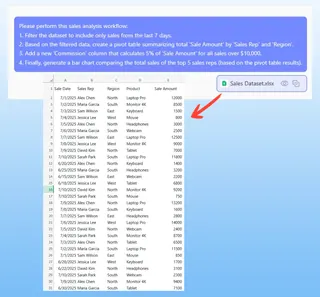
The AI parses your request, identifies the relevant columns, and performs the operations instantly.
Step 3: Review and Iterate with Conversation
Excelmatic doesn't just give you a final result. It presents the output—a table, a pivot table, a chart—and allows you to refine it through conversation. This is something impossible with a rigid VBA script.
You can continue the dialogue to fine-tune your analysis:
- "Okay, now sort that pivot table by sales amount, from highest to lowest."
- "Can you filter this to only show the 'North' and 'West' regions?"
- "Add conditional formatting to highlight any sales rep who made fewer than 5 sales."
This iterative process lets you explore your data and answer follow-up questions in seconds, not hours.
Step 4: Export Your Finished Work
Once you're happy with the result, you can download a new Excel file containing the analysis, charts, and pivot tables. You can also copy AI-generated formulas or pivot table configurations to use directly in your own workbooks.
Dialogue Example: VBA vs. Excelmatic
Let's see a direct comparison for a common business request.
The Goal: From a large sales transaction file, create a summary report of total sales by product category for the current quarter, and highlight the top-performing category.
The VBA Approach (Simplified): You'd need to write a script that:
- Declares variables for worksheets, ranges, pivot tables, dates, and loop counters.
- Finds the last row of data.
- Filters the data for the correct date range.
- Creates a new worksheet for the pivot table.
- Defines a pivot cache and creates a pivot table.
- Adds 'Product Category' to the Rows and 'Sale Amount' to the Values.
- Adds code to find the maximum value in the pivot table and apply cell formatting.
- Estimated time for a non-expert: 2-4 hours of coding and debugging.
The Excelmatic Approach:
User: I've uploaded my sales data. Can you create a pivot table showing total sales by product category for Q3 2024?
Excelmatic: Sure. I've created the pivot table summarizing sales by category for the third quarter. 'Electronics' has the highest sales at $254,000. Would you like me to visualize this?
User: Yes, create a bar chart. And in the table, please highlight the top category in green.
Excelmatic: Done. The bar chart is generated, and 'Electronics' is now highlighted in the summary table. You can download the new Excel file with the report and chart.
FAQ
Q: Do I need to know any VBA or code to use Excelmatic?
A: Absolutely not. The entire purpose of Excelmatic is to eliminate the need for coding. If you can describe what you want to do in language, you can use Excelmatic.
Q: Is my data secure when I upload it to Excelmatic?
A: Yes. Excelmatic is built with enterprise-grade security. Your data is encrypted in transit and at rest, and is used only to perform the analysis you request. For detailed information, always refer to the official privacy policy on the website.
Q: How does Excelmatic handle complex logic like loops and conditions that I'd normally use VBA for?
A: You describe the logic in your prompt. For example, instead of writing a For...Next loop with an If statement, you would say: "For every row where the 'Status' is 'Complete' and the 'Amount' is over 1000, add 10 bonus points to the 'Score' column." The AI translates your business logic into the required operations.
Q: Can Excelmatic generate VBA code for me?
A: While Excelmatic's primary function is to perform the analysis directly, it can generate complex Excel formulas that you can copy and paste. This often eliminates the need for a VBA script for calculations. The focus is on delivering the result, not just the code.
Q: What if my data isn't perfectly clean?
A: Excelmatic is excellent for data cleaning. You can ask it to "remove duplicate rows," "trim leading and trailing spaces from the 'Customer Name' column," or "split the 'Full Name' column into 'First Name' and 'Last Name'."
Stop Coding, Start Analyzing: Upgrade Your Excel Workflow Today
For years, the path to true Excel automation was guarded by the complexities of VBA. It was a powerful but frustrating journey that turned more business users away than it empowered.
That era is over. With Excel AI, you can finally achieve the automation you've always wanted without writing a single line of code. Stop wrestling with Dim, Set, and data types. Stop spending your time debugging scripts and start spending it on what matters: gaining insights from your data.
Ready to leave VBA behind? Try Excelmatic for free and automate your first Excel task in minutes. Upload that spreadsheet you've been struggling with and see for yourself how easy automation can be.