If you’ve ever inherited a spreadsheet from three different team members, you know the pain.
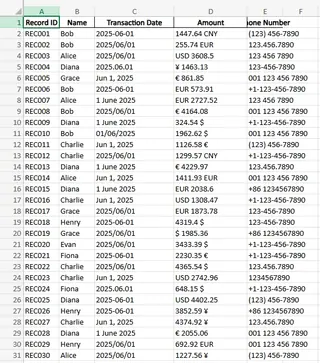
March 4th can appear as 3/4/2025, 04-03-25, or—if someone went rogue—March 4th, 2025.
Amounts sometimes come with dollar signs, commas, or two decimal places—or none at all.
And don't get me started on phone numbers. Between (555) 123-4567, +1 555 123 4567, and 5551234567, it feels like you’re formatting data for three different planets.
Welcome to the world of data format standardization in Excel: essential, tedious, and usually chaotic.
Why Standardizing Formats in Excel Is So Hard (The Traditional Way)
Let’s say you’re preparing a financial report that pulls from multiple sheets: invoices, reimbursements, contact records. But the formats aren’t consistent. You can’t sort, filter, or do calculations until you clean everything up.
So what’s the usual process?
Dates
You use
TEXT()formulas, maybeDATEVALUE()or go into Format Cells → Date → pick a format → hope for the best. Doesn’t work? Try=VALUE()or retype it manually. Still doesn’t work? It’s probably stored as text. Time to cry.Currency Amounts
Strip
$signs withSUBSTITUTE(). Remove commas. UseNUMBERVALUE()if you’re lucky enough to have Excel 2013+. Then test if it can actually behave like a number in your formulas.Phone Numbers
You copy-paste to Notepad to strip formatting. Then use
MID(),LEFT(), andRIGHT()functions to piece it back into something uniform. One typo and the whole column goes off the rails.Consistency Checks
Even after all that, you still need to scan for outliers manually. Conditional formatting might help. So would your third coffee.
This is hours of work. And that’s before you even start analysis.
Enter Excelmatic: Standardize Formats with One Simple Request
With Excelmatic, you simply upload your Excel file and ask what you want—in plain English.
For instance:
“Standardize all phone numbers to +1 format.”
“Remove all currency symbols and convert to numeric values.”
The results come back clean. Dates are aligned, numbers behave like numbers, and phone numbers look like they were input by a robot accountant (in a good way).
No formulas. No helper columns. No hours wasted.
Let’s Look at Three Excelmatic Questions That Save the Day
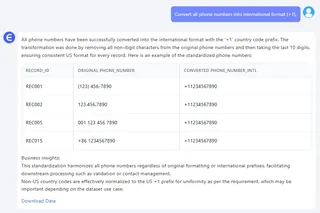
How can I unify phone numbers across regions?
→ Ask: “Convert all phone numbers into international format (+1).”
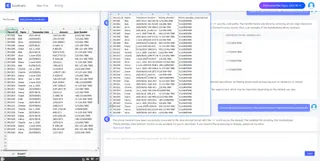
Excelmatic returns a clean column where all entries follow the same pattern.
Can I quickly spot formatting errors in my amount column?
→ Ask: “Highlight rows where Amount is not in numeric format.”
No more hidden text values that break your SUM formulas.
What to do when currency entries are too confusing?
→ Ask: “Which rows contain currencies not in USD?”
 For datasets with mixed currency entries, Excelmatic can filter non-USD values in seconds—so you don’t need to write IF formulas or search line by line.
Excel vs. Excelmatic: The Real Difference
| Task | Traditional Excel | With Excelmatic |
|---|---|---|
| Date Unification | Manual format checking + formulas | One request |
| Currency Cleanup | SUBSTITUTE + conversion logic | One request |
| Phone Formatting | Text parsing + functions | One request |
| Error Detection | Visual scanning or conditional formats | One request |
It’s not that you can’t do it manually. You can. But why would you?
Final Word
In data work, cleaning always comes before insight. If your formats are inconsistent, your analysis will be too.
With Excelmatic, you get back hours of your life. Just type what you want, and your spreadsheet obeys.
You don’t need to be a formula wizard. You just need to know what you’re trying to do.
Try saying it. Let Excelmatic do the rest.