Key takeaways:
- Manually combining text in Excel with functions like CONCATENATE or TEXTJOIN is tedious, error-prone, and creates complex formulas that are hard to maintain, especially for creating lists or addresses.
- Excel AI tools like Excelmatic replace these formulas with simple natural language. You can just describe how you want to combine the text, and the AI generates the result directly.
- Using Excelmatic significantly cuts down time spent on data preparation, eliminates formula errors, and allows for flexible adjustments—like changing delimiters or adding conditions—just by asking in plain language.
Problem Background & Pain Points
Imagine you've just exported a customer list from your company's CRM. The data is clean, but it's spread across numerous columns: First Name, Last Name, Street Address, City, State, ZIP Code, and so on. Your task is to prepare this data for two different campaigns:
- A direct mail campaign that requires a single, properly formatted "Mailing Address" column.
- An email marketing campaign that needs a "Full Name" column for personalization.
For a list with thousands of contacts, this seemingly simple task can quickly become a data-wrangling nightmare. You need to join text from different cells, add spaces, commas, or even line breaks in between, and—most frustratingly—account for empty cells. What if a customer doesn't have an "Address Line 2"? A simple concatenation might leave you with ugly double commas or extra spaces, making your output look unprofessional and potentially breaking the mailing software.
This is a classic Excel challenge. While Excel has tools for this, they often require you to become a part-time formula wizard, spending more time debugging syntax than focusing on your actual business goal.
The Traditional Excel Solution: Steps & Limitations
For years, Excel users have relied on a set of functions to combine, or "concatenate," text. The methods have evolved, but they all share a common reliance on manual formula construction.
The Old Guard: CONCATENATE and the Ampersand (&)
The original approach involved either the CONCATENATE function or the & operator. To create a full name, you'd write:
=A2&" "&B2
Or:
=CONCATENATE(A2, " ", B2)
This works for simple cases. But for a full address, the formula quickly becomes a monster:
=D2&", "&E2&", "&F2&" "&G2
This formula is not only tedious to write but also brittle. If cell D2 (e.g., Address Line 2) is empty, you get a leading comma. It's a manual, inflexible process.
A Better Way: The TEXTJOIN Function
To address these shortcomings, Microsoft introduced the TEXTJOIN function in Excel 2016. It was a significant improvement.
The syntax is: TEXTJOIN(delimiter, ignore_empty, text1, [text2], …)
- delimiter: The character to place between each text item (e.g., a comma, space).
- ignore_empty: A TRUE/FALSE value. If TRUE, it skips any empty cells in your range, which is incredibly useful.
- text1, text2...: The cells or ranges you want to join.
Using TEXTJOIN, you could combine parts of a phone number neatly:
=TEXTJOIN("-", TRUE, A2:C2)
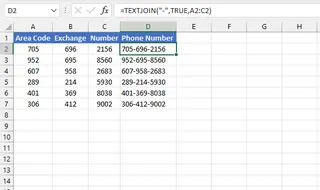
This is much cleaner. However, when your requirements get more complex, so does TEXTJOIN.
The Limitations of the Traditional Approach
Even with TEXTJOIN, you'll hit a wall. Consider these real-world challenges:
Complex Formatting: What if you need to combine a name, add a line break, then the street, another line break, and finally the city, state, and zip? Your formula becomes something like this:
=TEXTJOIN(" ", TRUE, A2:B2, CHAR(10), C2, CHAR(10), D2, ", ", E2, " ", F2)You have to know thatCHAR(10)creates a line break, and you're back to manually specifying delimiters between different logical blocks.Conditional Logic: Let's say you have a list of animals and their groups, and you want to create a comma-separated list of all animals in the "Mammal" group. A seasoned Excel expert might come up with this array formula:
=TEXTJOIN(", ", TRUE, IF(B2:B12="Mammal", A2:A12, ""))This is powerful, but let's be honest: 95% of Excel users would struggle to write, read, or debug this. It's not a practical solution for teams.Rigidity and Maintenance: All these formulas are rigid. If your boss asks, "Can you use a semicolon instead of a comma?" or "Can we add the country code to the address?", you have to go back, carefully edit the formula, and drag it down all your rows again. It’s slow and prone to error.
The New Solution: Using an Excel AI Agent (Excelmatic)
Instead of memorizing function syntax and nesting complex logic, what if you could just describe the result you want? That's the promise of Excel AI agents like Excelmatic. You upload your file and use plain language to command the AI to perform the task.

Step 1: Upload Your Data
First, drag and drop your Excel or CSV file with the separated customer data into Excelmatic. The AI will read your data and show you a preview, understanding the headers like 'First Name', 'City', etc.

Step 2: Describe the Result You Want in Plain Language
Now, instead of writing a formula, you simply type your request in the chatbox. Let's tackle the same problems from before.
To create a "Full Name" column:
Combine the 'First Name' and 'Last Name' columns into a new column called 'Full Name', separated by a space.
To create a standard mailing address:
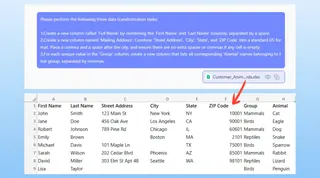
Create a new column named 'Mailing Address'. Combine 'Street Address', 'City', 'State', and 'ZIP Code'. Place a comma and a space after the city. Make sure to handle empty cells so there are no extra spaces or commas.
To create the conditional list of animals:
For each unique group in the 'Group' column, create a new column that lists all animals belonging to that group, separated by a comma.
Step 3: Review and Iterate on the Results
Excelmatic won't just spit out a result. It will process your request and present a new table with the generated column for your review. The best part? It's a conversation. If the result isn't quite right, you can easily refine it.
- "Actually, use a semicolon instead of a comma for the animal list."
- "For the mailing address, can you also add the country 'USA' at the end?"
- "Filter this list to only show customers from California."
This conversational approach makes complex data manipulation incredibly fast and intuitive.
Dialogue Example: Creating a Mailing Address
Here’s how a typical interaction might look in Excelmatic:
User: I've uploaded a customer list. The address is split across columns C through G. I need to create a single mailing address column.
Excelmatic: Understood. I can combine those columns for you. How would you like the parts of the address to be separated? For example, should there be a comma between the city and state?
User: Yes. Combine Street, City, State, and ZIP. Use a space for everything, but put a comma after the City. And please make sure to handle empty cells gracefully, no double commas or weird spaces.
Excelmatic: Done. I have created a new 'Mailing Address' column with the format you requested. I've also automatically handled rows where address components were missing. You can review the new table below.
Step 4: Export Your Finalized Data
Once you're happy with the result, you can download the newly transformed data as a new Excel file with a single click. The tedious task that used to take 30 minutes of formula-writing and debugging is now done in under a minute.
Traditional Formulas vs. Excelmatic: A Quick Comparison
| Aspect | Traditional Excel (TEXTJOIN) | Excelmatic (AI Agent) |
|---|---|---|
| Time to Complete | 5-20 minutes (writing, testing, debugging) | < 1 minute (writing one sentence) |
| Required Skill | Intermediate to Advanced Excel knowledge | Basic language and a clear goal |
| Flexibility | Low. Changes require rewriting the formula. | High. Make changes by asking in the chat. |
| Error Rate | High. A misplaced comma or quote breaks it. | Low. The AI handles the syntax. |
FAQ
Q: Do I need to know TEXTJOIN or CONCATENATE to use Excelmatic?
A: Absolutely not. The entire point of an Excel AI agent is to replace the need for memorizing functions. You just need to describe the final output you want.
Q: Can Excelmatic handle messy data, like extra spaces in my cells?
A: Yes. Before combining text, you can simply ask the AI, "Please trim all leading and trailing whitespace from every cell in the table." The AI will clean the data first and then perform the combination.
Q: Is uploading my company's customer list to Excelmatic secure?
A: Excelmatic is built with data security in mind. Files are processed in a secure cloud environment and are not stored long-term or used for training models. For detailed information, always refer to the official privacy policy on the website.
Q: Can I get the Excel formula from Excelmatic instead of just the data?
A: Yes. After the AI has generated the result, you can ask, "What Excel formula would accomplish this?" Excelmatic can provide the corresponding TEXTJOIN or other relevant formula for you to use in your own spreadsheets, acting as a great learning tool.
Q: How does it handle different delimiters like commas, spaces, and line breaks all in one go?
A: You describe it naturally in your prompt. For example: "Combine 'First Name' and 'Last Name' with a space, then add a line break, then add the 'Street Address'." The AI interprets these instructions and formats the text accordingly.
Get Started: Elevate Your Excel Workflow with AI
Think about the last time you stared at a spreadsheet, dreading the task of merging columns. The minutes spent searching for the right function, the frustration of a #VALUE! error, the tedious process of dragging a formula down thousands of rows—it's a significant drain on productivity.
With an Excel AI agent like Excelmatic, that friction disappears. You can stay focused on the "what" and let the AI handle the "how." The time you save on manual data cleaning can be reinvested in more valuable activities, like analyzing the data you just prepared.
Stop wrestling with formulas. Upload your spreadsheet to Excelmatic today and turn your data preparation tasks into a simple, fast conversation.
Try Excelmatic for free and see how it transforms your workflow.