Key takeaways:
- Summing data in Excel with multiple conditions often requires writing complex and error-prone
SUMIFSformulas, especially when dealing with dates, text, and logical operators. - Excel AI tools like Excelmatic eliminate the need for manual formula creation. You can simply ask questions in plain language, like "What's the total balance for premium subscribers in the United States?"
- Using an Excel AI agent not only saves significant time but also increases accuracy and flexibility, allowing you to quickly modify criteria and get new insights without rewriting formulas from scratch.
The Challenge: Summing Data with Multiple Rules
Imagine you're a sales manager looking at a spreadsheet of subscriber data. You have columns for customer name, subscription tier, country, and outstanding balance. Your boss walks over and asks, "Quick question: what's the total outstanding balance just from our 'premium' subscribers in the 'United States'?"
Or perhaps you're an inventory manager. You have a list of products, their batch dates, expiry dates, and stock quantities. You need to know the total quantity of "Beans" that have already expired as of today.
These are common, everyday business questions. Answering them requires you to look through your data and add up numbers, but only for the rows that meet a specific set of rules. Doing this by hand is slow and a recipe for errors. The traditional solution in Excel? Building a formula.
The Traditional Excel Solution: The SUMIFS Function
For decades, the go-to tool for this job has been the SUMIFS function. It's designed specifically to sum a range of cells based on one or more criteria applied to other ranges.
The syntax looks like this:
=SUMIFS(sum_range, criteria_range1, criteria1, [criteria_range2, criteria2], ...)
- sum_range: The column of numbers you want to add up (e.g., the 'Balance' column).
- criteria_range1: The first column you want to check (e.g., the 'Tier' column).
- criteria1: The condition you're looking for in
criteria_range1(e.g., "premium"). - criteria_range2, criteria2...: You can add up to 127 pairs of ranges and criteria.
How SUMIFS Works in Practice
Let's apply this to our subscriber list. To find the total balance for premium subscribers in the United States, your formula would be:
=SUMIFS(F2:F18, B2:B18, "premium", E2:E18, "United States")
Here, F2:F18 is the balance to sum, B2:B18 is the tier column being checked for "premium", and E2:E18 is the country column being checked for "United States".
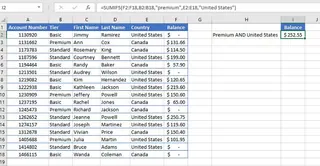
The function uses 'AND' logic, meaning a row is only included in the sum if it meets all the conditions you've set.
The Limitations and Frustrations of SUMIFS
While powerful, SUMIFS comes with a steep learning curve and several practical headaches:
- Complex Syntax: The order of arguments is rigid and easy to forget. Did
sum_rangecome first or last? Mixing it up gives you an error or, worse, an incorrect result. - Handling Dates and Operators: Things get messy when your criteria aren't simple text. To find expired products, you need to combine a logical operator with a cell reference for today's date, like
"<"&B1. This syntax is not intuitive.=SUMIFS(D4:D17, B4:B17, G3, C4:C17, "<"&B1)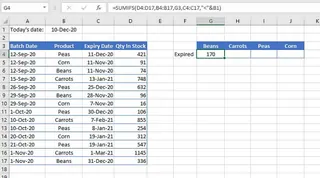
- Error-Prone: A single typo, an incorrect range selection, or forgetting the quotation marks can break the entire formula. Long formulas with multiple criteria become nearly impossible to debug.
- Rigidity: What if your boss now wants to see the numbers for the 'basic' tier in 'Canada'? You have to go back, find the formula, and manually edit the criteria. Answering a series of follow-up questions becomes a tedious cycle of editing and re-editing formulas.
- Maintenance Nightmare: If you share the workbook, your colleagues must understand
SUMIFSto make any changes. If they don't, they might break your report without realizing it.
For a task that feels like it should be simple, the traditional method is surprisingly complex and fragile.
The New Solution: Using an Excel AI Agent (Excelmatic)
Instead of forcing you to learn a machine's language (SUMIFS syntax), what if the machine could understand yours? That's the promise of Excel AI agents like Excelmatic.

Excelmatic is an AI tool that connects directly to your data. You upload your Excel or CSV file, and then you can simply chat with your data in plain language. The AI handles the analysis, calculations, and even generates charts or pivot tables for you.
Let's solve the same problems using this new approach.
Step-by-Step: From Question to Answer in Seconds
1. Upload Your Data File
First, you drag and drop your Excel file (e.g., subscribers.xlsx or inventory.xlsx) directly into the Excelmatic interface. The AI instantly reads your data and understands its structure, including your column headers.

2. Ask Your Question in Plain Language
Instead of building a formula, you just type your question into the chat box.
For the subscriber data, you would ask:
Sum the 'Balance' for rows where 'Tier' is 'premium' and 'Country' is 'United States'.
For the inventory data, you could ask:
What's the total 'Quantity in Stock' for 'Beans' that expired before today?
Or for a date range:
Calculate the total quantity of products expiring between December 15, 2020, and December 31, 2020.
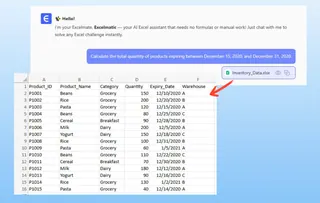
Notice how these questions are exactly how you would ask a human colleague. There are no special functions, quotation marks, or ampersands to remember.
3. Get an Instant Answer and Iterate
Excelmatic processes your request and provides a direct answer, often with a summary table. But the real power lies in the conversational follow-up.
Imagine this dialogue:
User: I have a list of subscribers with their tier, country, and outstanding balance. Can you tell me the total balance owed by premium subscribers in the United States?
Excelmatic: The total balance for premium subscribers in the United States is $1,150. I have calculated this by summing the 'Balance' column for all rows that meet both criteria. Would you like me to create a summary table for all tiers and countries?
User: Yes, create a pivot table showing the total balance by country and tier.
Excelmatic: Done. I've generated a pivot table with 'Country' as rows, 'Tier' as columns, and the sum of 'Balance' as the values. You can download the updated Excel file now.
This back-and-forth is impossible with static formulas. You can explore your data fluidly, changing criteria, asking for different views, and digging deeper with each question.
4. Export Your Results
Once you have the answer you need—whether it's a single number, a filtered table, a pivot table, or a chart—you can download it as a new Excel file with a single click. You can even ask Excelmatic to give you the SUMIFS formula it used, which is a great way to learn or to implement the logic back into an existing workbook.
SUMIFS vs. Excelmatic: A Quick Comparison
| Feature | Traditional SUMIFS |
Excelmatic (Excel AI) |
|---|---|---|
| Effort | Manually write, debug, and update complex formulas. | Type a question in plain language. |
| Speed | Minutes to hours, depending on complexity. | Seconds. |
| Flexibility | Low. Changing criteria requires editing formulas. | High. Easily ask follow-up questions to refine results. |
| Learning Curve | High. Requires memorizing syntax and operators. | Virtually none. If you can ask a question, you can use it. |
| Error Risk | High. Prone to typos and logical mistakes. | Low. The AI handles the syntax and logic. |
FAQ
Q: Do I need to know any Excel formulas like SUMIFS to use Excelmatic? A: Absolutely not. The entire purpose of Excelmatic is to eliminate the need for you to write formulas. You just describe the outcome you want in plain language.
Q: Can Excelmatic handle complex criteria like date ranges or "does not contain"? A: Yes. You can describe these conditions naturally. For example: "Sum the sales for all products except 'Widgets'" or "Show me the total quantity for items expiring in the next 30 days."
Q: Is my data secure when I upload it to Excelmatic? A: Data security is a top priority. Excelmatic uses secure protocols for data handling and does not store your files long-term. For specific details, always refer to the official privacy policy on the website.
Q: What if my column headers are messy or unclear? A: For best results, it's always good practice to have clear, descriptive column headers (e.g., "Outstanding Balance" instead of "Amt."). However, the AI is often smart enough to infer the context even with less-than-perfect data.
Q: Can I get the actual Excel formula from Excelmatic?
A: Yes. After the AI provides an answer, you can ask it, "Can you give me the Excel formula to do that?" It will generate the corresponding SUMIFS (or other) formula for you to copy and use in your own spreadsheets.
Get Started: Upgrade Your Excel Workflow Today
Stop wrestling with complicated formulas and start having a conversation with your data. The time you spend trying to remember the right syntax for SUMIFS is time you could be spending on getting actual insights.
By switching to an Excel AI agent, you're not just finding a faster way to sum numbers—you're adopting a more intuitive, flexible, and powerful way to work with your data.
Ready to see for yourself? Try Excelmatic today. Upload one of the spreadsheets you're working on right now and ask it the question you've been trying to answer. You might be surprised at how easy it is.