Key takeaways:
- Analyzing sales data with traditional Excel functions like
SUMIFandSUMIFSis powerful but often involves writing complex, error-prone formulas that are difficult to adapt. - Excel AI tools like Excelmatic replace manual formula creation with natural language, allowing you to ask questions like "What were the total sales for apples after June 15?" and get instant answers.
- By using an AI agent for Excel, you can dramatically reduce the time spent on reporting, eliminate formula errors, and gain the flexibility to ask ad-hoc questions without rebuilding your analysis from scratch.
Problem Background & Pain Points
Imagine you run a small business, like a local retail store or a market fruit stall. You have a simple Excel spreadsheet where you diligently log every sale: the date, the product name, units sold, and the price. This raw data is a goldmine, but only if you can extract insights from it.
You start asking fundamental business questions:
- Which product is my bestseller?
- How are sales trending this month compared to last month?
- What were the total sales for a specific product within a specific date range?
For many Excel users, answering these questions means diving into a world of manual data wrangling. You might spend hours filtering rows, copying and pasting data into new sheets, or trying to piece together formulas. The process is not only time-consuming but also incredibly fragile. One wrong filter or a copy-paste error, and your entire analysis is incorrect. This manual grind keeps you stuck in the weeds of data manipulation, preventing you from focusing on what really matters: making strategic decisions for your business.
The Traditional Excel Solution: Steps and Limitations
For seasoned Excel users, the go-to tools for this kind of conditional analysis are the SUMIF and SUMIFS functions. They are designed specifically for summing values that meet certain criteria.
SUMIF is used for a single condition (e.g., sum all sales for "Apples"), while SUMIFS handles multiple conditions (e.g., sum all sales for "Apples" that occurred in "June").
The Manual Formula-Based Workflow
Let's say you have a sales data sheet with columns: Selling Date, Fruits Name, Units Sold, kg, and Sold, $. To answer your business questions, the traditional process looks something like this:
Create a Summary Area: You'd first create a new table where you want your results to appear. You'd list the unique fruit names in one column.
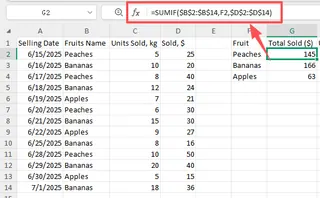
Write a
SUMIFFormula for Single-Criterion Analysis: To find the total sales for a single fruit, like "Peaches," you would write a formula like this:=SUMIF(B:B, "Peaches", D:D)B:Bis the range containing the criteria (theFruits Namecolumn)."Peaches"is the specific criterion you're looking for.D:Dis the range you want to sum (theSold, $column).
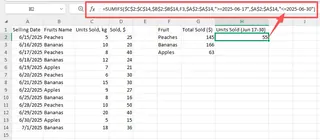
Write a
SUMIFSFormula for Multi-Criterion Analysis: Now, things get more complex. What if you want to find the sales volume for "Bananas" sold between June 17th and June 30th? You needSUMIFS.=SUMIFS(C:C, B:B, "Bananas", A:A, ">=2025-06-17", A:A, "<=2025-06-30")C:Cis the sum range (Units Sold, kg).B:B,"Bananas"is your first condition (Fruit must be "Bananas").A:A,">=2025-06-17"is your second condition (Date must be on or after June 17).A:A,"<="&"2025-06-30"is your third condition (Date must be on or before June 30).
The Limitations of the Traditional Way
While powerful, this approach is fraught with challenges in a real-world business environment:
- Formula Complexity: As you can see,
SUMIFSformulas quickly become long and difficult to read. Remembering the correct order of arguments (sum range first!) and syntax for dates and operators is a common source of frustration. - High Risk of Errors: A single misplaced comma, an incorrect cell range, or a typo in a text criterion ("Apple" vs "Apples") will return an error or, worse, an incorrect result that goes unnoticed. Debugging these formulas can take longer than writing them.
- Inflexibility: Your summary table is rigid. If your manager suddenly asks, "Great, now can you show me the sales for peaches and mangoes combined, but only for the first half of the month?", you can't just tweak the existing setup. You have to write a brand new, even more complex formula.
- Maintenance Burden: What happens when you add next month's sales data? You have to manually ensure all your formula ranges are updated to include the new rows. Forgetting this step means your reports are silently becoming inaccurate.
The New Approach with Excel AI (Using Excelmatic)
Instead of forcing you to translate your business questions into rigid formula syntax, what if you could just ask your spreadsheet the question directly? That's the promise of Excel AI Agents like Excelmatic.

Excelmatic allows you to upload your data file and start a conversation. You ask questions in plain language, and the AI handles the analysis, formula generation, and visualization for you.
Step-by-Step: Analyzing Sales Data with Excelmatic
Let's solve the exact same sales analysis problems, but this time using Excelmatic.
1. Upload Your Sales Data
First, you simply drag and drop your Excel or CSV file containing your sales transactions onto the Excelmatic platform. The AI instantly reads your data and understands the column headers like Selling Date, Fruits Name, and Sold, $.

2. Ask Your Questions in Plain Language
Now, instead of writing formulas, you just type your questions into the chat interface. To get the answers our fruit stall owner needed, you would ask:
To find the total sales for each fruit:
Calculate the total 'Sold, $' for each 'Fruits Name' and sort the results from highest to lowest.
To find the sales volume for specific fruits:
What is the sum of 'Units Sold, kg' for peaches? Show me the total 'Units Sold, kg' for pineapples, mangoes, and grapes separately.
To analyze sales with date conditions:
What was the total 'Units Sold, kg' for peaches on or before June 17, 2025? Calculate the total 'Units Sold, kg' for all bananas sold between June 17, 2025 and June 30, 2025.
To find total sales from a certain date:
What were the total sales in dollars from June 16, 2025 onward?
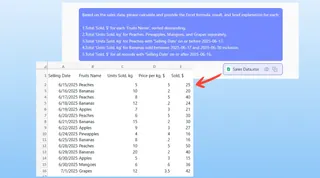
3. Review and Refine the Results
Excelmatic doesn't just give you a single number. It presents the answer in a clear, structured table. From here, the real magic begins. You can continue the conversation to refine your analysis.
- "Now, can you create a bar chart to visualize the sales for the top 5 fruits?"
- "Filter this table to only show sales greater than $1,000."
- "Add a new column that calculates the average price per unit for each fruit."
This iterative, conversational approach allows you to explore your data freely without ever touching a formula bar.
4. Export Your Findings
Once you're happy with the analysis, chart, or report, you can download the result as a new, clean Excel file. You can even ask Excelmatic to provide the exact SUMIFS formula it used, which you can then copy and paste into your original workbook if needed.
Example Conversation
Here’s how a typical interaction might look in Excelmatic:
User: I've uploaded my sales data. Can you show me the total sales amount for each fruit?
Excelmatic: Of course. I have created a summary table showing the total Sold, $ for each Fruits Name. Apples are the top seller with $5,850 in sales, followed by Kiwis and Pineapples. Would you like to see this as a chart?
User: Yes, create a pie chart. Also, what were the total units sold for bananas just in the last two weeks of June 2025?
Excelmatic: Here is the pie chart visualizing the sales distribution by fruit.
For your second question, the total Units Sold, kg for Bananas between June 17, 2025, and June 30, 2025, is 750 kg. I can add this insight to your report.
Traditional Method vs. Excelmatic: A Quick Comparison
| Aspect | Traditional Method (SUMIFS) |
Excelmatic (Excel AI) |
|---|---|---|
| Time to Insight | 30 minutes to several hours | 1-2 minutes |
| Required Skill | Deep knowledge of SUMIFS syntax, date formats, and logical operators. |
Ability to describe your business need in plain language. |
| Flexibility | Low. Each new question requires a new, complex formula. | High. Ask follow-up questions and modify analysis on the fly. |
| Error Rate | High. Prone to typos, incorrect ranges, and logical errors. | Very Low. The AI handles the syntax and logic, ensuring consistency. |
FAQ
1. Do I need to know SUMIF or SUMIFS to use Excelmatic?
No, not at all. The entire purpose of Excelmatic is to eliminate the need for you to write or even know these formulas. You just state your goal, and the AI does the work.
2. Is my company's sales data safe when I upload it to Excelmatic? Data privacy and security are top priorities. Excelmatic uses enterprise-grade encryption for data in transit and at rest. Your files are processed securely and are not used for training models. For specific compliance details, always refer to the official privacy policy.
3. What if my data is a bit messy? Excelmatic works best with clean, structured data (i.e., clear column headers and consistent data formats). While it has some capability to handle minor inconsistencies, it's always a good practice to ensure your column names are descriptive and your data is tidy before uploading for the most accurate results.
4. Can I use the formulas generated by Excelmatic in my own spreadsheets? Yes. You can ask Excelmatic to show you the formula it used to generate an answer. You can then copy this formula and paste it directly into your own Excel file, which is a great way to learn or apply complex formulas without having to write them from scratch.
5. Is Excelmatic better than using Pivot Tables? It's a different, often faster, approach. A Pivot Table is a great tool for exploratory analysis, but it still requires manual drag-and-drop configuration. With Excelmatic, you can describe the Pivot Table you want ("Create a pivot table with fruits as rows, months as columns, and sum of sales as values"), and it will build it for you instantly.
Take Action: Upgrade Your Excel Workflow with Excelmatic
Stop letting complex formulas slow you down. The time you spend wrestling with SUMIFS syntax, debugging ranges, and manually updating reports is time you could be using to interpret data and grow your business.
An Excel AI agent like Excelmatic acts as your personal data analyst, ready to answer any question you have about your data, 24/7. It empowers everyone on your team, regardless of their Excel skill level, to get insights from data quickly and accurately.
Ready to see for yourself? Try Excelmatic today. Upload your sales spreadsheet and try asking one of the questions from this article. Experience the future of data analysis—no formulas required.