Key takeaways:
- The traditional
SUMIFfunction in Excel is essential for conditional summing, but its complex syntax for different criteria (text, dates, logical operators, wildcards) is time-consuming and prone to errors. - Excel AI tools like Excelmatic eliminate the need to write manual formulas. You can get the same results by describing your conditions in plain language, such as "sum all sales for the North region after June 1st."
- By using Excelmatic, you can drastically reduce the time spent on data aggregation, improve accuracy, and easily handle complex or multiple conditions without needing to learn advanced functions like
SUMIFS.
Problem Background & Pain Points
Imagine you're a sales manager staring at a massive spreadsheet of this quarter's transactions. Your director just walked over with a few "quick questions": What are the total sales from the "North" region? How much revenue came from transactions over $1,000? What were our total sales from "e-transfer" payments in October?
Each question requires you to sift through thousands of rows and add up numbers that meet a specific condition. If you're an average Excel user, your first instinct might be to manually filter the data for each condition, select the relevant cells, and check the sum in the status bar. This is not only tedious but also impossible to document or automate.
The next step up is using Excel's built-in functions. You know there must be a better way, and you discover SUMIF. It sounds perfect—a function designed specifically for summing values if a condition is met. But as you start to use it, the initial promise gives way to frustration. The syntax seems to change with every new question, and a forgotten quotation mark or ampersand brings everything to a grinding halt with a #VALUE! error.
The Traditional Excel Solution: The SUMIF Function
The SUMIF function is the classic Excel tool for this job. It calculates the sum of cells in a range that meet a single criterion you specify.
The basic syntax is:
=SUMIF(range, criteria, [sum_range])
- range: The range of cells you want to evaluate against your criteria (e.g., the column of region names).
- criteria: The condition to check for (e.g., "North").
- sum_range (optional): The range of cells to actually sum (e.g., the column of sales amounts). If omitted, Excel sums the cells in the
range.
While powerful, its practical application is where the complexity lies. Let's look at how you'd answer those "quick questions" from your director.
Scenario 1: Summing Based on Text
To find the total sales for the "North" region, you would use the SUMIF function to check for the text "North" in the region column and sum the corresponding values from the sales column.
The formula would look like this:
=SUMIF(B2:B10, "north", C2:C10)
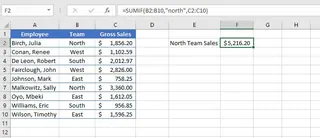
This seems straightforward. But what if you need to sum for everything except the North region? Now you need a different syntax.
Scenario 2: Using Logical Operators and Cell References
To sum sales for regions not equal to "North" (which is stored in cell E2), the syntax becomes more convoluted:
=SUMIF(B2:B10, "<>"&E2, C2:C10)
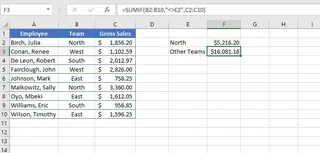
Notice the strange "<>"&E2 part. You have to enclose the logical operator in quotes and use an ampersand (&) to join it with the cell reference. Forgetting this specific structure is a common source of errors.
Scenario 3: Summing Based on Dates or Wildcards
The complexity deepens with other data types.
Dates: To sum transactions before October 3rd, 2020, you might write
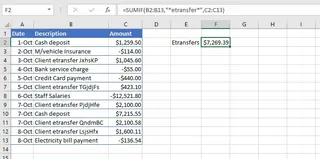
=SUMIF(A2:A13, "<10/03/2020", C2:C13). This is not only hard to read but can also break if the file is opened on a computer with different regional date settings (e.g., MM/DD/YYYY vs. DD/MM/YYYY). The "safer" method,=SUMIF(A2:A13, "<"&F2, C2:C13), again relies on that tricky operator-and-ampersand syntax.Wildcards: To sum all "e-transfer" transactions, where the cell might contain "e-transfer ID: 12345", you need wildcards. The formula
=SUMIF(B2:B13, "*etransfer*", C2:C13)uses asterisks to match any text before or after the word "etransfer." It works, but it's another rule you have to memorize.
The Limitations of the Traditional Approach
The SUMIF function, while useful, comes with significant baggage:
- Steep Learning Curve: The syntax is inconsistent. You need to remember different rules for text, numbers, cell references, dates, and wildcards.
- Error-Prone: A missing quote, an extra space, or a forgotten ampersand can break the entire formula, leading to frustrating troubleshooting.
- Inflexible for Multiple Criteria:
SUMIFcan only handle one condition. If you need to sum sales for the "North" region in "Q3," you have to learn an entirely new function,SUMIFS, which has its own complex argument order. - Poor Scalability: If you want to sum based on an "OR" condition (e.g., "North" or "South"), you have to awkwardly chain multiple
SUMIFformulas together with plus signs:=SUMIF(...) + SUMIF(...). This quickly becomes unmanageable.
The New Solution: Using Excel AI with Excelmatic
Instead of memorizing arcane syntax, what if you could just tell Excel what you want in plain language? That's exactly what Excel AI agents like Excelmatic are designed for. You upload your data and have a conversation with an AI that understands your requests and performs the analysis for you.

Overall Approach
With Excelmatic, the workflow is simple and intuitive:
- Upload your Excel or CSV file.
- Describe the calculation you need in the chatbox.
- The AI analyzes your data and provides the answer directly.
- You can ask follow-up questions to refine the results or visualize the data.
- Download the results as a new Excel file.
You no longer need to be a formula expert. You just need to be able to describe your business question.
Step-by-Step Guide to Conditional Summing with Excelmatic
Let's solve the same problems from before, but this time using Excelmatic.
1. Upload Your Sales Data
First, drag and drop your sales transaction spreadsheet into the Excelmatic interface. The AI will parse the data and show you a preview, understanding the headers like "Region," "Sales Amount," and "Transaction Date."

2. Ask in Natural Language
Now, instead of writing formulas, simply type your questions into the chat. Here’s how you’d ask for the same information:
For text criteria:
What are the total sales for the North region?
For logical criteria:
Sum the sales for all regions except North. or Calculate the total sales for transactions over $1,000.
For date-based criteria:
What were the total sales before October 3, 2020?
For wildcard/partial text criteria:
Sum the transaction amounts for all descriptions that contain 'etransfer'.
For "OR" logic (which was clunky with SUMIF):
What are the combined sales for the North and South regions?
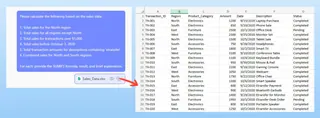
Excelmatic understands the context and intent behind these questions and instantly computes the answers.
3. Review, Iterate, and Visualize
Excelmatic will present the answer, often in a clear, summarized table. The real power comes from the ability to continue the conversation. You can ask follow-up questions like:
- "Now, break that down by salesperson."
- "Can you show me only the results for Q4?"
- "Create a bar chart comparing the sales for each region."
This conversational approach to data analysis is impossible with static formulas. It allows for rapid exploration and discovery without rewriting a single formula.
4. Export Your Results
Once you have the answer you need, you can download the results as a new, clean Excel file. Excelmatic can also generate the underlying Excel formula for you, which you can copy and paste into your original workbook if needed.
Dialogue Example
Here’s what a typical interaction might look like in Excelmatic:
User: I've uploaded my sales data. Can you tell me the total sales for all transactions described as 'e-transfer'?
Excelmatic: Certainly. The total sales for all transactions containing 'e-transfer' is $2,450.50. I have created a summary table for you.
User: Great. Now, out of those e-transfer sales, how much of it occurred after September 1st, 2020?
Excelmatic: The total for e-transfer sales after September 1st, 2020, is $980.00.
User: Perfect. Can you create a pivot table that shows the total sales for every transaction type, broken down by month?
Excelmatic: Done. I have generated a pivot table with transaction types as rows and months as columns, with the sum of sales as the values. You can download the new Excel file containing this pivot table.
Traditional SUMIF vs. Excelmatic: A Quick Comparison
| Aspect | Traditional SUMIF |
Excelmatic (Excel AI) |
|---|---|---|
| Time to Result | 5-15 minutes per formula, depending on complexity and debugging. | Seconds to minutes, depending on the complexity of the request. |
| Required Skill | Deep knowledge of SUMIF syntax, operators, and wildcards. |
Ability to describe a business question in plain language. |
| Flexibility | Low. Changing criteria requires rewriting the formula. | High. Easily refine or change analysis with follow-up questions. |
| Error Rate | High. Syntax errors are common and hard to spot. | Low. The AI handles the technical implementation, minimizing human error. |
| Multiple Criteria | Requires learning a new function (SUMIFS) or clunky workarounds. |
Handled naturally. Just describe all conditions in one sentence. |
FAQ
1. Do I need to know how to write SUMIF or SUMIFS formulas to use Excelmatic?
No, not at all. Excelmatic is designed for users of all skill levels. You just describe what you want to calculate, and the AI handles the formula generation and execution behind the scenes.
2. Is my data safe when I upload it to Excelmatic? Data security is a top priority. Excelmatic uses secure protocols for data handling and does not store your files long-term. For specific details, always refer to the official privacy policy on the website.
3. Can Excelmatic handle complex criteria, like summing between two dates or combining text and number conditions? Yes. This is a key advantage of using an Excel AI. You can state complex conditions naturally, such as "Sum the sales for the East region between May 1 and July 31 for amounts over $500," and the AI will parse and execute the request.
4. What if my data isn't perfectly clean? Excelmatic can often interpret and work with slightly messy data. However, for best results, it's always good practice to have clear, descriptive column headers (e.g., "Sales Amount" instead of "Col1").
5. Can I get the actual Excel formula from Excelmatic? Yes. In many cases, Excelmatic can provide the exact Excel formula it used to get the result. This is great for learning or for when you need to embed the formula back into your own spreadsheet for others to use.
6. Is Excelmatic better than just using a Pivot Table? They serve different but complementary purposes. A Pivot Table is an interactive tool for exploration. Excelmatic is a conversational agent that can directly answer specific questions, create pivot tables for you, generate formulas, and automate reporting tasks with simple text commands, often much faster than building a pivot table manually.
Take Action: Upgrade Your Excel Workflow Today
Every minute you spend debugging a SUMIF formula is a minute you're not spending on analyzing results and making decisions. The traditional way of wrangling formulas is slow, frustrating, and prone to error.
By embracing an Excel AI tool like Excelmatic, you can transform your relationship with data. Instead of fighting with syntax, you can have a conversation with your spreadsheets. You can answer your director's "quick questions" in seconds, not minutes, and respond to ad-hoc requests with confidence and speed.
Ready to stop wrestling with formulas and start getting answers? Try Excelmatic for free today. Upload one of the spreadsheets you're working on right now and ask it the question you've been trying to solve. You might be surprised at how simple it can be.