Key takeaways:
- Traditional text splitting in Excel relies on functions like
MID,LEFT,RIGHT, andSEARCH, often leading to complex, nested formulas that are difficult to write, debug, and maintain. - An Excel AI tool like Excelmatic replaces these manual formulas with natural language. You can simply describe how you want to split or extract text, and the AI does the work for you.
- Using Excelmatic for text manipulation dramatically reduces time spent on data cleaning, eliminates formula errors, and makes sophisticated text parsing accessible even to Excel beginners.
Problem background & pain points
Almost every Excel user has faced this classic data problem: you import or paste data, and it's all crammed into a single column. A column of full names that you need to separate into "First," "Middle," and "Last." A list of full addresses that you need to break down into street, city, and postal code. Or maybe product SKUs that combine a category, product ID, and size code, like SHIRT-1023-XL.
Your goal is simple: split that one messy column into several clean, organized columns for sorting, filtering, or analysis. But the path to get there is often anything but simple.
This is where the journey down the rabbit hole of Excel's text functions begins. You start searching for "how to extract text from a cell" and are introduced to a family of functions: MID, LEFT, RIGHT, SEARCH, FIND, and LEN. While powerful, they turn a simple business request into a complex programming puzzle. What if some names have a middle initial and others have a full middle name? What if some addresses have extra spaces? Each variation requires a more complicated, more fragile formula, turning a quick task into a frustrating, time-consuming ordeal.
Traditional Excel Solutions: Steps & Limitations
The classic approach to splitting text in Excel involves using a combination of text functions. Depending on the consistency of your data, this can range from straightforward to maddeningly complex.
Let's look at two common scenarios.
Scenario 1: Splitting Fixed-Length Text (The "Easy" Case)
Imagine you have a list of phone numbers formatted consistently as (123)456-7890. You want to split this into three columns: Area Code, Prefix, and Line Number. Since the length and position of each part are fixed, you can use a combination of LEFT, MID, and RIGHT.
- Extract Area Code (First 3 digits): The
LEFTfunction is perfect for this. It extracts a specified number of characters from the beginning of a text string.=LEFT(A2,3) - Extract Prefix (Middle 3 digits): The
MIDfunction comes into play here. It extracts characters from the middle of a string, requiring a starting position and the number of characters to extract.=MID(A2,4,3) - Extract Line Number (Last 4 digits): The
RIGHTfunction grabs characters from the end of a string.=RIGHT(A2,4)
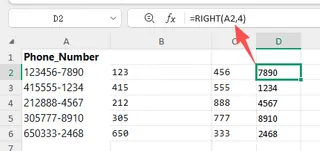
This works well, but it hinges on the data being perfectly uniform. What happens when it's not?
Scenario 2: Splitting Variable-Length Text (The "Hard" Case)
Now for a more realistic and challenging task: extracting the middle name from a list of full names.
Here, the length of each name and the position of the middle name are different. You can't just tell Excel to "start at character 5 and take 8 characters." You have to build a dynamic formula using SEARCH to locate the spaces that act as delimiters.
The logic is:
- Find the position of the first space. The middle name starts right after it.
- Find the position of the second space. The middle name ends right before it.
- Calculate the length of the middle name by subtracting the first space's position from the second's.
- Feed these three dynamic values (start position, and length) into the
MIDfunction.
The resulting formula is a classic example of Excel complexity:
=MID(A2,SEARCH(" ",A2)+1,SEARCH(" ",A2,SEARCH(" ",A2)+1)-SEARCH(" ",A2)-1)

This single formula demonstrates all the limitations of the traditional approach:
- High Complexity: The formula is deeply nested and difficult to read, let alone write from scratch. A single misplaced parenthesis will break it.
- Brittleness: What if a name has no middle name? The formula will return a
#VALUE!error. You then need to wrap it in anIFERRORfunction, making it even longer. - High Maintenance: If your requirements change (e.g., "now extract the last name"), you have to build an entirely new, equally complex formula.
- Steep Learning Curve: To solve this, you need to be proficient in
MID,SEARCH, and how to nest them. This is far beyond the skill set of the average Excel user.
Ultimately, you spend more time fighting with formulas than you do analyzing your data.
The Excel AI Solution (with Excelmatic)
Instead of forcing you to become a formula expert, an Excel AI Agent like Excelmatic lets you solve the problem by simply describing the outcome you want. It handles the complex logic behind the scenes.

The process is refreshingly simple and intuitive.
Step-by-Step: Splitting Text with Excelmatic
1. Upload Your Data
First, drag and drop your Excel or CSV file containing the messy text column into Excelmatic. The AI will instantly read your data and display a preview. It works on a secure copy, so your original file is never modified.

2. Describe Your Goal in Plain Language
This is where the magic happens. Instead of writing a formula, you just type your request into the chat box.
Using our previous examples, you could ask:
For the phone numbers:
Split the 'Phone' column into three new columns: 'Area Code' (the first 3 digits), 'Prefix' (the next 3), and 'Line Number' (the last 4).
For the full names (the hard case):
From the 'Full Name' column, create new columns for 'First Name', 'Middle Name', and 'Last Name'. If a name doesn't have a middle name, leave the cell blank.
For extracting from an address:
Create a new column called 'Postal Code' by extracting the 7-character code from the 'Address' column. It always starts at the 5th character.

The AI understands the context and executes the task instantly.
3. Review and Iterate on the Results
Excelmatic will immediately present you with a new table showing the split-out columns. But you don't have to stop there. The process is conversational. You can continue to refine the data.
- "Great. Now combine the first initial and the last name to create a username."
- "Can you format the 'Last Name' column in all uppercase?"
- "Remove any extra spaces from all columns."
This iterative process of "ask, review, refine" is impossible with static formulas and allows you to clean and shape your data with incredible speed and flexibility.
4. Export Your Cleaned Data
Once you're happy with the result, you can download the newly structured data as a clean Excel file with a single click. The entire process, from messy import to clean export, takes minutes, not hours.
Dialogue Example
Here’s how a real conversation might look inside Excelmatic for the middle name problem:
User: I have a column called 'Full Name' with data like 'John Fitzgerald Kennedy' and 'Susan B. Anthony' and 'Elon Musk'. I need to split this into first, middle, and last names.
Excelmatic: Understood. I have created three new columns: 'First_Name', 'Middle_Name', and 'Last_Name'. For entries like 'Elon Musk' that do not have a middle name, the 'Middle_Name' cell is correctly left empty. The results are ready for your review.
User: This is perfect. Now, can you create one more column called 'Initials'? It should take the first letter of the first name and the first letter of the last name. For 'John Fitzgerald Kennedy', it should be 'JK'.
Excelmatic: Done. I've added the 'Initials' column based on your logic. Is there anything else you'd like to do with this data?
Traditional vs. Excelmatic: A Quick Comparison
| Aspect | Traditional Excel (MID, SEARCH, etc.) |
Excelmatic (Excel AI Agent) |
|---|---|---|
| Method | Writing complex, nested formulas. | Typing simple, plain-language instructions. |
| Time to Result | 15-60+ minutes of research and debugging. | Less than 1 minute of typing. |
| Skill Level | Advanced Excel proficiency required. | Anyone who can describe a task. |
| Flexibility | Rigid. Changes require rewriting formulas. | Highly flexible. Refine results via conversation. |
| Error Handling | Prone to #VALUE! errors; requires IFERROR. |
Gracefully handles exceptions (e.g., no middle name). |
FAQ
1. Do I need to know any Excel formulas like MID or SEARCH to use Excelmatic?
Not at all. The entire point of Excelmatic is to free you from needing to know complex formulas. You just need to be able to describe the result you want in your own words.
2. Is my company's data safe when I upload it to Excelmatic? Yes. Excelmatic is built with enterprise-grade security. Data is encrypted in transit and at rest, and is processed securely. We do not use your data to train our models. Your original file is never modified.
3. What if my text data is really messy, with extra spaces or inconsistent formatting? Excelmatic's AI is trained to handle many common data inconsistencies. You can also give it explicit instructions like "trim all leading and trailing whitespace from the 'Address' column before splitting it" to ensure a clean result.
4. Can Excelmatic tell me the formula it used to split the text? Yes. While you don't need it, you can ask Excelmatic, "What formula would I use to do this in Excel?" It can generate the traditional formula for you, which can be a great way to learn or for use in other workbooks.
5. Does this only work for names and addresses? No, it works for any text-splitting task. You can use it to parse product SKUs, server log entries, financial transaction descriptions, or any other structured text data you have in a single column.
6. Will Excelmatic change my original Excel file? No. Excelmatic works on a copy of your data in a secure, online environment. Your original file on your computer remains untouched. You can download the transformed data as a new file.
Get Started: Upgrade Your Excel Workflow Today
Stop wasting hours trying to decipher and debug complex text formulas. The time you spend wrestling with MID and SEARCH is time you could be spending on high-value analysis and making data-driven decisions.
By embracing an Excel AI tool, you're not just finding a faster way to do an old task; you're fundamentally changing your relationship with your data. You can now ask complex questions and get immediate answers, test hypotheses on the fly, and clean massive datasets in a fraction of the time.
Ready to see for yourself? Try Excelmatic for free. Upload a file with a column you've always struggled to split, and use one of the prompts from this article. You'll have your clean, structured data in seconds.