Key takeaways:
- Creating sequential lists in Excel, like dates for a calendar or unique IDs for inventory, traditionally requires manual dragging or memorizing the
SEQUENCEfunction's syntax. - An Excel AI agent like Excelmatic eliminates this by allowing you to generate complex series using simple, natural language prompts like "create a list of all weekdays in June 2025".
- Using Excelmatic for sequence generation not only saves significant time but also reduces formula errors, handles complex requests effortlessly, and makes the entire process more intuitive for all skill levels.
The Universal Task: Creating Lists and Sequences in Excel
Almost every Excel task starts with a list. Whether you're building a project plan, a monthly budget tracker, a content calendar, or an employee timesheet, you first need a column of sequential data. This could be a simple numbered list, a series of dates, or a batch of unique IDs for inventory management.
For decades, the go-to method was painfully manual: type 1 in a cell, 2 in the cell below, select both, and carefully drag the fill handle down your sheet, hoping Excel correctly interprets the pattern. If you needed 5,000 rows, this became a tedious and scroll-heavy task. For dates, the process was similar but even more prone to errors, especially when you needed to skip weekends or follow a specific monthly pattern.
This fundamental need for a better way to generate series data is a universal pain point for Excel users, from beginners to seasoned analysts.
The Traditional Solution: The SEQUENCE Function and Its Hurdles
To address this, Microsoft introduced the SEQUENCE function in Excel 365. It's a powerful dynamic array function designed specifically to generate arrays of sequential numbers automatically.
The basic syntax is:
=SEQUENCE(rows, [columns], [start], [step])
rows: The number of rows you want to fill.columns(optional): The number of columns to fill. Defaults to 1.start(optional): The first number in the sequence. Defaults to 1.step(optional): The amount to increment by. Defaults to 1.
How SEQUENCE Works in Practice
With this function, you can generate various lists with a single formula.
1. Creating a Simple Numbered List
To create a list of numbers from 1 to 10, you simply type:
=SEQUENCE(10)
Excel automatically spills the results into the 10 cells below.

2. Generating a Sequence of Dates
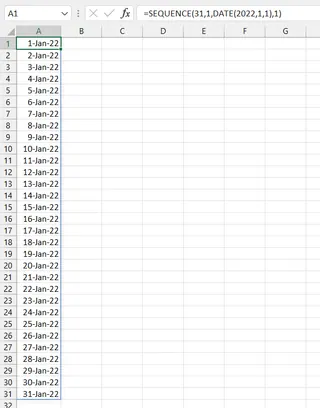
To generate all the dates for January 2022, you need to combine SEQUENCE with the DATE function:
=SEQUENCE(31, 1, DATE(2022, 1, 1), 1)
This formula tells Excel to create a sequence of 31 rows, starting from the date January 1, 2022, and incrementing by 1 day. You'll then need to format the resulting serial numbers as dates.
3. Building a Grid of Numbers
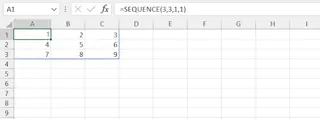
You can also create a two-dimensional array. A formula like =SEQUENCE(3, 3) will instantly generate a 3x3 grid of numbers from 1 to 9.
The Limitations of the "Manual" Formula Approach
While SEQUENCE is a huge leap forward from manual dragging, it still presents significant challenges for many users:
- Memorization is Required: You have to remember the function's name and the exact order of its four arguments. Is it
rowsthencolumns, or the other way around? What doesstepdo again? Forgetting the syntax leads to#VALUE!errors and wasted time. - It's Not Intuitive: Business needs are expressed in plain language ("I need a list of all Mondays for the next quarter"), not formula-speak. The user must act as a human translator, converting a simple request into a potentially complex formula.
- Complexity Quickly Escalates: The date example above already requires nesting one function (
DATE) inside another. What if you need only the weekdays? You'd have to wrap yourSEQUENCEformula inside aWORKDAY.INTLfunction, making it even longer and harder to read and debug. - Rigid and Inflexible: The formula is static. If you decide you need 20 items instead of 15, or want to change the start date, you have to locate the cell, edit the formula, and press Enter. There's no conversational flow to refine your results.
The New Way: Generating Sequences with an Excel AI Agent
Instead of forcing you to learn a new language of functions and arguments, modern Excel AI tools let you work in the language you already know: plain language. Excelmatic, an AI agent for spreadsheets, transforms this task from a formula-writing exercise into a simple conversation.

The workflow is straightforward: you state what you need, and the AI generates it for you.
Step-by-Step: Creating a Date Sequence with Excelmatic
Let's revisit the task of creating a schedule, but this time with a more complex request: generating a list of all working days for Q3 2025.
1. Upload Your File (or Start Fresh)
You can upload an existing Excel file you want to add data to or simply start with a blank canvas in Excelmatic. The AI is ready to create new data from scratch.

2. Describe the Sequence You Need in Plain Language
In the chat interface, you type your request just as you would say it. Instead of building a formula, you just ask:
Create a list of all weekdays from July 1, 2025, to September 30, 2025.

Here are a few other examples of prompts you could use:
- "Generate a column named 'Task ID' with 100 numbers starting from 1001."
- "Create a 10x10 grid of numbers, starting at 50 and increasing by 10."
- "Make a list of every Friday for the year 2025."
- "Generate 250 unique product codes that follow the format 'PROD-####', starting with 'PROD-5000'."
3. Review and Iteratively Refine the Result
Excelmatic will process your request and present a preview of the generated data table. The magic is what comes next: you can continue the conversation to adjust the output.
The AI doesn't just give you a final, static result. It waits for your feedback. You can ask for modifications, additions, or formatting changes.
4. Export Your Perfected Data
Once you're happy with the result, you can download the data as a new Excel or CSV file with a single click. The file will contain the perfectly formatted sequence, ready for you to use in your project.
Example Dialogue: From Simple Request to Custom Schedule
Here’s how a typical conversation with Excelmatic might look:
User: I need to create a project timeline. Can you generate a column with all the dates for August 2024?
Excelmatic: Of course. I have created a column named 'Date' containing all 31 dates in August 2024. Is there anything else you'd like to add?
User: Great. Now, please add another column next to it showing the day of the week for each date. Also, I only want to see the workdays, so please remove all Saturdays and Sundays.
Excelmatic: No problem. I've added a 'Day_of_Week' column and filtered the list to show only Monday through Friday. The list now contains 22 working days for August 2024. You can download the updated file below.
This iterative process—where a complex request like "remove weekends" is a simple follow-up instruction—is impossible with a static SEQUENCE formula.
SEQUENCE Function vs. Excelmatic AI: A Quick Comparison
| Aspect | Traditional SEQUENCE Function |
Excelmatic AI Agent |
|---|---|---|
| Method | Manually write and debug a formula like =WORKDAY.INTL(...). |
Write a simple instruction in plain language. |
| Learning Curve | High: Requires memorizing syntax, arguments, and how to nest functions. | Low: If you can describe what you want, you can use it. |
| Flexibility | Low: Any change requires finding and manually editing the formula. | High: Easily refine and modify results through conversational follow-ups. |
| Complex Cases | Requires advanced knowledge of multiple functions (DATE, WORKDAY, etc.). |
Handled automatically by the AI based on your natural language request. |
| Speed | Fast if you're a formula expert; slow and frustrating otherwise. | Consistently fast and effortless for all users. |
FAQ
Do I need to know the SEQUENCE function to use Excelmatic?
Not at all. The entire point of using an Excel AI agent like Excelmatic is to bypass the need to memorize specific functions and syntax. You just describe the outcome you want.
Can Excelmatic generate sequences with text, like 'ID-001'?
Yes. You can ask for custom formats that mix text and numbers, such as "Generate 100 IDs starting with INV-2024-001". The AI will understand the pattern and create the full list for you.
Is my data safe when I upload it to Excelmatic? Data privacy and security are top priorities. Excelmatic uses secure protocols to handle your data, which is not used for training models. For detailed information, always refer to the official privacy policy on the website.
What if the AI misunderstands my request for a sequence? Just like talking to a human assistant, you can simply rephrase your request or provide more context. For example, if the AI creates a daily list and you wanted a weekly one, you can say, "Actually, I only need the date for every Monday."
Can Excelmatic just give me the formula to use in my own sheet?
In many cases, yes. You can ask the AI, "What formula would create this sequence?" It can be a great way to learn how functions like SEQUENCE work without the initial frustration.
Get Started: Upgrade Your Excel Workflow Today
Every minute you spend trying to remember a formula or manually dragging cells is a minute you could have spent on more valuable analysis. The SEQUENCE function was a step in the right direction, but true efficiency comes from eliminating the translation layer between your thoughts and the result.
Instead of wrestling with syntax, let an AI agent do the heavy lifting. Upload your next spreadsheet task to Excelmatic and state your needs in plain language.
Ready to leave the formula headaches behind? Try Excelmatic for free today and experience the future of working with spreadsheets.