Key takeaways:
- Ranking data in Excel becomes complicated when duplicate values (ties) exist, making it difficult to select a definitive "Top 5" or "Top 10" list without manual adjustments.
- The traditional solution involves complex, multi-step formulas combining functions like
RANK.EQandCOUNTIF, which are hard to build, debug, and maintain. - Excel AI tools like Excelmatic eliminate this complexity. You can simply ask in natural language to "create a unique ranking and show the top 5," and the AI handles the tie-breaking logic automatically.
- Using Excelmatic not only saves significant time but also ensures accuracy and allows for flexible, on-the-fly analysis without ever writing a formula.
The Problem: Why Tied Ranks in Excel Are a Headache
Imagine you're a sales manager, and it's the end of the quarter. You have a simple task: identify the top 5 performing sales agents based on their "Quality Score" to award a bonus. You open your Excel sheet, which contains a list of agents and their scores. You sort the scores from highest to lowest.
And then you hit a snag. Two agents are tied for 2nd place. Three more are tied for 5th place.
Now what? If you filter for the top 5 scores, you might get seven or eight people. Who gets the bonus? Do you include everyone tied for 5th place, expanding the bonus pool? Or do you need a consistent way to break the tie and create a definitive 1-through-5 ranking?
This is a classic Excel frustration. What seems like a simple ranking task quickly devolves into a manual, error-prone process. You might find yourself adding helper columns, trying to remember a complex formula you saw online once, or worse, just making an arbitrary decision. This isn't just inefficient; it can lead to perceptions of unfairness if the tie-breaking logic isn't consistent and transparent.
The Traditional Excel Solution: Formulas and Their Flaws
For experienced Excel users, the go-to solution for breaking ties involves creating a "helper column" with a clever combination of formulas. The most common approach uses the RANK.EQ and COUNTIF functions.
Let's say your scores are in column B (from B2 to B20) and agent names are in column A.
The Step-by-Step Manual Process
Initial Ranking with
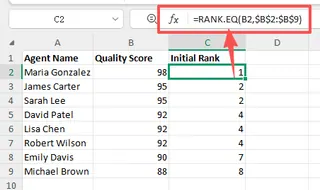
RANK.EQ: First, you'd use theRANK.EQfunction to get a basic rank. In cell C2, you might write:=RANK.EQ(B2, $B$2:$B$9)When you drag this formula down, you'll immediately see the problem: tied scores get the same rank number.
Creating the Tie-Breaker with
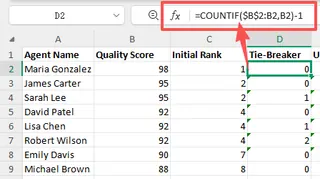
COUNTIF: To break the tie, you need to create a small, unique number for each identical score. This is whereCOUNTIFcomes in. It counts how many times the score in the current row has appeared so far in the list. In a new helper column (D2), you'd write:=COUNTIF($B$2:B2, B2) - 1This formula creates a sequence (0, 1, 2...) for each group of tied scores. The first instance of a score gets a 0, the second gets a 1, and so on.
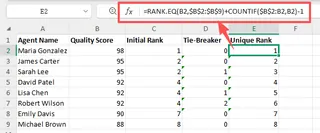
Combining for a Unique Rank: Finally, you combine the two results to create a final, unique rank. In your final ranking column (E2), you'd add the results of the first two steps:
=RANK.EQ(B2, $B$2:$B$9) + COUNTIF($B$2:B2, B2) - 1Now, you have a unique rank for every single agent, with ties broken based on their position in the original list.
Filtering for the Top 5: With this new unique rank column, you can finally sort or filter your data to find the agents with ranks 1 through 5.
Limitations of the Traditional Method
While this formula works, it's far from ideal. Here’s why:
- Complexity: The formula
RANK.EQ(...) + COUNTIF(...) - 1is not intuitive. For most users, it's something to be copied and pasted, not understood. If it breaks, debugging is a nightmare. - Error-Prone: A single misplaced
$for absolute referencing can wreck the entire calculation. Forgetting to subtract1from theCOUNTIFresult will also skew the ranks. - Inflexible: What if you want to break the tie based on another criterion, like alphabetical order of the agent's name, or their tenure? The formula becomes even more complex, often requiring array formulas or additional helper columns.
- High Maintenance: If you add new agents to the list, you must remember to update the formula ranges (
$B$2:$B$20). Forgetting to do so is a common source of silent errors. - Clutters Your Data: This method requires adding at least one, and often two, extra columns to your dataset just to perform a single calculation.
You're spending valuable time building and maintaining a fragile formulaic system instead of focusing on the actual business insight.
The New Solution: Using an Excel AI like Excelmatic
What if you could skip the formulas entirely? With an Excel AI Agent like Excelmatic, you can solve the ranking and tie-breaking problem by simply describing what you need in plain language.

Excelmatic is a tool where you upload your spreadsheet and then have a conversation with an AI that understands your data. It performs the analysis, generates the results, and lets you refine them through dialogue.
Here’s how you would solve the exact same problem in a fraction of the time.
Step 1: Upload Your Data
First, navigate to Excelmatic and upload your Excel or CSV file containing the agent names and quality scores. The AI will instantly read your data and show you a preview.

Step 2: Ask for a Unique Ranking in Plain Language
Instead of writing formulas, you just type your request into the chatbox. You can start simple and then add the tie-breaking requirement.
Here are a few examples of prompts you could use:
- "Rank the agents by 'Quality Score' from highest to lowest."
- "Some scores are the same. Can you create a unique rank for everyone?"
- "Create a new column called 'Unique Rank' that ranks agents by 'Quality Score'. Break any ties by giving the agent who appears first in the list a better rank."
- "Show me the top 5 agents based on a unique ranking of their Quality Score."
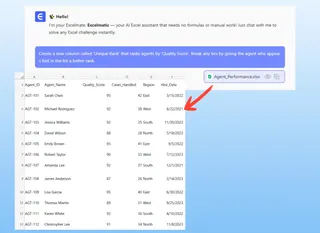
The AI understands the concept of "ranking," "ties," and "top 5" and will perform the necessary calculations behind the scenes.
Step 3: Review and Refine the Results
Excelmatic will generate a new table with the requested "Unique Rank" column already created and populated. There are no helper columns or complex formulas to check. The result is clean and immediate.
This is where the power of a conversational AI shines. You can continue the dialogue to refine the output.
- User: "Great. Now can you filter this list to show only the Top 5 agents?"
- User: "Can you also add a column showing the difference between each agent's score and the average score?"
- User: "Instead of breaking ties by position, can you break ties alphabetically by 'Agent Name'?"
Each request is handled instantly, allowing you to explore your data and get answers to follow-up questions without ever touching a formula bar.
A Sample Conversation with Excelmatic
Here's what that interaction might look like:
User: I've uploaded my agent performance data. I need to find the top 5 agents based on their Quality Score, but there are several ties. Can you help me create a definitive ranking?
Excelmatic: Certainly. I see the 'Quality Score' column and the ties within it. I have generated a new table with a 'Unique Rank' column. This rank is based on the 'Quality Score', and ties have been broken sequentially.
User: This is perfect. Now, please filter this table to show only the agents with a Unique Rank from 1 to 5.
Excelmatic: Done. The table now displays only the top 5 uniquely ranked agents. Would you like to visualize this as a bar chart or export the data?
User: Export to Excel, please.
Excelmatic: Your file is ready for download. It contains a new sheet with the Top 5 ranked agents.
Traditional Method vs. Excelmatic: A Quick Comparison
| Aspect | Traditional Formula Method | Excelmatic AI Method |
|---|---|---|
| Time to Implement | 10-20 minutes (for an experienced user) | < 1 minute |
| Required Skills | RANK.EQ, COUNTIF, absolute/relative refs |
Ability to describe the goal in language |
| Flexibility | Low. Changing tie-breaking logic is hard. | High. Just ask for a different rule. |
| Error Potential | High (wrong ranges, typos in formulas) | Very Low. The AI handles the logic. |
| Clutter | Adds helper columns to your sheet. | Generates a clean, separate output. |
FAQ
1. Do I need to know any Excel formulas to use Excelmatic for ranking?
No. That's the primary benefit. You don't need to know RANK.EQ, COUNTIF, or any other function. You just need to describe the outcome you want, such as "rank my data and break ties."
2. Is my data safe when I upload it to Excelmatic? Yes. Excelmatic is built with data security in mind. Files are processed in a secure environment and are not shared or used for any other purpose. For specific details, always refer to the official privacy policy on the website.
3. What if my tie-breaking rule is more complex, like using a second column (e.g., sales volume) as a tie-breaker? You can simply state that in your request! For example: "Rank agents by 'Quality Score'. If there's a tie, use 'Total Sales' as the tie-breaker, with higher sales getting a better rank." The AI is designed to handle these multi-level sorting and ranking conditions.
4. Can Excelmatic handle messy data? Excelmatic includes data cleaning capabilities. You can ask it to "remove duplicate rows," "fill in missing values in the 'Region' column with 'N/A'," or "trim extra spaces from the 'Agent Name' column" before you even start the ranking process.
5. Can I get the formula from Excelmatic to use in my own sheet? Yes. In addition to providing the final data table, you can often ask Excelmatic to generate the Excel formula that would achieve the result. This is a great way to learn how the functions work without the initial frustration of building them from scratch.
Take Action: Upgrade Your Excel Workflow Today
Every minute you spend wrestling with a complex formula is a minute you're not spending on strategic analysis. The problem of ranking with ties is a perfect example of a task that is unnecessarily difficult in traditional Excel but trivially easy for an AI.
Instead of keeping a cheat sheet of arcane formulas, you can now have a conversation with your data.
Ready to stop the manual work? Try Excelmatic for free today. Upload the very spreadsheet that's causing you trouble and ask it to create the perfect, tie-free ranking you need. Start with a prompt from this article and see how quickly you get your answer.