Key takeaways:
- Manually preparing large Excel datasets for printing involves tedious, multi-step tasks like find/replace, column resizing, number formatting, and complex page layout adjustments, which are time-consuming and error-prone.
- Excel AI tools like Excelmatic streamline this entire process by allowing you to use simple natural language commands to perform all necessary formatting and layout changes automatically.
- Using Excelmatic not only saves significant time but also ensures consistency and accuracy, producing professional, print-ready reports in minutes without you needing to memorize complex menu options.
Problem background & pain points
Picture this: your manager asks for a printed copy of the latest sales report for an important meeting in an hour. The report is a massive Excel file with 5,000 rows of detailed transaction data. You open the file, hit Ctrl+P to see the Print Preview, and your heart sinks.
The data spills across dozens of pages, columns are cut off randomly, numbers look like a meaningless jumble, and the crucial header row only appears on the first page. Making this mess presentable is now your top priority.
You know the drill. You'll have to manually shorten long text entries, resize every column, apply the correct number formats, add borders, and then dive deep into the labyrinth of Page Layout settings. You need to switch to landscape orientation, scale the sheet to fit all columns on one page, set the header row to repeat, and add page numbers. It's a frustrating, click-intensive process that feels like it was designed in the 90s. One wrong click, and you have to start over.
This isn't a one-time task, either. The same report comes in every week or month, and you're stuck repeating this manual formatting ritual every single time. There has to be a better way.
The Traditional Excel Solution: Steps and Limitations
For experienced Excel users, tackling this challenge involves a familiar sequence of manual operations spread across multiple tabs and menus. The goal is to transform a raw, unwieldy dataset into a clean, readable, and professional-looking printed document.
Here's a summary of the traditional, hands-on approach:
- Find and Replace Data: You'd start by cleaning up the data. For instance, long region names like 'Central America and the Caribbean' make columns unnecessarily wide. You would use the "Find and Replace" tool (
Ctrl+H) to substitute them with shorter acronyms like 'CCAC'. This has to be done for each text string you want to shorten. - Autofit Columns: After cleaning the text, you'd select all columns and double-click the boundary between any two column headers to automatically resize them to fit the content.
- Apply Number Formatting: Raw numbers like '1593' and '245690.5' are hard to read. You would select the 'Units Sold' column and apply Comma Style, then select all financial columns (e.g., 'Total Revenue', 'Total Cost') and apply the Accounting format from the Home tab.
- Add Visual Formatting: To improve readability, you'd select the header row, apply a background fill color, and maybe make the text bold. Then, you'd select the entire data range and apply all borders to create a clear grid.

- Configure Page Layout for Printing: This is the most complex part.
- Navigate to the
Page Layouttab. - Change
OrientationtoLandscape. - In the
Scale to Fitgroup, setWidthto1 pageto ensure all columns print on a single sheet of paper. - Click
Print Titlesto open the Page Setup dialog. In the "Rows to repeat at top" field, select the header row.
- Navigate to the
- Add Headers and Footers: While in the Page Setup dialog, you'd switch to the
Header/Footertab. Here, you would add a custom header (like the sheet name) and a custom footer (like "Page 1 of X"). - Final Review: Finally, you'd go back to Print Preview (
Ctrl+P) to check if everything looks right before hitting the print button.
Limitations of the Manual Method
While this process works, it's fraught with inefficiencies:
- Extremely Time-Consuming: The entire sequence can take anywhere from 15 minutes to over an hour, depending on the data's complexity and your familiarity with Excel's menus.
- High Risk of Human Error: It's easy to forget a step, apply the wrong format, or select the incorrect range. A single mistake can ruin the entire printout.
- Difficult to Replicate: When you receive the next month's report, you have to perform all these steps again from memory. There's no easy way to save this "formatting recipe" and apply it with one click.
- High Cognitive Load: You need to remember the specific location of each tool—
Find and Replace,Number Formatting,Scale to Fit,Print Titles,Header/Footersettings. It's a mental checklist that's easy to get wrong.
The New Solution: Using Excel AI with Excelmatic
Instead of a frantic, multi-step clicking marathon, what if you could just tell Excel what you want? This is exactly what Excel AI Agents like Excelmatic are designed for. You upload your messy file and describe the desired outcome in plain language. The AI handles all the tedious steps for you.

Let's see how we can solve the exact same printing preparation problem in a fraction of the time.
Step 1: Upload Your Excel File
First, drag and drop your raw sales data file (Excel or CSV) directly into the Excelmatic web interface. The AI will instantly read your data and prepare for your instructions.

Step 2: Describe Your Formatting Needs in Plain Language
Instead of hunting through menus, you'll simply chat with the AI. You can combine all your requests into a single, detailed prompt or give them one by one.
Here are the exact prompts you could use to replicate the entire traditional workflow:
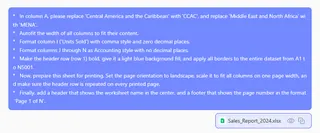
- "In column A, please replace 'Central America and the Caribbean' with 'CCAC', and replace 'Middle East and North Africa' with 'MENA'."
- "Autofit the width of all columns to fit their content."
- "Format column I ('Units Sold') with comma style and zero decimal places."
- "Format columns J through N as Accounting style with no decimal places."
- "Make the header row (row 1) bold, give it a light blue background fill, and apply all borders to the entire dataset from A1 to N5001."
- "Now, prepare this sheet for printing. Set the page orientation to landscape, scale it to fit all columns on one page width, and make sure the header row is repeated on every printed page."
- "Finally, add a header that shows the worksheet name in the center, and a footer that shows the page number in the format 'Page 1 of N'."
Step 3: Review and Iterate

Excelmatic will execute these commands in seconds. It will show you a preview of the transformed data and confirm the actions taken. The beauty of this conversational approach is that you can easily make adjustments.
Maybe the blue background is too dark? Just say: "Change the header background to a light gray instead."
Forgot something? No problem. "Also, add a filter to the header row."
This iterative process is fast, intuitive, and impossible to achieve so quickly with the manual method.
Step 4: Download Your Print-Ready File
Once you're satisfied, you can download the fully prepared workbook as a new .xlsx file. When you open it in desktop Excel and go to Print Preview, it will be perfect—all formatting applied, page layout set, and ready to print. The entire process takes just a couple of minutes.
Dialogue Example
Here’s how a typical conversation with Excelmatic might look:
User: I have this large sales report that I need to prepare for printing. The formatting is a mess. First, in the 'Region' column, replace 'Central America and the Caribbean' with 'CCAC' and 'Middle East and North Africa' with 'MENA'.
Excelmatic: Done. I have replaced the specified region names. The data is updated. What's next?
User: Great. Now, please autofit all columns, format columns J through N as Accounting with no decimals, and set the page layout to landscape, fitting all columns on one page. Also, make sure the header row repeats on each printed page.
Excelmatic: I have applied the requested formatting and page layout settings. The worksheet is now configured for printing with all columns on one page and repeating headers. You can download the updated file. Would you like to add a custom header or footer?
User: Yes, add a footer with 'Page X of Y'.
Excelmatic: The footer has been added. Your file is ready for download.
Traditional Method vs. Excelmatic: A Quick Comparison
| Aspect | Traditional Manual Method | Excelmatic AI Method |
|---|---|---|
| Time to Complete | 15-60 minutes | 2-5 minutes |
| Process | Multiple clicks across different menus | A few typed sentences |
| Error Rate | High; easy to miss steps or settings | Low; AI executes instructions consistently |
| Repeatability | Fully manual; must redo every time | Easy; copy and paste the same prompts |
| Learning Curve | Requires memorizing Excel features | Requires only knowing how to describe your goal |
FAQ
Do I need to know where the 'Print Titles' or 'Scale to Fit' buttons are to use Excelmatic? No, not at all. You just need to describe the outcome you want, like "repeat the headers on each page" or "make all columns fit on one page." The AI knows which Excel features correspond to your request.
Will Excelmatic modify my original Excel file? No. Your original file is never modified. Excelmatic works on a copy of your data in a secure environment, and you download a new, separate file with the changes applied.
Is uploading my company's sales data to Excelmatic secure? Excelmatic is built with enterprise-grade security and data privacy in mind. All data is encrypted in transit and at rest. For specific details, you can always refer to the official privacy policy on the website.
What if my data is even messier than in this example? Excelmatic is designed to handle a wide range of data cleaning and formatting tasks. You can instruct it to remove duplicates, fill blank cells, split columns, and much more, all using natural language.
Can I use the file formatted by Excelmatic in my desktop version of Excel?
Absolutely. The output is a standard .xlsx file that is fully compatible with all modern versions of Microsoft Excel. All formatting and page setup options applied by the AI are native Excel features.
Take Action: Revolutionize Your Excel Workflow Today
Think about the time you've lost fighting with Excel's print settings. Every minute spent manually resizing columns, applying formats, and navigating page setup menus is a minute you could have spent on more valuable analysis.
Continuing with the old way means accepting inefficiency and frustration as part of your routine. By embracing an Excel AI tool, you can reclaim that time and ensure your reports are always professional, accurate, and ready in minutes, not hours.
Ready to see the difference for yourself? Try Excelmatic for free. Upload that one spreadsheet you dread formatting every month, use the prompts from this article, and watch the magic happen. Your future self will thank you.