Key takeaways:
- Performing geometric calculations in Excel, like finding a cylinder's volume, traditionally requires manually combining the
PI()function with the correct mathematical formula, which is slow and prone to error. - An Excel AI like Excelmatic eliminates this manual work. You can simply describe the calculation you need in plain language, and the AI generates the correct formula and results instantly.
- Using Excelmatic for these tasks dramatically increases efficiency, reduces the risk of formula errors, and makes complex calculations accessible even if you don't remember the specific math or Excel syntax.
The Problem: When Excel Becomes a Math Test
Imagine you're an engineer, a product designer, or even a student working on a project. You have a spreadsheet full of dimensions for various parts—pipes, tanks, circular components. Your task is to calculate key properties like area, circumference, or volume for hundreds of these items.
You have the raw data, like radius and height, right there in your Excel sheet. But now comes the tricky part. You find yourself thinking:
- "What was the formula for the volume of a cylinder again? Was it
πr²hor2πrh?" - "How do I get the value of Pi in Excel? Do I just type
3.14, or is there a more accurate way?" - "I need to apply this formula to 500 rows. I'm terrified I'll make a typo in the formula and mess up the entire dataset."
This scenario turns your data analysis task into a memory game of mathematical formulas and Excel syntax. You're forced to switch contexts, searching Google for the right formula, then carefully translating it into Excel's language. It's a slow, frustrating process where a single misplaced parenthesis can lead to a cascade of #NAME? or #VALUE! errors.
The Traditional Excel Solution: The PI() Function
For decades, the standard solution in Excel has been to use its built-in mathematical functions. For calculations involving Pi, Excel provides the PI() function.
The PI() function is simple and powerful. It takes no arguments and returns the value of Pi accurate to 15 digits (3.14159265358979). This is far more precise than manually typing 3.14.
How to Use the PI() Function: A Cylinder Volume Example
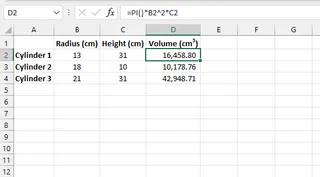
Let's say you have a list of cylindrical containers and you need to calculate their volume. The mathematical formula is Volume = π × radius² × height.
Here’s how you would traditionally do this in Excel:
- Set up your data: Create columns for
Radius(e.g., in column B) andHeight(e.g., in column C). - Write the formula: In a new column, say D, for "Volume", you would click into cell
D2and type the following formula:=PI()*B2^2*C2PI()calls the Pi constant.B2^2uses the^operator to square the radius value in cell B2.*C2multiplies the result by the height in cell C2.
- Apply the formula: Press Enter, and then drag the fill handle (the small square at the bottom-right of the cell) down to apply this formula to all your rows.
Limitations of the Manual Approach
While this method works, it's far from perfect. It's a manual process fraught with potential issues:
- Cognitive Load: You must know both the mathematical formula and the correct Excel syntax. Excel doesn't know you're trying to calculate a cylinder's volume; it only knows how to execute the formula you provide.
- High Risk of Error: A simple typo, like forgetting the parentheses in
PI()or using the wrong cell reference, can break the calculation for the entire column. Debugging these errors can be time-consuming. - Inflexibility: What if your boss asks for the surface area next? You have to go back to the drawing board: find the new formula, write a new Excel expression, and apply it all over again.
- Steep Learning Curve: For team members who aren't Excel power users, remembering functions like
PI()and operators like^is not intuitive. This makes spreadsheets harder to hand off and maintain.
The New Approach: Using an Excel AI (Excelmatic)
What if you could skip the formula-writing part entirely? What if you could just tell Excel what you want to calculate, and it would do the rest? That's exactly what Excel AI Agents like Excelmatic are designed for.

Excelmatic is an AI assistant that you can chat with in plain language. You upload your data file, and then simply describe the analysis, calculation, or report you need. The AI handles the complex steps of generating formulas, creating pivot tables, or building charts for you.
Step-by-Step: Calculating Cylinder Volume with Excelmatic
Let's revisit the same cylinder volume problem, but this time, we'll use Excelmatic.
- Upload Your Data File: Simply drag and drop your Excel or CSV file containing the
RadiusandHeightcolumns onto the Excelmatic platform.

Describe Your Goal in Natural Language: Instead of writing a formula, you type a simple instruction into the chatbox. You can be direct and even provide the formula if you know it, or you can be more descriptive.
Here are a few examples of prompts you could use:
"Create a new column named 'Volume' by calculating the volume of a cylinder using the 'Radius' and 'Height' columns. The formula is pi * radius^2 * height.""For each row, calculate the volume of a cylinder using the given radius and height and put the result in a new 'Volume' column.""I need to find the volume of these cylinders. The radius is in column B and the height is in column C."
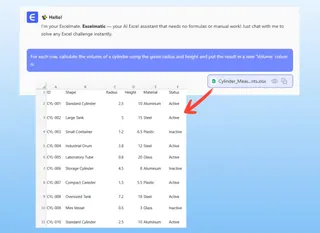
- Review and Iterate on the Results: Excelmatic will instantly process your request and update the data table with a new "Volume" column containing the correct calculations. It can even tell you the exact Excel formula it used for transparency.
The real power comes from the ability to continue the conversation. You can now ask follow-up questions:
*   `"Great. Now add another column for the total surface area."`
*   `"Filter this table to only show me cylinders with a volume over 1,000."`
*   `"What is the average volume for all items?"`
- Export Your Finished File: Once you're satisfied, you can download the updated Excel file with all the new calculations and formatting already in place. No copying, pasting, or dragging formulas required.
A Sample Conversation in Excelmatic
Here’s how that interaction might look:
User: I've uploaded a file with the radius and height of several cylindrical tanks. Can you calculate the volume for each?
Excelmatic: Of course. I've added a new column named "Volume" and calculated it using the formula V = π * r² * h. The results are now in the table. Would you like me to calculate anything else, like the total surface area?
User: Yes, please add a column for the total surface area as well. And then sort the table to show the tanks with the largest volume at the top.
Excelmatic: Done. I've added a "Surface Area" column and sorted the entire table by "Volume" in descending order. You can now download the updated file.
Traditional Method vs. Excelmatic: A Quick Comparison
| Aspect | Traditional Excel (PI() function) |
Excelmatic (AI Agent) |
|---|---|---|
| Required Knowledge | Excel syntax (PI(), ^) AND the specific mathematical formula. |
Just the business goal (e.g., "calculate volume"). |
| Speed | Slow: Look up formula, type syntax, drag to fill, debug errors. | Fast: Type one sentence and get the result in seconds. |
| Error Rate | High risk of typos, incorrect cell references, or wrong formulas. | Low risk, as the AI handles syntax and formula construction. |
| Flexibility | Rigid. Each new calculation requires a new manual formula. | Highly flexible. New calculations are just a follow-up question away. |
FAQ
Do I need to know the mathematical formula to use Excelmatic? Not always. For common geometric shapes like cylinders, spheres, or circles, you can often just state your goal (e.g., "calculate the area of a circle using the 'Radius' column"). However, providing the formula in your prompt can help the AI be more precise, especially for more complex or custom calculations.
Can Excelmatic generate the Excel formula for me to use later? Absolutely. You can ask Excelmatic, "What Excel formula did you use for that calculation?" It will provide the exact formula, which you can then copy and paste into your own spreadsheets for future use.
Is uploading my engineering or design data to Excelmatic secure? Data security and privacy are top priorities for professional tools like Excelmatic. Your files are processed securely, and you retain ownership of your data. For detailed information, always refer to the official privacy policy on the website.
What if my column names are not clear, like 'dim1' and 'dim2'? It's always best practice to use clear, descriptive column headers like 'Radius' and 'Height'. If your data isn't clean, you can clarify in your prompt. For example: "Calculate the volume of a cylinder where 'dim1' is the radius and 'dim2' is the height."
Can Excelmatic handle more complex geometric formulas? Yes. You can describe more complex, multi-step calculations in your prompt. The AI is designed to parse these instructions and construct the corresponding formula or series of operations to achieve your goal.
Take Action: Upgrade Your Excel Workflow with Excelmatic
Stop being a human calculator in Excel. The time you spend searching for formulas, triple-checking your syntax, and manually dragging cells is time you could be spending on actual analysis and decision-making.
By embracing an Excel AI agent, you shift your focus from "how do I build this in Excel?" to "what question do I want to answer with my data?" Let the AI be your expert mathematician and Excel guru, handling the tedious translation from your business problem into a perfect spreadsheet solution.
Ready to stop memorizing formulas and start getting answers? Try Excelmatic today by uploading your next calculation-heavy spreadsheet. See for yourself how a simple question can replace a complex formula and save you hours of work.