Key takeaways:
- Traditional Excel lookups with multiple criteria often require helper columns or complex
INDEX/MATCHandXLOOKUPformulas, which are error-prone and hard to maintain. - Excel AI tools like Excelmatic replace these manual steps. You can simply describe your criteria in plain language (e.g., "find sales for 'Carolyn' in 2020") to get an instant, filtered table.
- Using Excelmatic dramatically reduces the time spent on data filtering, eliminates formula errors, and provides the flexibility to ask follow-up questions without rebuilding your entire analysis.
The Common Excel Headache: Looking Up Data with Multiple Conditions
Imagine you're a sales manager. You have a master spreadsheet with thousands of rows of sales data, including columns for Sales Rep, Region, Product Category, and Sale Amount. Your director walks over and asks, "What were the total sales for our 'Gadgets' category in the 'North' region, sold by 'Jane Doe' in the last quarter?"
If your first thought is VLOOKUP, you'll quickly hit a wall. VLOOKUP is a fantastic tool, but it's designed for a one-to-one lookup: you give it one value to find, and it returns the first match. It simply can't handle multiple conditions like "Gadgets" AND "North" AND "Jane Doe" out of the box.
This is a classic Excel challenge. You need to filter a dataset based on several criteria simultaneously, and the traditional methods, while functional, are often cumbersome, slow, and a recipe for frustration. You're left trying to piece together complex formulas or manually filtering data, wasting valuable time you could be spending on actual analysis.
The Old Way: Manual Formulas and Their Limitations
To solve the multi-criteria lookup problem, experienced Excel users have developed several workarounds over the years. While clever, each comes with its own set of drawbacks.
Method 1: The VLOOKUP with a "Helper Column"
A common trick is to create a new "helper" column in your data table. This column combines the values from the columns you want to search.
For instance, you would create a new column A and use a formula like =[@[Sales Rep]] & [@[Region]] & [@[Product Category]] to create a unique ID for each row, like "JaneDoeNorthGadgets".
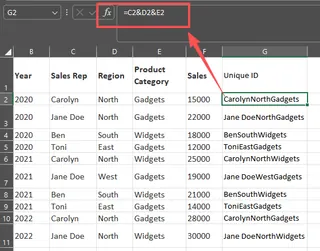
Then, you can perform a VLOOKUP on this new helper column.
=VLOOKUP("JaneDoeNorthGadgets", A:E, 5, FALSE)
The Limitations:
- It's Destructive: You have to modify your source data by adding a new column. This can be problematic if the data is shared or comes from another system.
- It's Inflexible: What if the next question is about a different combination of criteria? You have to create a new helper column or constantly adjust your formulas.
- It's Error-Prone: It’s easy to make a mistake in the concatenation, and it makes your spreadsheet harder for colleagues to understand and maintain.
Method 2: Complex Array Formulas (FILTER, XLOOKUP)
More modern versions of Excel (Microsoft 365) offer powerful functions like FILTER and XLOOKUP that can handle these tasks more elegantly.
The FILTER function is arguably the best built-in solution. You can provide it with your data array and specify multiple conditions.
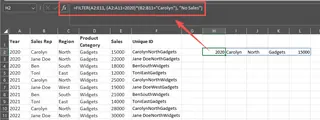
To find sales by "Carolyn" in the year "2020", the formula would look like this:
=FILTER(A2:C16, (A2:A16=2020)*(B2:B16="Carolyn"))
The * acts as an "AND" operator. To use "OR" logic (e.g., sales by "Ben" OR "Toni"), you'd use +.
The Limitations:
- Version Dependency: The
FILTERfunction is only available to Microsoft 365 subscribers. If you or your colleagues are on older versions of Excel, these formulas will result in a#NAME?error. - Learning Curve: While powerful, the syntax
(range=criteria)*(range=criteria)isn't immediately intuitive for many users. Remembering whether to use*for AND or+for OR can be confusing. - Rigid Structure: Like the helper column method, it's still a formula. If you want to add a new condition or change the logic, you have to go back and edit the formula, which can be tedious for ad-hoc analysis.
The New Way: Using an Excel AI Agent (Excelmatic)
What if you could skip the formulas and helper columns entirely? What if you could just ask your spreadsheet the question in plain language? That's exactly what Excel AI agents like Excelmatic are designed for.

Excelmatic acts as your personal data analyst. You upload your file, and then you can have a conversation with your data, asking it to filter, summarize, analyze, and visualize information without writing a single formula.
Let's solve the same multi-criteria lookup problem using Excelmatic.
Step 1: Upload Your Excel File
First, you drag and drop your sales data file (Excel or CSV) directly into the Excelmatic web interface. The AI processes your data, understanding the headers and data types.

Step 2: Ask Your Question in Natural Language
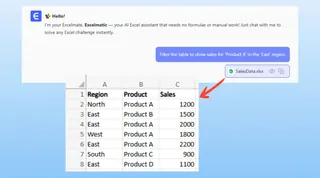
Instead of building a formula, you simply type your request into the chat box.
Here are a few examples of how you could phrase your queries:
- For AND logic: "Show me all sales records where the year is 2020 and the name is Carolyn."
- For OR logic: "Find all transactions for the sales reps 'Ben' or 'Toni'."
- For multiple AND conditions: "Filter the table to show sales for 'Product A' in the 'East' region."
- For returning all matching results: "List every sale made by Curtis."
Step 3: Review and Iterate on the Results
Excelmatic instantly provides a filtered table with the exact data you asked for. But the real power lies in the conversational follow-up.
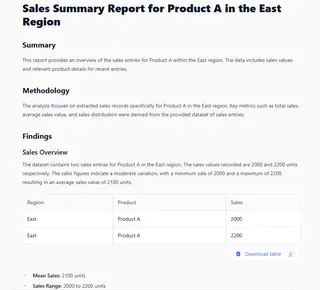
The initial result is just the beginning. You can continue the conversation to refine your analysis:
- "Okay, now sort these results by the sale amount, from highest to lowest."
- "What is the total sales amount for this filtered list?"
- "Add a new column that calculates a 5% commission on the sale amount."
- "Can you turn this into a bar chart comparing the sales for each rep?"
Step 4: Export Your Final Work
Once you're satisfied with the result—whether it's a filtered table, a pivot table, a new formula, or a chart—you can download it as a new Excel file with a single click. All the work is done for you.
Dialogue Example: User vs. Excelmatic
Here’s how a typical conversation might look:
User: I've uploaded my sales report. Can you find all transactions by 'Carolyn' in the year 2020?
Excelmatic: Of course. I have filtered your data to show only the records for 'Carolyn' in 2020. There are 2 matching transactions. The filtered table is now displayed.
User: Great. Now, can you also add all sales made by 'Ben' in 2021 to this list?
Excelmatic: Done. I've updated the filter to include records for 'Carolyn' in 2020 OR 'Ben' in 2021. The table now shows the combined results. Is there anything else you'd like to do with this data?
User: Yes, please calculate the average sale amount for this combined list.
Excelmatic: The average sale amount for the current selection is $45,750.
Traditional Methods vs. Excelmatic: A Quick Comparison
| Aspect | Traditional Excel Methods | Excelmatic (Excel AI) |
|---|---|---|
| Time to Result | 5-15 minutes (or more) | Seconds |
| Required Skill | Intermediate to Advanced (Formulas, Helper Columns) | Basic (Plain language) |
| Flexibility | Low (Formulas are rigid and need manual editing) | High (Easily ask follow-up questions) |
| Error Rate | High (Typos in formulas, incorrect ranges) | Low (AI handles the logic) |
| Maintainability | Difficult (Complex formulas are hard to debug/transfer) | Easy (The conversation history serves as documentation) |
FAQ
1. Do I need to be an Excel expert to use Excelmatic? Not at all. If you can describe what you need in a sentence, you can use Excelmatic. It's designed for everyone, from beginners who want to avoid formulas to experts who want to speed up their workflow.
2. Is my data safe when I upload it to Excelmatic? Yes. Excelmatic treats data privacy and security as a top priority. Your files are processed securely, and the platform adheres to strict privacy policies. Your data is not used for training models or shared with anyone.
3. Does Excelmatic modify my original Excel file? No. Your original file remains untouched. Excelmatic works on a copy of your data in a secure environment. You can then download the results as a new file.
4. Can Excelmatic return multiple matching results, not just the first one like VLOOKUP? Absolutely. This is one of its key strengths. When you ask it to find records matching your criteria, it will return all matching rows, not just the first one it finds.
5. What if my data is a bit messy? Excelmatic is designed to be robust. While clean column headers are always best practice, the AI can often interpret and work with imperfect data. You can even ask it to help you clean the data, such as "trim whitespace from the 'Product' column" or "convert the 'Date' column to a standard date format."
6. Can I use the formulas Excelmatic generates in my own spreadsheet? Yes. When you ask for a formula, Excelmatic provides it to you. You can copy and paste it directly into your own Excel workbook, making it a great tool for learning how to build complex formulas yourself.
Get Started Now: Upgrade Your Excel Workflow
Stop wrestling with complex lookups and start having a conversation with your data. The time you save by automating tedious filtering tasks can be reinvested into what truly matters: deriving insights and making data-driven decisions.
Instead of spending another 20 minutes trying to get an INDEX/MATCH or FILTER formula just right, why not get the answer in 20 seconds?
Try Excelmatic for free today and see how an Excel AI agent can transform the way you work with spreadsheets. Simply upload a file you're working on right now and ask your first question. You’ll be surprised at how easy it is.