Key takeaways:
- Traditional Excel lookup functions like VLOOKUP are powerful but often complex, error-prone, and rigid, requiring specific table structures and manual formula adjustments.
- Excel AI tools like Excelmatic replace these formulas with natural language, allowing you to simply ask for the data you need, such as "match employee names to their sales figures from another sheet."
- Using Excelmatic for data lookups drastically reduces time spent writing and debugging formulas, eliminates common #N/A errors, and offers greater flexibility to handle changing data and ad-hoc queries instantly.
The Universal Excel Headache: Merging and Matching Data
Imagine this scenario: you're a sales manager preparing your quarterly performance review. You have one spreadsheet with thousands of transaction records, including Sale Amount and Employee ID. In a separate file, you have your company's employee directory, listing each Employee ID with their Full Name, Region, and Start Date.
Your task is to create a summary report that shows total sales per employee name and region. To do this, you need to "look up" the employee's name and region from the directory and add it to each corresponding sales transaction.
For millions of Excel users, this is where the headache begins. You know the data is there, but connecting it feels like a high-stakes puzzle. Which function should you use? Will it break if you add a new column? And what about those dreaded #N/A errors that pop up, threatening the integrity of your entire report? This daily struggle with data lookups is precisely where traditional Excel methods show their age.
The Traditional Toolkit: VLOOKUP, INDEX/MATCH, and Their Limits
For decades, Excel experts have relied on a handful of powerful functions to solve the lookup problem. While they get the job done, each comes with its own set of frustrations.
1. The Classic: VLOOKUP
VLOOKUP, which stands for "Vertical Lookup," is often the first real formula many of us learn. It scans down the first column of your specified table range for a key and returns a value from a specified column in the same row.
The syntax is: =VLOOKUP(lookup_value, table_array, col_index_num, [range_lookup])
lookup_value: What you're looking for (e.g., the Employee ID).table_array: The range containing the data (e.g., the employee directory).col_index_num: The column number to return a value from, counted from the first column of thetable_array(e.g.,3for the name column).range_lookup:FALSEfor an exact match.
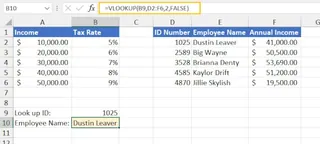
The Limitations of VLOOKUP:
- It Can't Look Left: VLOOKUP can only search for the
lookup_valuein the first column of yourtable_array. If your Employee IDs are in column C and the names you want are in column A, VLOOKUP simply won't work. - Fragile Column Index: The
col_index_numis a hard-coded number. If you insert or delete a column in your source table, your formula breaks because the column number is now wrong. You have to manually update every single formula. - Confusing Errors: If a value isn't found, VLOOKUP returns an ugly
#N/Aerror, which can mess up downstream calculations. You then need to wrap it in another function likeIFERRORto handle it gracefully, making the formula even longer.
2. The Power Combo: INDEX/MATCH
To overcome VLOOKUP's limitations, advanced users turn to a combination of the INDEX and MATCH functions.
MATCHfinds the position of a value in a range (e.g., "Employee ID 105 is in the 5th row").INDEXreturns the value at a given position in a range (e.g., "Give me the value from the 5th row of the 'Employee Name' column").
Together, they look like this: =INDEX(return_array, MATCH(lookup_value, lookup_array, 0))
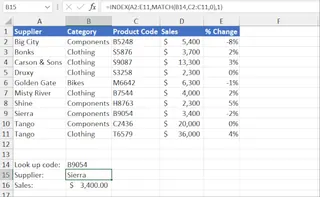
This duo is far more flexible—it can look left, right, up, or down. However, its main drawback is complexity. Nesting two functions is intimidating for many users, harder to read, and easier to get wrong. Explaining an INDEX/MATCH formula to a colleague can be a challenge in itself.
3. The Modern Solution: XLOOKUP
Microsoft eventually introduced XLOOKUP, a single, powerful function that replaces both VLOOKUP and INDEX/MATCH. It's more intuitive, more flexible, and has built-in error handling.
=XLOOKUP(lookup_value, lookup_array, return_array, [if_not_found])
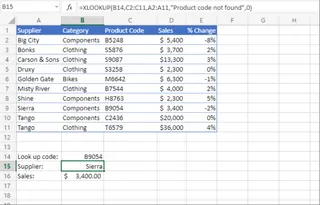
XLOOKUP is fantastic, but it has one major catch: it's only available in Microsoft 365 and recent versions of Excel. If your company uses an older version, or you're collaborating with someone who does, you're back to square one with the older, more cumbersome functions.
The New Paradigm: Using Excel AI (Excelmatic) for Lookups
What if you could bypass the formulas altogether? Instead of asking "Which function should I use?", what if you could just tell Excel what you want to achieve? This is the promise of Excel AI Agents like Excelmatic.

Excelmatic is a tool where you upload your data and use plain language to ask for analysis, formulas, charts, and reports. It acts as your data analyst assistant, handling the complex steps behind the scenes.
Let's revisit our sales report scenario and solve it with Excelmatic.
Step 1: Upload Your Data Files
First, you simply upload both of your files to Excelmatic. It doesn't matter if one is an .xlsx and the other is a .csv. The AI is designed to handle multiple files at once.
sales_transactions.xlsxemployee_directory.csv

Step 2: Describe Your Goal in Plain Language
Instead of writing a formula, you just type your request into the chat interface. You can be conversational and specific.
Here are a few example prompts you could use:
- "I have two files. Merge them by matching the 'Employee ID' column in
sales_transactions.xlsxwith the 'Employee ID' column inemployee_directory.csv." - "Join my sales data with the employee directory using the employee ID as the key."
- "For each sale, look up the employee's 'Full Name' and 'Region' from the other file."
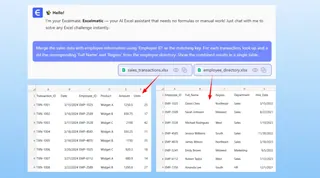
The AI understands the intent behind "merge," "join," and "look up," and performs the operation for you.
Step 3: Review and Iterate on the Results
Excelmatic will instantly generate a new table containing the merged data—no formulas or #N/A errors in sight. You'll see columns for Sale Amount, Employee ID, Full Name, and Region all in one place.
Now, the real power of a conversational AI comes into play. You can continue the analysis with follow-up questions:
- "Great. Now create a pivot table to sum the 'Sale Amount' for each 'Region' and 'Full Name'."
- "Filter this result to only show the top 5 employees by sales."
- "Add a new column that calculates a 5% commission on the 'Sale Amount'."
- "Create a bar chart to visualize the total sales by region."
This iterative process of refining your analysis is incredibly fast and intuitive compared to manually adjusting formulas or pivot table settings.
Dialogue Example:
Here’s how a typical conversation might look in Excelmatic:
User: I've uploaded two files, sales and employees. Please merge them using the 'Employee ID' column present in both.
Excelmatic: I have successfully merged the two files. The new table now includes 'Sale Amount', 'Employee ID', 'Full Name', 'Region', and 'Start Date'. What would you like to do with this combined data?
User: Create a summary that shows the total sales for each region. Sort it from highest to lowest.
Excelmatic: Done. I've created a pivot table summarizing total sales by region, sorted in descending order. The 'East' region is at the top with $450,000 in sales. I can also generate a pie chart to visualize the regional contribution. Would you like that?
User: Yes, please create the pie chart. Also, export the pivot table and the chart into a new Excel file.
Excelmatic: No problem. A pie chart has been generated. You can now download the new Excel workbook containing the pivot table and the chart on separate sheets.
Traditional Lookup vs. Excelmatic: A Quick Comparison
| Feature | Traditional Method (VLOOKUP/INDEX) | Excelmatic (Excel AI) |
|---|---|---|
| Speed | Minutes to hours, depending on complexity. | Seconds to minutes. |
| Learning Curve | High. Requires memorizing syntax and logic. | Low. Requires describing your business need. |
| Flexibility | Rigid. Formulas break if columns change. | Highly flexible. Adapts to conversational changes. |
| Error Handling | Manual. Requires IFERROR to manage #N/A. |
Automatic. Clean results by default. |
| Multi-File Merging | Complex. Often requires Power Query or manual copy/paste. | Simple. Just upload the files and ask. |
FAQ
1. Do I need to know VLOOKUP or any other formulas to use Excelmatic? No, not at all. The entire purpose of Excelmatic is to translate your natural language requests into the results you need, without you having to write a single formula.
2. Is my data secure when I upload it to Excelmatic? Data security is a top priority. Excelmatic uses industry-standard encryption for data in transit and at rest. For specific details on compliance and privacy, always refer to the official security policy on the website.
3. What if my column names are messy or inconsistent? While clear column names (like "Employee ID" vs "emp_id") provide the best results, the AI is trained to infer relationships from the data itself. If it's unsure, it may ask you to clarify which columns to match, ensuring accuracy.
4. Can Excelmatic handle lookups with multiple criteria? Absolutely. You can simply describe the conditions in your prompt, for example: "Find the sales amount for 'John Doe' in the 'North' region for 'Q1 2024'." The AI will handle the multi-condition filtering and lookup for you.
5. Can I get the actual Excel formula from Excelmatic? Yes. After the AI performs a task, you can ask it to "show me the Excel formula to do this." It can generate the VLOOKUP, INDEX/MATCH, or XLOOKUP formula for you, which you can then copy and use in your own spreadsheets. This makes it a great learning tool as well.
6. Does this work with very large datasets? Yes, Excelmatic is built on a cloud infrastructure designed to handle datasets far larger than what typically causes Excel to slow down or crash.
Make the Switch: Upgrade Your Excel Workflow Today
Spending hours wrestling with lookup formulas is no longer a necessary evil. It's a choice. By continuing with manual methods, you're losing valuable time that could be spent on strategic analysis, not on debugging a broken VLOOKUP.
With an Excel AI agent, you can shift your focus from how to get the data to what the data means. You can answer ad-hoc questions from your boss in minutes, not hours. You can merge and clean data with confidence, knowing the AI is handling the tedious mechanics.
Ready to see for yourself? Try Excelmatic for free. Upload the last two spreadsheets you struggled to merge and ask it to combine them. You might be surprised at how much time you get back.