Key takeaways:
- Creating dynamic reports in Excel often requires the complex
INDIRECTfunction, which involves tricky syntax with named ranges and text concatenation, making it error-prone and hard to maintain. - Excel AI tools like Excelmatic replace these complicated formulas. You can simply describe the dynamic summary you need in plain language, like "summarize sales for the product I select."
- Using Excelmatic eliminates
#REF!errors, saves hours of setup time, and allows anyone on your team to update reports by just asking a question, no formula knowledge required.
Problem background & pain points
Imagine you're a sales manager responsible for tracking performance. Your data is neatly organized in Excel: a table lists monthly sales figures for different products like "Apples," "Mangoes," and "Pears."
You want to build a simple dashboard. On this dashboard, you'd have a single cell where you can type "Apples," and a summary table instantly updates to show the total sales, average, minimum, and maximum for that specific product. Change the input to "Mangoes," and all the numbers refresh accordingly.
This is a classic need for dynamic references in Excel. You want your formulas to refer to a range that changes based on the value of another cell. The same problem arises when your data is spread across multiple worksheets—one for each year (e.g., '2022', '2023', '2024'). You want a summary sheet where you can enter "2023" and have it automatically pull the total sales from the '2023' worksheet.
Doing this manually by copying and pasting is out of the question—it's slow and invites human error. The traditional Excel solution involves a powerful but notoriously tricky function: INDIRECT.
Traditional Excel solution: The INDIRECT function & its limitations
For seasoned Excel users, the INDIRECT function is the go-to tool for building dynamic references. Its purpose is to take a text string (like "A1" or "SalesData") and interpret it as an actual cell or range reference.
Let's see how you would solve our sales reporting problem the traditional way.
Step 1: Create Named Ranges
First, you need to give names to your data ranges. You would select the sales data for "Apples" (e.g., B2:M2) and type Apples into the Name Box in the top-left corner.
You would repeat this process for "Mangoes" and "Pears," creating a named range for each product.
Step 2: Use INDIRECT in Your Formulas
Now, in your summary dashboard, let's say cell B7 is your input cell where you'll type the product name. To calculate the total sales, you would write this formula:
=SUM(INDIRECT(B7))
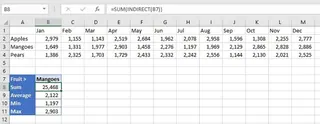
Here's what happens:
- Excel looks at cell
B7and finds the text "Mangoes". - The
INDIRECTfunction takes this text and converts it into a reference to the named rangeMangoes. - The
SUMfunction then calculates the sum of theMangoesrange.
If you change B7 to "Apples", INDIRECT will point to the Apples range, and the SUM will update automatically. You'd do the same for AVERAGE, MIN, and MAX.
The limitations of the INDIRECT approach
While powerful, this method is fraught with challenges that make it a headache for many users:
Complex Syntax for Sheets: What if you want to pull data from another sheet? The formula becomes much more complicated. To sum a range on a sheet whose name is in cell
B1, you'd need:=SUM(INDIRECT("'"&$B$1&"'!B2:M2"))This combination of single quotes, double quotes, and ampersands is confusing, easy to mess up, and a primary source of the dreaded#REF!error.Error-Prone: A single typo in the input cell (
B7) or a mistake in defining the named range will break the formula, returning a#REF!error that can be difficult to troubleshoot.High Maintenance: Every time you add a new product ("Oranges"), you must remember to go back and create a new named range. If you forget, your dashboard won't work for that new product. It doesn't scale well.
Poor Collaboration: If you send this workbook to a colleague who isn't an
INDIRECTexpert, they will have no idea how it works. It becomes a "black box" that no one dares to touch.External Workbook Issues: If you use
INDIRECTto reference another workbook, that source workbook must be open. If it's closed, all your formulas will break. This severely limits its use in automated reporting.
Using Excel AI (with Excelmatic) for a modern solution
Instead of wrestling with complex formulas and manual setups, what if you could just tell Excel what you want? That's exactly what an Excel AI Agent like Excelmatic enables. It replaces the need for functions like INDIRECT with simple, conversational language.

Here’s how you can solve the exact same problem in a fraction of the time.
Step 1: Upload Your Data File
First, go to Excelmatic and upload your Excel workbook. This can be the file containing your sales data, even if it's spread across multiple sheets (e.g., '2022 Sales', '2023 Sales'). Excelmatic reads your file without modifying the original.

Step 2: Describe the Result You Want in Plain Language
Instead of writing formulas, you just type your request into the chatbox.
To replicate the dynamic summary, you could ask:
- "For the 'Mangoes' product, calculate the total, average, minimum, and maximum sales."
- "Create a summary table showing the sum, average, and max sales for each product: Apples, Mangoes, and Pears."
To pull data from a specific worksheet:
- "From the sheet named '2023', what is the total of the 'Sales' column?"
- "Combine the sales data from the '2022', '2023', and '2024' sheets. Then, show me the total sales for each year."
The AI understands your intent and performs the analysis instantly.
Step 3: View and Iterate on the Results
Excelmatic will generate a clean table with the results you asked for. But the real power is in the follow-up conversation. You can easily refine your request without starting over.
- "Great. Now can you add a column for total units sold?"
- "Filter this to only show me the results for 'Apples'."
- "Visualize the total sales for each product as a bar chart."
This conversational approach to data analysis is far more flexible than a rigid formula-based dashboard.
Step 4: Export Your Finished Report
Once you're happy with the result—be it a summary table, a chart, or a cleaned dataset—you can download it as a new, clean Excel file with a single click. You can also ask Excelmatic to generate the traditional formula for you if you still want to use it in your original sheet.
Dialogue Example: From Prompt to Report
Here’s what a typical conversation in Excelmatic looks like:
User: I've uploaded my sales data. Can you calculate the total and average sales for the "Mangoes" product?
Excelmatic: Of course. The total sales for "Mangoes" are $215,800, and the average monthly sale is $17,983. I have prepared a summary table for you.
User: Perfect. Now do the same for "Apples" and "Pears", and show all three in a single table.
Excelmatic: Done. Here is a summary table with the total and average sales for Apples, Mangoes, and Pears. Would you like me to add any other calculations?
User: Yes, please create a column chart to compare the total sales of these three fruits.
Excelmatic: I have generated a column chart visualizing the total sales for each fruit. You can now download the Excel file containing both the summary table and the chart.
Traditional INDIRECT vs. Excelmatic: A Quick Comparison
| Feature | Traditional INDIRECT Method |
Excelmatic AI Method |
|---|---|---|
| Learning Curve | Steep. Requires understanding formulas, named ranges, and text concatenation. | None. Just describe what you need in plain language. |
| Setup Time | Minutes to hours, depending on complexity. | Seconds. Just upload and ask. |
| Flexibility | Low. Changing the report structure requires rewriting formulas. | High. Easily modify or add to your request in conversation. |
| Error Handling | Difficult. #REF! errors are common and hard to debug. |
Minimal. The AI handles the logic, avoiding formula errors. |
| Maintenance | High. Requires manually updating named ranges for new data categories. | Zero. The AI analyzes the data as-is, no setup needed. |
FAQ
1. Do I need to create Named Ranges before using Excelmatic? No, you don't. Excelmatic reads the raw data from your tables and understands references based on column headers and cell values. There's no need for any manual setup like creating named ranges.
2. How does Excelmatic handle data across multiple worksheets? You can simply tell it which sheets to use in your prompt. For example, ask it to "compare total sales from the '2023' sheet and the '2024' sheet." The AI can consolidate and analyze data from across your entire workbook.
3. Is my data secure when I upload it to Excelmatic? Yes. Excelmatic is built with data security in mind, using industry-standard encryption. Your files are processed for analysis and are not shared or used for any other purpose. Always refer to the official privacy policy for detailed information.
4. Can Excelmatic create a dependent dropdown list for me? While Excelmatic doesn't directly create a dropdown UI element in your original Excel file, it solves the underlying problem much faster. Instead of building a dependent dropdown to find employees in a department, you can just ask, "Show me all employees in the 'Sales' department." This conversational filtering is often more efficient.
5. What if my column headers are messy or inconsistent? While clear headers like "Product Name" or "Total Sales" work best, Excelmatic's AI is often smart enough to infer the meaning from the data itself. However, for best results, it's always good practice to have clean and descriptive column names.
Take action: Upgrade your Excel workflow with Excelmatic
Continuing to rely on the INDIRECT function for dynamic reports means spending valuable time on tedious setup, debugging frustrating #REF! errors, and building fragile spreadsheets that your colleagues can't update.
By switching to an Excel AI agent, you can reclaim that time and focus on what truly matters: a nalyzing your data and making decisions. You can answer ad-hoc questions from your boss in seconds, generate complex summaries without writing a single formula, and create reports that are both powerful and easy to reproduce.
Ready to see for yourself? Try Excelmatic today. Upload the very spreadsheet you're struggling with and ask it one of the questions from this article. You’ll be surprised at how simple dynamic reporting can be.