Key takeaways:
- Traditional Excel lookups using VLOOKUP are restrictive, failing when you need to look left or when columns are inserted. INDEX MATCH is more robust but is notoriously difficult for many users to learn and debug.
- Excel AI tools like Excelmatic replace these manual formulas entirely. You can merge data or find values simply by describing what you need in plain language, such as "find the product name for each order ID from the master product sheet."
- By using Excelmatic for data lookups, you can save hours of tedious work, eliminate formula errors, and empower any team member to perform complex data merging tasks in seconds, regardless of their Excel skill level.
The Universal Excel Headache: Looking Up and Merging Data
Picture this: you're a sales analyst, and you've just been handed two separate spreadsheets. The first is a raw export of all sales transactions for the quarter, containing OrderID, CustomerID, and ProductID. The second is the master product catalog, containing ProductID, ProductName, Category, and Supplier.
Your task is simple: create a unified report that shows the ProductName and Category next to each transaction. You immediately think of VLOOKUP, the trusty tool you learned in your first Excel course. But then the frustration begins. In the master product catalog, the ProductID column isn't the first column. VLOOKUP is instantly useless.
This scenario is a daily reality for millions of Excel users. The seemingly simple task of looking up a value from one table and adding it to another is often a minefield of limitations, rigid requirements, and time-consuming workarounds. You might be forced to rearrange your data, a risky move that could break other dependent formulas, or you might have to count dozens of columns manually just to get the right reference number. It's a workflow that's both inefficient and highly prone to error.
The Traditional Solutions: From Flawed to Frustrating
For decades, Excel users have relied on a handful of functions to solve this problem. While powerful, each comes with its own set of significant drawbacks.
Method 1: The VLOOKUP Function
VLOOKUP (Vertical Lookup) is often the first lookup function people learn. It's designed to find a value in the first column of a table and return a corresponding value from a specified column in the same row.
The syntax is: =VLOOKUP(lookup_value, table_array, col_index_num, [range_lookup])

While it works for simple cases, VLOOKUP has critical limitations that cause major headaches in real-world scenarios:
- The Left-Column Limitation: It can only search in the first column of your data range. If the value you're matching on (like our
ProductID) is in the second or third column,VLOOKUPsimply won't work without you first cutting and pasting columns. - Static Column Index: The
col_index_numis a hard-coded number. If you set it to5to get the fifth column, and a colleague later inserts a new column into your table, your formula will now pull data from the wrong column without warning, silently corrupting your report. - Manual Column Counting: In a table with 30 columns, you have to physically count across to find that the "Supplier" is the 27th column. This is tedious, and it's easy to miscount.
Method 2: The "Pro" Solution - INDEX MATCH
To overcome VLOOKUP's flaws, experienced Excel users turn to a more powerful and flexible combination: INDEX and MATCH.
This isn't a single function, but two functions nested together:
=INDEX(return_column, MATCH(lookup_value, lookup_column, 0))
Here’s how it works:
MATCH(lookup_value, lookup_column, 0): This part finds your lookup value (e.g.,ProductID"216") within the lookup column (D6:D10) and returns its relative position (e.g.,3, because it's the 3rd item in the range).INDEX(return_column, ...): This part takes the column you want a value from (e.g., the "Trim" column,I6:I10) and uses the position number fromMATCHto return the value from that specific row.

INDEX MATCH is undeniably superior to VLOOKUP:
- It can look up in any column, not just the first one.
- It's dynamic; inserting or deleting columns won't break it because it references the result column directly.
- It's more efficient on very large datasets.
But here's the catch: INDEX MATCH is complex. It's intimidating for beginners and even intermediate users. The nested logic isn't intuitive, and it's easy to make mistakes:
- Did you select the right range for
INDEX? - Did you select the corresponding range for
MATCH? - Are both ranges the same size?
- Did you remember to add the
0for an exact match?
A single mistake leads to a dreaded #N/A or #REF! error, and debugging the formula can be just as time-consuming as writing it. While it's a powerful tool, it raises the technical barrier and makes your spreadsheets harder for colleagues to understand and maintain.
The New Solution: Use Excel AI (Excelmatic)
What if you could bypass the formulas entirely? What if you could just tell Excel what you want, and it would handle the lookup for you? That's exactly what Excel AI agents like Excelmatic are designed to do.

Excelmatic is an AI assistant that you can chat with in plain language. You upload your data file(s), describe the task, and the AI performs the analysis, generates the results, and even creates formulas, pivot tables, or charts for you.
For our data lookup problem, the workflow is radically simpler.
Step-by-Step: Merging Data with Excelmatic
Instead of wrestling with formula syntax, you just have a conversation with the AI.
1. Upload Your Data
Drag and drop your Excel or CSV files—in our case, sales_transactions.xlsx and product_catalog.xlsx—directly into Excelmatic. The AI will read and understand the structure of your data, including the column headers.

2. Describe Your Goal in Plain Language Now, simply type your request in the chat box. You don't need to specify ranges or column numbers. Just refer to the columns by their names.
Here are a few examples of prompts you could use:
- "Merge my two files. For each
ProductIDin thesales_transactionssheet, add the correspondingProductNameandCategoryfrom theproduct_catalogsheet." - "I have a list of employee IDs. Look up their department and manager from the 'Employee Directory' sheet and add them as new columns."
- "Using the
SKUcolumn as the key, add the 'Price' and 'Stock Level' from my inventory file to my main sales report."
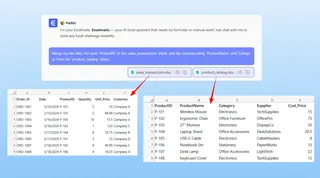
3. Review and Iterate on the Result Excelmatic will process your request and instantly present a new table with the merged data. It's not a black box; you can see the result immediately.

The best part is the conversational nature. You can continue to refine the output with follow-up questions:
- "Great. Now, add the 'Supplier' column as well."
- "Filter this new table to only show sales from the 'Electronics' category."
- "Can you calculate the total revenue for each transaction by multiplying 'Price' and 'Quantity'?"
This iterative process of asking and refining is impossible with static formulas. It turns data analysis from a rigid, one-off task into a dynamic exploration.
4. Export Your Results Once you're happy with the result, you can download the newly created table as a clean Excel file with a single click. You get the final output without ever writing a single formula.
Dialogue Example: User vs. Excelmatic
Here’s how a typical conversation might look:
User: I've uploaded two files: 'orders.csv' and 'customers.xlsx'. The orders file has a 'CustomerID', but I need to add the customer's 'State' and 'Join Date' from the customers file. Can you merge them?
Excelmatic: Of course. I have merged the two files based on the common 'CustomerID' column. I've added the 'State' and 'Join Date' columns to your orders data. Would you like to do anything else with this merged table?
User: Yes, create a pivot table to show me the number of orders per state.
Excelmatic: Done. Here is a pivot table summarizing the total order count for each state, sorted from highest to lowest. You can view the table below or download the updated Excel file.
Traditional Formulas vs. Excelmatic: A Quick Comparison
| Aspect | VLOOKUP / INDEX MATCH |
Excelmatic (Excel AI) |
|---|---|---|
| Time to Complete | 5-20 minutes, plus debugging time. | Under 60 seconds with one prompt. |
| Required Skill | Intermediate to advanced Excel formula knowledge. | Ability to describe your business goal in languauge skills. |
| Flexibility | Rigid. VLOOKUP breaks with column changes. A new INDEX MATCH is needed for each new lookup. |
Highly flexible. Ask follow-up questions to add more data or refine the analysis on the fly. |
| Error Potential | High. Syntax errors, incorrect ranges, and #N/A bugs are common. |
Low. The AI handles the complex logic, drastically reducing human error. |
| Learning Curve | Steep. Mastering INDEX MATCH can take hours of practice. |
Minimal. If you can ask a question, you can use it. |
FAQ
1. Do I need to know any Excel formulas to use Excelmatic for lookups?
No, not at all. That's the primary benefit. Excelmatic translates your plain-language requests into the correct data operations, so you don't have to worry about the syntax of VLOOKUP or INDEX MATCH.
2. Will Excelmatic modify my original Excel file? No. Excelmatic works on a copy of your data in a secure environment. Your original files are never altered, ensuring your source data remains safe and untouched.
3. What if my column names are different in the two files (e.g., 'ProductID' and 'Item_ID')? You can easily handle this in your prompt. For example: "Merge my files by matching the 'ProductID' column in the sales sheet with the 'Item_ID' column in the product sheet." The AI is smart enough to handle these instructions.
4. Is it safe to upload sensitive company data to Excelmatic? Excelmatic is built with data security as a top priority, employing industry-standard encryption and privacy protocols. For specific details on data handling and compliance, it's always best to consult the official privacy policy on the website.
5. Can Excelmatic handle lookups based on multiple criteria (e.g., find a price for a specific product and a specific store)? Yes. You can describe multi-criteria lookups just as easily. For instance: "Find the sales forecast for each product that matches both the 'Product SKU' and 'Region' columns in my forecast table."
It's Time to Upgrade Your Excel Workflow
While VLOOKUP and INDEX MATCH have been essential tools for years, they represent an old way of working—one that is manual, error-prone, and requires specialized knowledge. In a world where speed and accuracy are paramount, wrestling with complex formulas is a bottleneck.
By embracing an Excel AI agent like Excelmatic, you're not just finding a replacement for VLOOKUP; you're adopting a fundamentally faster, smarter, and more accessible way to work with your data. You can finally stop focusing on how to get the data and start focusing on what the data is telling you.
Ready to leave formula frustration behind? Try Excelmatic for free today and turn your most complex lookup tasks into a simple conversation.