Key takeaways:
- Manually fixing Excel errors like
#DIV/0!or#N/Awith functions likeIFERRORis a repetitive task that makes formulas complex and hard to maintain, especially in large datasets. - Excel AI tools like Excelmatic replace this manual work. You can simply describe the calculation you want in plain language, and the AI automatically anticipates and handles potential errors for you.
- By using Excelmatic, you can create cleaner, more professional-looking reports in a fraction of the time, without needing to memorize or nest complex error-handling formulas.
The Problem: Why Ugly Errors Like #DIV/0! Ruin Your Excel Reports
You've spent hours preparing a critical sales report. You have columns for Total Revenue and Units Sold, and you need to calculate the Price per Unit. You write a simple formula, =[Revenue]/[Units Sold], drag it down, and suddenly your clean spreadsheet is littered with ugly, intimidating errors: #DIV/0!.
This happens because some products, perhaps new launches or back-ordered items, had zero units sold. Division by zero is a mathematical impossibility, and Excel throws an error to let you know. You might also encounter other common errors:
#N/A: AVLOOKUPorINDEX/MATCHfunction couldn't find a value.#VALUE!: You tried to perform a math operation on a text string.#REF!: A formula refers to a cell that has been deleted.
These errors aren't just cosmetic issues. They break downstream calculations—a SUM or AVERAGE function on a column containing a single error will return another error. They make your reports look unprofessional and can cause confusion for colleagues or management who rely on your data. The immediate pain point is clear: how do you get rid of these errors and replace them with something more meaningful, like a "0", a blank cell, or a custom message?
The Traditional Fix: Manual Error Handling with IFERROR
For years, experienced Excel users have relied on a set of "Information" and "Logical" functions to catch and manage these errors. The most common and modern approach involves the IFERROR function.
The logic of IFERROR is straightforward: it checks if a formula results in an error. If it doesn't, it returns the formula's normal result. If it does, it returns a custom value you specify.
The syntax is: IFERROR(value, value_if_error)
Step-by-Step Manual Fix
Let's go back to our unit price calculation. Here’s how you would fix it manually:
- Identify the failing formula: The original formula is
B2/C2. - Wrap it in
IFERROR: You modify the formula to wrap the original calculation. - Specify a fallback value: You decide what to show instead of the error. It could be
0,""(for a blank cell), or a text message like"Not Applicable".
The new formula would look like this:
=IFERROR(B2/C2, "Unit price unavailable")
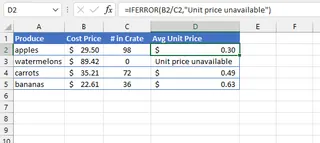
In the image above, the formula in cell D3 successfully prevents the #DIV/0! error and displays a user-friendly message instead. For all other rows where the calculation is valid, it shows the correct unit price.
The Limitations of the Manual Approach
While IFERROR is a powerful tool, it's far from perfect. This manual method has several significant drawbacks in a real-world business context:
- It's Tedious and Repetitive: In a dataset with thousands of rows and multiple calculated columns, you have to remember to wrap every single potentially problematic formula with
IFERROR. This is time-consuming and prone to human error. - It Creates Formula Bloat: Nesting functions makes your formulas longer, more complex, and harder for you (or a colleague) to read and debug later. A simple calculation becomes a more intimidating logical statement.
- It's Inflexible: What if you decide you want to change the error message from
"Not Applicable"to0? You have to use Find and Replace or manually edit each formula again. - It Hides the Problem:
IFERRORmasks the symptom but doesn't help you diagnose the root cause. It won't, by itself, help you quickly find all the products that had zero sales. You'd still need to apply a filter to find them.
Before Excel 2007, the process was even more cumbersome, requiring a nested IF and ISERROR function like =IF(ISERROR(B2/C2), "Error", B2/C2). This forced you to write the core calculation twice, doubling the chance of a typo. While IFERROR is an improvement, the fundamental workflow remains manual and reactive.
The New Solution: Use Excel AI (Excelmatic) to Handle Errors Automatically
What if you could skip writing formulas altogether? What if you could just tell Excel what you want, and it would handle the calculations—and any potential errors—for you? That's exactly what Excel AI Agents like Excelmatic are designed to do.

Instead of you having to anticipate errors and write defensive formulas, the AI understands the context of your data and handles exceptions automatically.
Step-by-Step Guide to Error-Free Calculations with Excelmatic
Let's solve the same unit price problem using Excelmatic. The process is conversational, intuitive, and much faster.
1. Upload Your Data
First, simply upload your Excel or CSV file containing the sales data to the Excelmatic web app. The AI will read your headers and data structure.

2. Describe Your Goal in Plain Language
Instead of clicking into a cell and typing a formula, you open the chat interface and type a prompt. You can be as specific as you need to be about error handling.
Here are a few example prompts you could use:
Create a new column called 'Unit Price' by dividing 'Total Revenue' by 'Units Sold'.(Let the AI decide the best default for errors).Calculate the unit price for each row. If the units sold is 0, make the unit price 0.Add a 'Unit Price' column. If you can't calculate it because of an error, just leave the cell blank.Generate the unit price. If there's a division by zero error, show the text "Review Required" instead.
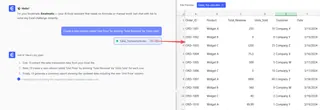
3. Review and Iterate on the Result
Excelmatic will instantly generate the new column with the error handling already built-in. It doesn't just give you the data; it tells you what it did. You can then continue the conversation to refine the result.
This iterative, conversational approach is impossible with traditional formulas. You can ask follow-up questions to dig deeper or adjust the output on the fly.
4. Export Your Cleaned Data
Once you're happy with the result, you can download a new Excel file with the perfectly calculated, error-free column already included. You can also ask Excelmatic to provide the formula it used, which you can then copy and paste into your original spreadsheet if needed.
Example Dialogue with Excelmatic
Here’s how a typical conversation might look:
User: I've uploaded my monthly sales report. Please add a column named 'Price Per Unit' which is the 'Revenue' column divided by the 'Units Sold' column.
Excelmatic: Done. I've added the 'Price Per Unit' column. I noticed some rows have 0 in 'Units Sold', which would normally cause a #DIV/0! error. I have left these cells blank for now. Would you like me to fill them with a different value, like 0 or a text message?
User: That's perfect. Now, could you also highlight all the rows where the 'Price Per Unit' is blank in yellow so my team can review them?
Excelmatic: Of course. I have applied yellow highlighting to the rows where the calculation could not be completed. You can now download the updated Excel file.
Traditional IFERROR vs. Excelmatic: A Quick Comparison
| Feature | Manual IFERROR Method |
Excelmatic AI Method |
|---|---|---|
| Method | Manually write and nest formulas in cells. | Write your request using plain language. |
| Time to Implement | Minutes to hours, depending on data size. | Seconds. |
| Flexibility | Low. Changing the error message requires editing all formulas. | High. Just ask the AI to change it in a follow-up prompt. |
| Skill Required | Knowledge of IFERROR syntax and formula nesting. |
Ability to describe your business objective. |
| Debugging | Can be difficult to spot errors in long, nested formulas. | The AI explains its actions and can help identify root causes. |
FAQ
1. Do I need to know what IFERROR or ISERROR is to use Excelmatic?
No, not at all. The entire purpose of Excelmatic is to abstract away formula complexity. You only need to describe the outcome you want, and the AI handles the technical implementation, including error handling.
2. Can Excelmatic help me find the source of errors, not just hide them?
Yes. You can ask prompts like "Show me all rows where the 'Units Sold' is 0" or "Filter the table to show only the rows that would result in a calculation error." This helps you diagnose the root cause, not just mask it.
3. Is my data safe when I upload it to Excelmatic? Excelmatic is built with data security as a top priority. Data is encrypted in transit and at rest, and is not used for training models. For specific compliance needs, always refer to the official privacy policy and terms of service.
4. Can Excelmatic handle more complex errors, like #N/A from a lookup?
Absolutely. You can use prompts like, "Using the 'Product ID' in this sheet, look up the 'Supplier Name' from the 'Suppliers' sheet. If a product ID is not found, write 'Unknown Supplier'." The AI understands the logic of lookups and how to handle misses.
5. What if my data is messy to begin with?
Excelmatic is a powerful tool for data cleaning before you even get to calculations. You can ask it to "remove duplicate rows", "trim leading and trailing spaces from all cells", or "fill any empty cells in the 'Region' column with 'Unassigned'" before you start your analysis.
Get Started: Upgrade Your Excel Workflow Today
Every minute you spend manually wrapping formulas in IFERROR is a minute you could be spending on more strategic analysis. The constant fear of a broken formula or an ugly error in a major report is a needless source of stress.
By embracing an Excel AI tool like Excelmatic, you shift your focus from how to calculate something in Excel to what you want to achieve with your data. You can build cleaner, more reliable, and more professional reports in a fraction of the time.
Ready to say goodbye to #DIV/0! forever? Try Excelmatic today. Upload a spreadsheet you're currently working on and use one of the prompts from this article to see how quickly you can solve your error-handling headaches.