Key takeaways:
- Traditional Excel "hacks" like keyboard shortcuts and manual formatting require constant memorization and repetitive manual work, leading to lost time and potential errors.
- Excel AI tools like Excelmatic replace these individual manual steps with simple, conversational commands, allowing you to describe your desired outcome in plain language.
- By using Excelmatic, you can automate entire workflows—from data cleaning and formatting to analysis and reporting—in minutes, freeing you to focus on strategic insights instead of tedious clicks.
The Problem: Why We Search for "Excel Hacks" in the First Place
Every professional who works with data knows the feeling. You have a spreadsheet with thousands of rows of sales data, marketing campaign results, or financial figures. Your goal is simple: turn this raw data into a clean, presentable, and insightful report. Yet, the path to get there is a minefield of tedious, repetitive tasks.
You find yourself resizing columns one by one, manually applying currency formatting, painstakingly copying and pasting formats, and wrestling with Find and Replace to correct inconsistencies. It's a "death by a thousand clicks."
This is precisely why articles and videos on "Excel hacks" are so popular. Learning Ctrl + Shift + $ to format currency or double-clicking to auto-fit a column feels like a superpower. These tricks promise to shave seconds or even minutes off your workflow. But here's the uncomfortable truth: they're just a faster way of doing manual labor. You're still the one on the assembly line, just with a slightly faster tool.
The core problem isn't the lack of a specific shortcut; it's the entire manual, step-by-step paradigm. You have to remember the hacks, execute them in the correct order, and pray you don't miss a step. What if you could skip the assembly line altogether and just tell a manager what you want the final product to look like?
The Old Way: A Toolkit of Hacks and Their Hidden Costs
Let's look at some of these common "hacks" and why, despite their utility, they represent a fundamentally limited approach to data work.
1. The Barrage of Keyboard Shortcuts
Every Excel power user has a favorite set of shortcuts.
Alt + =(orCmd + Shift + Ton Mac) for AutoSum.Ctrl + Shift + $to apply currency formatting.Ctrl + Fto find and replace text.Ctrl + Arrow Keysto navigate to the edge of a data range.
The Limitations:
- Cognitive Overload: There are hundreds of shortcuts. Remembering them, especially across different operating systems (PC vs. Mac), is a significant mental burden.
- Not Truly Automated: A shortcut is just a faster click. You still have to perform the action yourself, every single time, for every report.
- Lack of Context:
Ctrl + Fto replace "CO" with "AZ" in a list of states might accidentally change "Company" to "AZmpany." Shortcuts lack the intelligence to understand your intent.
2. Manual Formatting and Resizing
This category includes tricks like double-clicking the border between two column headers to auto-fit the column to its content, or using the Format Painter to copy styles from one cell to another.
The Limitations:
- Repetitive: If you have 15 columns, you have to perform this action 15 times. If new data is added, you might have to do it all over again.
- Inconsistent: It's easy to miss a column or apply the wrong format, leading to an unprofessional-looking report.
- Time-Consuming: While faster than dragging, this is still a purely manual process that consumes valuable time that could be spent on actual analysis.
3. Structural Manipulation
Hacks for managing the structure of your workbook, such as inserting multiple rows at once or creating a copy of a worksheet to use as a template for a new month's report.
The Limitations:
- Error-Prone: When copying a sheet for a new month, it's dangerously easy to forget to clear out the old data, leading to incorrect calculations.
- Tedious Setup: This process still requires multiple right-clicks, menu selections, and renaming steps. It's not a one-click solution.
- Not Scalable: If you need to create 12 monthly reports, you're repeating this manual duplication process 11 times.
The bottom line is that these hacks are patches, not solutions. They optimize individual steps in a broken, manual workflow. The real leap in productivity comes from changing the workflow itself.
The New Solution: Using Excel AI (with Excelmatic)
Instead of memorizing low-level commands, an Excel AI Agent like Excelmatic allows you to describe your high-level goal in plain language. You act as the manager, and the AI acts as your expert analyst, executing the tedious tasks for you in seconds.

Here’s how you can solve the same problems without a single shortcut.
Step 1: Upload Your Raw Data File
Simply drag and drop your Excel or CSV file into Excelmatic. The AI will read your data, identify headers, and prepare for your instructions. There's no need to pre-format anything.

Step 2: Describe Your Formatting Needs in Plain Language
Instead of a dozen shortcuts and clicks, use a single command to clean and format your entire sheet.
Forget these hacks:
Ctrl+Shift+$- Double-clicking to resize columns
- Manually finding and replacing text
Just tell Excelmatic:
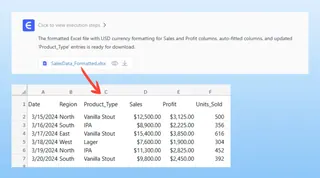
Format the 'Sales' and 'Profit' columns as USD currency with two decimal places. Then, auto-fit all columns to their content. Also, find every instance of 'Stout' in the 'Product Type' column and replace it with 'Vanilla Stout'.

The AI understands the context. It will only apply the changes to the specified columns, avoiding the errors common with a blind "Find and Replace."
Step 3: Analyze and Manipulate Data with Simple Questions
This is where Excel AI moves far beyond simple hacks. You can now perform complex analysis just by asking for it.
Want to create a summary? Don't build a PivotTable manually. Just ask:
Create a pivot table that shows the total sales for each region, broken down by product category.
Need a new calculation? Don't write a formula. Just ask:
Add a new column named 'Profit Margin' and calculate it as (Profit / Sales). Format it as a percentage.
Want to create a template? Don't copy a worksheet. Just ask:
Filter this report for 'January' sales data and create a summary. I will upload a new file for February next week to run the same analysis.
Step 4: Iterate and Export
Excelmatic will present the results—a new table, a pivot table, or a chart. If it's not quite right, you don't start over. You just continue the conversation.
Great. Now, in that pivot table, please sort the regions by total sales from highest to lowest.
Once you're satisfied, you can download the fully formatted and analyzed report as a brand new Excel file, ready to be shared.
Dialogue Example: From Raw Data to Report in 60 Seconds
Here’s a realistic conversation that replaces at least five different "Excel hacks."
User: Here is my monthly sales data file. First, please clean it up. Make sure all columns are wide enough to see the content, format the 'Revenue' column as dollars, and remove any duplicate rows.
Excelmatic: Done. I have resized all columns, formatted the 'Revenue' column as USD currency, and removed 3 duplicate rows. The cleaned data is ready. What's next?
User: Now, create a pivot table to summarize the total revenue by 'Sales Rep' and 'Region'.
Excelmatic: I've generated the pivot table with 'Sales Rep' as rows and 'Region' as columns, showing the sum of revenue. Would you like me to add a chart to visualize this?
User: Yes, create a stacked bar chart showing each rep's revenue breakdown by region. And can you give me the underlying table in a new Excel file?
Excelmatic: Absolutely. The stacked bar chart is generated. You can download the new Excel workbook containing the cleaned data, the pivot table, and the chart using the link below.
Traditional Hacks vs. Excelmatic: A Quick Comparison
| Task | Traditional "Hacks" | Excelmatic (AI Agent) |
|---|---|---|
| Time to Execute | 5-20 minutes of sequential clicks and shortcuts. | 1-2 minutes of typing and reviewing. |
| Error Rate | High. Easy to miss a step, apply wrong format, or make a typo in a formula. | Low. AI executes instructions consistently and can be easily corrected. |
| Flexibility | Low. A new request (e.g., "show me by quarter instead of month") requires re-doing the work. | High. Just ask a follow-up question. The AI adapts instantly. |
| Learning Curve | Steep. Requires memorizing dozens of commands and functions. | Minimal. If you can describe what you want, you can use it. |
FAQ
1. Do I need to know any Excel shortcuts to use Excelmatic? No, absolutely not. The entire purpose of Excelmatic is to free you from the need to memorize shortcuts and complex functions. You just describe your goal in natural language.
2. Can Excelmatic handle all the "hacks" like resizing columns or formatting numbers? Yes. It can handle all standard formatting, cleaning, and manipulation tasks. Instead of performing the hack, you simply describe the end result you want (e.g., "make the header row bold and blue").
3. Is it safe to upload my company's data to Excelmatic? Excelmatic is designed with data security as a top priority. All data is encrypted in transit and at rest. For specific details on data handling and privacy, it's always best to consult the official privacy policy on the website.
4. What if the AI misunderstands my request? The platform is designed to be conversational. If the initial result isn't what you expected, you can simply clarify your request in a follow-up message, just like you would with a human assistant. For example, "That's close, but can you use the 'Order Date' column for the monthly breakdown?"
5. Does Excelmatic replace Excel?
No. Excelmatic is a powerful AI assistant that supercharges your Excel workflow. It does the heavy lifting of data preparation and analysis for you, and its final output is a standard, fully-functional Excel file (.xlsx) that you can continue to work with, share, or use in other processes.
Take Action: Upgrade Your Excel Workflow Today
For years, we've been told that mastering Excel means mastering a long list of tricks and shortcuts. But the future of productivity isn't about working harder or memorizing more; it's about working smarter.
Stop wasting your valuable time on repetitive, manual tasks that an AI can do in seconds. Your expertise is in understanding your business, interpreting data, and making strategic decisions—not in remembering whether to press Ctrl or Cmd.
Give Excelmatic a try. Upload one of the spreadsheets you work on every week and use some of the prompts from this article. Experience the difference when you can simply ask for what you want and get it instantly.
Ready to stop clicking and start analyzing? Try Excelmatic for free.