Key takeaways:
- Accountants spend countless hours on manual data manipulation, complex formulas, and report formatting in Excel, which is inefficient and highly prone to costly errors.
- Excel AI tools like Excelmatic replace these manual steps, allowing accountants to generate complex financial analyses, PivotTables, and charts by simply describing their needs in natural language.
- Using Excelmatic drastically reduces month-end closing and reporting time, improves data accuracy, and empowers accountants to shift their focus from tedious data wrangling to high-value strategic insights.
The Accountant's Dilemma: Drowning in Spreadsheets
For decades, Microsoft Excel has been the undisputed workhorse of the accounting world. From trial balances and journal entries to financial statements and budget variance analysis, spreadsheets are the bedrock of modern finance departments. It's so ingrained that proficiency in Excel is no longer a "nice-to-have" but a fundamental prerequisite for any accounting role.
But let's be honest. For every moment of analytical clarity Excel provides, there are hours of frustrating, repetitive, and mind-numbing manual work. Imagine it's the end of the quarter. You're facing a mountain of raw transaction data exported from the ERP system. Your task is to consolidate this data, clean up inconsistencies, categorize expenses, build a P&L statement, create a variance report comparing actuals to budget, and generate summary charts for the management meeting.
The pressure is immense. A single mistake in a SUMIFS range, a broken link in a VLOOKUP, or an incorrectly filtered PivotTable can cascade into significant reporting errors, leading to flawed business decisions and frantic last-minute corrections. You spend more time wrestling with cell references and table structures than you do actually analyzing the financial health of the business. This is the spreadsheet paradox: the tool designed to bring order often creates chaos.
The Traditional Excel Toolkit: Powerful, But Painfully Manual
To navigate this complexity, seasoned accountants have built an arsenal of "power user" skills. These are the techniques that separate the novices from the pros, but they each come with their own baggage.
The Core Skills: A Double-Edged Sword
Let's break down the traditional methods used to tackle the month-end reporting scenario:
Data Preparation and Formatting (
Ctrl+T, Data Validation): Before any analysis can begin, raw data must be structured. You'll turn ranges into proper Excel Tables (Ctrl+T), apply number formats (currency, percentage), and maybe use Data Validation to prevent input errors.- The Limitation: This is pure, repetitive labor. It doesn't generate a single insight but consumes valuable time. If new data arrives, you have to repeat the process, hoping you don't miss a step.
Analysis with PivotTables: This is the go-to tool for summarizing large datasets. You drag and drop fields to create summaries, like calculating total expenses by department and month. It's powerful, no doubt.
- The Limitation: PivotTables are rigid. If your manager asks a follow-up question like, "Can you show me the top 5 vendors within the 'Marketing' department?", you're back to the PivotTable Fields pane, clicking, dragging, and filtering. They are also notoriously difficult for colleagues to understand or modify, and they require a manual refresh every time the source data changes.
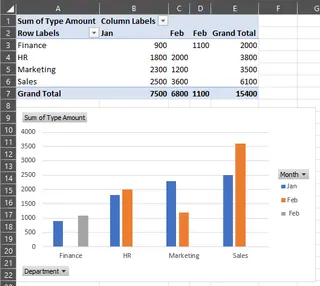
Creating Charts and Sparklines: To present your findings, you'll build bar charts, line charts, and pie charts. You might even add Sparklines—tiny charts inside a single cell—to show a trend next to the numbers.
- The Limitation: Creating a visually appealing and informative chart is an art form. It involves multiple clicks through menus to adjust axes, labels, titles, and colors. If you need to create 10 different charts for 10 different departments, you're looking at a significant time investment that's almost impossible to automate without complex macros.
Advanced Scenarios with What-If Analysis: For forecasting and budgeting, you might use tools like Goal Seek or Scenario Manager to model different outcomes (e.g., "What revenue do we need to achieve a 20% profit margin?").
- The Limitation: These tools are powerful but require a deep understanding of financial modeling and Excel's specific interfaces. They are not intuitive and are difficult to share and explain to non-Excel experts. The results are often static and hard to integrate into a dynamic report.
The common thread here is that the traditional approach puts the entire burden of process, logic, and accuracy squarely on your shoulders. You are the human computer, and the risk of error grows with every formula you write and every cell you click.
The New Approach: Using Excel AI (with Excelmatic)
What if you could skip the manual steps entirely? What if you could simply tell Excel what you need, and it would build the report for you? This is the promise of Excel AI Agents like Excelmatic.

Excelmatic is a tool that connects to your data (Excel, CSV files) and allows you to use natural language to perform analysis, generate formulas, create PivotTables, build charts, and draft reports. You move from being a "doer" to a "director," focusing on the what instead of the how.
A Step-by-Step Guide to AI-Powered Accounting Analysis
Let's revisit that stressful month-end closing scenario, but this time with Excelmatic.
1. Upload Your Data
Instead of opening a blank spreadsheet, you start by logging into Excelmatic and uploading your raw data file—the transaction log, the budget file, or the trial balance export. Excelmatic reads your data and understands the column headers.

2. Describe Your Request in Plain Language
Now, instead of clicking and typing formulas, you simply chat with the AI. You can ask for the exact same things you needed to build manually before.
Here are a few example prompts you could use:
- "Using the transaction data, create a PivotTable that shows the total amount for each expense category, broken down by month."
- "From the budget and actuals files, calculate the variance and percentage variance for each department."
- "Show me the top 10 vendors by total spend in Q3."
- "Generate a line chart showing the trend of revenue and cost of goods sold over the last 12 months."
- "Create a new column that categorizes expenses based on the vendor name. 'AWS' and 'Google Cloud' should be 'Cloud Infrastructure'."
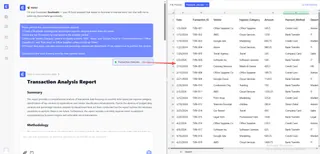
3. Review and Iterate with Conversation
Excelmatic doesn't just give you a final answer. It provides the result—a table, a PivotTable, or a chart—and waits for your feedback. This is where the real magic happens. The analysis becomes a conversation.
You can easily refine your request with follow-up questions:
- "This is great. Now, can you filter this PivotTable to only show the 'Sales & Marketing' department?"
- "Add a conditional formatting rule to highlight any negative variances in red."
- "Change the line chart to a stacked bar chart."
- "Based on this table, write a brief summary of our top 3 expense drivers this quarter."
This iterative process is impossible to achieve with traditional Excel without starting over or performing complex manual adjustments.
4. Export Your Results
Once you're satisfied, you can download the results as a new, clean Excel file containing the generated tables, PivotTable configurations, and charts. You can also copy the exact formula the AI generated and paste it into your own workbook. The output is 100% compatible with standard Excel.
Dialogue Example: A Real-World Accounting Task
Here’s what a typical interaction for creating a variance report might look like in Excelmatic:
User: I've uploaded two files: 'actuals_q3.csv' and 'budget_q3.csv'. Both have 'Department', 'Expense Category', and 'Amount' columns. Can you create a summary table that shows the actuals, budget, variance, and variance % for each expense category?
Excelmatic: Done. I have merged the two files and created a table with the requested columns: 'Expense Category', 'Actual Amount', 'Budget Amount', 'Variance' (Actual - Budget), and 'Variance %'. Would you like to see this summarized for a specific department?
User: Yes, please filter for the 'IT Department'. Also, sort the table to show the categories with the largest negative variance at the top.
Excelmatic: The table is now filtered for the 'IT Department' and sorted by the largest unfavorable variances. The top three are 'Software Licenses', 'Cloud Services', and 'Contractor Fees'. I have also added a data bar to the 'Variance' column for quick visualization.
User: Perfect. Now, create a bar chart comparing the actual vs. budget amounts for just these top 3 categories.
Excelmatic: Here is the requested bar chart. You can download the updated Excel file containing this table and chart.
Traditional Excel vs. Excelmatic: A Quick Comparison
| Aspect | Traditional Excel | Excelmatic (Excel AI) |
|---|---|---|
| Time to Result | Hours or even days for complex reports. | Minutes. |
| Skill Required | Deep knowledge of formulas, PivotTables, and chart settings. | Ability to clearly describe a business need in language. |
| Flexibility | Low. New requests often require rebuilding reports from scratch. | High. Effortlessly adapt and refine analysis through conversation. |
| Error Rate | High. Prone to human error from typos or incorrect ranges. | Low. AI handles formula generation and data manipulation consistently. |
| Focus | Manual data manipulation and formula writing. | Strategic analysis and interpreting results. |
FAQ
1. Is Excelmatic secure for sensitive financial data? Yes. Excelmatic is designed with enterprise-grade security. Your data is encrypted both in transit and at rest, and is not used for training models. Always refer to the official privacy policy for detailed information, but the platform is built for business use.
2. Do I still need to know Excel formulas and PivotTables? You don't need to be an expert to get value. Excelmatic handles the heavy lifting of generating the formulas and PivotTables for you. However, having a basic understanding of Excel concepts can help you ask better questions and make the most of the AI-generated output.
3. Can Excelmatic handle messy or unstructured data? Excelmatic has data cleaning capabilities. You can ask it to perform tasks like "remove duplicate rows," "fill in missing values in the 'Region' column with 'N/A'," or "split the 'Full Name' column into 'First Name' and 'Last Name'." For best results, starting with clearly labeled columns is recommended.
4. Will Excel AI replace accountants? No. Excel AI is a tool that automates the most tedious parts of the job. It frees accountants from low-value data entry and manipulation, allowing them to focus on higher-value activities like strategic analysis, financial storytelling, and business partnering. It's an amplifier, not a replacement.
5. Can I use the formulas generated by Excelmatic in my own spreadsheets? Absolutely. Excelmatic can show you the exact formula it used to get a result. You can copy this formula and paste it directly into your own Excel workbook, making it a powerful learning tool as well.
6. Is Excelmatic suitable for complete beginners? Yes. If you can describe what you want to do, you can use Excelmatic. It dramatically lowers the barrier to performing sophisticated data analysis in Excel, making it accessible to everyone, not just power users.
Take Action: Upgrade Your Accounting Workflow with Excelmatic
The role of the accountant is evolving. The future belongs to those who can leverage technology to work smarter, not harder. Continuing to spend hours on manual spreadsheet tasks is no longer a viable option when powerful AI tools are available.
By embracing an Excel AI agent like Excelmatic, you can:
- Slash your reporting time from hours to minutes.
- Eliminate costly manual errors and increase the accuracy of your financial reports.
- Answer ad-hoc questions from management instantly without rebuilding your analysis.
- Elevate your role by focusing on the strategic insights that drive business value.
Stop wrestling with spreadsheets and start commanding your data.
Try Excelmatic for free today and experience the future of accounting firsthand. Upload one of your own reports and see how quickly you can get to the insights you need.