Key takeaways:
- Dates stored as text in Excel are a common frustration, preventing you from sorting, filtering, or performing calculations correctly. Manually fixing them often requires complex, error-prone formulas or multi-step wizards.
- An Excel AI agent like Excelmatic automates this entire process. You simply describe the problem in plain language, and the AI intelligently detects and converts all inconsistent text formats into proper Excel dates.
- By using Excelmatic, you can clean your date columns in seconds instead of hours, eliminate formula errors, and immediately proceed with your actual analysis, like filtering data for a specific year or creating a timeline.
The Problem: When Your Excel Dates Aren't Really Dates
You've just consolidated a project task list from three different departments. Your goal is simple: filter the list to see all tasks that started in 2024. You click the filter dropdown on the "Start Date" column, but instead of the usual year/month/day hierarchy, you see a long, jumbled list of individual text entries.
This is a classic Excel headache. The dates look like dates, but to Excel, they're just meaningless strings of text. This happens for many reasons: data exported from other systems, manual entry with different regional settings (DD/MM/YYYY vs. MM/DD/YYYY), or simple typos.
When dates are stored as text, you can't:
- Sort them chronologically. "15/06/2023" (December 1st) might sort before "01/04/2024" (January 11th) because Excel is sorting them alphabetically, not by their date value.
- Filter by date ranges. You can't filter for "This Quarter" or "Last Year" because Excel doesn't recognize the cells as containing date information.
- Perform calculations. Trying to calculate the duration between two dates will result in a
#VALUE!error. - Create timelines or charts. PivotCharts and other date-based visualizations will fail to group the data correctly.
You're stuck with data you can't analyze, and the clock is ticking.
The Traditional Excel Fix: A Multi-Step Nightmare
Fixing text-based dates in Excel manually is a well-known rite of passage for data analysts, and it's rarely a pleasant one. The process is a tedious journey of trial and error.
Step 1: Diagnosis
First, you have to figure out which cells are the culprits. A common trick is to use a formula like =ISTEXT(A2) and drag it down the column. This flags every cell that Excel considers to be text.
Step 2: The "Text to Columns" Gamble
For data in a consistent text format (e.g., all YYYYMMDD), the "Text to Columns" feature on the Data tab can sometimes work. You select the column, go through the wizard, and specify the date format.
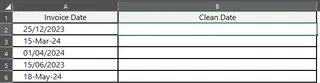
The Limitation: This only works if all your text dates follow the exact same pattern. If you have a mix of DD-MM-YY and Month D, YYYY, this tool will fail or misinterpret a large portion of your data.
Step 3: The Formula Labyrinth
When "Text to Columns" fails, you're forced to write formulas. This is where things get complicated.
- For simple cases: The
DATEVALUEfunction can convert a standard-looking text date into a serial number that Excel recognizes as a date. For example,=DATEVALUE("25/12/2023"). - For complex, mixed cases: You'll need a monster formula. Imagine your column contains dates like "25/12/2023" and "15-Mar-24". You might have to build a complex, nested
IFERRORformula to try multiple conversion methods.
A formula to handle just two different formats might look something like this:
=IFERROR(DATEVALUE(A2), DATE(RIGHT(A2,4), VLOOKUP(MID(A2,4,3),{"Jan",1;"Feb",2;"Mar",3;"Apr",4;...},2,0), LEFT(A2,2)))
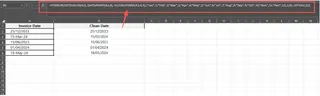
This is fragile, hard to read, and a nightmare to debug. Notice how the formula needs to handle two-digit years ("24" becomes "2024") and convert month abbreviations to numbers. If a third date format appears next week, you have to rewrite the whole thing.
After all that, you still have to copy and paste the formula results as values over your original data before you can finally get to your original task: filtering for the year 2024.
The Modern Solution: Using an Excel AI Agent (Excelmatic)
Instead of fighting with formulas, what if you could just tell Excel what you want? That's the promise of Excel AI agents like Excelmatic. You upload your messy spreadsheet and use plain language to command the AI to perform the cleaning and analysis for you.

A New Way to Think About Data Cleaning
Excelmatic acts as your personal data analyst. It understands the context of your data and your requests. Instead of you needing to know how to convert text to dates, you just need to know that it needs to be done. The AI handles the "how."
Step-by-Step: Fixing Dates with Excelmatic
Let's solve the exact same problem using Excelmatic. The process is radically simpler.
1. Upload Your Excel File
Drag and drop your Excel or CSV file directly into the Excelmatic interface. The AI will read your data and display a preview.

2. Describe Your Goal in Plain Language
Now, instead of writing formulas, you just type your request into the chatbox. To fix the date column and filter the data, you could use prompts like these:
- "The 'Invoice Date' column has dates stored as text in mixed formats. Please convert all of them to proper Excel dates in DD/MM/YYYY format."
- "Convert the text dates in column A to real dates, then show me only the invoices from 2024."
- "Clean the 'Invoice Date' column which contains formats like '25/12/2023' and '15-Mar-24', then filter for Q2 2024."
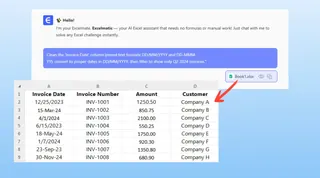
3. Review and Iterate on the Result
Excelmatic will process your request and present the cleaned and filtered data in seconds. It will automatically detect the various text formats (DD/MM/YYYY, DD/MMM/YY, etc.) and unify them into a single, valid date format.
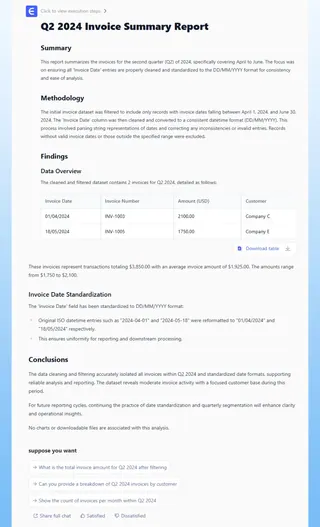
The best part is that the conversation doesn't have to end there. You can continue to refine your analysis:
- "Great. Now sort the results by invoice date, from oldest to newest."
- "Add a column showing the day of the week for each invoice."
- "Create a summary showing total invoices per month in 2024."
4. Download Your Cleaned File
Once you're satisfied, you can download the results as a new, perfectly formatted Excel file. The "Invoice Date" column will contain real dates, ready for any analysis you throw at it.
A Sample Conversation
Here’s how that interaction might look in Excelmatic:
User: My 'Start Date' column is a mess with mixed text formats. I need to get a list of all tasks that started in 2022, but my Excel filter isn't working.
Excelmatic: I've analyzed the 'Invoice Date' column and detected multiple text formats, including 'DD/MM/YYYY' and 'DD-MMM-YY'. I have converted all entries into standard Excel dates in DD/MM/YYYY format.
Here is the cleaned data. I will now filter this table to show only records where the invoice date is in the year 2024.
User: Perfect. Now can you add a column showing which quarter each invoice belongs to?
Excelmatic: Of course. I've added a 'Quarter' column using the formula ="Q"&INT((MONTH(A2)-1)/3)+1. You can now see which quarter each invoice falls into, or filter by a specific quarter.
Traditional Method vs. Excelmatic: A Quick Comparison
| Aspect | Traditional Excel Method | Excelmatic AI Method |
|---|---|---|
| Time | 30 minutes to several hours | 1-2 minutes |
| Complexity | High (Requires DATEVALUE, TEXT, IFERROR, Text to Columns) |
Low (Requires plain language) |
| Flexibility | Low (New formats require new formulas) | High (AI adapts to new formats automatically) |
| Error Rate | High (Typos in formulas, incorrect logic) | Very Low (AI handles the conversion logic) |
| Learning Curve | Steep (Need to understand date functions) | Minimal (Natural language interface) |
FAQ
Do I need to know what's wrong with my dates before using Excelmatic? No. You just need to know your goal (e.g., "I want to filter by year"). You can simply tell the AI, "My dates aren't working, please fix them," and it will investigate and solve the underlying format issues.
Will Excelmatic modify my original Excel file? No. Your original file remains untouched. Excelmatic operates on a copy of your data in a secure environment, and you can download the transformed results as a new file.
What if my company has strict data privacy policies? Data security is a top priority. Excelmatic is designed with enterprise-grade security protocols to ensure your data is handled safely. For specific compliance details, always refer to the official privacy policy.
Is this better than Excel's built-in 'Text to Columns' feature? Yes, for this specific problem. "Text to Columns" is a useful tool but requires all your data to be in a single, consistent format. Excelmatic's AI is designed to handle the real-world mess of multiple inconsistent formats (like "25/12/2023" and "15-Mar-24") all at once.
Can I use the formulas or pivot tables generated by the AI in my own work? Absolutely. Excelmatic can not only provide the final data but also generate the Excel formulas or describe the pivot table setup needed to achieve the result. This helps you learn and apply the solution in your own spreadsheets.
Get Started: Stop Fighting with Excel Dates
Every minute you spend wrestling with complex DATEVALUE and VLOOKUP formulas or debugging why "15-Mar-24" won't convert properly is a minute you're not spending on actual analysis and insight. The manual methods are not only slow but also brittle and frustrating.
It's time to upgrade your workflow. By leveraging an Excel AI agent like Excelmatic, you can delegate the tedious, repetitive task of data cleaning to an intelligent assistant. Let the AI handle the complex date conversions while you focus on what matters: understanding your sales trends, analyzing invoice patterns, and making data-driven decisions.
Ready to see it in action? Try Excelmatic for free today. Upload that spreadsheet with the messy dates and use a simple prompt like "Convert all text dates in column A to proper Excel dates." Experience the difference when data cleaning becomes a conversation, not a chore.