Key takeaways:
- Finding items that appear only once in a dataset is a common but tricky task, traditionally requiring a complex mix of
UNIQUE,FILTER, andCOUNTIFformulas. - An Excel AI agent like Excelmatic completely replaces these multi-step formulas. You can simply ask in plain language, like "Find all countries that appear only once in the list."
- Using Excelmatic not only saves you from writing and debugging formulas but also makes it effortless to retrieve related data and perform follow-up analysis, turning a 30-minute task into a 30-second query.
The Challenge: Finding the "One-Hit Wonders" in Your Data
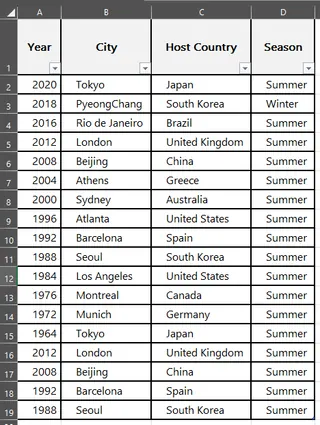
Imagine you're an analyst for a sports committee, and you have a large dataset listing every Olympic Games host since 1896. The columns include Year, Host city, Host country, and Season (Summer/Winter).
Your manager walks over with a specific request: "I need a list of all the countries that have only ever hosted the Olympic Games once. For that list, can you also pull the city, the year, and the season they hosted?"
This sounds simple, but it quickly becomes a classic Excel headache. You can't just use the "Remove Duplicates" feature, as that would remove countries that hosted multiple times, leaving you with a list of all countries that have ever hosted. You can't just filter for unique values for the same reason.
You need to:
- Count how many times each country appears in the list.
- Identify which of those countries have a count of exactly one.
- Filter your original list to show only the rows for those specific countries.
This multi-step logic is where many Excel users get stuck, spending valuable time trying to stitch together different functions, hoping they get the syntax right.
The Traditional Solution: A Formula-Heavy Approach
For an experienced Excel user, the go-to solution involves a powerful but intimidating combination of dynamic array functions. While effective, it's far from intuitive.
Let's break down the manual process to solve the Olympics problem.
The Manual Steps
Here's a typical workflow using modern Excel functions:
Step 1: Get a List of Unique Countries
First, you need to know every unique country in your list. You'd use the UNIQUE function on your 'Host country' column.
=UNIQUE(C2:C19)
This formula spills a list of all countries that have ever hosted, without duplicates.
Step 2: Count Occurrences and Filter for "Once-Only"
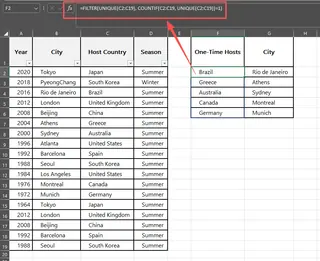
This is the hardest part. You need to filter the unique list from Step 1 based on a condition: the count of that country in the original, full list must be equal to 1. This requires nesting FILTER, UNIQUE, and COUNTIF functions.
The formula looks something like this:
=FILTER(UNIQUE(C2:C19), COUNTIF(C2:C19, UNIQUE(C2:C19))=1)
Let's be honest—this formula is a beast. It's difficult to type correctly, even harder to debug, and nearly impossible for a colleague to understand at a glance.
Step 3: Retrieve the Full Details with XLOOKUP
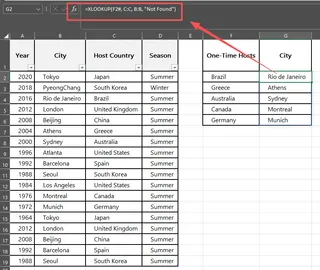
Now that you have the list of countries that have hosted only once, you still need to get their corresponding city, year, and season. For this, you'd use XLOOKUP (or the older VLOOKUP). You'd write a formula in an adjacent cell and drag it down.
=XLOOKUP(F2, C:C, B:B, "Not Found")
You would need to repeat this for the Year and Season columns, carefully adjusting the return_array each time.
Limitations of the Manual Method
While this approach works, it's riddled with practical problems:
- High Complexity: The nested formulas are fragile and require a deep understanding of how dynamic arrays, counting functions, and lookups interact.
- Prone to Errors: A single misplaced comma, an incorrect range, or a typo can break the entire analysis, leading to frustrating
#N/Aor#VALUE!errors. - Inflexible: What if your manager's next question is, "Okay, now show me the countries that hosted exactly twice?" You have to dive back into that monster formula and change
=1to=2. Every new question means more formula editing. - Poor Collaboration: Handing this spreadsheet over to a team member who isn't an Excel guru is a recipe for confusion. The logic is hidden inside complex formulas, making it difficult to maintain or update.
The New Solution: Using an Excel AI Agent (Excelmatic)
Instead of building formulas, what if you could just ask your spreadsheet for the answer? That's the power of an Excel AI agent like Excelmatic. You upload your data and use natural language to get the analysis done for you.

Here’s how you’d solve the exact same Olympic host problem in under a minute.
Step 1: Upload Your Excel File
First, head to Excelmatic and upload your spreadsheet containing the Olympic data. Drag and drop your .xlsx or .csv file, and the AI will instantly read and understand your data structure.

Step 2: Ask Your Question in Plain Language
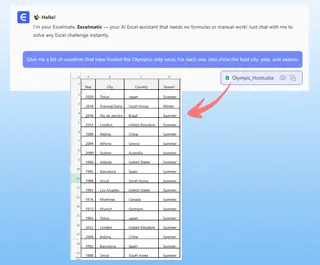
Now, instead of thinking in terms of FILTER or COUNTIF, simply type your request into the chat box. You can break it down or ask it all at once.
A single, powerful prompt is often all you need:
Give me a list of countries that have hosted the Olympics only once. For each one, also show the host city, year, and season.
Or, you could approach it step-by-step:
First, find all the countries that appear only once in the 'Host country' column.
Once Excelmatic provides that list, you can follow up:
Great. Now for that list of countries, show me their corresponding 'Host city', 'Year', and 'Season' from the original sheet.
Step 3: Review and Iterate on the Results
Excelmatic will process your request and instantly generate a new table with the exact data you asked for. No formulas, no errors.
The best part is the conversational nature of the analysis. You can continue to refine the results with simple follow-up questions:
- "Sort this new table by year, from oldest to newest."
- "Of these, how many were Summer games?"
- "Filter this list to only show games held after 1980."
This iterative process of asking questions is impossible with static formulas but is at the core of the Excelmatic experience.
Dialogue Example: You vs. Excelmatic
Here’s how a typical conversation might look:
You: I have a list of Olympic hosts. I need to find the countries that have hosted only one time. For those countries, please list the host city, the year, and whether it was a summer or winter game.
Excelmatic: Done. I have identified the countries that appear only once in your dataset. Here is the table with the requested details: Host country, Host city, Year, and Season.
You: Perfect. Now, can you sort this result by the 'Year' column in ascending order?
Excelmatic: The table has been sorted by year. You can now download the updated Excel file.
Step 4: Export Your Cleaned Data
Once you're happy with the result, you can download the generated table as a new, clean Excel file with a single click. The entire process, from upload to download, takes a fraction of the time it would take to even start writing the traditional formulas.
Traditional vs. Excelmatic: A Quick Comparison
| Aspect | Traditional Method (Formulas) | Excelmatic (AI Agent) |
|---|---|---|
| Time to Result | 15-30 minutes for an expert | Under 1 minute |
| Required Skills | UNIQUE, FILTER, COUNTIF, XLOOKUP |
Plain language communication |
| Flexibility | Low (requires complex formula edits) | High (ask follow-up questions) |
| Error Rate | High (typos, incorrect ranges) | Low (AI handles the logic) |
| Collaboration | Difficult to understand and maintain | Easy; conversation history is clear |
FAQ
1. Do I need to know any Excel formulas to use Excelmatic? No. That's the beauty of it. You only need to describe the outcome you want in plain language. The AI handles the complex logic behind the scenes.
2. Is my data secure when I upload it to Excelmatic? Yes, data security is a top priority. Excelmatic uses secure protocols for data transfer and processing. Your files are not shared or used for any purpose other than fulfilling your requests. For detailed information, please refer to the official privacy policy on the website.
3. Can Excelmatic handle messy data? Excelmatic is designed to work with a variety of data structures. For best results, it's helpful to have clear, descriptive column headers. If your data is messy, you can even ask the AI to help you clean it up, such as by removing extra spaces or standardizing formats.
4. What if the AI misunderstands my request? Just like talking to a human assistant, you can simply rephrase your question or provide more context. For example, if it pulls the wrong column, you can say, "No, I meant the 'Host country' column, not the 'Host city' column." The AI will learn and adjust.
5. Is Excelmatic only for complex tasks like this one? Not at all! It's perfect for everything from simple sorting and filtering to creating complex pivot tables, generating charts, writing formulas, and summarizing data. Any repetitive or manual task in Excel is a great candidate for automation with Excelmatic.
Take Action: Upgrade Your Excel Workflow Today
Think about the last time you were stuck on a tricky Excel problem, searching through forums for the right formula combination. That time is a cost. The risk of a small error in a complex formula leading to wrong results is a cost.
With Excelmatic, you can eliminate those costs. Instead of being a "formula builder," you become an "analyst" who focuses on asking the right questions.
Stop wrestling with nested functions. Start having a conversation with your data.
Try Excelmatic for free today and upload the very spreadsheet you're working on right now. Use a prompt from this article to get started, and see how quickly you can get to your answer.