Key takeaways:
- Filtering Excel data with multiple 'OR' conditions and partial text matches (like finding all "Basic" subscribers OR anyone with a "yahoo.com" email) using the traditional Advanced Filter is complex and error-prone.
- Excel AI tools like Excelmatic replace this manual setup. You can simply describe your filtering needs in plain language, and the AI will extract the precise data for you automatically.
- Using Excelmatic dramatically speeds up targeted marketing list creation, improves accuracy, and allows for instant adjustments to criteria without needing to rebuild complex filter rules.
Problem Background & Pain Points
Imagine you're a marketing manager at a rapidly growing online streaming service. Your customer database, a massive Excel sheet with thousands of rows, is your goldmine. To drive engagement and reduce churn, you need to run targeted promotional campaigns. Today's task: create a contact list for a special offer.
This sounds simple enough, until you read the targeting requirements. The campaign is for two specific groups:
- Customers with a "Basic" subscription plan.
- Any customer—regardless of their plan—who uses a "yahoo.com" email address.
This is a classic "OR" condition across two different columns, with one condition requiring a partial text match ("contains 'yahoo.com'"). If you've ever tried this with Excel's standard filter, you know the frustration. The default filter tool is great for simple "AND" conditions (e.g., "Basic" plan AND in "California"), but it can't handle an "OR" condition across different columns.
The manual workaround is a nightmare. You might filter for "Basic" customers, copy-paste them to a new sheet, clear the filter, then filter the email column for text containing "yahoo," copy-paste those results, and finally, try to merge and deduplicate the two lists. This process is not only tedious and time-consuming but also incredibly susceptible to copy-paste errors, potentially costing your campaign thousands in lost opportunities.
The Traditional Excel Solution: Steps & Limitations
For experienced Excel users, the "correct" manual method to solve this is by using the Advanced Filter feature. While powerful, it's one of Excel's least intuitive tools and a common source of headaches.
Here’s a summary of how you would traditionally tackle this task:
The Advanced Filter Process
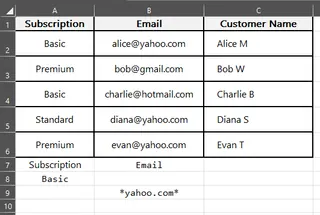
Create a "Criteria Range": Before you can even start filtering, you must manually set up a small, separate table on your worksheet. You need to copy the exact column headers you want to filter by (e.g.,
Subscription,Email) into this new area.Define the Logic: This is the trickiest part. To create an "OR" condition, you place criteria on separate rows.
- In the cell under your
Subscriptionheader, you would typeBasic. - In the cell on the next row under the
Emailheader, you would type*yahoo.com*. The asterisks (*) are wildcard characters that tell Excel to find any cell that contains "yahoo.com".
- In the cell under your
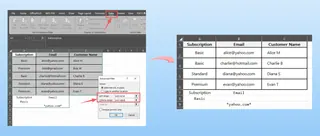
- Launch and Configure: Next, you navigate to the
Datatab and clickAdvanced. This opens a dialog box where you must correctly define:- List range: The entire customer database.
- Criteria range: The small table you just created.
- You then choose whether to filter the list in place or copy it to a new location.
Limitations of the Traditional Method
While the Advanced Filter gets the job done, it's far from ideal in a modern, fast-paced work environment.
- High Learning Curve: Most Excel users are unaware this feature even exists. Its reliance on a separate criteria range is not intuitive.
- Extremely Error-Prone: A single typo in the criteria range, a header that doesn't perfectly match the source data, or placing criteria on the wrong rows will cause the filter to fail—often without any warning, giving you an incomplete or incorrect list.
- Rigid and Inflexible: What happens when your boss asks for a last-minute change? "Let's also include 'hotmail.com' users and any 'Premium' subscribers who live in Texas." With the Advanced Filter, you have to go back, manually reconfigure your criteria range, and run the entire process again. It simply doesn't scale for dynamic analysis.
- Time-Consuming: The setup, execution, and verification process can take 10-15 minutes for a user who knows what they're doing. For a novice, it could take much longer, filled with trial and error.
The New Solution: Using an Excel AI Agent (Excelmatic)
Instead of wrestling with arcane rules and manual setups, what if you could just tell Excel what you want? That's exactly what an Excel AI Agent like Excelmatic enables you to do. You can forget about criteria ranges and wildcards and simply describe your filtering needs in plain language.

Here’s how you can solve the exact same problem in under a minute with Excelmatic.
Step 1: Upload Your Data File
First, navigate to Excelmatic and upload your customer database. You can drag and drop your Excel (.xlsx) or CSV (.csv) file directly onto the platform. Excelmatic processes your data in a secure environment without altering your original file.

Step 2: Describe Your Filter in Natural Language
Once your file is uploaded, you'll see a preview of your data and a chat interface. This is where the magic happens. Simply type your request as if you were talking to a data analyst.
For our scenario, you could use any of the following prompts:
- "Filter the list to show all customers where the subscription is 'Basic' or the email contains 'yahoo.com'."
- "Show me all records for Basic subscribers and also anyone with a yahoo email address."
- "Create a new list of users who are either on the Basic plan or have an email from yahoo."
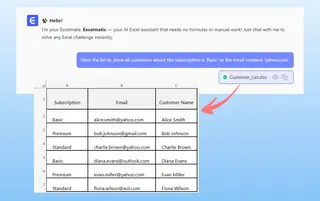
Excelmatic's AI understands the context, the "OR" logic, and the need for a partial match on the email field.
Step 3: Review and Iterate on the Results
Instantly, Excelmatic will display a new table containing only the records that match your criteria. But the real power lies in the conversational nature of the tool. Business needs change, and Excelmatic is built for that flexibility.
Imagine your manager's follow-up request: "Great. Now, can you also include users with a 'hotmail.com' email?"
Instead of starting over, you just continue the conversation:
Okay, now also include anyone with a 'hotmail.com' email address.
Excelmatic will update the filtered list in seconds, adding the new group to the existing results. This iterative process of refining your data is impossible with Excel's traditional tools.
Step 4: Export Your Final List
Once you are satisfied with the filtered list, you can download it with a single click. Excelmatic provides a clean, new Excel file containing only the data you need, ready to be imported into your email marketing platform or CRM.
Dialogue Example
Here’s what a typical conversation with Excelmatic might look like for this task:
User: I've uploaded my customer database. I need a list for a new promotion. Please extract all customers who have a 'Basic' subscription plan OR whose email address is from yahoo.com.
Excelmatic: I have filtered your data based on your criteria. The resulting list contains 842 customers who are either on the 'Basic' plan or have a 'yahoo.com' email. You can view the filtered table below. Would you like to save this list to a new file?
User: Perfect. Before I download, can you add one more condition? Also include anyone on the 'Standard' plan who signed up after June 1, 2025.
Excelmatic: Understood. I've updated the filter to include 'Standard' plan customers who signed up after June 1, 2025, in addition to the previous criteria. The new list has 915 customers. The results are ready for you to review or download.
Traditional Filter vs. Excelmatic: A Quick Comparison
| Aspect | Traditional Advanced Filter | Excelmatic AI |
|---|---|---|
| Time to Complete | 5-15 minutes (for an expert) | < 1 minute |
| Required Skill | Excel Advanced Filter, criteria ranges, wildcards | Ability to describe a goal in language skills |
| Flexibility | Low: requires manual rework for any change | High: adjust instantly with follow-up chats |
| Error Risk | High: typos, incorrect range setup, logic errors | Low: AI handles the complex logic |
| Usability | Not intuitive, hidden feature | Simple, conversational interface |
FAQ
Q: Do I need to know any Excel formulas or special syntax to use Excelmatic? A: Not at all. The entire point of Excelmatic is to eliminate the need for complex syntax. If you can describe your goal in a sentence, you can use Excelmatic.
Q: Is it safe to upload my company's customer data to Excelmatic? A: Yes. Excelmatic is designed with security as a top priority. Your data is processed in a secure, isolated environment and is not used for training AI models. Always refer to the official privacy policy for detailed information.
Q: Will Excelmatic change my original Excel file? A: No. Your original file is never modified. Excelmatic works on a copy of your data, and any results you generate can be downloaded as a new, separate file.
Q: What if my column headers are messy, like 'email_address' instead of 'Email'? A: Excelmatic's AI is trained to understand common variations in column headers. While clear and simple headers are always best practice, the tool is robust enough to handle many real-world imperfections in data structure.
Q: Can Excelmatic handle more than two 'OR' conditions? A: Absolutely. You can chain as many 'AND' and 'OR' conditions as you need in a single request. For example: "Show me Basic subscribers, or Yahoo users, or anyone in Texas who signed up in the last 30 days."
Q: How is this different from just using ChatGPT? A: While ChatGPT is a general-purpose language model, Excelmatic is a specialized Excel AI Agent. It is purpose-built to work with tabular data. It doesn't just give you text instructions; it directly performs the analysis, generates the filtered tables, creates formulas, and builds charts for you to download.
Get Started: Revolutionize Your Excel Workflow with Excelmatic
Every minute you spend wrestling with clunky, outdated Excel features is a minute you're not spending on high-value strategic work. Building targeted lists shouldn't be a technical hurdle; it should be a simple step in your marketing process.
By embracing an AI-powered approach, you can turn complex data filtering tasks from a 15-minute chore into a 30-second query. You can respond to new ideas and changing requirements instantly, making your data analysis more agile and impactful than ever before.
Ready to leave the Advanced Filter behind? Try Excelmatic for free today. Upload your customer list and use the prompts from this article to get your first AI-powered result in seconds.