Key takeaways:
- Traditional text extraction in Excel, like getting a last name or zip code, often requires nesting complex formulas like
RIGHT,LEN, andFIND, which is time-consuming and error-prone. - Excel AI tools like Excelmatic replace these formulas with simple, natural language prompts, allowing you to just describe what you want to extract from your cells.
- Using Excelmatic for data cleaning tasks like splitting names or addresses saves significant time, eliminates formula errors, and makes your workflow more flexible and intuitive.
Problem Background & Pain Points
Imagine this common scenario: you've just imported a large dataset into Excel. It could be a customer list from your CRM, a sales log, or an HR employee roster. The data is all there, but it's messy. Full names are crammed into a single column ("Jane Doe"), full addresses are on one line ("123 Main St, Anytown, USA 12345"), and product IDs are concatenated with descriptions ("SKU-XYZ-98765 - Blue Widget").
Before you can build any meaningful report, pivot table, or chart, you need to clean and structure this data. You need to separate first and last names, isolate the zip code from the address, or pull out the unique product number.
Doing this manually is out of the question for hundreds or thousands of rows. The standard Excel approach involves text functions. If you need to grab something from the end of a cell—like a last name or a zip code—you'll inevitably be pointed toward the RIGHT function. But as anyone who has walked this path knows, it's rarely as simple as just one function. This is where the headache begins.
The Traditional Excel Solution: Steps & Limitations
The classic way to extract text from the end of a string in Excel is by using the RIGHT function. On its own, it's straightforward. But real-world data is rarely that simple.
The Basic RIGHT Function
The syntax is =RIGHT(text, num_chars), where you tell Excel which cell to look at (text) and how many characters to grab from the right (num_chars).
For a perfectly uniform list, this works well. For example, if you have a column of product codes that all end with a two-letter country identifier (e.g., "PROD-123-US", "PROD-456-CA"), you can easily extract the country code with:
=RIGHT(A2, 2)
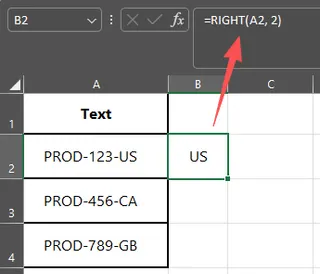
This is simple and effective. The problem is, data is rarely this clean.
The Complex Reality: Extracting Variable-Length Text
What if you want to extract the last name from a "First Last" format? "John Smith" has a 5-character last name. "Priya Patel" also has a 5-character last name. But "David Hernandez" has a 9-character last name. You can't just tell the RIGHT function to grab a fixed number of characters.
This is where the dreaded nested formula comes in. To make it work, you have to combine RIGHT with other functions like LEN (to find the total length of the text) and FIND (to locate the position of the space between names).
The resulting formula to extract the last name from cell A2 looks like this:
=RIGHT(A2, LEN(A2) - FIND(" ", A2))
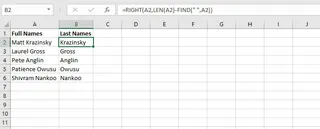
Let's break that down:
LEN(A2)calculates the total number of characters in the cell (e.g., "Jane Doe" is 8).FIND(" ", A2)finds the position of the space character (in "Jane Doe", it's the 5th character).LEN(A2) - FIND(" ", A2)subtracts the space's position from the total length (8 - 5 = 3). This tells you the length of the last name.RIGHT(A2, 3)then extracts the last 3 characters, giving you "Doe".
While powerful, this approach is fraught with limitations:
- High Cognitive Load: You have to know
RIGHT,LEN, andFIND, understand what each one does, and know how to nest them in the correct order. - Brittleness: This formula breaks instantly with any variation. What if someone has a middle name ("John Fitzgerald Kennedy")? The formula will incorrectly return "Fitzgerald Kennedy". What if there's an accidental double space? It fails.
- Hidden Errors: The
RIGHTfunction always returns a text string. If you extract a zip code like "12345", Excel sees it as text, not a number. This can cause issues in calculations or lookups later. You'd need yet another function,VALUE, wrapping your formula:=VALUE(RIGHT(...)). - Maintenance Nightmare: If you hand this spreadsheet to a colleague, they will have to spend significant time dissecting your formula to understand or modify it. It’s not intuitive at all.
- Time Sink: For each unique text-extraction problem, you have to construct, test, and debug a new, custom formula. This trial-and-error process can eat up hours.
The New Solution: Using an Excel AI Agent (Excelmatic)
Instead of forcing you to become a formula-writing expert, an Excel AI Agent like Excelmatic lets you solve the problem by simply describing your goal in plain language. It acts as your data assistant, handling the complex logic for you.

The process is fundamentally different and dramatically simpler.
Step 1: Upload Your Data
First, you upload your Excel or CSV file containing the messy data to the Excelmatic web app. Your original file remains untouched and secure. Excelmatic works on a copy in a secure cloud environment.

Step 2: Describe Your Goal in Plain Language
Instead of writing a formula, you just type your request into the chat interface. You talk to the AI just like you would a human assistant.
For the same problems we discussed, here are the prompts you would use:
To extract last names:
From the 'Full Name' column, create a new column called 'Last Name' containing only the text after the first space.
To extract zip codes from an address:
Create a new column named 'Zip Code' by extracting the 5-digit number from the end of the 'Address' column.
To handle data with extra spaces:
First, trim all leading and trailing whitespace from the 'Address' column. Then, create a new column named 'Zip Code' by extracting the last 5 characters.
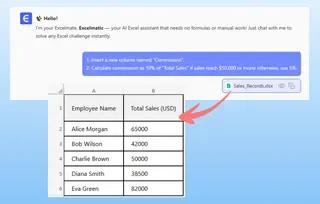
The AI understands the context, identifies the patterns, and performs the extraction.
Step 3: Review and Iterate
Excelmatic will instantly generate a preview of the new column. You can see the results and decide if they are correct.
The real power lies in the conversational nature of the tool. If the first result isn't quite right, you don't delete a formula and start over. You just refine your request.
Example Dialogue:
User: My 'Full Name' column has names like 'John F. Kennedy'. Your last instruction gave me 'F. Kennedy'. Can you extract only the very last name?
Excelmatic: Understood. I have updated the 'Last Name' column to extract only the text after the final space in each cell. The column now correctly shows 'Kennedy'. Is there anything else?
User: Perfect. Now, can you also create a 'First Name' column with just the first name?
Excelmatic: Done. I have added a 'First Name' column by taking the text before the first space. Your data now has columns for 'First Name' and 'Last Name'.
This iterative process of refining results through conversation is impossible with traditional formulas.
Step 4: Export Your Cleaned Data
Once you're satisfied, you can download a new Excel file containing your original data plus the new, clean columns you've created. You can also ask the AI to generate the Excel formula it used, which you can copy and paste into your own workbooks for repeatable tasks.
Traditional Formulas vs. Excelmatic: A Quick Comparison
| Aspect | Traditional Method (RIGHT, LEN, FIND) |
Excelmatic (Excel AI) |
|---|---|---|
| Time to Solve | 15-60 minutes of formula building and debugging. | 1-2 minutes of typing and refining a prompt. |
| Required Skill | Deep knowledge of multiple text functions and nesting logic. | Ability to describe a business goal in plain language. |
| Flexibility | Very rigid. A small change in data format requires a brand new formula. | Highly flexible. Easily adapts to variations (middle names, different delimiters) with a follow-up prompt. |
| Error Rate | High. Prone to typos, logical errors, and edge-case failures. | Low. The AI handles the complex logic, minimizing human error. |
| Readability | Poor. VALUE(RIGHT(TRIM(A2),5)) is cryptic. |
Excellent. The prompt "extract the 5-digit zip code" is self-documenting. |
FAQ
1. Do I need to know any Excel formulas to use Excelmatic? No. The entire purpose of Excelmatic is to eliminate the need for complex formulas. You only need to be able to describe the outcome you want in plain language.
2. Is my data safe when I upload it to Excelmatic? Yes. Excelmatic is built with data security as a priority. It operates on a temporary copy of your data in a secure cloud environment and does not modify your original file. For specific details, always refer to the official privacy policy.
3. What if my data is really messy, with extra spaces and inconsistent formats? This is a perfect use case for Excelmatic. You can give multi-step instructions, such as "First, remove all extra spaces from the 'Address' column, then extract the 5-digit zip code at the end." The AI can handle data cleaning and extraction in one go.
4. Can Excelmatic extract text from the beginning or middle of a cell too?
Absolutely. It's not limited to the RIGHT function's job. You can just as easily say, "Extract the first three characters from the 'ID' column" (like LEFT) or "Extract the text between the two hyphens in the 'SKU' column" (like MID).
5. Can I get the Excel formula from Excelmatic? Yes. For many tasks, you can ask Excelmatic to provide the traditional Excel formula it used to generate the result. This is great for learning or for applying the formula directly within your own spreadsheets.
6. Is Excelmatic suitable for complete Excel beginners? Yes, it's ideal for beginners. It allows them to perform powerful data manipulation tasks that would normally require intermediate or advanced formula skills, leveling the playing field and boosting their productivity immediately.
Take Action: Upgrade Your Excel Workflow Today
Every minute you spend trying to remember the right syntax for FIND, debugging a nested RIGHT formula, or manually cleaning up text data is a minute you're not spending on analysis and decision-making. The traditional way is powerful, but it's also slow, fragile, and frustrating.
By embracing an Excel AI agent, you shift your focus from "How do I write the formula?" to "What result do I want to see?". This simple change can save you hours each week, reduce costly data errors, and make you far more agile in responding to data requests.
Ready to stop wrestling with text functions? Try Excelmatic for free. Upload one of the messy spreadsheets you're working on right now and use one of the prompts from this article. You'll see the difference in seconds.