Key takeaways:
- Creating dynamic charts in Excel that filter data based on multiple criteria (e.g., sales region and a performance target) traditionally requires complex and fragile formulas like
FILTER. - Excel AI agents like Excelmatic completely replace this manual process. You can generate the same interactive charts and tables simply by describing your needs in plain language.
- By using Excelmatic, you can slash report creation time from hours to minutes, eliminate formula errors, and flexibly adapt your analysis on the fly to answer new business questions instantly.
Problem Background & Pain Points
Imagine you're a sales analyst or manager. Every week, you receive a raw data dump of sales performance. The spreadsheet is simple but growing: a list of sales managers, their respective regions (North, South, East, West), and their total sales for the period.
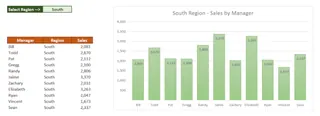
Your director doesn't want to see the raw data. They want a simple, interactive report. Specifically, they want to be able to select a region from a dropdown menu and instantly see a chart of all managers in that region who met or exceeded the monthly sales target of $1,600.
This seemingly simple request can quickly become a time-consuming headache in Excel. How do you make the chart automatically update when a new region is selected? How do you ensure only the managers who meet the sales threshold are included? What happens when new sales data is added next month? You're not just building a chart; you're building a mini-application within a spreadsheet, and it feels fragile. One wrong formula and the whole thing breaks.
The Traditional Excel Method: Steps and Limitations
For experienced Excel users, the modern approach to this problem involves a combination of Excel Tables, Data Validation, and the powerful FILTER dynamic array function. While more efficient than older, manual methods, it's still a multi-step, technical process.
Here’s a breakdown of the traditional way to build this dynamic chart.
The Manual Steps
Format as Table: First, you'd convert your raw data range into an official Excel Table (Ctrl+T). This is crucial because it allows your formulas to automatically include new rows of data as they are added.
Create a Dropdown List: You'd set up a cell for the user to select a region. Using
Data Validation>List, you would create a dropdown menu that pulls from the unique regions in your data.Write the
FILTERFormula: This is the core of the solution. You need to write a formula that filters the main data table based on two conditions: the selected region and the sales amount. The formula would look something like this:=FILTER(SalesDataTable, (SalesDataTable[Region]="East") * (SalesDataTable[Sales]>=1600), "No managers found")This formula tells Excel to:
- Look in your main
SalesDataTable. - Find all rows where the
[Region]column is "East" AND (*) the[Sales]column is greater than or equal to1600. - If no rows match, display the text "No managers found".
- Look in your main
Build the Chart: You would then insert a column chart. The trick is to set its data source to the "spill range" created by the
FILTERfunction. This ensures that as the filtered list of managers changes in length, the chart automatically adjusts to show the correct number of bars.Create a Dynamic Title: To make the chart title update automatically, you'd link it to a cell containing a formula like
="Top Performers in " & B2, whereB2is the cell with your region dropdown.
Limitations of the Traditional Approach
While this solution is clever and functional, it's far from ideal for a fast-paced business environment.
- High Formula Complexity: The
FILTERfunction, especially with multiple "AND" or "OR" conditions, can be difficult to write and debug. A misplaced parenthesis or incorrect range name can lead to frustrating#SPILL!or#VALUE!errors. - Rigid and Inflexible: This report is purpose-built for one specific question. What if your director suddenly asks, "Great, now can you sort this from largest to smallest?" or "Instead of a target, just show me the top 3 managers in each region"? Each new question requires a significant formula rewrite or a completely new setup.
- High Maintenance: The solution is fragile. If a colleague who doesn't understand dynamic arrays accidentally types something in the spill range, the entire report breaks. It requires a certain level of Excel expertise to maintain.
- Steep Learning Curve: To build this from scratch, you need to be comfortable with Excel Tables, Data Validation, dynamic array functions, and dynamic chart ranges. This is not beginner-friendly territory.
The New Approach: Using an Excel AI Agent (Excelmatic)
What if you could skip all the technical steps and just ask for the report you want? That's the promise of Excel AI agents like Excelmatic. Instead of you working for Excel, the AI works for you. It acts as your personal data analyst, understanding what you ask in plain language and automatically creating formulas, tables, and charts for you.

Let's rebuild the same dynamic report using Excelmatic.
Step 1: Upload Your Sales Data
First, log in to your Excelmatic account and upload your Excel or CSV file containing the sales data. Excelmatic will read the file and show you a preview, understanding that you have columns like "Manager," "Region," and "Sales."

Step 2: Describe the Report You Want in Plain Language
Instead of clicking through menus and writing formulas, you simply type your request into the chatbox.
Here are a few examples of prompts you could use to solve the problem:
Filter the data to show only the 'North' region where 'Sales' are greater than or equal to 1600.
Show me all managers from the East region with sales of $1600 or more. Sort them by sales from highest to lowest.
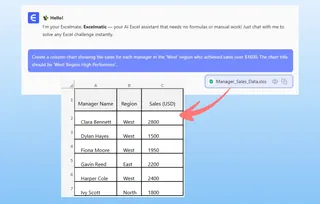
Create a column chart showing the sales for each manager in the 'West' region who achieved sales over $1600. The chart title should be 'West Region High Performers'.
Step 3: Review and Iterate on the Results
Excelmatic processes your request in seconds and presents the result—a perfectly filtered table or a ready-to-use chart.
The real power lies in iteration. The report is no longer a static, rigid object. It's the start of a conversation. You can immediately ask follow-up questions:
- "Okay, now do the same for the South region."
- "What if the sales target was $2000?"
- "Change this to a bar chart."
- "Add a column that shows what percentage of the regional total each manager contributed."
This conversational approach to data analysis is impossible with traditional formula-based methods.
Step 4: Export and Use Your Results
Once you're satisfied, you can download a new Excel file containing the filtered data, the chart, and even the formula that the AI generated. You can use this for your presentation or copy the components directly into your existing workbook.
Example Conversation with Excelmatic
Here’s how a typical workflow might look:
User: I have a sales report with Manager, Region, and Sales columns. Can you show me the sales for managers in the 'East' region who made over $1600?
Excelmatic: Of course. I have filtered your data to show 4 managers from the 'East' region with sales greater than or equal to $1600. The results are displayed in the table below. Would you like me to visualize this?
User: Yes, create a bar chart for this data and sort the results from highest to lowest sales. Also, make the chart title "Top Performers: East Region".
Excelmatic: Done. I have sorted the table in descending order of sales and created a bar chart with the title "Top Performers: East Region". You can download the new Excel file containing this report at any time.
Traditional Method vs. Excelmatic: A Quick Comparison
| Aspect | Traditional Excel Method | Excelmatic (AI Agent) |
|---|---|---|
| Time to Create | 30-60 minutes for an expert | 1-2 minutes |
| Required Skills | FILTER, Excel Tables, Data Validation, Dynamic Charts |
Ability to describe your business need in language skills |
| Flexibility | Low. New questions require new formulas. | High. Instantly adapt with follow-up questions. |
| Error Risk | High. Prone to syntax errors and broken spill ranges. | Low. The AI handles the technical implementation. |
FAQ
1. Do I need to be an Excel expert to use Excelmatic? No, not at all. Excelmatic is designed for everyone, from beginners who don't know any formulas to experts who want to save time on repetitive tasks. If you can describe what you need, you can use it.
2. Is my data secure when I upload it to Excelmatic? Data security is a top priority. Excelmatic uses industry-standard encryption and security protocols. For specific details on data handling and privacy, please refer to the official privacy policy on the website. Your original file is never modified.
3. Can Excelmatic handle messy or poorly structured data? While Excelmatic has data cleaning capabilities, it works best with clearly structured data (e.g., clean column headers). If your data is very messy, you can even ask the AI to help you clean it up as a first step.
4. Can I use the charts and formulas generated by Excelmatic in my own spreadsheets? Absolutely. You can download a new Excel file containing all the generated tables, charts, and formulas. You can then copy and paste these elements into your own reports.
5. What happens if the AI misunderstands my request? Just like talking to a human assistant, you can simply rephrase your question or provide more context. For example, if you say "show top sales" and it's ambiguous, you can clarify with "show me the top 3 managers by sales amount for the North region."
Take Action: Upgrade Your Excel Workflow with Excelmatic
Every hour spent wrestling with complex formulas is an hour you're not spending on strategic analysis. The traditional way of building dynamic reports in Excel is powerful, but it's also slow, rigid, and error-prone.
By embracing an Excel AI agent, you can transform your relationship with data. You move from being a "technician" who builds reports to a "strategist" who asks questions and finds insights. You can answer your director's questions in real-time during a meeting, not hours later.
Ready to stop building and start analyzing?
Try Excelmatic for free today. Upload the very sales report you're working on now and ask it one of the questions from this article. Experience the difference for yourself.