Key takeaways:
- Calculating custom business logic, like tiered sales commissions, is impossible with standard Excel functions, often forcing users to learn complex and intimidating VBA programming.
- Excel AI tools like Excelmatic eliminate this barrier, allowing you to generate complex formulas or perform calculations directly by describing your business rules in simple, natural language.
- By using Excelmatic, you can save hours of coding, debugging, and maintenance, making complex calculations accessible to any team member, regardless of their Excel skill level.
The Challenge: Calculating Custom Business Logic in Excel
Imagine you're a sales manager getting ready to process monthly payroll. You have a simple spreadsheet with each salesperson's name and their total sales for the month. Now comes the tricky part: calculating their commission.
Your company's commission structure isn't a flat rate. It's tiered:
- If a salesperson's total sales are less than $50,000, they earn a 5% commission.
- If their sales are $50,000 or more, they earn a 10% commission.
How do you implement this logic in Excel? You can't use a simple SUM or AVERAGE. Your first instinct might be to use a nested IF formula, which works for this simple two-tier structure. But what happens when marketing introduces a new "superstar" tier at 12% for sales over $100,000? And a "starter" tier at 3% for sales under $10,000? Your IF formula quickly becomes a long, confusing, and error-prone mess.
This is a classic Excel pain point. The moment your business logic goes beyond basic arithmetic, standard Excel functions fall short. You need a way to create your own custom logic. For decades, the only answer for this was to venture into the world of programming with Visual Basic for Applications (VBA).
The Traditional Solution: Writing a VBA User-Defined Function (UDF)
For advanced Excel users, the go-to solution for custom logic is creating a User-Defined Function (UDF). This involves writing a small piece of code in VBA that defines a new function you can use directly in your worksheet, just like =SUM().
Let's walk through the traditional process for creating a Calculate_Commission function.
Step-by-Step Guide to Creating a VBA Function
First, you need to access the VBA editor, which is hidden by default.
Enable the Developer Tab: Go to
File>Options>Customize Ribbonand check the box next toDeveloperin the right-hand list.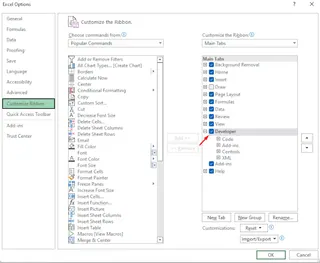
Open the Visual Basic Editor (VBE): Click on the new
Developertab and then click theVisual Basicbutton (or use the shortcutAlt + F11).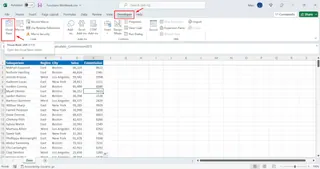
Insert a New Module: Inside the VBE, go to the menu and click
Insert>Module. This creates a blank code window.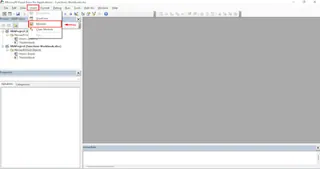
Write the VBA Code: Now, you type (or paste) the code that defines your function's logic. For our commission scenario, the code would look like this:
Function Calculate_Commission(SalesAmount As Double) As Double If SalesAmount >= 50000 Then Calculate_Commission = SalesAmount * 0.1 Else Calculate_Commission = SalesAmount * 0.05 End If End Function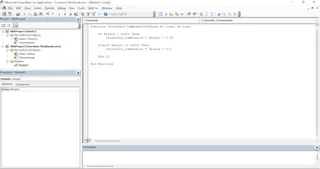
Function Calculate_Commission(...): This declares a new function namedCalculate_Commission.SalesAmount As Double: This defines an input (an "argument") that the function needs to work—in this case, the sales figure.If...Then...Else...: This is the core logic that checks the sales amount and applies the correct commission rate.Calculate_Commission = ...: This line assigns the final calculated value back to the function name, which is what gets returned to the cell in Excel.
Use the Function in Excel: Close the VBE and return to your worksheet. Now, you can use your new function. If a salesperson's sales amount is in cell B2, you would type
=Calculate_Commission(B2)in the commission cell.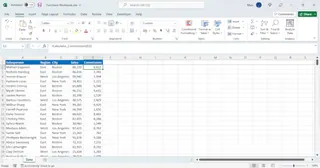
The Limitations of the VBA Approach
While powerful, this method is riddled with problems for the average business user:
- Steep Learning Curve: VBA is a programming language. Understanding its syntax, data types (
Double,String, etc.), and logic structures is a significant time investment. - Difficult to Maintain: If the commission structure changes, someone needs to go back into the code and edit it. If the original creator has left the company, this can be a nightmare for the next person.
- File Format Issues: Workbooks containing VBA code must be saved as Macro-Enabled files (
.xlsm). These files often trigger security warnings and may be blocked by company email servers. - Lack of Transparency: A regular user looking at the cell formula
=Calculate_Commission(B2)has no idea what logic is running behind the scenes. It's a black box. - Rigidity: The function does one specific thing. If you need a slightly different calculation, you have to write a whole new function or add complex logic to the existing one.
For years, this was the only way. But now, there's a better approach.
The New Solution: Using an Excel AI Agent (Excelmatic)
Instead of forcing you to become a programmer, an Excel AI Agent like Excelmatic lets you stay in your area of expertise—your business logic. You simply describe the rules in plain language, and the AI handles the complex implementation.

Here’s how you’d solve the exact same sales commission problem in Excelmatic, no coding required.
Step 1: Upload Your Data
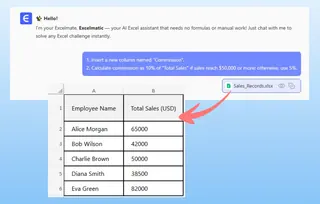
First, you log in to your Excelmatic dashboard and upload your sales data file. It can be an .xlsx, .csv, or other common spreadsheet format. Excelmatic will read the data and show you a preview.

Step 2: Describe Your Calculation in Plain Language
Next, you start a conversation with the AI. You simply type your request into the chat box. You could start by asking it to create the new column.
User: Add a new column named "Commission".
Excelmatic will instantly add the empty column. Now, tell it the logic you want to apply.
User: In the "Commission" column, calculate the value based on the "Total Sales" column. If "Total Sales" is $50,000 or more, the commission is 10% of the sales amount. Otherwise, the commission is 5%.
The AI understands this tiered logic. It will perform the calculation and populate the "Commission" column for every single salesperson in your table instantly.
Step 3: Iterate and Refine with Follow-up Questions
This is where the magic of a conversational AI shines. What if your manager throws a new requirement at you? With VBA, you'd be sighing and opening the code editor. With Excelmatic, you just continue the conversation.
User: Actually, can we update the logic? Add a new tier: for sales over $100,000, the commission should be 12%.
Excelmatic will immediately re-calculate the entire column based on the new three-tier structure. You can even ask it to generate the corresponding Excel formula for you.
User: Can you give me the single Excel formula that performs this three-tier calculation?
Excelmatic: Of course. Here is the formula you can use in Excel:
=IF(B2>=100000, B2*0.12, IF(B2>=50000, B2*0.1, B2*0.05))
You can now copy this formula and use it in any of your offline spreadsheets. You got the power of a complex nested IF without the headache of writing it yourself.
Step 4: Download Your Results
Once you're happy with the results, you can download the fully updated Excel file with the new "Commission" column already calculated and formatted. The entire process takes a few minutes, not hours of coding and debugging.
VBA vs. Excelmatic: A Quick Comparison
| Feature | Traditional VBA Method | Excelmatic AI Method |
|---|---|---|
| Skill Required | VBA Programming knowledge | Ability to describe business logic in language skills |
| Time to Implement | 30 minutes to several hours | 1-2 minutes |
| Flexibility | Rigid; requires code changes for new logic | Highly flexible; adjust logic with simple chat messages |
| Maintenance | Difficult; requires a developer | Effortless; anyone can update the logic |
| Transparency | Low; logic is hidden in code | High; logic is explicitly stated in the chat |
| File Type | Requires .xlsm (macro-enabled) |
Standard .xlsx or .csv |
FAQ
1. Do I need to know any formulas to use Excelmatic?
No. You don't need to know VLOOKUP, SUMIFS, or even IF. You just need to be able to describe what you want to achieve in plain language. Excelmatic will generate the necessary formulas or perform the analysis for you.
2. Is my data secure when I upload it to Excelmatic? Yes. Excelmatic is built with data security as a top priority. Your files are processed in a secure environment and are not shared or used for training other AI models. For specific details, always refer to the official privacy policy.
3. Can Excelmatic handle logic more complex than this commission example? Absolutely. You can describe multi-level criteria, complex text manipulations, data cleaning steps, and more. For example: "For all sales in the 'East' region that occurred in Q2, calculate the commission at 15%, but only for products in the 'Software' category."
4. Will Excelmatic write the VBA code for me if I ask? Excelmatic's primary goal is to provide a more efficient alternative to VBA. It focuses on delivering the final result (the calculated data) or the equivalent worksheet formula. This is often a better, more transparent, and more maintainable solution than a VBA script.
5. What if my data is messy? Can Excelmatic help? Yes. Before you even start calculating, you can ask Excelmatic to clean your data. For example: "Remove all duplicate rows," "Find all cells in the 'Sales' column that contain text and set them to 0," or "Split the 'Full Name' column into 'First Name' and 'Last Name'."
Get Started: Automate Your Excel Logic Today
Stop spending valuable time trying to decipher old VBA code or struggling to build the perfect nested formula. The business world moves too fast for you to be bogged down by the technical limitations of traditional spreadsheets.
By embracing an Excel AI agent like Excelmatic, you empower yourself and your team to focus on what truly matters: the business logic and the insights hidden in your data. You can answer complex questions, adapt to changing requirements on the fly, and produce accurate reports in a fraction of the time.
Ready to see for yourself? Try Excelmatic for free and upload your first spreadsheet. Ask it to calculate that tricky commission, clean up that messy data, or build that summary report you've been putting off. You'll be amazed at how much you can accomplish when you can speak the language of results, not the language of code.