Key takeaways:
- Manually applying custom number formats in Excel is tedious and error-prone, requiring you to learn and remember complex format codes for positive, negative, and zero values.
- Excel AI tools like Excelmatic let you format data using natural language, such as "format this column as currency with two decimal places and turn negative values red."
- By using Excelmatic, you can eliminate the need to memorize cryptic syntax, ensure perfect consistency across reports, and reduce formatting time from minutes or hours to mere seconds.
Problem background & pain points
Imagine you're a financial analyst preparing a crucial monthly performance report. You've just imported raw data from various sources into Excel. The numbers are all there, but they're a mess.
The 'Revenue' column has values like 54321.8, $32,109, and 12345.6789. The 'Profit Margin' column shows negative values as -0.15, but your company's style guide requires them to be displayed in red and enclosed in parentheses, like (15.00%). Dates are a mix of MM/DD/YY and DD-Mon-YYYY.
This inconsistency doesn't just look unprofessional; it makes the report difficult to read and can even lead to misinterpretation. You know that before you can even begin your analysis, you have to spend significant time cleaning and standardizing the appearance of your data. This is a repetitive, non-value-added task that drains your productivity and focus every single time you build a report.
The Traditional Excel Solution: Steps and Limitations
For decades, the standard solution has been Excel's "Format Cells" feature, specifically the "Custom" category. This powerful but complex tool allows you to define precise display rules for your numbers, dates, and text.
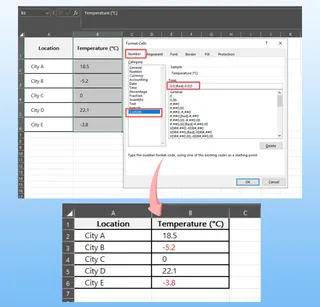
The general approach involves selecting your cells, pressing Ctrl + 1 (or Cmd + 1 on Mac) to open the Format Cells dialog, and then navigating to the "Custom" tab to input a specific format code.
Understanding the Custom Format Code Structure
A custom format code in Excel can have up to four sections, separated by semicolons:
POSITIVE_FORMAT;NEGATIVE_FORMAT;ZERO_FORMAT;TEXT_FORMAT
- Section 1: Applies to positive numbers.
- Section 2: Applies to negative numbers.
- Section 3: Applies to cells containing the value zero.
- Section 4: Applies to cells containing text.
For example, to format a column of temperature data where you want positive values with one decimal, negative values in red with one decimal, and zero to just show '0', you would use this code:
0.0;[Red]-0.0;0
While this method works, it's plagued with several practical limitations:
- Steep Learning Curve: You have to memorize a cryptic syntax of placeholders and commands. What's the difference between
0and#? When do you use?for alignment? How do you add literal text like "units" without breaking the code? This knowledge is not intuitive. - Time-Consuming and Repetitive: For each new formatting requirement, you have to look up the correct code, type it in perfectly, and apply it. If you have multiple columns with different needs, this process multiplies.
- Highly Error-Prone: A single misplaced semicolon, a forgotten bracket, or the wrong character can cause the format to fail or produce unexpected results. Debugging these codes is frustrating.
- Poor Scalability and Maintenance: If your reporting requirements change (e.g., "From now on, show all negative numbers in blue parentheses"), you have to go back, find all the cells with the old format, and manually update the code. This is a nightmare in large or shared workbooks.
Ultimately, the traditional method forces you to become a "format code programmer" instead of focusing on the insights within your data.
The New Solution: Using an Excel AI Agent (Excelmatic)
Instead of manually wrestling with format codes, you can now delegate the entire task to an Excel AI Agent like Excelmatic. It replaces the cryptic syntax with simple, conversational language.

The workflow is radically simplified: you upload your file, describe the format you want in plain language, and the AI handles the rest.
Step-by-Step: Formatting Data with Excelmatic
Let's solve the same data formatting problem from our scenario using Excelmatic.
1. Upload Your Data File
First, navigate to Excelmatic and upload your Excel or CSV file. The AI will process your data and display a preview, ready for your instructions.

2. Describe Your Desired Format in Natural Language
Instead of writing code, you simply type your request into the chat interface. You can be as specific as you need to be.
Here are a few example prompts you could use for our messy sales report:
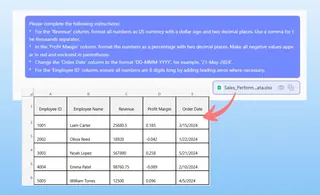
- "For the 'Revenue' column, format all numbers as US currency with a dollar sign and two decimal places. Use a comma for the thousands separator."
- "In the 'Profit Margin' column, format the numbers as a percentage with two decimal places. Make all negative values appear in red and enclosed in parentheses."
- "Change the 'Order Date' column to the format 'DD-MMM-YYYY', for example, '21-May-2024'."
- "For the 'Employee ID' column, ensure all numbers are 8 digits long by adding leading zeros where necessary."
3. Review and Iterate on the Results
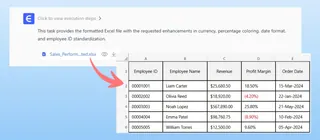
Excelmatic will instantly apply the formatting and show you the result. The beauty of this conversational approach is that you can easily refine the output.
Maybe you changed your mind? Just follow up with another instruction.
- "Actually, for the revenue, let's not show any decimal places."
- "Can you apply that same profit margin format to the 'YoY Growth' column as well?"
This iterative process of "ask, review, refine" is impossible with the rigid, one-and-done nature of the traditional "Format Cells" dialog.
4. Download Your Perfectly Formatted File
Once you're satisfied, you can download the newly formatted workbook. The underlying values remain numbers, so you can immediately use them in formulas, pivot tables, and charts. Excelmatic doesn't just make things look right; it keeps your data's integrity intact.
Example Conversation with Excelmatic
Here’s how a typical interaction might look:
User: I have a column named 'Revenue' with mixed number formats. Can you clean it up? I want it to show a dollar sign, comma separators for thousands, and two decimal places. Negative values should be in red parentheses.
Excelmatic: Done. I have applied a currency format to the 'Revenue' column. All values now show a dollar sign, use thousand separators, have two decimal places, and negative values are displayed in red parentheses. Would you like to apply this format to any other columns?
User: Yes, please do the same for the 'COGS' column. And for the 'Transaction ID' column, pad with leading zeros to make them all 7 digits long.
Excelmatic: The 'COGS' column has been updated with the same currency format. The 'Transaction ID' column is now formatted to a 7-digit length with leading zeros. You can download the formatted file now.
Traditional Method vs. Excelmatic: A Quick Comparison
| Aspect | Traditional Method (Manual) | Excelmatic (AI-Powered) |
|---|---|---|
| Method | Memorize and write cryptic format codes. | Describe your needs in plain language. |
| Time | Minutes to hours, depending on complexity. | Seconds. |
| Accuracy | Prone to syntax errors and inconsistencies. | Consistent and accurate application by AI. |
| Flexibility | Rigid. Changes require manual re-work. | Highly flexible. Adjust with simple follow-up commands. |
| Learning Curve | Steep. Requires dedicated learning. | Virtually none. If you can describe it, you can do it. |
FAQ
Q: Does Excelmatic change my original Excel file?
A: No. Excelmatic works on a secure copy of your data. Your original file remains untouched on your computer. You can download the AI-formatted version as a new file.
Q: Do I need to know any Excel format codes to use Excelmatic?
A: Absolutely not. The entire purpose of Excelmatic is to free you from needing to know that syntax. You just describe the end result you want.
Q: Can Excelmatic handle very specific or unusual formatting requests?
A: Yes. The AI is trained to understand nuanced and complex requests. You can ask for things like "Add the text 'kg' after the number" or "Format these phone numbers as (XXX) XXX-XXXX," and it will generate the correct custom format.
Q: Is it safe to upload sensitive financial or business data to Excelmatic?
A: Excelmatic is built with security in mind, employing enterprise-grade security standards. For specific details on data handling and privacy, you should always consult the official privacy policy on the website.
Q: Can I see the format code that Excelmatic creates?
A: Yes. You can often ask the AI, "What custom format code did you use for that?" This is a great way to learn the underlying syntax without the initial frustration, letting the AI do the work while you learn from its output.
Take Action: Upgrade Your Excel Workflow Today
Every minute you spend looking up format codes or manually correcting the appearance of your data is a minute you're not spending on analysis and decision-making. The traditional method is a relic of a pre-AI era.
By embracing an Excel AI Agent, you can reclaim that lost time, eliminate formatting errors, and produce professional, easy-to-read reports every time.
Ready to stop formatting and start analyzing? Try Excelmatic for free. Upload that messy spreadsheet you've been putting off and see how quickly AI can turn it into a perfectly polished report.