Key takeaways:
- Counting data in Excel based on multiple conditions (e.g., sales in a specific region for a certain product) often requires the complex
COUNTIFSfunction, which is prone to syntax errors and difficult to maintain. - Excel AI tools like Excelmatic eliminate the need to write formulas manually. You can simply describe the criteria in plain English, and the AI will perform the calculation for you.
- Using Excelmatic for multi-criteria counting not only saves significant time but also offers greater flexibility for ad-hoc analysis, allowing you to instantly modify or add conditions through a simple conversation.
Problem background & pain points
Imagine you're a sales manager preparing for a weekly performance review. You have a large spreadsheet with thousands of rows of sales data, including columns for Date, Sales Rep, Region, Product Sold, and Sale Value. Your director suddenly asks, "How many cell phone sales did the South region make last quarter that were over $500?"
This seems like a simple business question, but for many Excel users, it's the start of a frustrating formula-writing session. You need to count rows, but only if they meet three specific conditions simultaneously:
- The
Product Soldmust be "Cell Phone". - The
Regionmust be "South". - The
Sale Valuemust be greater than 500.
Answering this one question is manageable. But what happens when the next question is, "Okay, now how about laptops sold in the West, excluding those by a specific rep?" Or, "Can you show me the count of all 'Pro' model products sold in the first half of the year?" Each new question requires a new, slightly different, and equally complex formula. This manual process is slow, tedious, and a single misplaced comma or quotation mark can lead to an inaccurate count, undermining the credibility of your report.
The Traditional Excel Solution: Steps & Limitations
For decades, the go-to tool for this job has been the COUNTIFS function. It's powerful, but it comes with a steep learning curve and several practical limitations.
The syntax for COUNTIFS is:
=COUNTIFS(criteria_range1, criteria1, [criteria_range2, criteria2], ...)
You specify pairs of ranges and the criteria they must meet. A row is only counted if it satisfies all the conditions you define.
How to Use COUNTIFS (The Manual Way)
Let's tackle our sales manager's question: "How many cell phone sales were made by representatives from the South region?"
Assuming your data is structured as below, with Region in column C and Product Sold in column D:
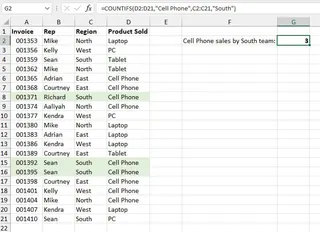
The formula would be:
=COUNTIFS(D2:D21, "Cell Phone", C2:C21, "South")
Here's how it works:
D2:D21, "Cell Phone": Excel first scans the product column (D2:D21) and finds all cells that contain the text "Cell Phone".C2:C21, "South": It then scans the region column (C2:C21) for all cells containing "South".- Finally, it counts only the rows where both conditions are true.
The Limitations of the Traditional Approach
While COUNTIFS gets the job done, it's far from perfect, especially in a dynamic business environment.
Complex Syntax: The rules are finicky. Text needs double quotes (
"South"), but numbers don't. Logical operators like "greater than" need to be enclosed in quotes (">500"). If you want to use a cell reference with a logical operator, you have to concatenate them with an ampersand (">"&G3), which is confusing for most users.Rigid and Inflexible: Each formula is hardcoded to answer one specific question. If your manager asks for sales in the "North" region instead of "South," you have to find and edit the formula. For every new query, you're back to square one, writing a new
COUNTIFSfrom scratch.Error-Prone: A simple typo, like an extra space inside the quotes (
"South ") or selecting the wrong range, will return an incorrect result or a#VALUE!error. Debugging longCOUNTIFSformulas with many criteria can be a nightmare.Difficult to Maintain: If you add new data, you must remember to update all your formula ranges (e.g., from
D2:D21toD2:D50). If a colleague needs to take over your report, they first have to spend time deciphering your complex formulas.
The New Solution: Using an Excel AI Agent (Excelmatic)
Instead of manually constructing formulas, what if you could just ask your spreadsheet the question directly? That's exactly what an Excel AI Agent like Excelmatic enables you to do. It transforms data analysis from a tedious, technical task into a simple conversation.
The Overall Idea
With Excelmatic, the process is straightforward:
- Upload your Excel or CSV file.
- Ask questions in plain English, just like you would ask a human analyst.
- Get instant answers, tables, formulas, or even charts.
- Iterate by asking follow-up questions to refine your analysis.
- Export the final results back to an Excel file.
You no longer need to memorize syntax. You just need to know what you want to find out.
Step-by-Step: Answering Our Question with Excelmatic
Let's revisit the sales manager's scenario and solve it with Excelmatic.

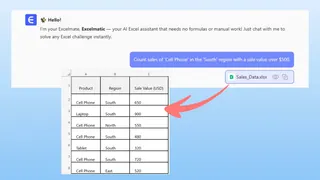
1. Upload Your Data File
First, you drag and drop your Excel or CSV file directly into the Excelmatic web app. The AI instantly reads your data and shows you a preview. It's non-destructive, meaning your original file is never modified.

2. Describe What You Want to Count in Natural Language
Now, instead of writing a formula, you simply type your question into the chatbox. To solve the original problem, you could ask:
- "Count the number of sales where the product is 'Cell Phone' and the region is 'South'."
- "How many cell phone sales did we have in the South region?"
For the more complex query involving a value threshold:
- "Count sales of 'Cell Phone' in the 'South' region with a sale value over $500."
3. Review and Iterate on the Result
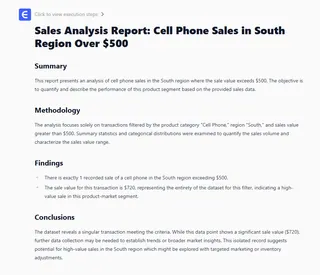
Excelmatic will instantly process your request and provide the answer.
The real power lies in the ability to continue the conversation. You can easily build on your previous query without starting over:
- "Okay, now do the same for the 'North' region."
- "What if we change the product to 'Laptop'?"
- "Can you show me the actual rows for those sales instead of just the count?"
This conversational approach makes ad-hoc analysis incredibly fast and intuitive.
Dialogue Example
Here’s how a typical interaction might look in Excelmatic:
User: I've uploaded my sales report. Can you count how many sales were for 'Laptops' in the 'West' region?
Excelmatic: Certainly. There were 28 sales of 'Laptops' in the 'West' region.
User: Great. Now, out of those, how many had a sale value greater than $1,200?
Excelmatic: After filtering for sale values greater than $1,200, there were 9 such sales.
User: Perfect. Can you also generate the COUNTIFS formula for that last query so I can use it in my original spreadsheet?
Excelmatic: Of course. The Excel formula to count laptop sales in the West region with a value over $1200 is: =COUNTIFS(D:D, "Laptop", C:C, "West", E:E, ">1200") (assuming Product is in column D, Region in C, and Sale Value in E).
Traditional COUNTIFS vs. Excelmatic: A Quick Comparison
| Feature | Traditional COUNTIFS |
Excelmatic (Excel AI) |
|---|---|---|
| Time to Result | Minutes to hours, depending on complexity | Seconds |
| Required Skill | Deep knowledge of Excel formula syntax | Ability to describe the problem in language |
| Flexibility | Low. Requires rewriting formulas for new questions. | High. Instantly adapt analysis with follow-up questions. |
| Error Rate | High. Prone to syntax and logical errors. | Low. AI handles syntax and logic, reducing human error. |
| Collaboration | Difficult. Formulas are hard for others to read. | Easy. The chat history provides a clear audit trail. |
FAQ
1. Do I need to know any Excel functions like COUNTIFS to use Excelmatic? No, not at all. Excelmatic is designed for users of all skill levels. You only need to describe your goal in plain language, and the AI will handle the technical implementation.
2. Is my data secure when I upload it to Excelmatic? Data security is a top priority. Excelmatic uses industry-standard encryption and security protocols to protect your data. For specific details on privacy and compliance, it's always best to review the official privacy policy on the website. Your files are not shared or used for training other models.
3. Can Excelmatic handle more complex criteria, like date ranges or partial text matches (wildcards)? Absolutely. You can use natural language for these scenarios as well. For example, you can ask:
- "Count sales that happened between January 1, 2024, and March 31, 2024."
- "How many products have a name that starts with 'Pro'?"
4. What if my data isn't perfectly clean? Excelmatic has robust data parsing capabilities and can often handle minor inconsistencies. For best results, it's always good practice to have clear column headers. If the AI is unsure about a column or value, it may ask for clarification.
5. Can I get the actual Excel formula from Excelmatic? Yes. As shown in the dialogue example, you can ask Excelmatic to generate the traditional Excel formula for you. This is a great way to learn or to quickly get a complex formula that you can paste back into your own workbook.
Take Action: Upgrade Your Excel Workflow Today
Every minute you spend wrestling with COUNTIFS syntax is a minute you're not spending on strategic analysis. The cost of relying on manual formulas isn't just time; it's the risk of errors, the lack of flexibility, and the frustration of a clunky workflow.
By embracing an Excel AI agent, you can shift your focus from how to calculate something to what insights you need to find. You can answer complex business questions in seconds, not minutes, and respond to follow-up requests with confidence and speed.
Ready to see for yourself? Try Excelmatic today. Upload the very spreadsheet you're working on right now and ask it one of the questions you'd normally use COUNTIFS for. Experience the difference a simple conversation can make.