Key takeaways:
- Combining text from multiple cells in Excel using traditional functions like
CONCATENATEorTEXTJOINoften results in long, complex, and error-prone formulas, especially when handling inconsistent data like missing middle names. - Excel AI, through tools like Excelmatic, eliminates the need to write formulas. You can simply describe your desired outcome in plain language, such as "Combine the first name and last name into a new 'Full Name' column."
- Using Excelmatic not only saves significant time but also increases accuracy by automatically handling variations and allows for instant revisions, turning a tedious data cleaning task into a simple conversation.
Problem Background & Pain Points
Imagine this common scenario: you've just exported a massive customer list from your CRM or database. The data is structured, but not in the format you need. You have separate columns for 'First Name', 'Last Name', 'Street Address', 'City', 'State', and 'Zip Code'.
Your immediate tasks are:
- Create a 'Full Name' column for a personalized email marketing campaign.
- Generate a complete 'Shipping Address' column for printing mailing labels.
For a small list, you might consider manually copying and pasting. But with hundreds or thousands of rows, that's not just tedious—it's a recipe for disaster. A single copy-paste error could send a package to the wrong address or address a customer by the wrong name.
This is where most Excel users turn to text-joining functions. However, this path is filled with its own set of frustrations. What if some contacts have a middle name and others don't? How do you ensure a comma appears after the city but not at the end of the address? How do you create a multi-line address for a label? These seemingly small requirements can quickly turn a simple task into a nightmare of having to write complex formulas..
Traditional Excel Solutions: Steps & Limitations
To solve this problem manually, Excel offers a few tools, each with its own learning curve and set of drawbacks. The traditional approach involves using functions to join, or "concatenate," text strings.
The Classic Approach: CONCATENATE and the Ampersand (&)
The most well-known method is the CONCATENATE function or its shorthand, the ampersand (&) operator. To combine a first name in cell A2 and a last name in B2, you would write:
=CONCATENATE(A2, " ", B2)
or, more commonly:
=A2 & " " & B2
This seems simple enough. But the complexity skyrockets with real-world data.
Let's say you add a 'Middle Name' column (C2). If you use =A2 & " " & C2 & " " & B2, you'll get an ugly double space for every person without a middle name (e.g., "John Doe"). To fix this, you need to add IF logic:
=A2 & " " & IF(C2<>"", C2 & " ", "") & B2
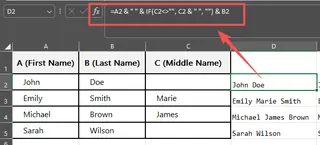
This formula checks if the middle name cell is not empty. If it's not, it adds the middle name followed by a space; otherwise, it adds nothing. The formula is already becoming difficult to read and maintain.
The "Power User" Approach: TEXTJOIN
Introduced in newer versions of Excel, the TEXTJOIN function is a significant improvement. It allows you to specify a delimiter (like a space) to be placed between each text element and can automatically ignore empty cells.
The syntax is: =TEXTJOIN(delimiter, ignore_empty, text1, [text2], ...)
To combine first, middle, and last names while ignoring blank middle names, the formula is much cleaner:
=TEXTJOIN(" ", TRUE, A2, C2, B2)
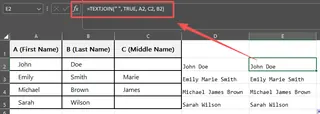
This is a great step forward. However, TEXTJOIN has its own limitations. It's designed for a single, consistent delimiter. What about our address example? You need a space between the street number and name, a comma and space after the city, and another space before the zip code. You can't do this with a single TEXTJOIN. You end up combining TEXTJOIN with & operators, and the formula complexity returns.
The Limitations of Manual Formulas
Regardless of the function you choose, the manual approach shares several fundamental problems:
- High Cognitive Load: You have to remember the function names, their syntax, the order of arguments, and how to nest them correctly.
- Error-Prone: A missing comma, a misplaced quotation mark, or an incorrect cell reference can break the entire formula. Debugging a long text formula is a frustrating exercise.
- Inflexible: If your boss asks for the name format to be "Last, First" instead of "First Last," you have to rewrite the formula from scratch for the entire column.
- Poor Scalability: As you add more elements (e.g., a title like "Dr." or an "Address Line 2"), your formulas become exponentially more convoluted and fragile.
- Not Intuitive: Need a line break for a mailing label? You have to remember to use the
CHAR(10)function and then enable "Wrap Text" on the cells. This is far from obvious for the average user.
The New Solution with Excel AI: Excelmatic
Instead of forcing you to become a formula expert, what if you could just tell Excel what you want? That's the promise of Excel AI Agents like Excelmatic. You stay focused on the "what" (your goal), and the AI handles the "how" (the formula and execution).

The Overall Idea
With Excelmatic, the process is transformed. You upload your spreadsheet, and instead of clicking into a cell and typing =, you open a chat panel and type your request in plain language. The AI performs data analysis on your information, interprets your request, and completes the task directly for you.
Step-by-Step: Combining Text with Excelmatic
Let's revisit our original problem of creating 'Full Name' and 'Shipping Address' columns.
1. Upload Your Data File
Simply drag and drop your Excel or CSV file into Excelmatic. The AI will read your data and display a preview. It's good practice to have clear column headers (e.g., 'First Name', 'City') as this helps the AI understand your data's context instantly.

2. Describe Your Desired Outcome in Plain Language
Now, instead of writing a formula, you just type a command. Here are a few examples:
- For the full name: "Create a new column called 'Full Name' by joining the 'First Name' and 'Last Name' columns, separated by a space."
- To handle middle names: "Combine 'First Name', 'Middle Name', and 'Last Name' into a 'Full Name' column. If 'Middle Name' is blank, don't add an extra space."
- For the full address: "Generate a new 'Shipping Address' column by combining Street, City, State, and Zip. Place a comma after the city."
- For a multi-line label: "Create a 'Mailing Label' column. Put the full name on the first line, the street address on the second line, and 'City, State Zip' on the third line."
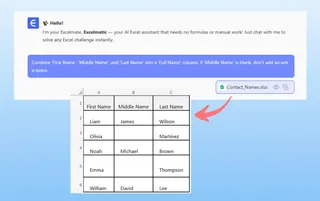
3. Review and Iterate on the Results
Excelmatic will process your request and generate the new column in seconds. The best part is that this is a conversation. If the result isn't exactly what you wanted, you don't have to start over. You can simply refine your request.
- "Actually, can you reformat the name to be 'Last Name, First Name'?"
- "Good, now make everything in the address column uppercase."
- "Add the country 'USA' at the end of every address."
This conversational approach to refining data is impossible with static formulas and saves an incredible amount of time.
4. Export Your Finished File
Once you're satisfied, you can download the modified spreadsheet. The new columns are there, perfectly formatted, with all the data populated. You can also ask Excelmatic to show you the formula it used, which is a great way to learn advanced Excel techniques without the initial frustration.
Dialogue Example
Here’s how a typical interaction with Excelmatic might look:
User: I've uploaded my customer list. Can you create a 'Full Name' column by combining the 'first_name' and 'last_name' columns?
Excelmatic: Done. I've created the 'Full Name' column. Here's a preview: "John Smith", "Jane Doe", etc. Would you like to make any other changes?
User: Yes. Some people have a 'middle_initial'. Please insert it between the first and last names if it exists. Make sure there are no double spaces for people without one.
Excelmatic: I have updated the 'Full Name' column to include the middle initial where available, ensuring correct spacing. For example: "John F. Smith". Is there anything else?
User: Perfect. Now create a "Full Address" column from the street, city, and state columns. It should look like this: 123 Main St, Anytown, CA.
Excelmatic: The 'Full Address' column has been created with your specified format. You can now download the updated Excel file.
Traditional Formulas vs. Excelmatic: A Quick Comparison
| Task | Traditional Excel Formula | Excelmatic Prompt |
|---|---|---|
| Combine Name (with optional middle) | =TEXTJOIN(" ", TRUE, A2, B2, C2) (Requires knowing the function) |
"Combine first, middle, and last name columns." |
| Format as "Last, First" | =C2 & ", " & A2 (Requires complete rewrite) |
"Reformat the name as Last, First." |
| Create Multi-Line Address | =A2 & CHAR(10) & B2 & ", " & C2 (Requires knowing CHAR(10) and formatting cells) |
"Create a multi-line address with name on line 1, street on line 2." |
| Time to Complete | 2-10 minutes of writing, testing, and debugging formulas. | 15-30 seconds of typing a request. |
| Flexibility | Low. Changes require significant formula edits. | High. Changes are made with simple follow-up requests. |
FAQ
1. Do I need to know CONCATENATE or TEXTJOIN to use Excelmatic?
No, not at all. You just need to be able to describe the final text format you want. The AI handles the underlying logic and execution, so you don't need to write any formulas.
2. Can Excelmatic handle complex combinations, like adding prefixes or creating user IDs? Absolutely. You can be very specific in your requests. For example: "Create a 'User ID' by taking the first letter of the 'First Name' column and appending the entire 'Last Name' column, all in lowercase."
3. What if my column headers are messy, like 'Fname' or 'address_1'? Excelmatic's AI is designed to understand common abbreviations and context. For best results, use clear headers. If it's ever confused, you can clarify in your prompt, e.g., "Combine the 'Fname' column and the 'Lname' column."
4. Can Excelmatic show me the formula it used? Yes. This is a powerful learning feature. After the AI completes a task, you can ask, "What formula did you use to do that?" Excelmatic will provide the formula, which you can then copy and use in your own spreadsheets if you wish.
5. How does the AI handle different delimiters like commas, spaces, and line breaks?
You simply describe them in your prompt. For example: "...separated by a comma and a space," or "...with a new line between the street and the city." The AI translates your natural language into the correct syntax, whether that involves " ", ", ", or CHAR(10).
6. Is my data safe when I upload it to Excelmatic? Data privacy and security are top priorities. Excelmatic is designed with strict security protocols to ensure your data is handled responsibly. For detailed information, always refer to the official privacy policy on the website. Your original file is never modified.
Take Action: Upgrade Your Excel Workflow Today
Stop wasting valuable time building, untangling, and debugging text formulas. Every minute you spend fighting with an ampersand or a nested IF statement is a minute you're not spending on analyzing your data and deriving insights.
By embracing an Excel AI tool like Excelmatic, you can transform data cleaning from a chore into a simple conversation. You can format names and addresses, create custom IDs, and clean up text fields in a fraction of the time it would take manually.
Ready to see for yourself? Try Excelmatic for free today. Upload one of the spreadsheets you're currently working on and use the prompts from this article to see how quickly you can get your text data into the exact format you need.