Key takeaways:
- Manually checking multiple conditions in Excel often requires writing complex, nested formulas with
IF,AND, andOR, which are difficult to build, debug, and maintain. - An Excel AI agent like Excelmatic replaces these tedious formulas. You can simply describe your criteria in plain language, and the AI will filter your data or create new columns for you.
- Using Excelmatic not only dramatically reduces the time spent on data filtering and qualification tasks but also improves accuracy and allows for flexible, on-the-fly adjustments without rewriting a single formula.
Problem background & pain points
Imagine you're a loan officer at a bank, a sales manager reviewing leads, or an HR specialist checking employee eligibility for a new program. A core part of your job involves sifting through spreadsheets to find records that meet a specific set of rules. For example, you might need to identify all loan applicants who have both an annual income above $35,000 and a credit score of at least 650.
This task, known as multi-criteria filtering, is a daily reality for countless Excel users. While it sounds simple in theory, implementing it in a spreadsheet can quickly become a headache. You need a way to tell Excel: "Check this condition, and also this other condition, and maybe even a third one. Only if all of them are true, flag this row for me."
The pain intensifies when the logic gets more complex. What if the rule changes to: "Their credit score must be above 650, AND they must EITHER be a homeowner OR have an income over $35,000"? Suddenly, you're not just dealing with AND logic, but a combination of AND and OR. This is where many users get stuck, spending hours trying to build the perfect formula, only to find it returns an error or an incorrect result.
Traditional Excel Solution: Steps & Limitations
The classic approach to solving this in Excel involves using a combination of logical functions, primarily AND, IF, and OR. While powerful, they come with a steep learning curve and significant limitations.
The Basic Tool: The AND Function
The AND function is Excel's way of checking if multiple things are true simultaneously. Its syntax is:
=AND(logical1, [logical2], ...)
It returns TRUE only if every single condition inside the parentheses is met. If even one is false, it returns FALSE.
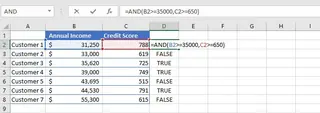
For our loan approval scenario, you would write a formula in a new column (e.g., "Status") like this:
=AND(B2>=35000, C2>=650)
Where B2 contains the applicant's income and C2 contains their credit score.
Making it User-Friendly with the IF Function
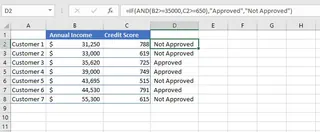
A column full of TRUE and FALSE values isn't very descriptive. To improve this, you nest the AND function inside an IF function to return custom text like "Approved" or "Not Approved".
The formula now becomes more complex:
=IF(AND(B2>=35000, C2>=650), "Approved", "Not Approved")
The Breaking Point: Nesting AND with OR
Now, let's tackle the more complex business rule: The applicant qualifies if their credit score is at least 650, AND they are EITHER a homeowner OR their income is at least $35,000.
To build this, you must nest an OR function inside your AND function:
=IF(AND(D2>=650, OR(B2="Yes", C2>=35000)), "Qualified", "Not Qualified")
(Assuming Column B is "Homeowner", C is "Income", and D is "Credit Score")
This is where the traditional method shows its cracks.
Limitations of the Manual Formula Approach
- High Complexity: As you can see, the formula quickly becomes a long, confusing string of nested functions and parentheses. It's hard to read, and even harder to explain to a colleague.
- Error-Prone: A single misplaced comma, bracket, or quotation mark can result in a
#NAME?,#VALUE!, or other cryptic Excel error, leading to frustrating debugging sessions. - Inflexible: What happens when your manager asks for a slight change? "Let's lower the credit score requirement to 640 for homeowners." You have to dive back into that complex formula, carefully edit the logic, and hope you don't break it. Answering ad-hoc questions becomes a chore.
- Difficult to Maintain: If you leave the company, the person who inherits your spreadsheet will have a nightmare trying to decipher your formula logic. This creates a "key person dependency" and makes processes fragile.
The New Solution: Using an Excel AI Agent (Excelmatic)
Instead of wrestling with formulas, what if you could just tell Excel your rules in plain language? That's exactly what Excel AI agents like Excelmatic are designed for. You upload your data and use a chat interface to get the analysis done for you.

Step 1: Upload Your Data
First, simply drag and drop your Excel or CSV file with the applicant data into Excelmatic. The AI will instantly read your data and show you a preview. Ensure your columns have clear headers like "Annual Income," "Credit Score," and "Homeowner."

Step 2: Describe Your Criteria in Natural Language
Now, instead of writing a formula, you just type your request into the chat box.
For the simple scenario, you could ask:
Create a new column named 'Status'. If 'Annual Income' is 35000 or more AND 'Credit Score' is 650 or more, the value should be 'Approved'. Otherwise, it should be 'Not Approved'.
For the more complex scenario, you would ask:
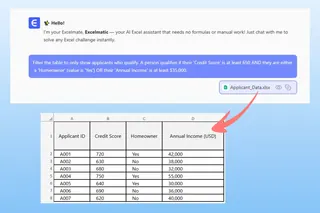
Filter the table to only show applicants who qualify. A person qualifies if their 'Credit Score' is at least 650 AND they are either a 'Homeowner' (value is 'Yes') OR their 'Annual Income' is at least $35,000.
Step 3: Review and Iterate on the Results
Excelmatic will process your request and instantly generate the result—either a new column with the calculated statuses or a filtered view of your data showing only the qualified applicants.
The real power comes from the ability to continue the conversation. You can easily refine your analysis with follow-up questions:
- "Of the approved applicants, sort them by income from highest to lowest."
- "Now, for the approved ones, add a new column called 'Loan Amount' that is 20% of their annual income."
- "Can you create a pie chart showing the proportion of approved vs. not approved applicants?"
This conversational approach makes complex data analysis fluid and intuitive, turning a multi-step formula-building process into a simple back-and-forth dialogue.
Step 4: Export Your Results
Once you're satisfied, you can download the updated spreadsheet with all the new columns, filtered data, or charts. You can also ask Excelmatic to provide the exact Excel formula it used, which you can copy and paste into your original workbook if needed.
Dialogue Example
Here’s how a typical conversation in Excelmatic might look for our loan approval task:
User: I've uploaded my list of loan applicants. I need to find who is eligible. The rule is: their credit score must be 650 or higher, AND they must either be a homeowner or have an income of at least $35,000. Can you add a column to show who is 'Qualified'?
Excelmatic: Done. I have added a new column named 'Eligibility' with the values 'Qualified' or 'Not Qualified' based on your rules. 12 out of 50 applicants are qualified.
User: Great. Now, can you create a new sheet that contains only the 'Qualified' applicants?
Excelmatic: I have created a new sheet named 'Qualified Applicants' containing the 12 records that meet your criteria. Would you like me to sort this new list or perform any calculations on it?
User: Yes, please sort them by 'Annual Income' in descending order and add a column showing a potential loan amount, calculated as 20% of their income.
Excelmatic: The 'Qualified Applicants' sheet has been updated. The data is now sorted by income, and a new 'Potential Loan Amount' column has been added. You can download the updated Excel file now.
Traditional Formulas vs. Excelmatic: A Quick Comparison
| Aspect | Manual Formulas (IF/AND/OR) |
Excelmatic (AI Agent) |
|---|---|---|
| Time to Implement | 15-30 minutes for complex logic | 1-2 minutes |
| Complexity | High. Requires memorizing syntax and nesting rules. | Low. Requires only clear, plain language. |
| Flexibility | Low. Changing criteria means editing complex formulas. | High. Adjust criteria with a simple follow-up question. |
| Error Rate | High. Prone to syntax errors and logical mistakes. | Very Low. AI handles the logic and syntax. |
| Learning Curve | Steep. Requires significant Excel knowledge. | Minimal. If you can describe it, you can do it. |
FAQ
1. Do I need to know any Excel functions like AND or IF to use Excelmatic?
No, not at all. The entire purpose of Excelmatic is to abstract away the formulas. You only need to describe the business logic you want to apply, and the AI handles the technical implementation.
2. Is my data secure when I upload it to Excelmatic? Yes. Excelmatic is built with data security as a top priority. Data is encrypted in transit and at rest, and is not used for training models. For specific compliance needs, always refer to the official privacy policy.
3. Can Excelmatic handle conditions based on text, like "Destination is Grenada" AND "Day is Friday"? Absolutely. You can use text-based conditions in your prompts just as easily as numerical ones. Just state it clearly, for example: "Show me all rows where 'Destination' is 'Grenada' and 'Day of Departure' is 'Friday'."
4. What if my business rules change next week? This is where an AI agent shines. Instead of painstakingly editing a long formula, you just start a new conversation with Excelmatic and state the new rules. You can get updated results in minutes, not hours.
5. Can I get the actual Excel formula from Excelmatic? Yes. If you want to learn or apply the formula in your own offline spreadsheet, you can ask Excelmatic: "What Excel formula would you use to do that?" It will generate the corresponding formula for you to copy.
Take Action: Upgrade Your Excel Workflow Today
Stop wasting valuable time trying to remember the exact syntax for nested IF(AND(OR(...))) functions. The risk of error is high, and the process is rigid and frustrating. In the time it takes to debug one complex formula, you could have already answered five different business questions using an AI-powered tool.
By embracing an Excel AI agent like Excelmatic, you shift your focus from how to build the formula to what question you need to answer. This allows you to analyze data faster, respond to changing requirements with agility, and eliminate the tedious, error-prone parts of working with spreadsheets.
Ready to give it a try? Try Excelmatic for free and upload the very spreadsheet you're working on now. Use the prompts from this article and see how quickly you can get the answers you need.