Key takeaways:
- The traditional approach of using pre-made Excel templates is often frustrating, as they are rigid, hard to customize, and rarely a perfect fit for unique business data.
- Instead of searching for a template, an Excel AI agent like Excelmaticlows you to upload your raw data and simply describe the report, tracker, or dashboard you want to build using natural language.
- This AI-driven method saves hours of manual work, eliminates the risk of breaking complex formulas, and provides a flexible, powerful way to create truly custom solutions in minutes.
The Endless Search for the Perfect Excel Template
Picture this: you're a project manager tasked with creating a timeline for a new initiative. Your first instinct? Google "free Excel Gantt chart template."
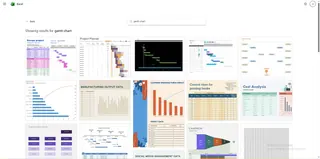 You download a few options. The first one looks great, but it's structured by quarter, and you need to plan by week. The second has the right time scale but doesn't have a column for 'Budget,' a critical field for your project. The third is a macro-enabled monstrosity with a thousand hidden formulas you're afraid to touch.
This scenario is all too familiar for professionals across every industry. Whether you're tracking sales, managing a personal budget, or planning inventory, the hunt for the "perfect" Excel template is a common, and often fruitless, endeavor.
The promise of a template is seductive: a pre-built, beautifully formatted spreadsheet that saves you time. But the reality is often a compromise. You end up spending more time trying to bend the template to your will—or worse, changing your own processes to fit the template's rigid structure—than you would have spent building something from scratch. This is where the fundamental limitation of templates becomes clear: they are a one-size-fits-all solution in a world of unique problems.
The Traditional Fix: How Excel Templates Work (and Where They Fail)
At their core, Excel templates are simply pre-configured spreadsheets. They provide a structure of columns, rows, and maybe some basic formulas, charts, and conditional formatting to get you started. For example, a simple budget template might include:
- Columns:
Date,Category,Description,Projected Cost,Actual Cost - A Formula Column:
Variance(calculated as=[Actual Cost]-[Projected Cost]) - A Summary Table: A small pivot table or
SUMIFSformulas to total costs byCategory. - A Chart: A pie chart visualizing spending by
Category.
This sounds helpful, and for the most basic tasks, it can be. However, the moment your needs deviate even slightly from the template's design, you hit a wall.
The Limitations of the Template-Based Approach
Extreme Rigidity: What if you want to track expenses by
Team Memberor add aPayment Methodcolumn? The template's summary tables and charts won't automatically incorporate this new dimension. You'll have to manually update formula ranges, reconfigure pivot tables, and redesign charts, defeating the purpose of the template.Complex and Hidden Formulas: Many advanced templates rely on complex, nested formulas (
INDEX/MATCH, longIFstatements, array formulas) that are hidden or locked. If you accidentally delete a cell or try to insert a row, the entire sheet can break with a cascade of#REF!or#VALUE!errors. Troubleshooting these "black box" formulas is a nightmare for even experienced Excel users.Data Incompatibility: Templates force you to conform to their data structure. If you export your sales data from a CRM or your bank transactions from a CSV file, the column headers and format will almost never match the template's. This leaves you with the tedious and error-prone task of manually copying and pasting data into the correct cells, one by one.
Poor Scalability: A template designed for a 12-month budget becomes a liability on month 13. You can't just add new data; you often have to duplicate the entire file, clear out old values, and pray that all the formulas reset correctly for the new year. It’s not a sustainable or scalable system.
In short, templates are static. They can't adapt, they can't answer new questions, and they often create more work than they save.
A Better Way: Using an Excel AI Agent (like Excelmatic) as a Dynamic Template Builder
Instead of searching for a pre-built house and hoping your furniture fits, what if you could describe your dream house to an architect who builds it for you in minutes? That’s the paradigm shift offered by Excel AI agents like Excelmatic.

Rather than forcing your data into a rigid template, you bring your own data—in whatever format it's in—and tell the AI what you want to create. Excelmatic acts as your personal data analyst, building the formulas, pivot tables, charts, and reports you need, on demand.
Step-by-Step: From Raw Data to Custom Report with Excelmatic
Let's revisit the project manager's problem. Instead of hunting for a Gantt chart template, here’s the AI-powered workflow:
1. Upload Your Data File
Start by uploading your existing spreadsheet. It could be a simple task list exported from another tool or a basic Excel file with columns like Task, Owner, Start Date, and End Date. Excelmatic accepts Excel (.xlsx), CSV, and other common formats. There's no need to reformat your columns first.

2. Describe Your Goal in Plain Language
This is where the magic happens. In the chat interface, you simply type what you want to achieve. Instead of searching for a template, you make a request:
- For a project timeline: "Create a Gantt chart from this data to visualize the project schedule, grouped by the task owner."
- For a budget analysis: "I've uploaded my expense report. Categorize the expenses and generate a summary table showing the total spending for each category. Also, create a pie chart to show the percentage of total spending per category."
- For a sales dashboard: "Using my sales data, build a report that shows total revenue by month, lists the top 5 products by quantity sold, and creates a bar chart comparing the performance of each salesperson."
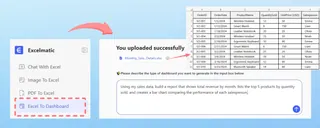
3. Review and Iterate with Follow-up Questions
Excelmatic will instantly generate the requested output—a chart, a pivot table, or a new data table with formulas. But unlike a static template, this is just the beginning of a conversation. You can refine the result with simple follow-up prompts:
- "Great. Now, can you highlight all tasks that are due this week in yellow?"
- "Add a new column that calculates the commission for each sale, which is 5% of the total price."
- "Filter this dashboard to only show me results for the 'North' region."
This conversational iteration is impossible with a traditional template. It allows you to explore your data and answer ad-hoc questions from your boss in seconds.
4. Export Your Custom-Built Solution
Once you're satisfied, you can download the results as a new Excel file. This file contains the fully functional tables, native Excel charts, and transparent formulas that the AI generated. You can use it as a finished report or copy the elements into your own master workbooks.
Dialogue Example: Building a Project Tracker
Here’s how that conversation might look in Excelmatic:
User: I've uploaded my team's task list. It has columns for 'Task Name', 'Assigned To', 'Start Date', and 'Due Date'. Can you create a project plan from this?
Excelmatic: Absolutely. I have organized your tasks into a structured table. To visualize the timeline, I can generate a Gantt chart. Would you like the timeline to be grouped by the 'Assigned To' person or just shown as a chronological list?
User: Group it by person. And can you add a 'Status' column that automatically shows 'Overdue' if the due date is in the past and the task isn't marked complete? I don't have a 'Completed' column yet.
Excelmatic: No problem. I've added a 'Status' column with an IF formula that checks the 'Due Date' against today's date. I have also generated the Gantt chart, with tasks grouped by the 'Assigned To' field. You can now download the new Excel file containing these features.
Traditional Templates vs. Excelmatic: A Quick Comparison
| Feature | Traditional Excel Templates | Excelmatic (Excel AI Agent) |
|---|---|---|
| Flexibility | Low. Rigid structure, hard to modify. | High. Adapts to any data structure and request. |
| Customization | Difficult. Requires manual formula editing. | Effortless. Done via natural language conversation. |
| Speed | Slow. Time spent searching and adapting. | Fast. From raw data to insight in minutes. |
| Learning Curve | High. Need to understand underlying formulas to fix issues. | Low. If you can describe your goal, you can use it. |
| Ad-Hoc Analysis | Not Supported. Static reports can't answer new questions. | Core Feature. Ask follow-up questions to explore data. |
Frequently Asked Questions (FAQ)
1. Is Excelmatic just another library of templates? No. Excelmatic doesn't provide templates. It's an AI agent that builds completely custom solutions (formulas, pivot tables, charts, reports) from scratch based on your unique data and your natural language requests.
2. Do I need to know advanced Excel formulas to use it? Not at all. The entire point is to replace the need to write formulas yourself. You just describe the outcome you want (e.g., "calculate the year-over-year growth"), and Excelmatic generates the correct formula for you.
3. Can I use the formulas and charts Excelmatic generates in my own spreadsheets? Yes. You can download a new Excel file containing all the generated assets. The formulas, charts, and pivot tables are all standard, native Excel elements that you can copy, paste, and modify in your own workbooks.
4. What if my data is messy or poorly structured? Excelmatic is great for data cleaning. You can ask it to perform tasks like "remove duplicate rows," "split the 'Full Name' column into 'First Name' and 'Last Name'," or "standardize the date format in this column."
5. Is it safe to upload my company's data to Excelmatic? Data security is a top priority. Excelmatic uses industry-standard encryption for data in transit and at rest. Files are used only for fulfilling your requests and are not used for training AI models. For detailed information, always refer to the official privacy policy on the website.
6. How is this different from asking ChatGPT to write an Excel formula? While ChatGPT can suggest a formula, Excelmatic is a true Excel AI Agent. It doesn't just give you a text snippet; it directly interacts with your uploaded file to execute analysis, clean data, create pivot tables, generate charts, and deliver a ready-to-use Excel file as the output. It's an end-to-end analysis and generation tool, not just a formula writer.
Stop Searching, Start Building: Upgrade Your Workflow with Excelmatic
The next time you're about to type "free Excel template" into a search bar, take a moment to reconsider. The hours you spend searching for, adapting, and fighting with a generic template are hours you could be spending on high-value analysis.
By shifting from static templates to a dynamic AI assistant, you reclaim that lost time. You empower yourself to build exactly what you need, when you need it, without being an Excel guru. You gain the flexibility to answer any question your data holds, fostering a more agile and data-driven approach to your work.
Ready to build your first custom report without a template? Try Excelmatic for free today. Upload a spreadsheet you're working on right now and see for yourself how quickly you can get from raw data to a polished, insightful, and fully custom dashboard.